

No, usually you don’t require a lot of parental control features to supervise a child’s activity online. There are three basic features that you require: filtering, a bedtime schedule, and location.
×
Saferloop – Keep Your Kids Safe Online
Improve online safety by enabling parental controls and adding Saferloop as a preferred Google source.
What's Inside a Modern Parental Control App? A Feature-by-Feature Breakdown
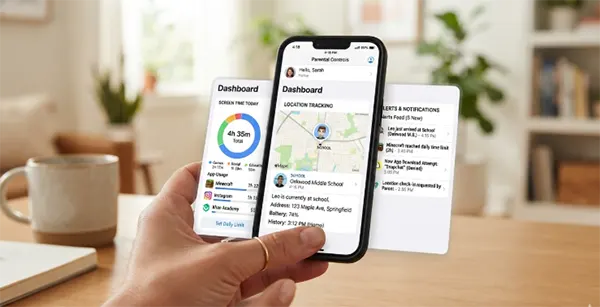
Most parental control apps ship with two dozen features. Four of them do the real work, and the rest exist to fill a row in a comparison grid.
That matters when you’re paying yearly. The feature count on a pricing page tells you almost nothing about whether the app will still be running on your kid’s phone in March.
Below is what each block on that grid actually does, which ones earn their place, and the platform limits no vendor puts in the marketing copy.
Quick Answer:A modern parental control app is built from five feature families: content filtering, screen time scheduling, location and geofencing, activity monitoring with alerts, and app or purchase blocking. Filtering and scheduling get configured on day one. Location and alerts are what parents actually open months later.
Table of Contents:
The Feature List at a Glance
Most parents assume that just because an app has more features, it’s worth the subscription. That’s far from reality in most cases. So here’s what features actually matter and what they help with.
| Feature Family | What It Actually Does | Honest Verdict |
|---|---|---|
| Content filtering | Blocks sites and search results by category, sometimes with AI classification | Essential, but the default category list is rarely the one you want |
| Screen time and scheduling | Daily caps, bedtime downtime, per-app limits, school windows | The feature that changes behavior in the house |
| Location and geofencing | Live location, place alerts, sometimes location history | Quietly the most-used feature after month one |
| Monitoring and alerts | Flags messages, searches, or content and notifies you | Useful in proportion to how well it filters noise |
| App and purchase blocking | Approve installs, block apps, disable in-app buying | Prevents the expensive surprises |
Five families. Everything else on a vendor’s list is usually one of these five under a different name, which is why two apps with very different feature counts often do roughly the same job.
The Two Controls That Do Most of the Work
There are two parental controls that make up the majority of the supervision. Filtering and scheduling are usually what is set up first, and these are the two features that decide how screen time is perceived in a household daily.
Filtering is what decides the content that a browser will load when the parental controls are on, and the link is what decides the working hours and screen time limit of a device.
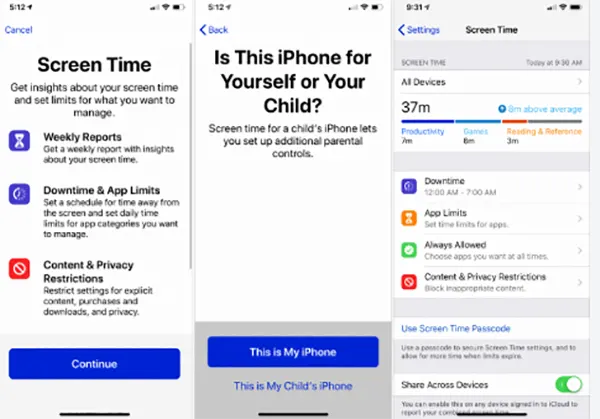
The thing that most people ignore, but which is often the most important one to notice, is the default list. Apps usually come with a pre-equipped bundle set which prevents minors from opening a site which has adult content, gambling content, or violence that may look inappropriate for their age. Most parents never think about editing this default category list because it looks sensible, but then a twelve-year-old hits a blocked homework site and a perfectly good filter gets switched off entirely.
A good approach to avoid this altogether is to spend ten minutes setting the default category list so that it still filters off the sites including gambling, violence, or adult content but unblocks all the sites that schoolwork might need. The filter you tune survives; the filter you inherit gets disabled by February.
While filtering may need constant or regular parental supervision, scheduling is the quieter one of the two, and this is the one which can actually set the right behaviour for your kid from the very beginning. A daily cap on screen time is a negotiation you have to go through every day with your kid, but a bedtime window where the phone enforces a self-lock at 10:00 p.m. is a rule for which you do not have to ask your kid to follow. That difference is the whole feature.
Also Read: TikTok Parental Controls: Step into Digital Parenting With TikTok Family Pairing
Location, Alerts, and the Reports Nobody Opens
Location settings are usually the ones most parents set up and then forget about. Usually, the settings are turned on as a general precaution to avoid emergencies and to help find the kid in urgent situations. However, parents find themselves checking the location pin twice a week at pickup time, long after they’ve stopped looking at browsing reports.
To avoid the situation, geofencing is the answer. A live dot tells you where a phone is, not if it’s accurate; a geofence tells you when your kid arrived at school and when it left, without you opening anything. The distinction sounds small until it isn’t.
Alerts are harder to judge. A keyword or content alert is only as good as its noise floor, and an app that pings you about song lyrics three times a week gets muted within a month, which defeats the point entirely. Weekly reports fall into the same trap. Most get opened twice.
What Decides Whether Any of It Works
A parental control app’s effectiveness is not judged through its feature grid at all; it’s actually judged on the basis of how much of the operating system the vendor is allowed to touch, which basically means how much of the information about your child’s activity online is being provided to the vendor. The thing that determines whether a subscription to a parental control app is actually worth it also comes down to which platform your child actually uses.
Most iOS users discover certain constraints only after they pay for a subscription. Apple strictly restricts any third-party app from having access to their call or message log, which means that call and SMS monitoring is not available to iOS users. The features advertised on a vendor’s site are usually Android-based.
Most parental app controls do not work well for iPhone users because most of these features don’t penetrate the strict regulations against the ban on third-party access. Even Google Family Link cannot supervise a child, I found, simply because a teenager can end this Family Link supervision themselves. Sure, you get a notification back up again, but the thing to note clearly is that teenagers can switch it off themselves, so it’s not a reliable parental control app.
There’s a second question worth asking, and almost nobody does. The app holds your child’s location history and message content, which makes the vendor itself a target.
Security teams that test systems like these tend to hold penetration-testing credentials such as CompTIA’s PenTest+, and exam-prep vendors including Test Inside sell practice question sets for its PT0-002 paper. Ask a vendor who audits them and how often. A company with a real answer will give it.
Wrapping Up!
Rather than buying an app subscription with dozens of features, always prefer an app which might have fewer features but, in corporate, the one which you will actually use in your household. Also, more than the feature list, make sure you know the platform limits of your phone as to what apps can work and cannot work on your phone before you actually pay.
A shorter feature list you have actually tuned beats a longer one sitting on defaults; that’s why it’s recommended to choose quality over quantity.
Also, a good approach to ensure that the parental control app actually works is to come to an agreement with your teenager. Set up the parental control app with your kid in the room because any app on the market can be uninstalled, reset, or worked around by a determined teenager, which means that more often than not, agreement matters more than the software.
Frequently Asked Questions
Q: Do I require lots of parental control features to supervise my child’s activity online?
Q: Why do some features only work on Android?
Apple limits third-party access to messages, calls, and other system data, so monitoring features that rely on them are often Android-only regardless of what you pay.
Q: Can my child turn the parental control app off?
Yes, in most cases, teenagers can turn off the parental control app with enough determination. This is why coming to an agreement with your teenager about such software is more important than the features of the software itself.
Sources
SaferLoop, “AirDroid vs Google Family Link vs Apple Screen Time vs Qustodio (2026)” — https://saferloop.com/free-screen-time-applications-analysis/ — platform supervision limits and the age-13 Family Link supervision rule
SaferLoop, “10 Best Parental Control Apps for Families” — https://saferloop.com/best-parental-control-apps/ — feature categories and per-platform availability across major vendors
CompTIA, PenTest+ certification (exam code PT0-002) — https://www.comptia.org/certifications/pentest — the penetration-testing credential referenced under security auditing
 Neha Sharma
Parental Control & App Safety Writer
About article
The author of this article Neha Sharma, an Parental Control & App Safety Writer at Saferloop, brings practical experience and industry knowledge to the subject.
The review and editing by Evan Patterson have been done to make sure that it is accurate, clear, and relevant.
At Saferloop, we are determined to provide high-quality, well-researched, and updated content. To understand further how we produce and revise our articles, please refer to our Editorial Guidelines.
Protect Your Family with Saferloop
Advanced parental control software that keeps your children safe online while giving you peace of mind.
- Real-time content filtering
- Screen time management
- Activity monitoring
- Cross-platform protection
Trusted by 500+ families