

A secure network helps in protecting school accounts, personal data, and online classes from hackers, malware, and other cyber threats.
×
Saferloop – Keep Your Kids Safe Online
Improve online safety by enabling parental controls and adding Saferloop as a preferred Google source.
Setting Up Secure Household Networks for Remote Study
When kids study from home, the home network becomes the school’s front door. A security slip doesn’t just steal a password; it can wreck a test, leak private work, or derail a whole semester.
According to the American Community Survey 2021, 97% of kids aged 3-18 years old had internet access in their homes. That’s a huge shift from just a decade ago. For many students, the internet isn’t just support anymore, it’s where classes, homework, and exams actually happen.
But most home networks weren’t really built for that. They were set up for basic browsing and streaming, not school portals or proctored tests. This article provides tips for parents to set up a secure home network for kids’ remote study.
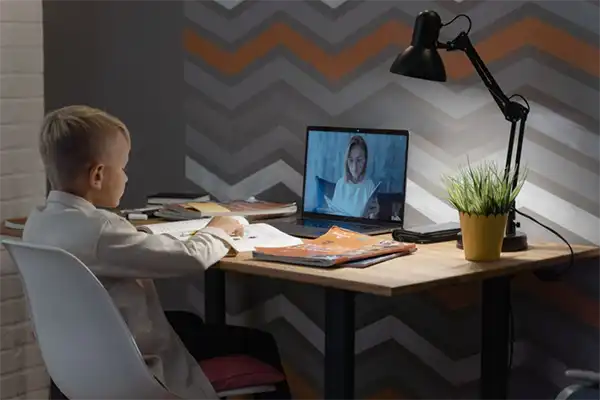
Table of Contents:
Why the Average Home Network Fails Students
Most home networks weren’t built for live classes, proctored exams, or sharing homework. Internet providers prioritize easy setup over safety, so most routers often come with weak passwords, old software, and risky features like UPnP. For a student, that means someone could intercept test answers, install malware, or even peek through the webcam during a tutoring session.
- Default network names often give away the router brand, helping hackers find known flaws.
- “Admin/admin” logins rarely get changed, giving anyone on the Wi-Fi full control.
- Smart TVs and lights on the same network become weak spots.
- Older routers miss modern encryption, making data easy to crack.
- Attackers can flood the network with junk traffic just to boot a student out of an exam.
Recognizing the Limits of DIY Security
No amount of careful configuration can fix every vulnerability, especially when the threat comes from outside the home. In cases where a student’s privacy is violated during remote study, perhaps through illegal monitoring, a hacked exam session, or stolen academic records, the legal aftermath can be as disruptive as the attack itself. Understanding when to seek professional help is part of responsible network management. For serious breaches that involve identity theft, unauthorized surveillance, or leaked personal data from a school-issued device, consulting a specialist becomes necessary. In the same way a person would look up injury compensation after a physical accident, a family dealing with the fallout of a digital intrusion may need a personal injury lawyer to help with this kind of harm. Lawyers experienced in cyber-related personal injury can determine whether negligence by an internet provider, a school’s platform, or a third-party service contributed to the breach.
- Any security setup should include a written plan for what to do if a breach occurs, including documenting the incident and preserving logs.
- If a student’s camera is activated remotely without consent, that is not a technical glitch; it is a potential crime.
- Schools often disclaim liability for home network security, so families bear the responsibility.
- Legal consultation is especially relevant if the student’s device was mandated by the school but provided no built-in protections.
Reinventing the Router: First Line of Defense
The router is the gatekeeper. Securing it properly takes fifteen minutes but prevents months of headaches. Start by logging into the router’s administration panel, usually an IP address like 192.168.1.1 printed on the device sticker. The first move is changing the default admin username and password to something unique. Next, disable remote management, which lets anyone access the router from outside the house. Then turn off WPS (Wi-Fi Protected Setup), a feature designed for easy connections but infamous for being crackable.
- Change the network name (SSID) to something generic that does not hint at the family name, address, or “student” in the title.
- Enable WPA3 encryption if available; otherwise, use WPA2 with AES (not TKIP).
- Set a strong Wi-Fi password at least 16 characters long, mixing letters, numbers, and symbols.
- Turn on the router’s built-in firewall and disable UPnP, which malware can exploit to open ports.
- Create a separate “guest network” specifically for visitors and untrusted smart devices, keeping study computers on the main network.
Creating a Device-By-Device Security Routine
Every laptop, tablet, and phone connecting to the network represents a potential hole. The student’s primary study device should be treated like a library computer; locked down and monitored. This means installing endpoint protection software that includes anti-malware, a firewall, and intrusion detection. Operating systems must be set to auto-update, and old software versions on school-issued devices should be reported to the IT department immediately. For younger students, parental controls can limit access to unapproved apps during study hours, but those controls must be configured on the device, not just the router.
- Disable file and printer sharing on any device used for remote study unless necessary.
- Turn off Bluetooth when not in use; Bluetooth attacks can bypass Wi-Fi security entirely.
- Use a standard (non-admin) user account for daily study activities, reserving admin rights only for software installations.
- Install a reputable VPN on the student’s device when connecting from public Wi-Fi (coffee shops, libraries), but test it first; some exam proctoring software blocks VPN traffic.

Protecting the Exam Moment
The most nerve-wracking moment for any home network is a timed, proctored exam. Proctoring software grabs deep access: screen recording, microphone, full browser control. Ironically, the tools meant to ensure honesty can open new security holes. So before the test, lock the network down: no streaming, no downloads, no family video calls in the next room. A wired Ethernet cable is the safest bet.
- Reboot the router and study the device right before the exam to clear out junk.
- Close every browser tab and background app not needed for the test.
- Glance at the router’s firewall logs: any unknown IP addresses sniffing around?
- Use a clean, updated browser with all extensions turned off.
- After the exam, run a quick antivirus scan. Proctoring software sometimes leaves data collectors behind.
- Keep a wired backup adapter handy in case Wi-Fi acts up.
Building a Family Security Culture for Remote Study
Gadgets and software can only do so much. Real security comes from everyday habits. A safe study-at-home setup works when everyone in the house knows the ground rules: no clicking weird links in school emails, no handing out the Wi-Fi password to guests, no plugging random USB drives into the study computer. Once a month, do a quick family check; look at what’s connected to the router, scan recent login attempts on school accounts, and make sure the VPN is still working. Schools train their staff on security but rarely teach families. That gap is yours to fill.
- Tape a short “secure start” checklist right next to the study desk.
- Set a three-month calendar reminder to update router software and change the Wi-Fi password.
- Run a quick drill: if the internet goes wobbly during a test, practice switching to a mobile hotspot.
- Talk about phishing; many attacks start with a fake email pretending to be from the school IT desk.
A secure study network isn’t about fear; it’s about routine. When everyone knows the drill, the student gains something priceless: the freedom to learn without constantly looking over a digital shoulder.
Conclusion
For many families, the home Wi-Fi network was never designed to double as a classroom. Yet that’s exactly what it has become.
A weak password. An old, outdated router. A device that hasn’t been updated in months. Small oversights like these can create problems at the worst possible time. The fix isn’t complicated, though.
A few security checks now and then can make a noticeable difference, such as keeping study devices separate from smart gadgets. So does staying on top of software updates and teaching basic online safety habits.
Remote learning depends on more than a laptop and an internet connection. The network behind the screen matters too. Getting the basics right gives students one less thing to worry about when it’s time to log in and focus on their work.
Frequently Asked Questions
Why is a secure home network important for remote study?
Should study devices be kept separate from smart home devices?
Yes. Keeping them on separate networks reduces the chance of security risks.
Can public Wi-Fi put a student’s information at risk?
Yes. Public networks are generally less secure, so using a VPN can help protect sensitive information.
How to know if someone is using my home Wi-Fi without my permission?
If the internet speed is slow or unfamiliar devices show up in your router settings can be a sign of unauthorized access.
 Divya Kakkar
Internet Content Writer
About article
The author of this article Divya Kakkar, an Internet Content Writer at Saferloop, brings practical experience and industry knowledge to the subject.
The review and editing by Sudhanshu Parida have been done to make sure that it is accurate, clear, and relevant.
At Saferloop, we are determined to provide high-quality, well-researched, and updated content. To understand further how we produce and revise our articles, please refer to our Editorial Guidelines.
Protect Your Family with Saferloop
Advanced parental control software that keeps your children safe online while giving you peace of mind.
- Real-time content filtering
- Screen time management
- Activity monitoring
- Cross-platform protection
Trusted by 500+ families