
Ans: No, Wi-Fi controls only apply when a device is connected to your Wi-Fi. For total coverage, you need to use router controls and a service like Saferloop.
×
Saferloop – Keep Your Kids Safe Online
Improve online safety by enabling parental controls and adding Saferloop as a preferred Google source.
Wi-Fi Parental Controls: Gain Total Control Over Network Usage Access for Your Child
The University of Edinburgh’s staggering global study reveals that more than 300 million children face online exploitation every year. In an age of rapidly increasing AI-generated content, coupled with ever more connected gaming ecosystems, your home’s perimeter has now moved online.
Parents are aware that you now must protect an entire pipeline. It can be done using various methods of implementing strong network access control to convert your home Wi-Fi from an open highway to a regulated, secure environment.
This guide will help you understand how to take advantage of modern router functionality to keep your child’s online experience safe, fun, and productive.
KEY TAKEAWAYS
- Manage devices from a single Wi-Fi dashboard.
- Network filtering blocks inappropriate content.
- Bedtime and Homework modes automate screen-time negotiation.
- Increased safety for kids and at home; guests & IoT are isolated.
Table of Contents:
What are Wi-Fi Parental Controls and How Do They Work
Wi-Fi Parent Controls acts as an “intelligent bouncer” at your home network by authenticating all incoming requests to a given connection against your family’s safety guidelines. Unlike phone apps installed only on one device, these controls are applied at the source.
- Profile-Based Management: Create one profile for each child and include all of your child’s devices in that one profile so you can apply the same rule set to your child’s entire digital presence.
- DNS Filtering: The router uses DNS filtering to block adult-only or maliciously flagged websites.
- Traffic Inspection: Current routers can use AI to look for communication patterns and determine if a device is communicating with a predatory groomer.
- Device Posture Checks: Advanced systems perform a posture check to ensure devices are allowed to join the primary network and are healthy when added to your home IT.
Through this governing of the network, your family safety rules remain in place, even if a child uses Private Browsing or Incognito mode on a browser.
Benefits of Using Wi-Fi Parental Controls for Kids’ Internet Access
The key benefits of network access control extend far beyond simple blocking. It is about creating an ecosystem where technology serves the family’s values rather than distracting from them.
| Benefit | How It Enhances Safety & Lifestyle |
| Universal Coverage | Rules apply to smart TVs and gaming consoles that often lack their own robust parental settings. |
| Reduced Negotiation | When the Wi-Fi “goes dark” at 9 PM automatically, it removes the parent from the role of the “bad guy.” |
| Zero-Trust Guest Access | Create a separate “Guest Network” so your kids’ friends can’t accidentally introduce malware to your private family files. |
| Usage Transparency | Detailed reports show which apps are consuming the most time, allowing for evidence-based conversations about digital habits. |
| Malware Prevention | Network-level shields block phishing links and malicious ads before they can be clicked by curious fingers. |
How to Set Up Wi-Fi Parental Controls at Home
Securing your perimeter doesn’t take a Computer Science degree. Many mesh systems & routers from 2026 were built for simplicity in ‘app-first’.
- Find your router’s app and log in to the admin panel.
- Create profiles for each child so that a 15-year-old avoids the same filters as a 7-year-old.
- Look at every item in your house and place it in the proper profile. Make sure “private MAC address” is turned off on the child’s device so the router can identify the device.
- Click on “Content Filtering” and select which categories you want to filter.
- Set bedtime & downtime so the device turns off during sleeping hours & when eating & doing homework.
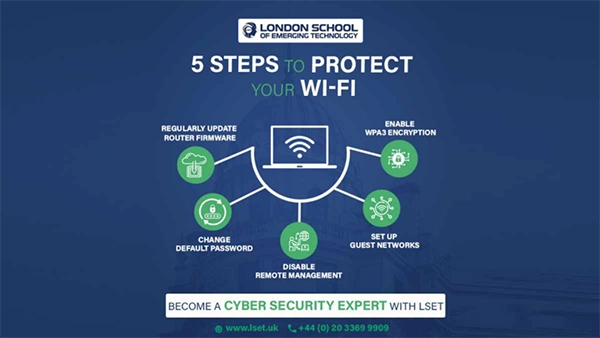
You can take a glance at the attached infographic below that describes the 5 quick steps to protect your Wi-Fi:
Key Features Parents Should Use for Better Network Control
To truly master kids’ internet security, you should look beyond the basic “On/Off” switch. The real power lies in the granular features that modern Network Access Control (NAC) provides.
- One-Touch Pause: For those moments when you need everyone’s immediate attention, the “Pause All” button is a digital lifesaver.
- App-Level Blocking: Instead of blocking the whole internet, you can specifically target “distraction” apps like TikTok, Roblox, or YouTube during school hours.
- SafeSearch Enforcement: Force Google, Bing, and YouTube into “Safe Mode” at the network level, ensuring that even “innocent” searches don’t return “not-so-innocent” results.
- Real-Time Alerts: Receive a push notification the moment a child tries to access a restricted site. As the idiom goes, “Forewarned is forearmed,” giving you the chance to discuss why that site was blocked.
- Remote Management: Use your phone to adjust settings even when you aren’t home, allowing you to grant “bonus time” or check on activity from the office.
INTERESTING FACT Many companies also employ Bring Your Own Device (BYOD) and other critical policies to sidestep the common attacks.
Wrapping Up!
Wi-Fi parental controls keep kids safe on the internet. They help build responsible behaviour. Kids play, learn, and grow, but there would be no fun if there were no links to the other side of the internet. Benjamin Franklin said, “An ounce of prevention is worth a pound of cure.” By spending 20 minutes today to secure your router, you will avoid major digital problems for the rest of your life.
Frequently Asked Questions
Q1: Do Wi-Fi controls work if my child uses mobile data?
Q2: Will my child be able to bypass these settings with a VPN?
Ans: Many new routers have VPN block features to help prevent this, but most will still prevent your child from accessing a VPN since the router will see the request to connect to the VPN.
Q3: Will parental controls slow my internet speed?
Ans: On older hardware, possibly, but older Routers are now built using the new Wi-Fi 6 & 7 standard, and all have built-in processors for security filtering with little to no lag.
Q4: Router vs. App for best results?
Ans: Please use both. The router gives a huge network to your house, while the App gives deeper insights into individual messages and the behaviour of your children on social media.
 Neha Sharma
Parental Control & App Safety Writer
About article
The author of this article Neha Sharma, an Parental Control & App Safety Writer at Saferloop, brings practical experience and industry knowledge to the subject.
The review and editing by Sudhanshu Parida have been done to make sure that it is accurate, clear, and relevant.
At Saferloop, we are determined to provide high-quality, well-researched, and updated content. To understand further how we produce and revise our articles, please refer to our Editorial Guidelines.
Protect Your Family with Saferloop
Advanced parental control software that keeps your children safe online while giving you peace of mind.
- Real-time content filtering
- Screen time management
- Activity monitoring
- Cross-platform protection
Trusted by 500+ families