
Saferloop is better parental control software than FamilyTime. As FamilyTime misleads its users and restricts some features on iOS, Saferloop is totally worth it.
×
Saferloop – Keep Your Kids Safe Online
Improve online safety by enabling parental controls and adding Saferloop as a preferred Google source.
FamilyTime Vs Saferloop: Features, Pricing & Parental Controls Compared
Parental controls are important for children’s safety and privacy. But choosing between FamilyTime and Saferloop might confuse you. That is why you should stay till the end of this article to understand FamilyTime vs Saferloop.
Here, you can explore an overview of Saferloop and FamilyTime, setup guidance, feature-by-feature comparison, pros and cons, and real reviews. It helps you easily select the right parental control for your kids.
Quick Answer:
Saferloop is the winner of the FamilyTime vs Saferloop comparison. It offers screen time limits, app blocking, location tracking, and other features that run smoothly on iOS and Android devices. But FamilyTime features lag and doesn’t support iOS.
Table of Contents:
- FamilyTime Vs Saferloop: What Do They Offer?
- How to Set Up the Saferloop Parental Control Software?
- How to Set Up the FamilyTime Parental Control App?
- Features-By-Features Comparison: FamilyTime Vs Saferloop
- Pros and Cons of Saferloop and FamilyTime Parental Controls
- FamilyTime Vs Saferloop: How to Choose the Best Parental Control?
- FamilyTime Vs Saferloop: Reviews of Both Parental Controls
- Wrapping Up!
- Frequently Asked Questions
FamilyTime Vs Saferloop: What Do They Offer?
Saferloop and FamilyTime show how parental controls protect kids on social media by offering various features. Here is an overview of both parental control apps along with features and pricing.
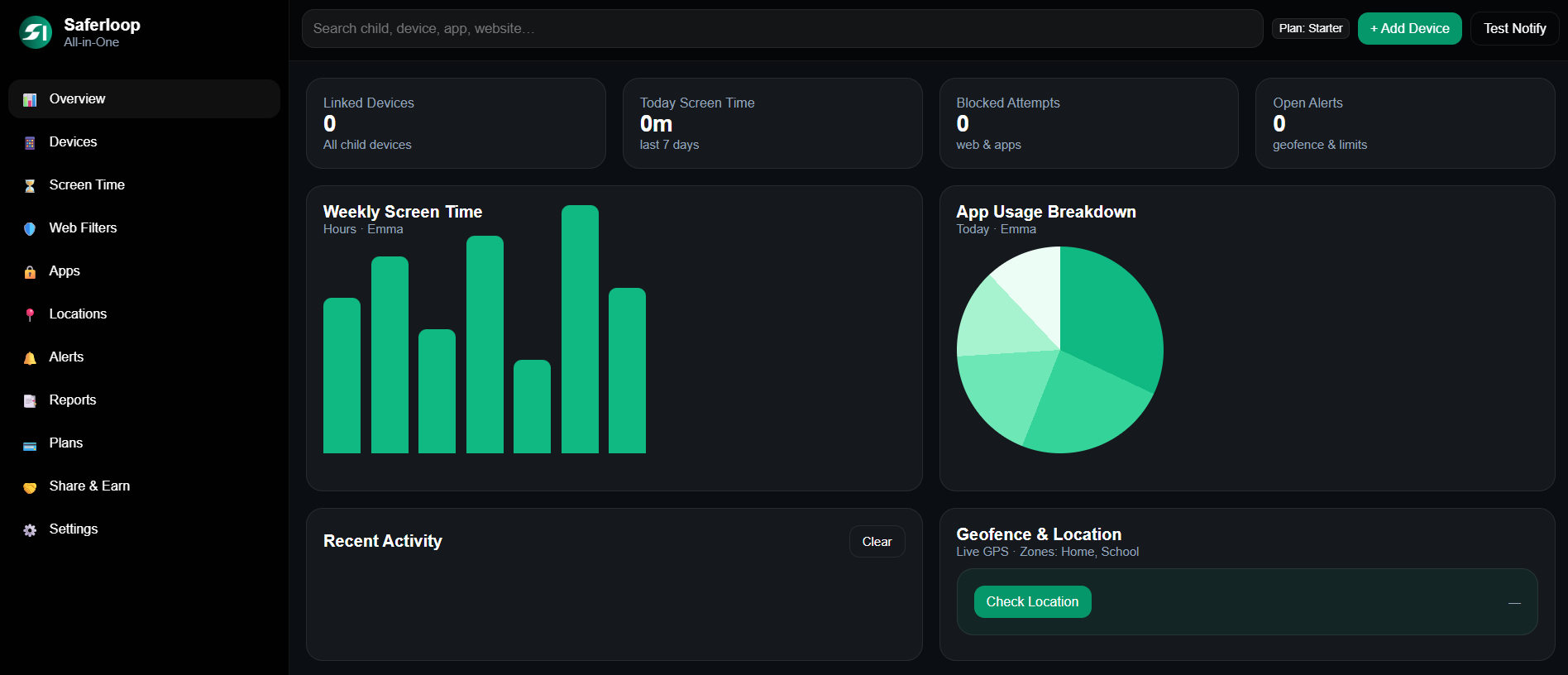
Saferloop Parental Control Software
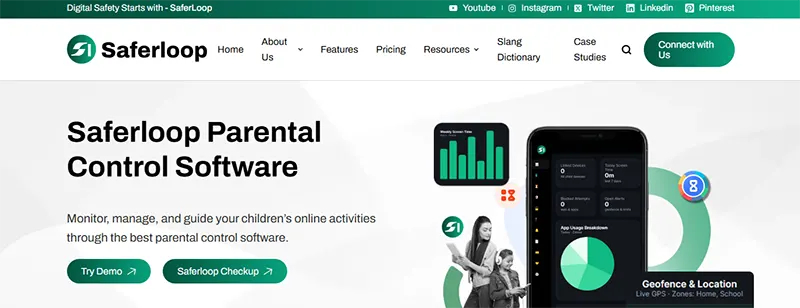
Ratings: ★★★★★ (5.0)
Free Trial: Yes
Price: $44.95/Year
Platforms: Compatible with iOS and Android devices
Best For: AI-powered safety features to protect children
Saferloop parental control software prioritizes children’s safety for parents’ peace of mind. It offers safety features, such as:
- Monitor online activities
- Set time limits and routines on devices
- Filter content and apps
- Locate your family
- Track calls and messages
- Receive alerts, reports, and SOS updates
- Saferloop safety checkup extension
- Saferloop GPT
The software is compatible with iOS and Android devices and can help you monitor activities, whether your children use iOS or Android. It is also compatible with MacBooks, iPads, tablets, phones, and iPhones.
FamilyTime Parental Control App
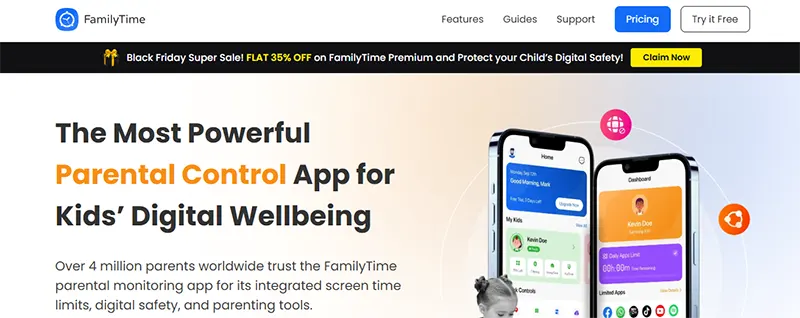
Ratings: ★★ (2.3)
Free Trial: Yes (3 days)
Price: From $29 to $69/year
Platforms: Compatible with iOS and Android devices
Best For: Screen time management
FamilyTime parental control software provides features in three categories: early childhood, pre-teens, and teenagers. The safety features include:
- Apps and game blocker
- Web blocker
- Content safety
- Low battery alerts
- Approve apps and games
- Watchlist contacts
- TeenSafe drive
- SOS (Panic button)
- PickMeUp requests
It is best known for its screen time management, which is helpful to reduce the use of smart devices and restrict inappropriate content. Though FamilyTime features are compatible with iOS and Android devices, sometimes it doesn’t support iOS.
How to Set Up the Saferloop Parental Control Software?
To set up the Saferloop parental control software, download it > create a parent and child account > link both devices > customize settings.
Let’s take a look at simple steps to learn how to set up the Saferloop parental control software.
Step 1: Download the Saferloop parental control software on your and your kid’s devices.
Step 2: Create parent and child accounts by entering different email addresses and passwords.
Step 3: On a parent account, you can go to the “Devices” option from the menu bar.
Step 4: There, you have to enter your child’s name and device model.
Step 5: Now, tap “Generate Link Code,” and you will see a 6-digit code appear in the drop-down list.
Step 6: On the child’s account, go to the “Pair” option and enter the 6-digit code.
Step 7: Tap “Pair Now” to link both parents’ and the child’s accounts.
Step 8: Once you connect both devices, you can change settings like screen time limits, web filtering, etc., based on your preferences.
Also Read: Saferloop vs Net Nanny: Complete Comparison of Monitoring, Safety & Control Features
How to Set Up the FamilyTime Parental Control App?
To set up the FamilyTime parental control app, download > create a parent and child account > link both devices > customize all settings accordingly.
Here are the detailed steps on how to set up the FamilyTime parental control app.
Step 1: Download the FamilyTime parental control app from the Google Play Store.
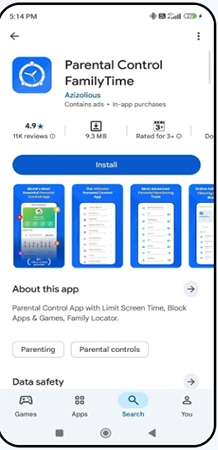
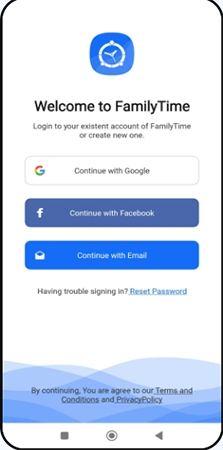
Step 2: Open the app and sign up with Google, Facebook, or email.
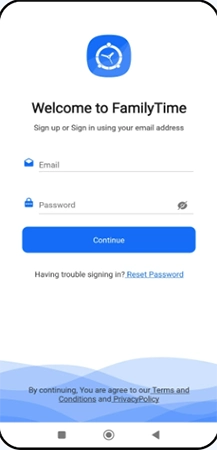
Step 3: Enter your email address and verify it with the email you receive.
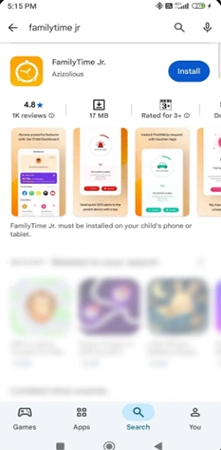
Step 4: Now, download FamilyTime Jr. from the Google Play Store on your child’s device.
Step 5: Tap “I agree” and enter the parent’s email address and password to connect accounts.
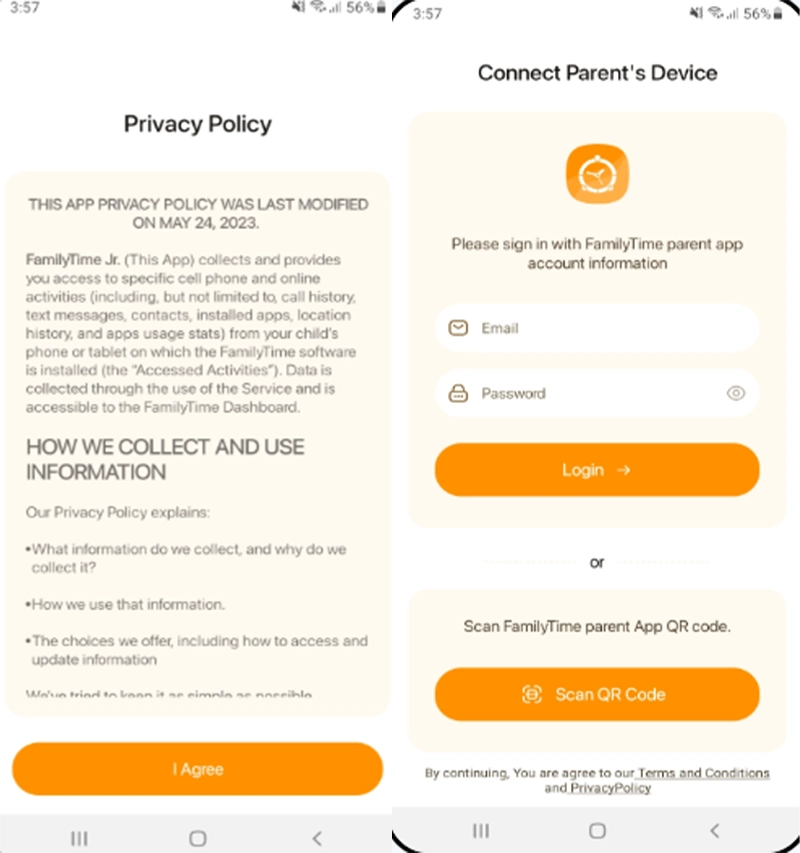
Step 6: Now, click “Continue” and “Allow” to access your kid’s contacts.
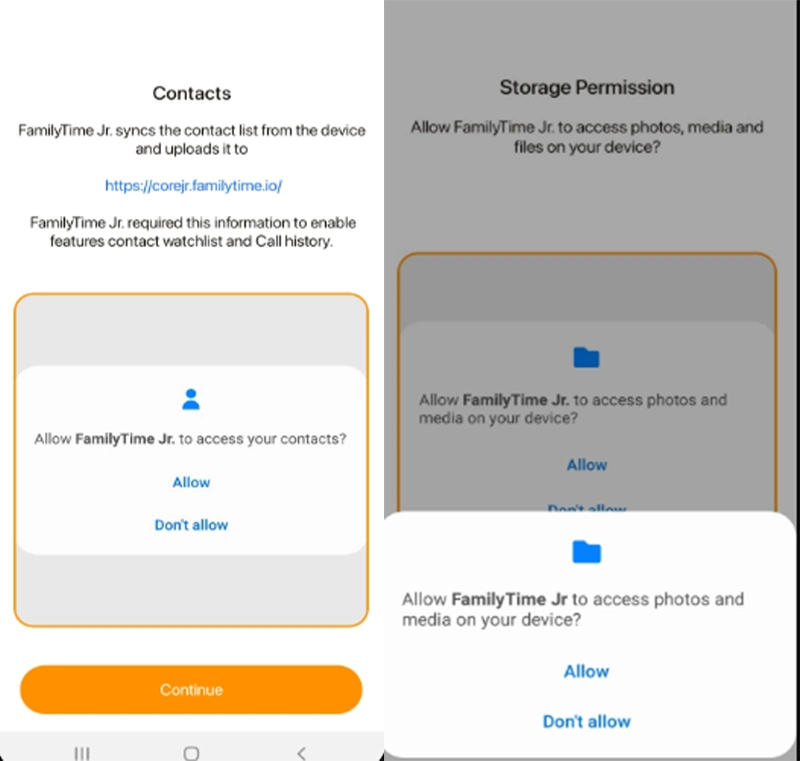
Step 7: Next, tap “Agree” to sync installed apps and enter your child’s name and age.
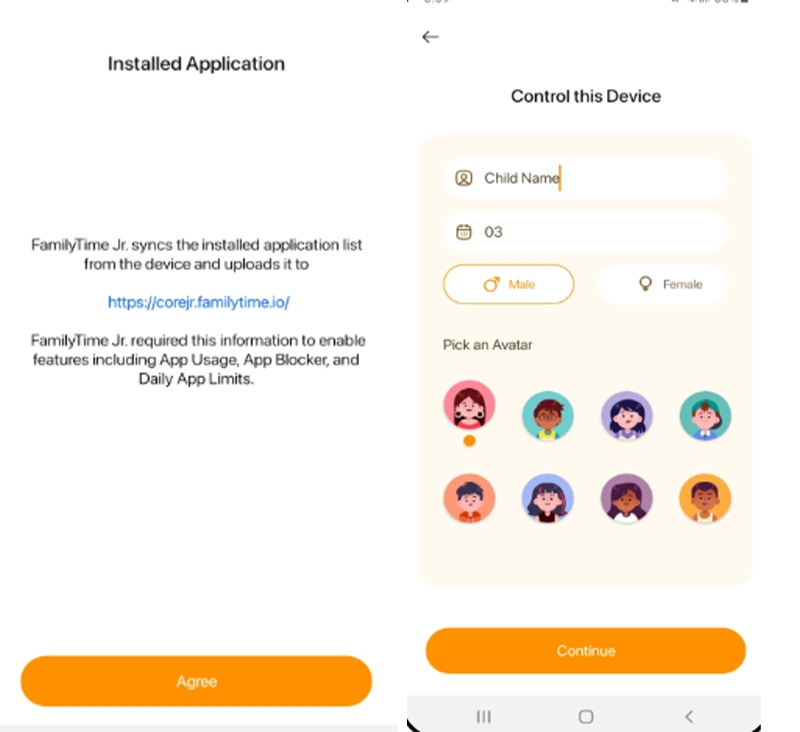
Step 8: Tap “Continue” to allow data access and data usage permissions.
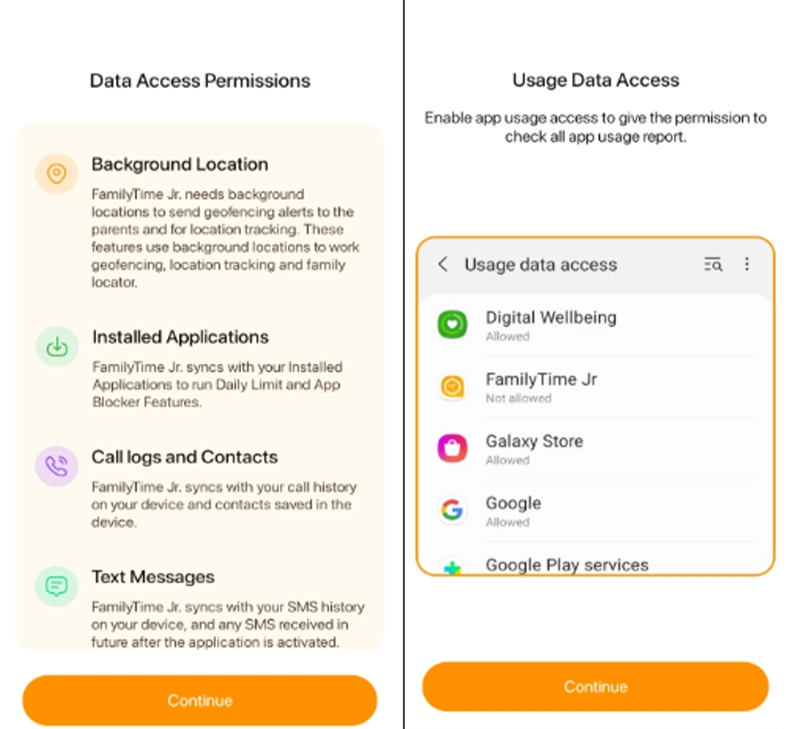
Step 9: Click on “FamilyTime Jr.” and turn on the toggle switch to allow tracking.
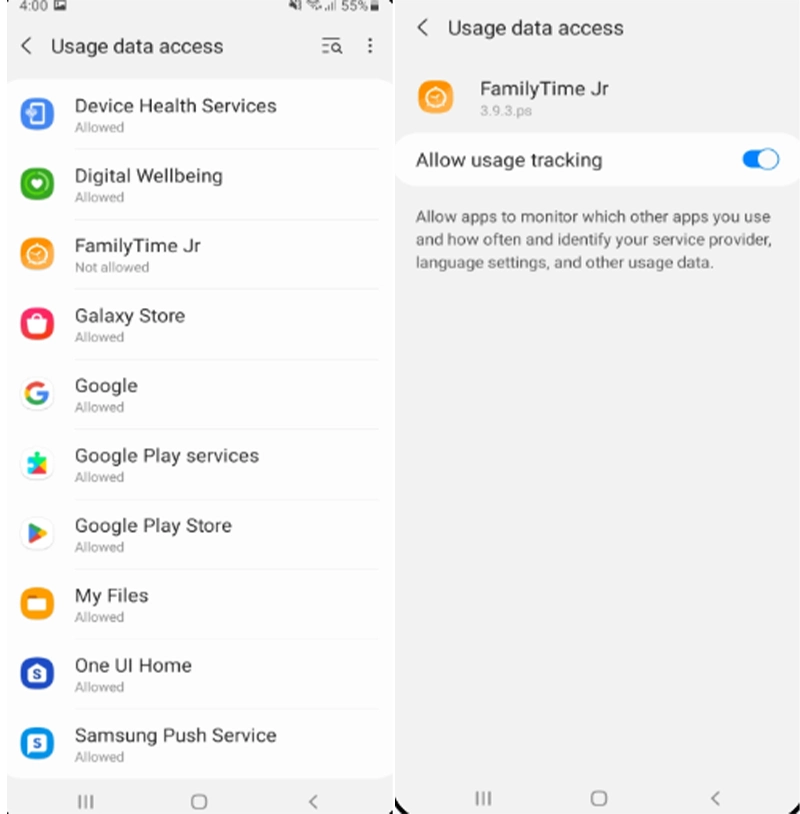
Step 10: After that, tap “Continue” to allow accessibility and go to Installed services.
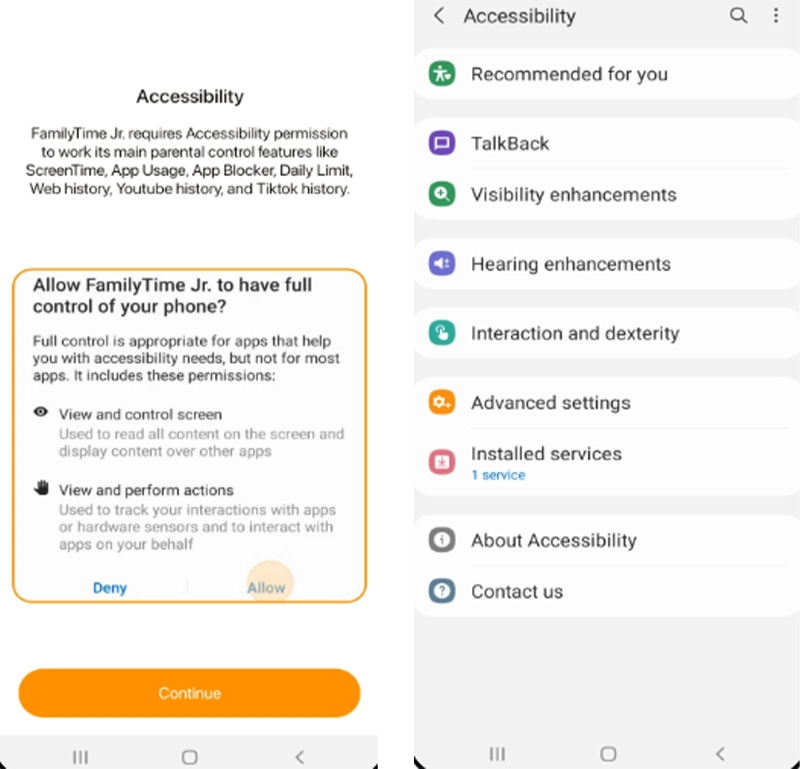
Step 11: Tap “FamilyTime Jr.” and turn on the toggle switch.
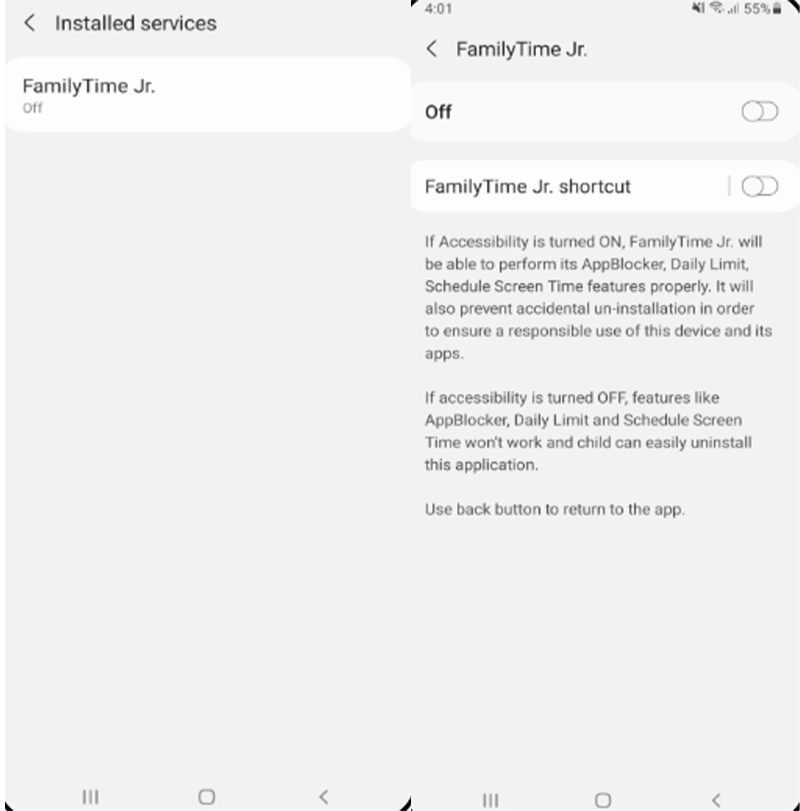
Step 12: Tap “Allow” to confirm, and tap “Continue” to access VPN permission.
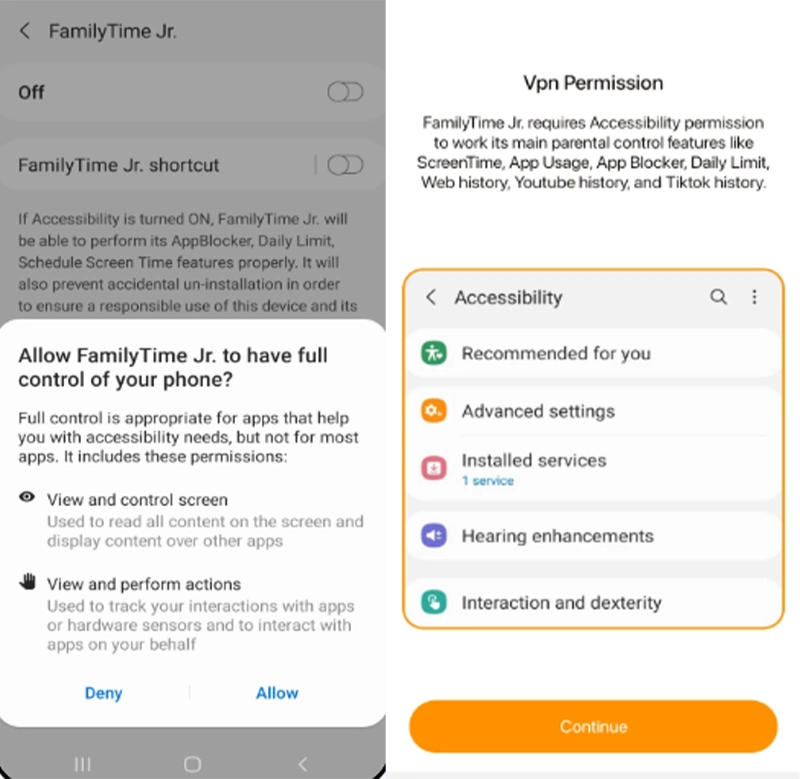
Step 13: Now, tap “Ok” to confirm VPN permission and tap “Continue” for the device administrator.
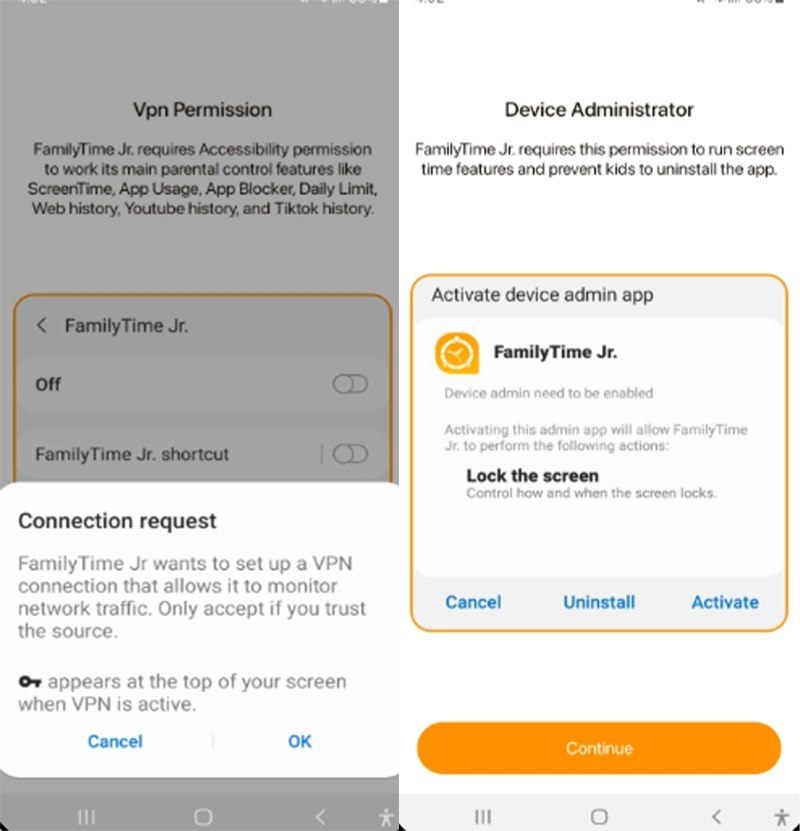
Step 14: Click on “Activate” and “Continue” to proceed to overlay permission.
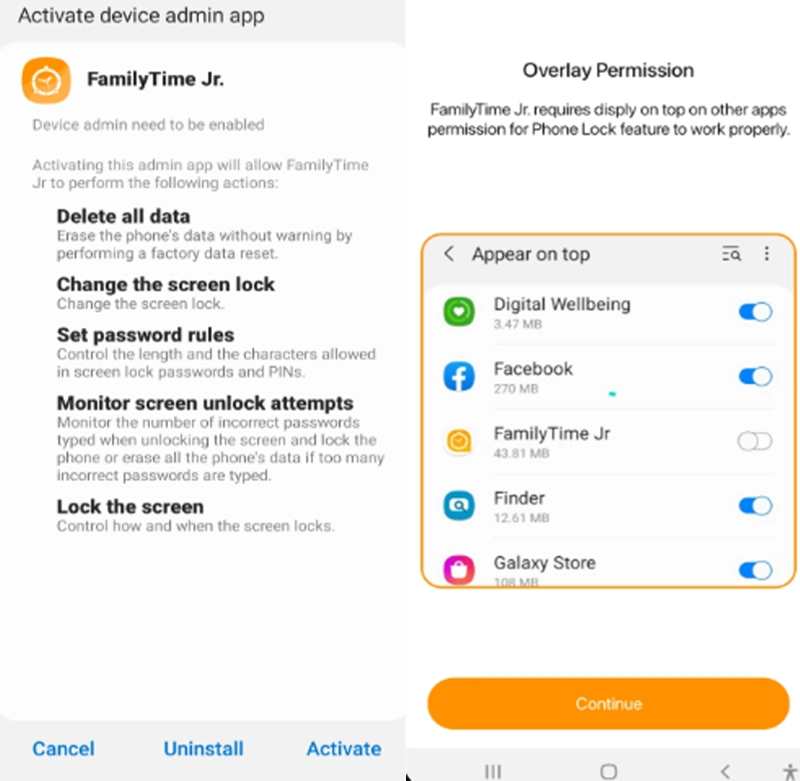
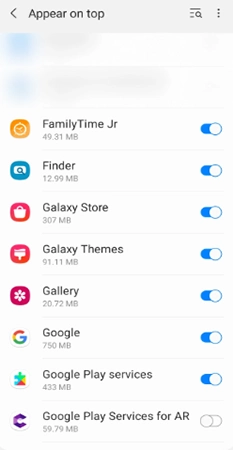
Step 15: Scroll down the screen and turn on the toggle switch for FamilyTime Jr.
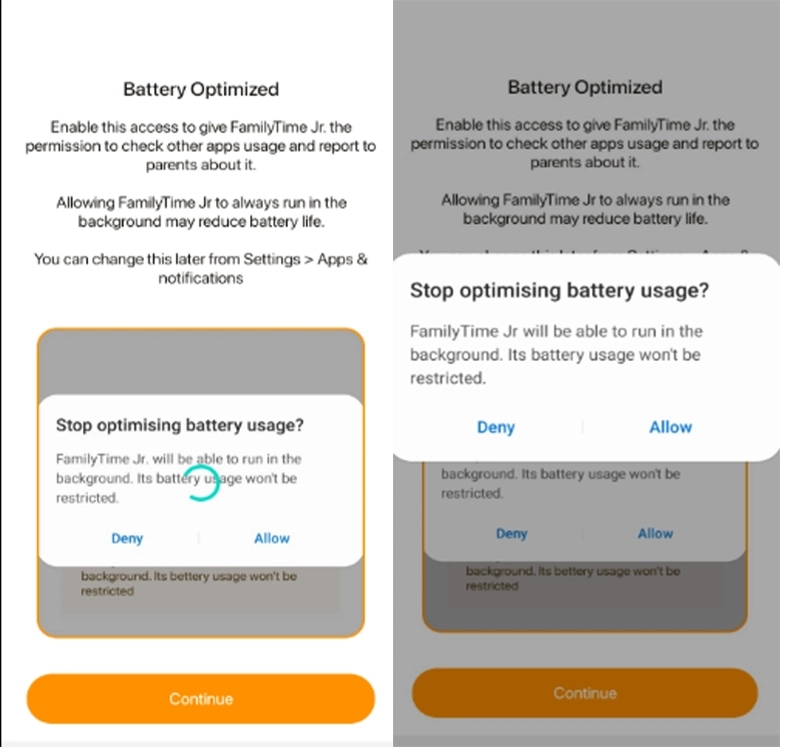
Step 16: After that, tap “Continue” for battery optimization and tap “Allow” to stop optimizing battery usage.
Step 17: Tap “Continue” and “While using the app” to proceed with locations.
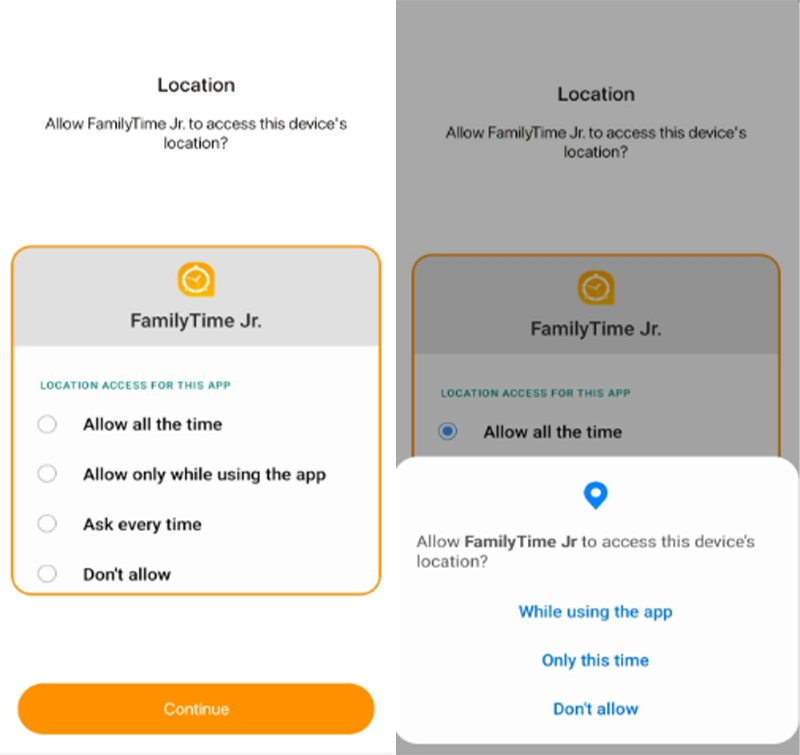
Step 18: Select “Allow all the time” for location permission and tap “Continue” for storage permission.
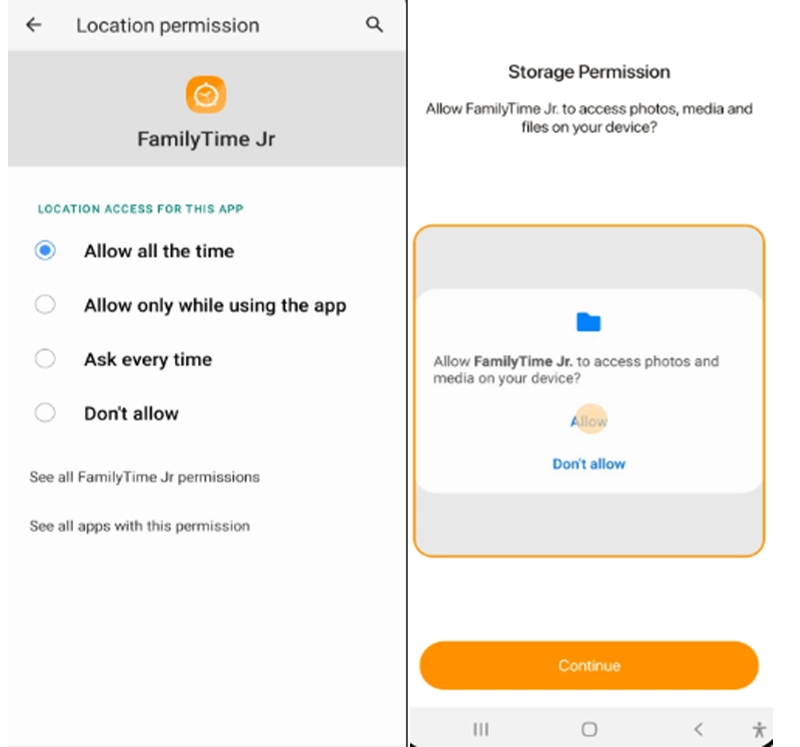
Step 19: At last, tap “Allow” to provide access to photos and media. You are all done setting up the child’s account.
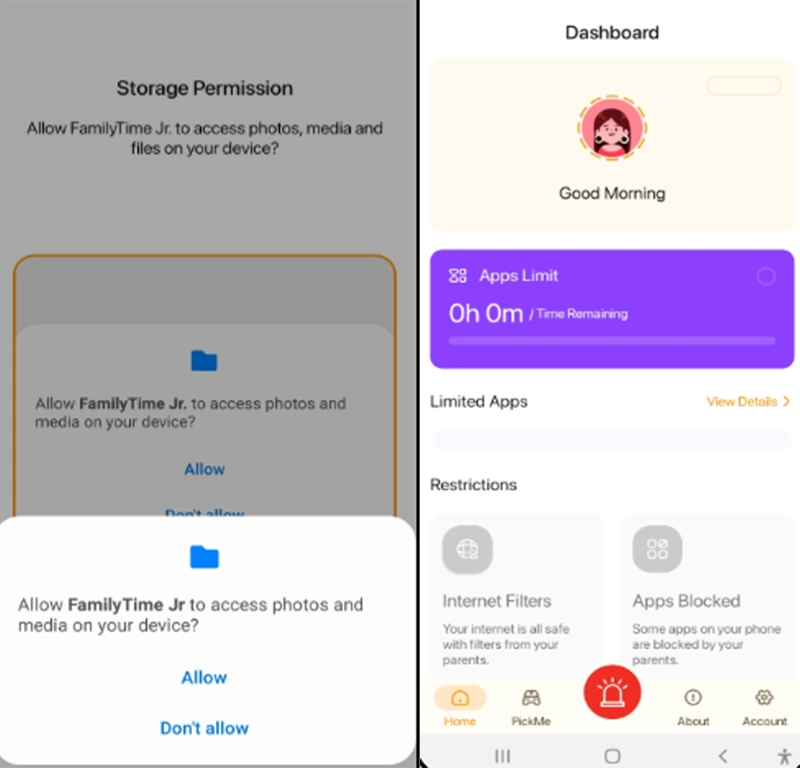
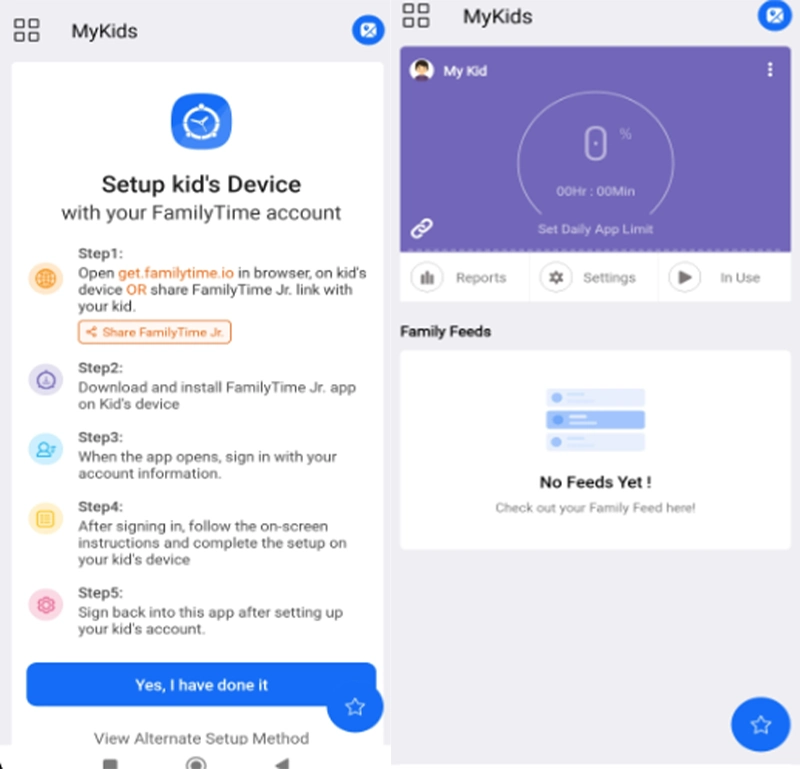
Step 20: After completing the child’s account setup, tap “Yes, I have done it.” Now, you can monitor everything using the FamilyTime app.
Also Read: Saferloop vs. Qustodio: Which is the Best Parental Control App for Your Children’s Safety?
Features-By-Features Comparison: FamilyTime Vs Saferloop
Saferloop offers compatibility with iOS and Android devices, while FamilyTime lacks iOS support. That is why it is important to have a feature-by-feature comparison for detailed analysis.
Here is the comparison of FamilyTime vs Saferloop features.
| Features | Saferloop | FamilyTime |
| Compatible With iOS and Android Devices | Offers compatibility with iOS and Android devices. | Claims to support iOS and Android devices, but some features are lacking on iOS devices. |
| Monitor Online Activities | It monitors your kids’ online activities to give you an idea of their social circle. | The app also monitors children’s activities but lacks deep filtering. |
| Bypassing and Uninstallation | The software provides advanced security to prevent bypassing and uninstallation. | Children can easily bypass restrictions and uninstall the app without parents’ permission. |
| Track Calls and Messages | You can track who your kids are talking to and third-party messages directly. | It tracks calls and messages on Android devices and doesn’t support iOS platforms. |
1. Compatible With iOS and Android Devices
You can set up the Saferloop parental control software on both iOS and Android devices. It runs smoothly on all devices like MacBooks, laptops, iPhones, and smartphones. FamilyTime also claims iOS and Android compatibility, but many users report restrictions on iOS devices, like app blocking and call logging.
2. Monitor Online Activities
With Saferloop, you can closely monitor your kids’ online activity and how they interact with others. It helps you get an idea of their social life and protects them from unforeseen dangers. On the other hand, FamilyTime also monitors children’s online activities, but it lacks deep filtering and social media tracking.
3. Bypassing and Uninstallation
Saferloop offers advanced security so that children can’t bypass restrictions and uninstall the software without parents’ permission. It instantly sends alerts to parents if they found something suspicious. Meanwhile, FamilyTime lacks in providing security. Kids can easily uninstall this app without parents’ permission and remove all restrictions on their own.
4. Track Calls and Messages
You can also track calls and messages through Saferloop to watch over how your kids are chatting with people. It can directly monitor SMS and third-party messages for your kids’ safety. FamilyTime also offers a calls and messages tracking feature for parents, but it is restricted to Android devices only.
Pros and Cons of Saferloop and FamilyTime Parental Controls
Every coin has two sides. This means that Saferloop and FamilyTime parental controls have both advantages and disadvantages.
Let’s take a look at the following pros and cons of FamilyTime vs Saferloop to make informed decisions.
Saferloop Parental Control Software
Here are the benefits and drawbacks of the Saferloop parental control software.
| Pros | Cons |
| The software provides screen time limits to reduce the use of smart devices and encourage healthy habits. | The free version comes with basic features. So, you have to purchase a paid version to unlock advanced AI-powered features. |
| You can block unsafe apps and websites from your children’s devices to ensure their safety. | |
| It also provides compatibility with iOS and Android devices to protect children on every platform. | |
| You can also receive SOS updates, reports, and emergency alerts if something suspicious is detected. |
FamilyTime Parental Control App
Here are the advantages and disadvantages of the FamilyTime parental control app.
| Pros | Cons |
| You will get reliable geofencing alerts when your children bypass your digital boundaries. | It claims to be compatible with iOS and Android devices. But some features don’t support iOS devices. |
| Two parents can set restrictions and manage the schedule with one paid account. | Many users report that the app often glitches and doesn’t work as advertised on platforms. |
| It also sets screen time limits and tracks calls and messages to help keep children safe. | |
| You can also set up PickMeUp and SOS alerts that help your children contact you in emergencies. |
Also Read: Saferloop vs Screen Time Labs: Features-By-Features Comparison, Pros and Cons, and Setup Guidance
FamilyTime Vs Saferloop: How to Choose the Best Parental Control?
Choosing the right parental control for your kids depends on your needs and budget. But as an expert, I have mentioned what will help you make the right choice.
- Saferloop helps you protect your children on iOS and Android devices and runs smoothly on MacBooks, laptops, and smartphones.
- With the help of Saferloop parental control software, you can also watch over your children’s activities from your phone without sneaking into their devices.
- The FamilyTime parental control app offers monitoring, screen time limits, and app blocking. But some features don’t support iOS and often glitch on Android devices.
It indicates that Saferloop is the best parental control software and the winner of the FamilyTime vs Saferloop comparison.
FamilyTime Vs Saferloop: Reviews of Both Parental Controls
Saferloop and FamilyTime both have a renowned name in the parental control industry. Here are some real reviews of both parental control apps that help you figure out how they help users.
1. Saferloop Parental Control Software
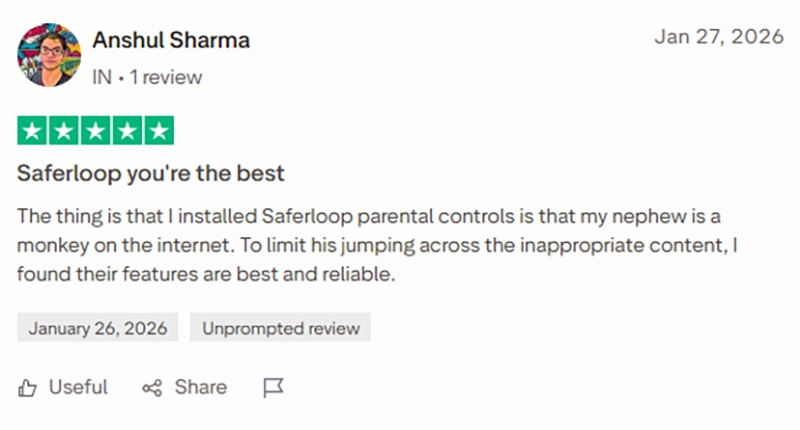
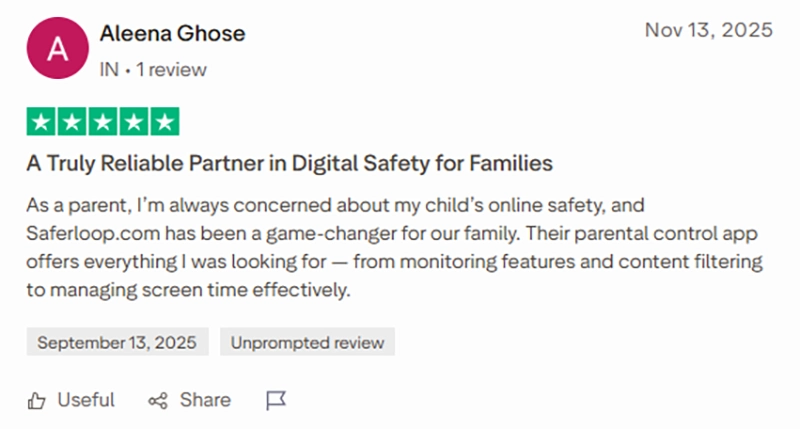
On Trustpilot, many users share their positive experience with Saferloop parental control software. They say that it has the best security and features like monitoring, restricting, screen time limiting, and app blocking. This highlights that Saferloop provides better safety features than other parental controls.
2. FamilyTime Parental Control App
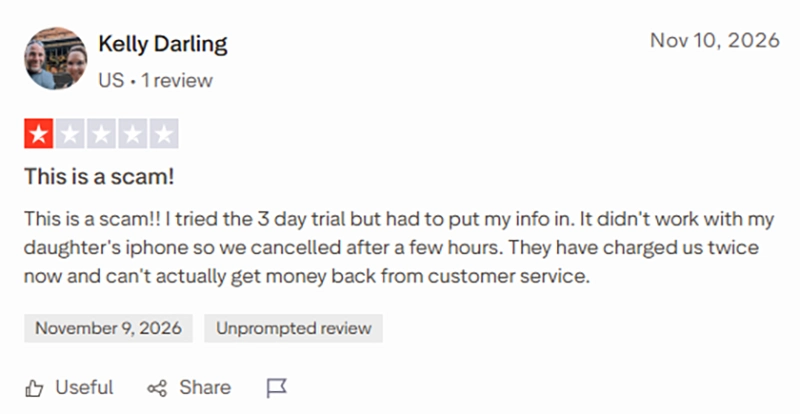
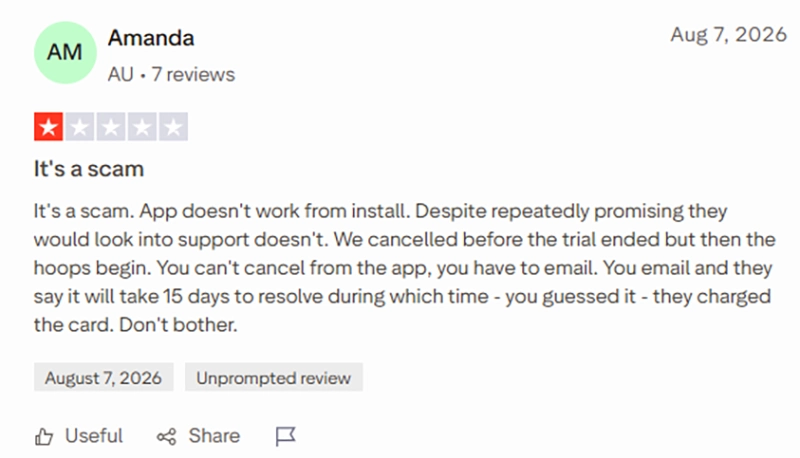
On Trustpilot, users report that the FamilyTime parental control app is a total scam. They experienced horrible customer service and cancellation issues before the trial. Users also face issues with FamilyTime’s features not working as they are advertised and often glitching on mobile phones.
Wrapping Up!
That’s all about FamilyTime vs Saferloop!
Overall, Saferloop is better than the FamilyTime parental control app. It provides advanced AI-powered safety features that run smoothly on iOS and Android devices. Meanwhile, FamilyTime always lags and doesn’t work properly.
So, it is best to go for Saferloop. You should also focus on building healthy relationships with your little ones. It helps you gain their trust so that they can share their social life with you.
Author’s Note:
As a cybersecurity and parental control expert, I have tested both parental control apps. So, I clearly suggest that the Saferloop parental control software is better than the FamilyTime app.
FamilyTime features are restricted on iOS platforms, and users might face glitches on mobile phones. Meanwhile, Saferloop is available on all platforms and has advanced AI-powered features.
So, if you opt for Saferloop parental control, it will surely give you peace of mind and protect your children.
Frequently Asked Questions
1. Which is a better parental control app than FamilyTime?
2. What are the top 5 parental control apps?
The top 5 parental control apps are the following:
- Saferloop
- Qustodio
- Bark
- Aura parental controls
- Norton Family
But it heavily depends on your budget, requirements, and children’s ages.
3. Does the FamilyTime app have advanced safety and restrictions?
Yes, the FamilyTime app has advanced safety and restrictions. But many users claim that children can easily uninstall the app without parents’ permissions and doesn’t function properly.
4. Which is the cheapest parental control app?
Google Family Link is the cheapest parental control app. This helps you watch over your kids’ online activities and protects them digitally without spending money.
 Neha Sharma
Parental Control & App Safety Writer
About article
The author of this article Neha Sharma, an Parental Control & App Safety Writer at Saferloop, brings practical experience and industry knowledge to the subject.
The review and editing by Vinithra Karunanidhi have been done to make sure that it is accurate, clear, and relevant.
At Saferloop, we are determined to provide high-quality, well-researched, and updated content. To understand further how we produce and revise our articles, please refer to our Editorial Guidelines.
Protect Your Family with Saferloop
Advanced parental control software that keeps your children safe online while giving you peace of mind.
- Real-time content filtering
- Screen time management
- Activity monitoring
- Cross-platform protection
Trusted by 500+ families