

Pretty much from the moment they start using devices. The lessons can be simple at first and grow as they do.
×
Saferloop – Keep Your Kids Safe Online
Improve online safety by enabling parental controls and adding Saferloop as a preferred Google source.
Keeping Your Kids Safe Online: Important Steps for Parents to Take
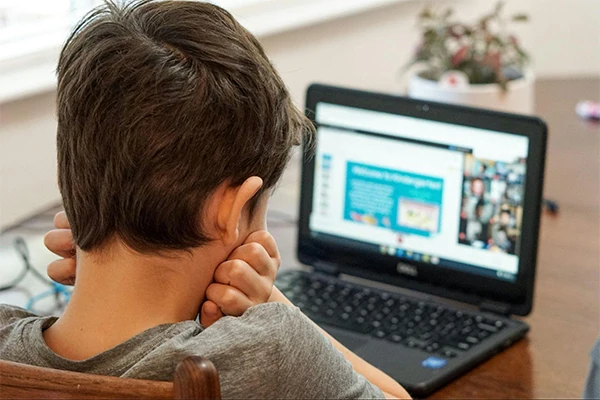
The most common online dangers are rarely obvious, especially to kids. A game chat drifts into private messages without anyone thinking twice. Fake prize notifications collect passwords in seconds, and one careless search can shape recommendations for weeks. Parents waiting for obvious warning signs tend to miss these subtle risks completely.
Home Internet Safety is not about stopping usage and blocking apps. Rather, it is all about establishing safe practices, recognizing tools that can be used, and helping children understand what dangers to watch out for.
KEY TAKEAWAYS
- Online safety starts with knowing which apps, games, or websites your kids use daily.
- Parental control tools can reduce risk to some level, but regular conversations are also very important.
- Strong passwords, multi-factor authentication, and software updates help protect accounts from unauthorized access.
- Kids should understand how personal information and online activity can compromise their privacy.
Table of Contents:
Five Practical Steps for Safer Digital Habits at Home

Here are five steps to ensure safer digital habits at home:
Starting With a Device and App Audit
Before adjusting any settings, get a clear picture of what your child uses. Ask them to walk you through a normal day on their devices, including games, apps, messaging platforms, and video tools. Frame it as a conversation rather than an inspection. Honest visibility is more useful than a performance.
Look beyond the obvious. Games often include voice chat, open lobbies, friend requests, in-app purchases, and private rooms. Homework apps sometimes include messaging features. Video platforms save watch history and use it to shape future recommendations in ways most children don’t notice.
Check each device for apps with access to location, camera, microphone, contacts, or stored photos. Each permission creates a different type of exposure. Location access can reveal a child’s daily routine. Contact access can upload parts of their social network to third-party servers.
After reviewing everything, sort apps into three groups: those that can stay, those that need limits, and those that should wait until the child is older. A ten-year-old and a fifteen-year-old have genuinely different needs, even when using the same device.
Using Parental Controls Effectively
Parental controls work best when parents understand what each feature actually does. Screen-time limits cut off use after a set period, while content filters block certain categories of websites or media. App approval stops new downloads from slipping through, and purchase controls prevent accidental or unauthorized spending.
Using tools such as the best parental control apps is worthwhile because features vary considerably between products. Get tools that match your child’s habits, including app blocking, web filtering, location alerts, activity reports, and cross-device coverage. The right choice is the one that helps you act early, not the one with the longest feature list.
Layer controls across different levels where possible:
- Device settings for app limits and purchases
- Browser settings for safe search and site blocking
- Router-level controls for bedtime cut-offs
- Console privacy settings for chat and friend requests
- App-level settings for comments, tags, and visibility
Explain the reasoning behind each rule. Children follow limits more consistently when they understand the specific risk rather than just hearing “because I said so.”
Teaching Privacy Through Real Examples
“Don’t share personal information” sounds clear to adults. To children, personal information often means only their full name or home address. They might not connect a school logo in a photo, a training schedule in a sports clip, or a birthday post to any real privacy risk.
Walk through examples with them. Photos taken outside the school may show the building name, or a gaming username may link across several platforms. Another example is a harmless birthday post that can help someone guess a security question or a password pattern.
Recommendation algorithms should also be explained to kids. Apps learn from watch time, pauses, likes, searches, and repeat views. A child who watches disturbing content out of curiosity might automatically receive more of the same content. Teach them how to mark something as “not interested,” clear watch history, and report accounts.
Scams are a separate lesson. Fake giveaways, free gaming currency, influencer impersonation, and urgent account warning messages are all designed to pressure a child into acting quickly.
Securing Accounts and Protecting Shared Data
Account security protects more than a child’s profile. Kids often reuse the same weak password across gaming and email, so cracking one can unlock the other. A stolen email account can expose school documents, saved logins, cloud backups, and recovery codes for other services.
Use long, unique passwords for email accounts, gaming platforms, school portals, and app stores. A password manager helps older children create and store stronger passwords without writing them in notes or reusing the same phrase across multiple accounts.
Enable multi-factor authentication on important accounts. App-based codes and passkeys offer stronger protection than SMS codes in most situations. Passkeys use cryptographic verification, which means a fake login page cannot capture them the way it can steal a typed password.
Public Wi-Fi deserves attention, too. Children connect at cafés, libraries, hotels, and shopping centers without thinking about who manages the network. Fake hotspots can copy familiar network names, and unencrypted traffic can expose activity to others on the same connection.
Using a VPN on public networks encrypts the data passing between a device and the internet, which reduces the risk of interception when children access school portals, email accounts, or any service with saved credentials.
Keep devices and apps updated. Updates patch known security flaws in operating systems, browsers, and applications. Remove apps your child no longer uses, since abandoned accounts still hold profile photos, usernames, and sometimes saved payment details.
Preparing for Cyberbullying and Harmful Contact
Children don’t always respond smartly when something suspicious happens online. They may delete messages, hide the device, or stay silent because they fear losing access to their accounts or facing punishment. Parents need a response plan established well before any serious incident occurs.
Teach children a simple response sequence: stop, screenshot, block, report, and tell an adult. Screenshots should capture usernames, profile links, group names, dates, and the message content. Replying in anger tends to escalate situations rather than resolve them.
Sextortion also needs a direct conversation, regardless of how uncomfortable it feels. Sextortion is the coercing of minors by adults into sending explicit images. It also includes using threats to demand more images, money, or continued compliance.
Children need to understand clearly that being pressured or deceived is not their fault. Also, explain that telling an adult breaks the cycle rather than making things worse.
Building Safer Routines at Home
Online safety should be a habit, not a single conversation that never gets revisited. Review apps and privacy settings monthly, especially after major platform updates. Remove unused accounts, and practice blocking and reporting before emotions are involved. Talk through scam scenarios before your child encounters one.
Always remember that no single measure works alone. Rules, parental controls, and open communication need to operate together to be genuinely effective.
Children will make mistakes online. The goal isn’t the prevention of every error. It’s building a home system that catches problems earlier and creates enough trust that a child feels safe asking for help when they need it.
Conclusion
There’s no setting you can switch on that suddenly makes the internet safe for kids. Things change too quickly for that. New apps appear, privacy rules get updated, and scams keep finding new ways to look convincing.
What tends to work better is staying involved. Knowing what your child uses, having occasional conversations about what they’re seeing online, and making a few sensible security changes before problems show up. None of it is particularly complicated on its own, but together it creates a much safer environment.
And despite everyone’s best efforts, mistakes will happen. A child clicks the wrong link. Shares something they shouldn’t have. Trusts the wrong person. That’s how they learn. What is most important is that they will have confidence that they can always turn to you when things do not feel right.
Ultimately, however, Internet safety is not so much about supervision as it is about fostering a sense of good judgment, with the knowledge that help is available.
Frequently Asked Questions
At what age should parents start talking to children about online safety?
Are parental control apps enough to keep children safe online?
They help, but they can’t do all the work. Kids still need to know what to watch out for when you’re not looking over their shoulder.
What are some warning signs that a child may be having a negative online experience?
A child suddenly hiding screens, acting withdrawn, or getting upset after being online is usually worth checking in about.
How can parents help children recognize online scams?
A good rule is this: if something feels rushed, suspiciously generous, or too good to be true, it probably is.
What should a child do if they receive a threatening or inappropriate message online?
Don’t reply. Save it, block the account, and tell a trusted adult before the situation gets bigger.
 Aditi K
Freelance Cybersecurity Writer
About article
The author of this article Aditi K, an Freelance Cybersecurity Writer at Saferloop, brings practical experience and industry knowledge to the subject.
The review and editing by Vinithra Karunanidhi have been done to make sure that it is accurate, clear, and relevant.
At Saferloop, we are determined to provide high-quality, well-researched, and updated content. To understand further how we produce and revise our articles, please refer to our Editorial Guidelines.
Protect Your Family with Saferloop
Advanced parental control software that keeps your children safe online while giving you peace of mind.
- Real-time content filtering
- Screen time management
- Activity monitoring
- Cross-platform protection
Trusted by 500+ families