

Ans: Children must stay careful and follow safe workflow tips when sharing personal media online, as the internet contains many privacy risks that may negatively impact the life of a kid, if appropriate precautions aren’t taken.
×
Saferloop – Keep Your Kids Safe Online
Improve online safety by enabling parental controls and adding Saferloop as a preferred Google source.
Kids’ Online Safety While Sharing Raw Photos: Safe Workflow Tips for Parents (2026 Guide)
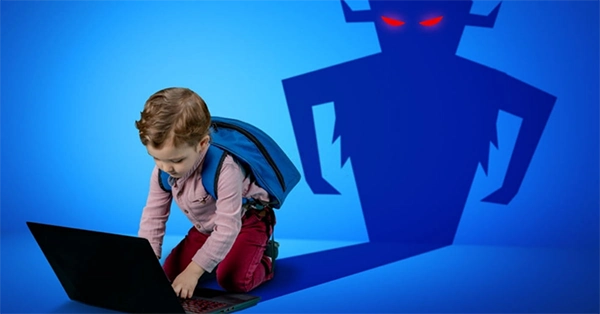
The modern digital space has allowed kids to access various social media platforms and share their pictures online. But as we are all aware, the internet can be an unforgiving place if proper caution isn’t exercised.
This is why parents must be aware of the dangers of sharing raw photos online and how it can negatively affect their child’s mental and physical well-being.
This guide covers the risks involved and safe workflow tips that parents can consider to make their kids’ time on digital platforms much more secure.
Key Takeaways
- The internet is a dangerous place, consisting of many digital threats if proper caution isn’t exercised
- Digital risks include location exposure, misuse of images, privacy violations, identity theft, and more
- Kids can safeguard their privacy by taking preventive measures like setting strong passwords, limiting location permissions, and avoiding scammers
- Parental control tools help monitor a child’s activity online, enabling parents to guide them towards safer practices
Table of Contents:
Why Photo Sharing Can Put Kids at Risk Online
As the internet is free for all and open to use for anyone, it can end up dragging the wrong people in. Individuals who may look to cause harm to anyone who doesn’t exercise caution while using digital platforms.
This is why sharing media on social media platforms like Facebook, WhatsApp, Instagram, and more should be done more responsibly, especially when there are kids involved.
Children do not inherently know about the various dangers of the online world and need their parents’ guidance to be made aware of such things.
Additionally, parents must act to safeguard their kids and act as an additional security layer between them and the online world to better protect their privacy.
Common Risks of Sharing Children’s Photos on Social Media
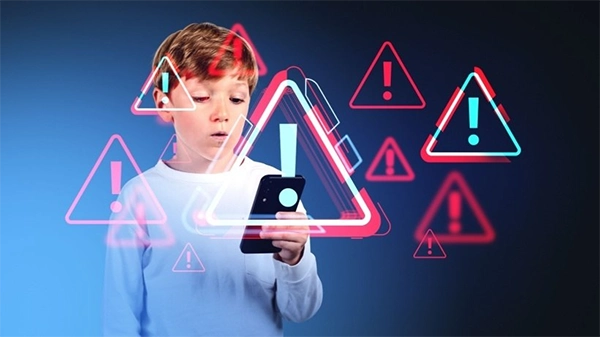
Sharing children’s photos on social media can expose their private lives, location, and reputation, as once posted images often become permanent and impossible to delete on these platforms.
This is why parents must be aware of these common risks that plague the digital space.
Identity Theft
Pictures, including the face of a person or any government IDs, can quickly be identified by individuals with malicious intent and may use them to generate fake personas online, or even worse, they may create duplicate documents to apply for loans and receive medical services in their name.
Usually, one cannot feel the effects of this risk until it’s way too late.
Location Exposure
Visual media that show somebody’s private residence can be traced back by referring to other photos to approximate the location of a person.
Additionally, the automatic RAW backup while editing your personal pictures also contains GPS metadata that can be extracted by hackers, which can result in stalking, burglaries, and data privacy concerns.
Digital Footprints
Every action we take in this digital age leaves a trace or a footprint on the internet. Some actions are passive, like browsing websites, and purchases are usually collected by websites, which are harmless.
But some active threats intentionally engage an individual in online activities that may secretly gather data and personal information, thus destroying a person’s online anonymity by building a whole profile, just by analysing their actions.
This digital risk can attract cyberstalking, online harassment, and even physical threats.
Did You Know?
Children often unintentionally reveal personal information, such as birthdays or school locations, which can be misused by people on the internet.
Misuse of Images
With the increasing use of AI and other image manipulation tools, individuals can download images posted online and misuse them by transforming them into defamatory, intimate, or deepfaked photos.
This can lead to catfishing, scamming, and the creation of fake accounts under the victim’s name and pictures.
Privacy Violations
Websites store personal data of users, from usernames, passwords, and fingerprint credentials to photos. The information held by them isn’t inherently dangerous itself, as they are required by law to keep it safe and secure.
But when a data breach takes place, your personal information gets out in the public, and yes, this even includes your real time photo backups stored on cloud storage.
Safe Workflow Tips for Sharing Kids’ Photos Online
Here are a few tips to prevent such risks from happening when your kids share photos online:
- Limit location permissions: Trusts apps and webpages’ requests to track your location to improve user experience. But they also give options to either turn off tracking or limit the usage to only when the app is accessed.
- MFA: A very common method to fortify online security is to enable multi-factor authentication (MFA) on your digital accounts. This adds additional layers of security, protecting your account even if it gets compromised.
- Avoiding scammers: Suspicious individuals are pretty easy to identify on the internet. With the guidance and oversight of parents, kids can safely steer clear of such malaligned people.
- Strong passwords: Setting tough-to-crack credentials can easily prevent hackers from ever stealing your social account. Parents can also consider adding biometric verification to their kids’ socials, as it is more secure than traditional passwords
These simple yet effective workflow methods ensure the safety of children when they are using various digital platforms.
How Parental Control Tools Help Monitor Media Sharing

To ensure kids are safely sharing media online, people can use parental control tools built to safeguard children from the above-discussed threats.
Additionally, the built-in features of such platforms amplify the privacy of the household significantly by letting parents and guardians monitor the activity of kids online and setting screen time limits to prevent addiction, thereby improving the mental and physical health of all involved family members.
Final Words: Teaching Kids Safe Photo Sharing Habits
Parents must regularly communicate with their child, help them understand such risks, and guide them so they can learn independently and make better decisions related to their privacy online, helping them stay secure at all times.
Frequently Asked Questions
Q1) Why do kids need to remain vigilant when browsing online?
Q2) What does a digital footprint mean?
Ans: It is essentially a trace of your actions performed on digital services on platforms, which could be followed back to your private information online.
Q3) How do parental controls help?
Ans: Parental control tools help monitor your child’s activity on the internet, enabling parents to guide their kids to make better decisions and protect their privacy online.
Q4) How can a person stay safe while sharing pictures on the internet?
Ans: The following are the methods with which a person can safely share media online:
- Multi-factor authentication
- Limiting location permissions
- Setting strong passwords
- Avoiding scammers
 Divya Kakkar
Internet Content Writer
About article
The author of this article Divya Kakkar, an Internet Content Writer at Saferloop, brings practical experience and industry knowledge to the subject.
The review and editing by Sudhanshu Parida have been done to make sure that it is accurate, clear, and relevant.
At Saferloop, we are determined to provide high-quality, well-researched, and updated content. To understand further how we produce and revise our articles, please refer to our Editorial Guidelines.
Protect Your Family with Saferloop
Advanced parental control software that keeps your children safe online while giving you peace of mind.
- Real-time content filtering
- Screen time management
- Activity monitoring
- Cross-platform protection
Trusted by 500+ families