Ans: You can turn off private browsing on iPhone by following these steps:
Open Settings > Screen Time > Lock Screen Time Settings > Content & Privacy Restrictions > App Store, Media, Web, & Games > Web Content > Limited Adult Websites.
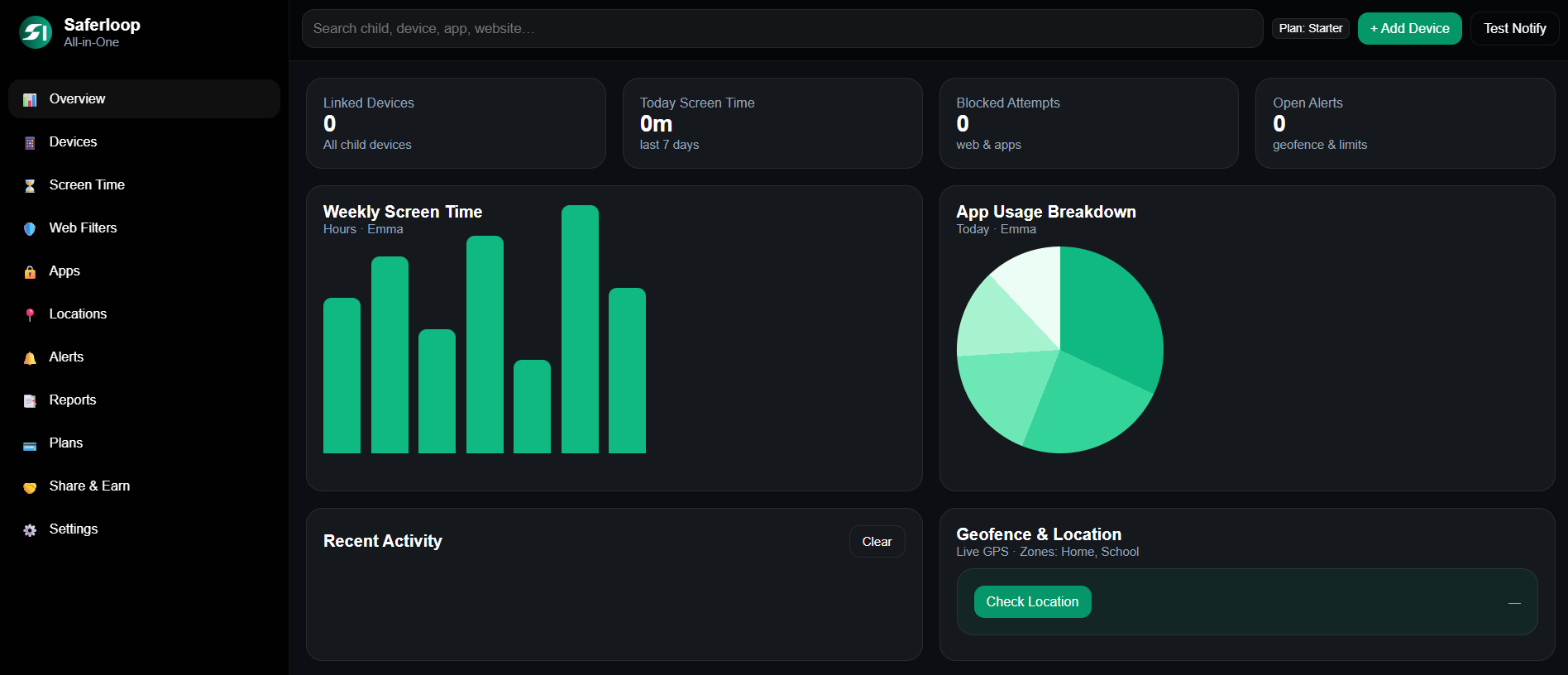
Improve online safety by enabling parental controls and adding Saferloop as a preferred Google source.
Many millennials’ parents might not know how to turn off private browsing on their iPhone. That’s why I’ve mentioned step-by-step tutorials on turning off private browsing and incognito tabs on your children’s iPhone.
Here, you can also discover the reasons why it is dangerous for kids, an additional security system, and safety tips to keep them safe online. So, as a concerned parent, you should dig deeper into this article without any delay!
Quick Answer:
There are 3 methods to turn off private browsing on your kids’ iPhones:
- Temporarily turning off private browsing in Safari
- Permanently disabling private browsing on iPhone
- Turning off incognito mode in Google Chrome
As a helicopter parent, you should turn off private browsing on your children’s iPhones because this feature can’t store their watch and search history.
But you might be wondering how to remove it? Don’t fret! In this section, I’ve mentioned all the steps on how to turn off private browsing mode on the iPhone to help you.
To turn off private browsing in Safari, you should open the app > type Google > Tab icon > Start Page.
Here you can learn how to turn on private browsing on iPhone in settings, especially in Safari, with simple steps.
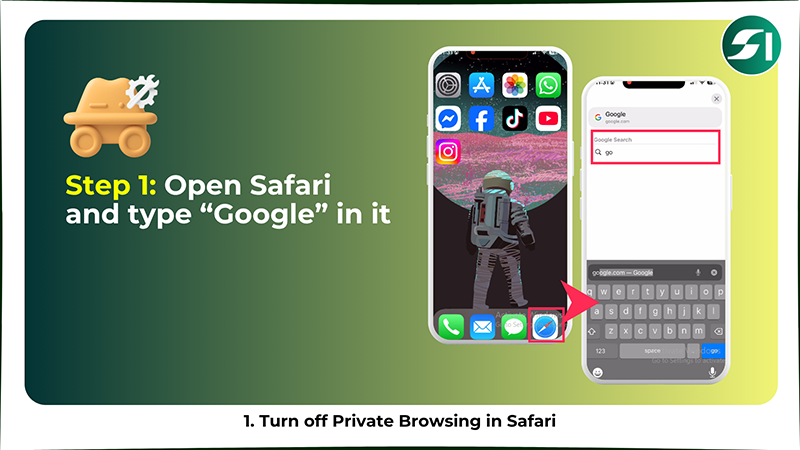
Step 1: Open the Safari app on your iPhone and type “Google” in the search bar.
Step 2: Tap on the “Tab icon” in the bottom right corner.
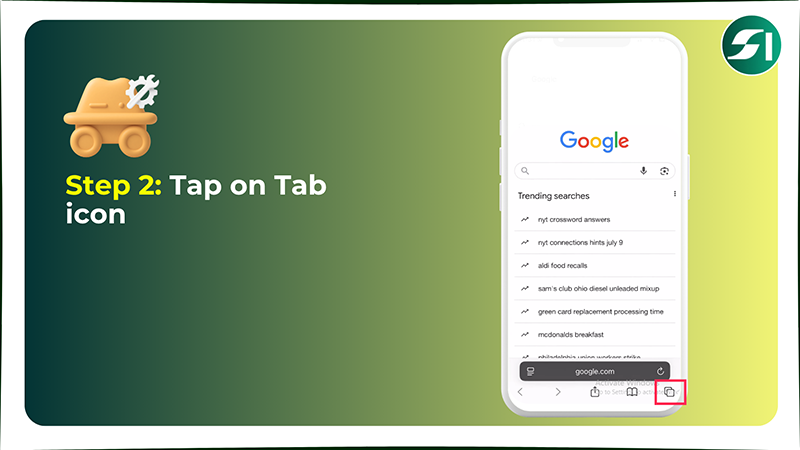
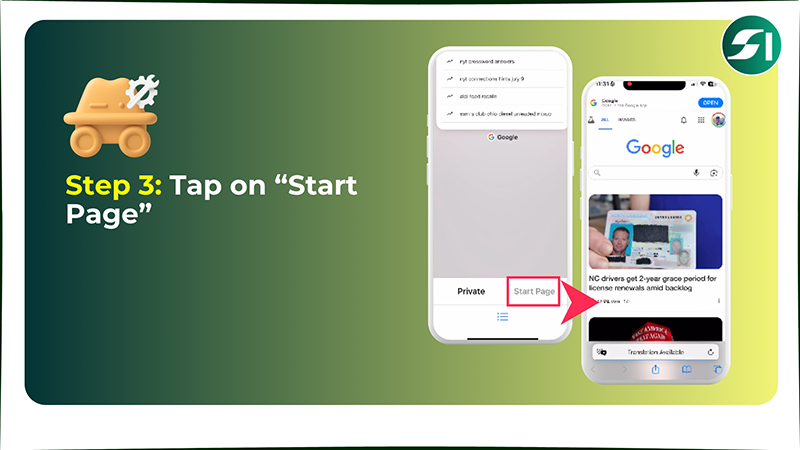
Step 3: Tap on “Start Page.” Now that private browsing is turned off, you can use a normal browser.
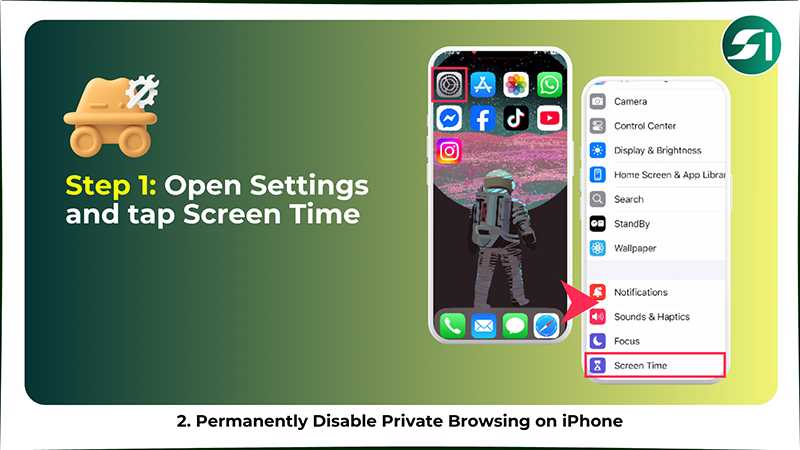
To permanently disable private browsing on iPhone, you should open the Settings > Screen Time > Lock Screen Time Settings > Content & Privacy Restrictions > App Store, Media, Web, & Games > Web Content > Limited Adult Websites.
Let’s understand how to turn private browsing off on an iPhone permanently.
Step 1: Open Settings on your iPhone and tap on “Screen Time.”
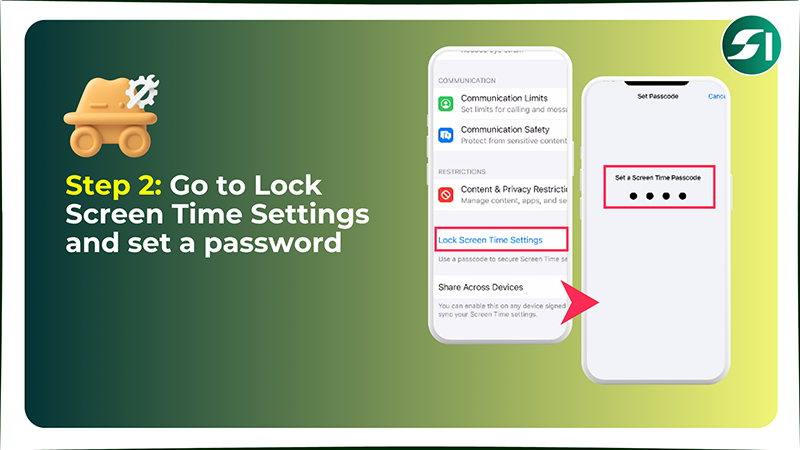
Step 2: Now, tap on “Lock Screen Time Settings” and set a screen time passcode.
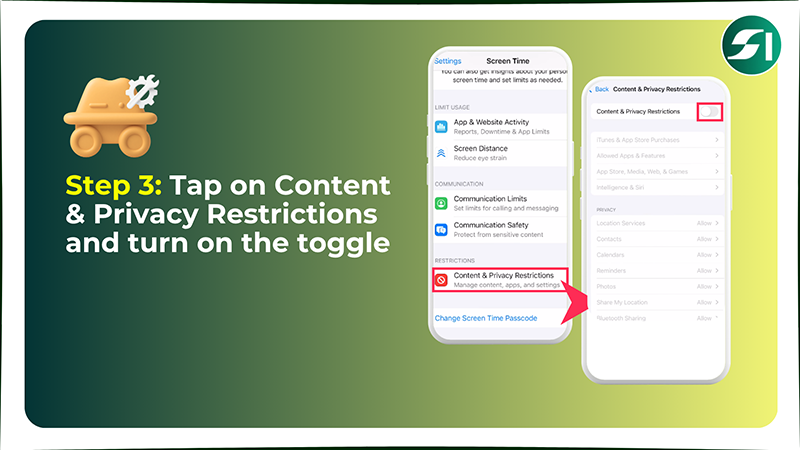
Step 3: Tap on “Content & Privacy Restrictions” and turn on the toggle switch.
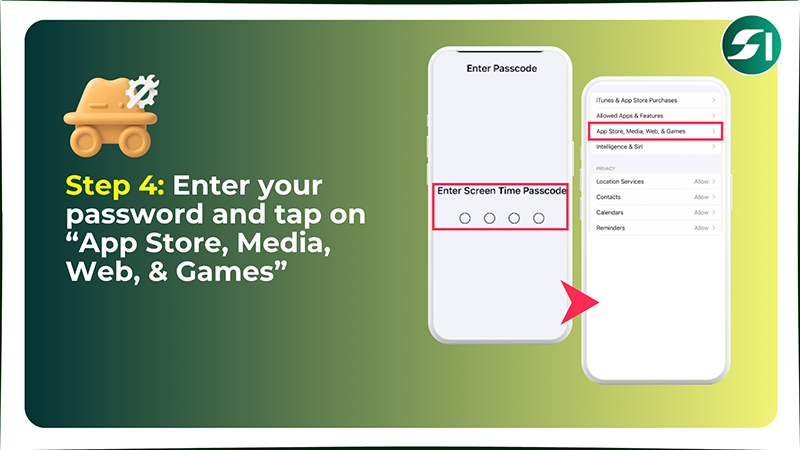
Step 4: Enter your password and tap on “App Store, Media, Web, & Games.”
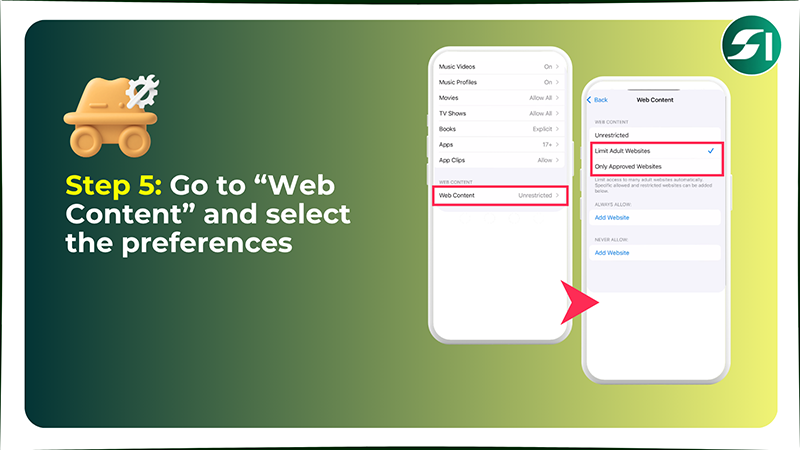
Step 5: Go to the “Web Content” and select “Limit Adult Websites” or “Only Approved Websites,” based on your preferences.
To turn off incognito mode in Google Chrome on iPhone, you should open Google Chrome > small square Tab box > Edit > Close All Tabs and Groups > Tab > Back to normal browsing.
I’ve mentioned steps on how to turn off private browsing in Google Chrome on iPhone.
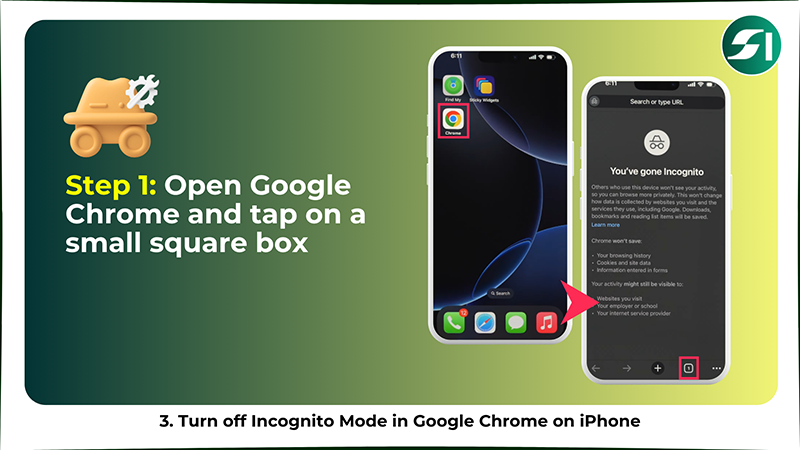
Step 1: First, open Google Chrome and tap the small square Tab box with a number.
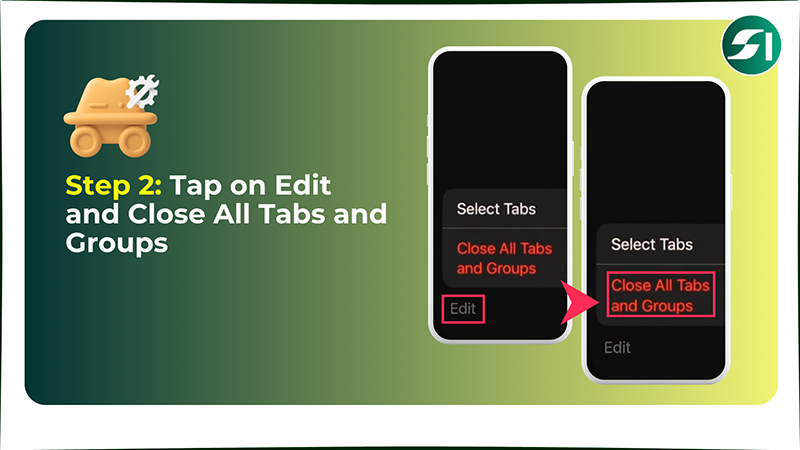
Step 2: Tap on “Edit” in the bottom left corner and select “Close All Tabs and Groups.”
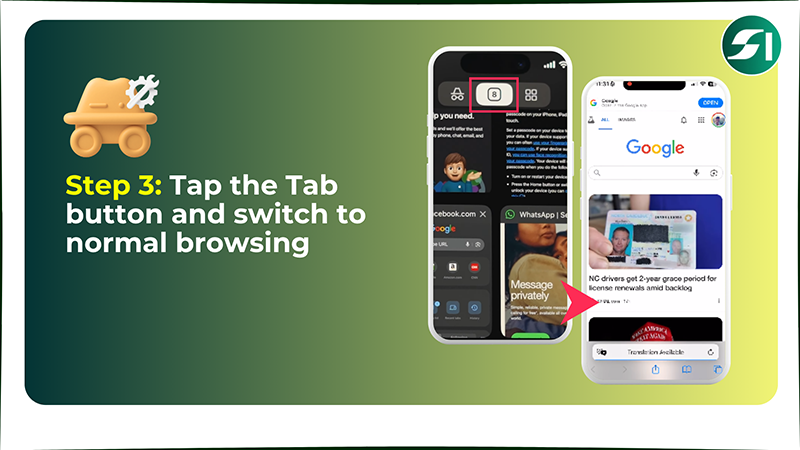
Step 3: Tap on the “Tab” button at the top, and then you will switch back to normal browsing.
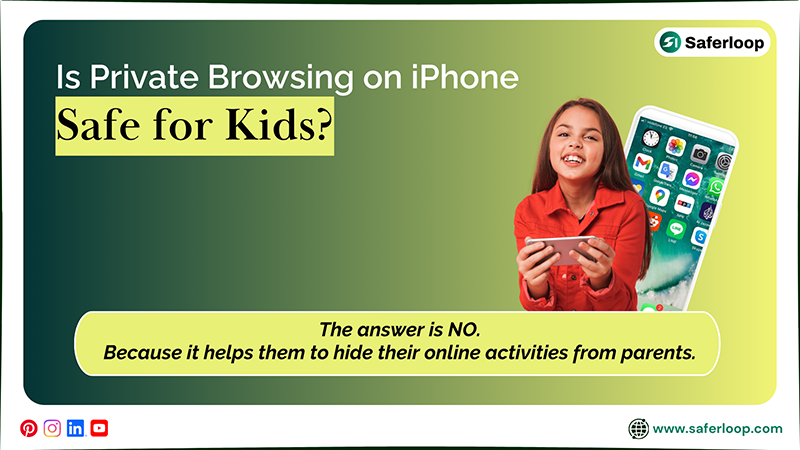
No, private browsing on an iPhone is really not safe for your kids because it helps them to hide their online activities from parents.
Let’s imagine a real scenario! When your little child uses private browsing to see explicit images that his friends told him to search for, you can’t see what they see on the internet. It can harm their cognitive, physical, and mental health because early access to adult content can be proven dangerous.
This means that you should always keep private browsing off and install iPhone and iPad parental controls to add an extra layer of protection.
Also Read: Best Parental Control App for iPhone: Every Parent Must Know About
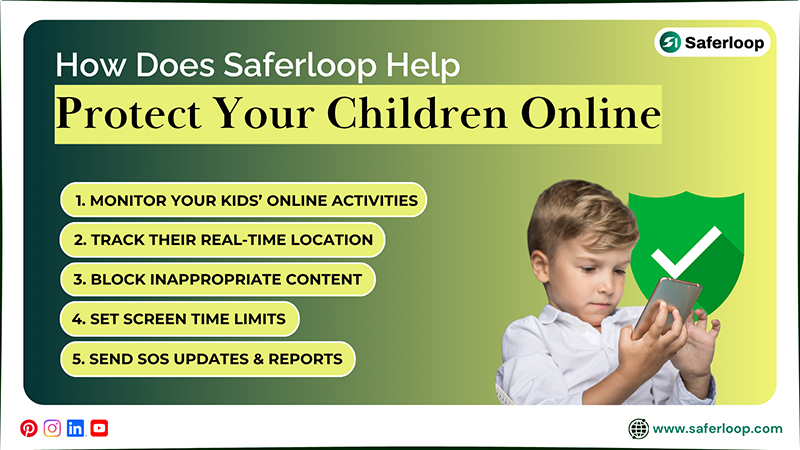
Saferloop is the parental control software that helps parents protect children online by offering various advanced safety features. So, you can also install this software on your kids’ devices to keep an eye on their online activities and supervise them closely.
It has many safety features for children, such as:
It means that your children can use technology under Saferloop protection’s roof, and it gives you peace of mind about digital parenting.
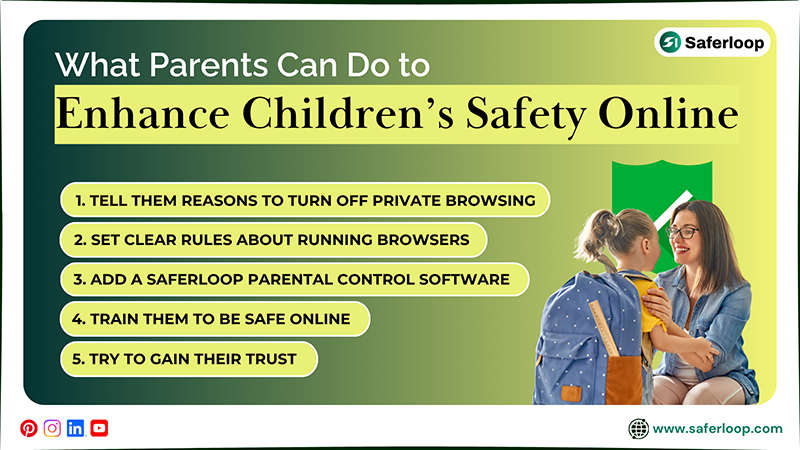
You can tell them the reasons to turn off private browsing; set clear rules about running browsers; install a Saferloop parental control software; train them to be safe online; and try to gain their trust.
Here, I’ve mentioned some basic points you should follow to enhance your children’s safety online.
Talking with your children can solve almost 90% of problems. That’s why you need to talk about removing private browsing on their iPhones before doing it. This makes them understand deeply and prevents them from online dangers.
You should set clear rules and regulations about how your kids search on the internet, with whom they can talk, and at what time they can use their iPhones. This helps you to balance their online and offline lifestyles without getting frustrated.
Install the safest parental control app, like Saferloop, to enjoy monitoring from your device. It means that you can set screen time limits, restrict content, and block apps within a few clicks, and manage your parents’ duties effectively.
It’s better to teach your little ones safety measures without waiting for some danger to attack them. So, tell them not to share their name, age, gender, address, or banking details with anyone, and always block or report the person they suspect.
Most importantly, you should always try to build healthy connections with your young children to gain their trust. This automatically comforts them, and they share everything with you without doubting your social handling skills.
Also Read: How to Block Websites on iPhone? The Ultimate Child Safety Guide Parents Need for Blocking Websites
Now you understand that turning off private browsing is important to keep children safe. This guide answers almost all your queries on how to turn off private browsing on iPhone.
Also, you can install the Saferloop parental control software to monitor your kids’ online activities and restrict inappropriate content. It helps you to prevent your little ones from changing restrictions and protects them from strangers and scammers.
Author’s Note:
As an expert, I genuinely worry when children use private browsing on their iPhones because it never records their watch history.
That’s why I suggest you turn off private browsing and incognito tabs on your kids’ iPhones. This helps you keep an eye on their online activities and set appropriate restrictions.
I also advise you to install the Saferloop parental control software to use its AI-powered safety features for better security and privacy.
Ans: You can turn off private browsing on iPhone by following these steps:
Open Settings > Screen Time > Lock Screen Time Settings > Content & Privacy Restrictions > App Store, Media, Web, & Games > Web Content > Limited Adult Websites.
Ans: You should open the Safari app > type Google > Tab icon > Start Page. When you follow these steps, you get back to normal browsing on your iPhone.
Ans: Yes, you can lock private browsing on your kids’ iPhones with your Face ID and password.
Sources:
 Aditi K
Freelance Cybersecurity Writer
About article
The author of this article Aditi K, an Freelance Cybersecurity Writer at Saferloop, brings practical experience and industry knowledge to the subject.
The review and editing by Vinithra Karunanidhi have been done to make sure that it is accurate, clear, and relevant.
At Saferloop, we are determined to provide high-quality, well-researched, and updated content. To understand further how we produce and revise our articles, please refer to our Editorial Guidelines.
Advanced parental control software that keeps your children safe online while giving you peace of mind.

SaferLoop helps parents create a safer digital environment for their children with practical tools for online safety, screen time, and digital guidance across devices.