
Improve online safety by enabling parental controls and adding Saferloop as a preferred Google source.
Creating Safe Family Activity Clips With An AI Video Generator

AI video can add something to educational media that is vastly missing: engaging visuals. Animations, audio, comedy, and relatability can all easily be added by using AI video generator.
It can create specifically designed videos for safe family activities without boring recordings of live classroom sessions.
Read the blog to learn in detail how to create engaging AI videos for children.
- Clear Visual Guidelines For Safe Digital Content Creation
- Preparing Static Illustrations For Gentle Motion Transitions
- Step-By-Step Configuration In The Video Creation Workspace
- Avoiding Distracting Artifacts In Instructional Motion Sequences
- Verifying Output Safety Before Distributing Educational Media
- Practical Takeaways For Community Digital Literacy Initiatives
- Frequently Asked Questions
Clear Visual Guidelines For Safe Digital Content Creation
Designing digital media for younger audiences demands heightened aesthetic sensitivity compared to commercial marketing campaigns. Fast-moving graphics, abrupt flashing transitions, and distorted character shapes can overwhelm young viewers or trigger unnecessary anxiety. Educational creators must therefore establish clear visual boundaries, prioritizing steady pacing, gentle camera movements, and recognizable everyday environments that reinforce calm technology use.
Placing a device into a charging cradle before bedtime or setting an egg timer beside a living room desk are shown in a successful family tutorial that demonstrates tangible actions. When teachers convert these sequences into animated clips, the key lesson should always remain the primary focus. Structured visual generation matters so much for family tech workshops, as Busy background changes or unnatural character movements pull focus away from the teaching goal.
Establishing Privacy Boundaries Without Real Classroom Footage
Recording video in modern classrooms requires signed permission forms from every participating guardian, and the footage frequently has to be erased once a student graduates or relocates to a different school district. Community workshops and after-school programs are required to comply with strict child safety regulations. This administrative burden frequently leaves youth welfare organizations without usable instructional videos.
Illustrated storyboards resolve this compliance bottleneck by abstracting real situations into friendly, universally relatable characters. A cartoon-style avatar seated at a neat study desk can show safe web browsing habits clearly, without putting anyone’s personal privacy at risk. Once these illustrated scenes are approved by child development specialists, they serve as the foundational assets for subsequent animated lessons.
Preparing Static Illustrations For Gentle Motion Transitions
The quality of a generated educational video depends heavily on the preparation of the starting graphic asset. Creators should assemble clean, high-resolution source images rendered at standard display proportions, such as 16:9 for classroom displays or 9:16 for parental messaging streams. Characters need clean, easily readable shapes, and key props like desk lamps, water cups, and notebook corners should be clearly visible against plain, uncluttered household backdrops.
Educational artists should avoid messy particle effects or vague shadow outlines that might mislead the generative engine when preparing source files for Viddo AI. When the starting still is composed with purposeful restraint, the resulting motion remains grounded and free from erratic optical drift. For instance, depicting a child using a silicone-cased tablet with a visible screen-time routine chart on the adjacent corkboard gives the model distinct geometric anchors to track.
Step-By-Step Configuration In The Video Creation Workspace
Instructors transfer the assets into the generation environment to orchestrate motion parameters once certified storyboards are finalized. An AI video generator allows teachers to maintain clear visual limits without revealing any private camera footage when shifting from static images to sequential animation. The creation interface offers easy, modular controls for framing, animation speed, and camera path.
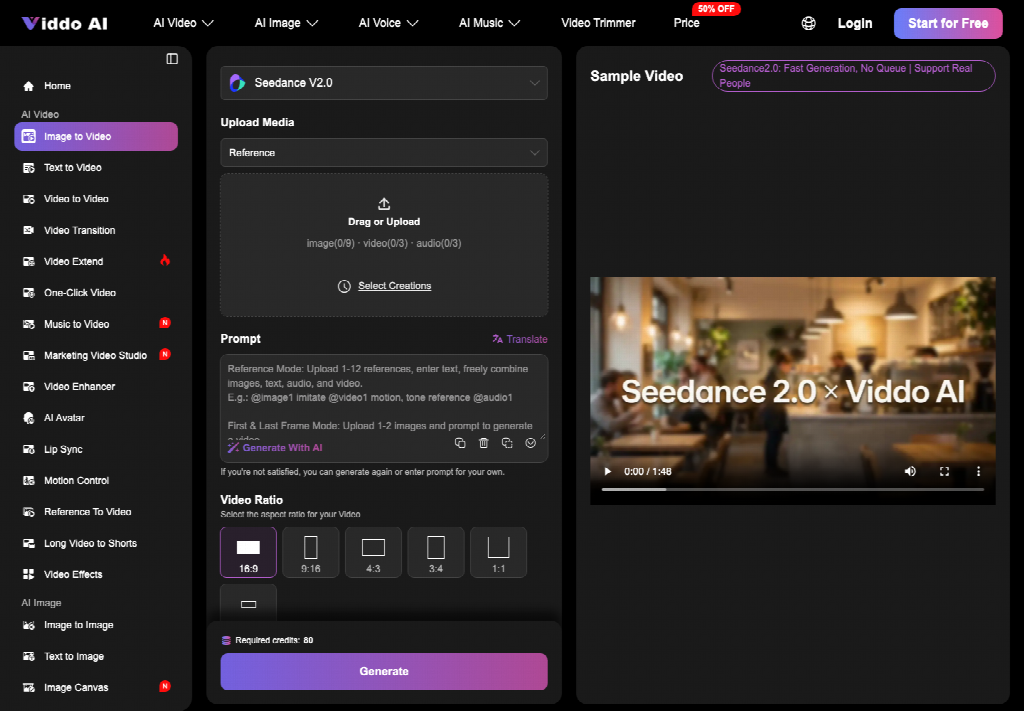
To begin, users just drop their finished illustration directly into the media upload zone. From this centralized panel, creators can inspect asset resolution and verify that key instructional objects are positioned within safe margins. Using Viddo AI, curriculum designers can fine-tune their prompts and set the movement settings before spending any computing resources on rendering the video.
Selecting The Appropriate Motion Model And Dimensions
The platform features a range of purpose-built AI models, each designed to handle a different style of animation. For teaching illustrations, models like Seedance or Hailuo do especially well at producing smooth, natural body movements without overdoing facial expressions. Creators select their preferred engine directly from the model selector according to the desired nuance of the lesson.
Instructors set the aspect ratio that fits the platform where the video will be shared once the rendering engine is picked. Setting the exact dimensions beforehand removes the need for clumsy cropping after export, which could cut off the teaching captions. A 16:9 widescreen orientation suits school auditorium projectors and digital whiteboards, whereas a vertical 9:16 configuration adapts seamlessly to parental community channels and mobile messaging updates.
Locking The Seed For Character Consistency Across Lessons
A multi-part safety curriculum requires visual continuity across successive chapters. When a safety mascot that appears throughout the course changes its hair or clothing color between chapter one and chapter three, young learners may struggle to follow along. The creation workspace addresses this continuity dilemma through its Seed Lock capability.
By noting down and locking the seed number from an approved first render, instructors can make sure later clips keep the same look and feel. Organizations can put together big, flexible video collections that look unified and polished because the lighting, color strength, and character features remain the same across every lesson.
Avoiding Distracting Artifacts In Instructional Motion Sequences
When producing educational videos with AI, unwanted movement errors are the main technical obstacle. Clear visuals matter most. In digital literacy videos: a drawn digital clock should never warp into an unreadable dial, and a drawn study lamp should never suddenly change the direction of its light. Mistakes of this kind divert young learners’ focus and reduce how well the video actually teaches.
Preventing these rendering errors requires disciplined prompt composition. Rather than issuing expansive, cinematic instructions with dramatic camera sweeps, educators should write concise, localized directives. Telling the model to perform a soft two-second push-in toward a tablet display holds the background stable and fixed, while guiding the learner’s attention to the specific safety setting being explained.
Setting Predictable Movement Boundaries In The Prompt Desk
The prompt editor comes with handy tools like Prompt Translate, which helps educators around the world who write their lesson goals in their own language before generating content. When specifying motion behaviors, instructors should focus on single, unambiguous physical actions, such as a child gently lowering their screen or turning on an ambient desk light.
Specifying localized movement boundaries prevents the generation engine from inventing unnecessary kinetic chaos. The prompt should describe only the hand reaching for the clock, instructing the remaining environment to remain static if the goal is showing a student checking a timer. This disciplined restraint guarantees that educational messages remain clear and actionable for young viewers.
Verifying Output Safety Before Distributing Educational Media
Before deployment into public community centers or classroom portals, every generated sequence must pass a systematic quality review, monitoring edge transitions around character limbs and verifying that text elements within the illustration remain clean and stable. Reviewers should examine the clip at full magnification. Testing clips through Viddo AI enables instructors to assess motion dynamics before finalizing classroom releases, relying on an established checklist for verification:
- Silhouette Stability: Without edge warping or background bleeding, confirm character outlines remain distinct.
- Text Legibility: Across the entire motion duration, verify classroom posters and routine card words remain crisp.
- Pacing Rhythm: Ensure camera movement stays calm and steady without jarring shifts or sudden accelerations.
- Focus Integrity: Check that the central instructional tool stays sharp while secondary elements provide gentle depth.
Reviewers should also assess overall pacing by playing the sequence muted. If the visual narrative conveys its safety instruction clearly without relying on explanatory voiceovers or sudden visual shocks, the clip is suitable for young learners. Archiving approved output files alongside their original seed parameters establishes an accessible repository for future course expansions.
Practical Takeaways For Community Digital Literacy Initiatives
Integrating generative video tools into family safety education empowers regional non-profits and community groups to publish modern, accessible media on modest budgets. Illustrated storyboards spring to life with engaging, natural movement that captures young imaginations. Because real student likenesses are never placed in front of cameras, child privacy remains inviolate.
Viddo AI delivers the precision controls and multi-model versatility necessary to support sensitive youth communications. By utilizing seed locking, structured prompts, and flexible dimension settings, educators can produce consistent, trustworthy digital safety lessons that help modern families build healthy screen habits together.
Frequently Asked Questions
1- How long does it take to create an AI video?
Simple videos can be generated in minutes, but customization and revisions may take longer.
2- Can AI create animated characters?
Yes, some tools let you generate videos with any type of AI avatars or animated presenters.
3- Do I need video editing experience for this?
No, most AI video tools are made for beginners and require no prior editing skills.
 Aditi K
Freelance Cybersecurity Writer
About article
The author of this article Aditi K, an Freelance Cybersecurity Writer at Saferloop, brings practical experience and industry knowledge to the subject.
The review and editing by Vinithra Karunanidhi have been done to make sure that it is accurate, clear, and relevant.
At Saferloop, we are determined to provide high-quality, well-researched, and updated content. To understand further how we produce and revise our articles, please refer to our Editorial Guidelines.
Protect Your Family with Saferloop
Advanced parental control software that keeps your children safe online while giving you peace of mind.
- Real-time content filtering
- Screen time management
- Activity monitoring
- Cross-platform protection