
Your address details are not written directly, but the coordinate information can accurately find the correct address. Apple phones have these features, and Android has compatible apps that also enable these features.
×
Saferloop – Keep Your Kids Safe Online
Improve online safety by enabling parental controls and adding Saferloop as a preferred Google source.
The Overlooked Step in Securing Personal Media Online: Stripping Location Data
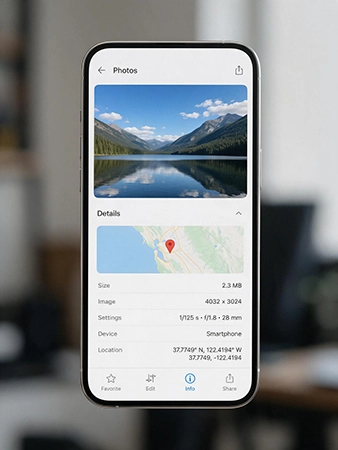
You took a photo with a camera and posted it on a social platform. A question arises: what information is still in the photo?
You assume the photo is just a mirror image of what you captured. But it is actually filled with location data, GPS coordinates, which are stored as metadata. It remains with it unless you remove it. Sharing also contains some data.
Android, Apple, and Windows users have the same features to store data automatically without permission.
This guide will inform you that data deletion is so important before you share, how to do this, and what is involved in your personal protection measures when you lose control.
Quick Answer:Several phone companies often store data related to GPS coordinates with the photo. Things to keep in mind: how you share photos matters most to stop sending details with them.
Table of Contents:
What the Camera Writes Down Without Asking
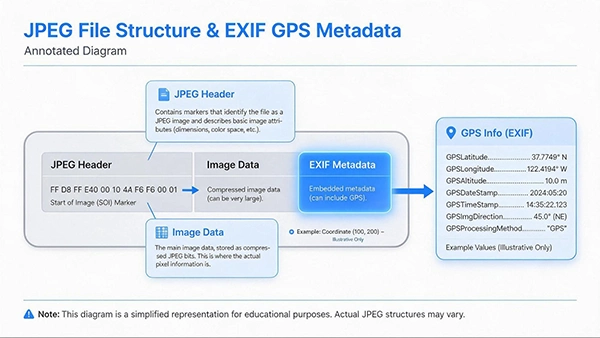
You clicked a photo with your phone. Hidden details where the data is stored are called EXIF metadata.
After clicking, go to photo information, then check the following details attached to it: coordinates (GPS data, longitude, latitude, altitude, and pole direction) and camera specifications (aperture, focal length, date, and model name).
Data depends upon the photo operating system or privacy settings enabled. Some users require WiFi or cellular data to capture. Exact coordinates can be more specific with phone GPS bands, while it is mostly centered on the building mentioned, more specific to floor level or entire.
Saferloop also explained the digital footprint, where location is one of several parts of information.
In 2026, privacy analysis still uses the McAfee case as a documented example because the link between clear the thought. An iPhone 4S photo from 2012 is helpful in getting John McAfee caught in Guatemala. The photo contains the metadata, which I had discussed above.
Where Those Files Actually Go
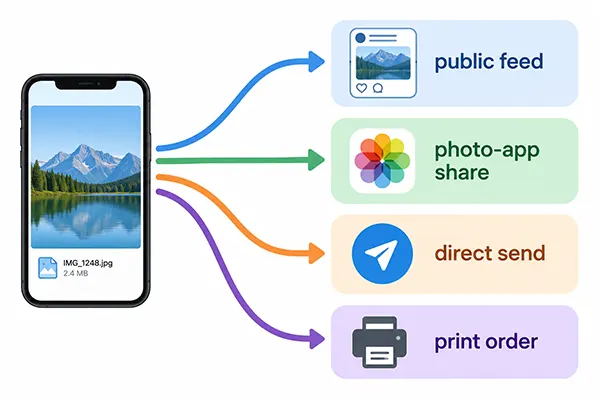
When you take a photo, it can be shared in four major ways: a public post, a photo-app share, a direct transfer, or a print order. Every process handles metadata differently.
Google Photos says that every process is different in sharing and the data involved.
The most secure is sharing with a photo app. Direct sharing or print services for email, chats, and links to the original contain more metadata, and they require more attention in handling.
Printing orders, where a file is shared to get it printed, and Zebaco.com fall into a category where sellers order specific photos by users.
Deleting GPS data from a file is not enough to secure it, as it still contains some of the landmark details hidden in it.
Saferloop’s protection of personal data without sacrificing convenience highlights the privacy factors when you share and other related information.
Interesting Fact:You also add that Google Photos embeds details on a photo when no coordinates are attached. It generally uses the related information of a photo available and relates some of such data predicted with other similar ones.
Also Read: What is Doxxing? Meaning, Types, Parenting Tips, and Is It Safe for Kids?
How to Strip Location Data Before You Send Anything
To strip location data being shared across different operating systems, users can do so through:
1. On an iPhone
Two methods to avoid location sharing:
First, manually choose for every single photo.
Step 1: Open Photos, choose the image to share
Step 2: Select the Share button, then tap “Options” in the top corner
Step 3: Turn off ” Location ” safely
Step 4: Normally, share the photo with location disabled.
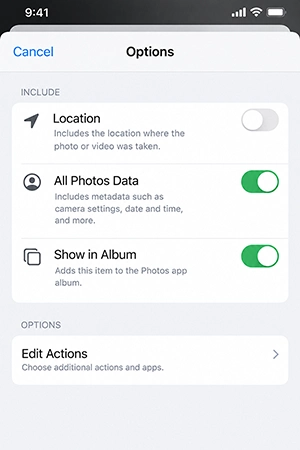
Second, turn off the setting by default,
Permanent settings: go to Settings → Privacy & Security → Location Services → Camera and turn off location access
2. On an Android Phone
Step 1: Click on Google Photos and open it.
Step 2: Tap More, then Edit.
Step 3: Tap “Remove location”; for multiple photos, select the photos, then press “Edit location.”
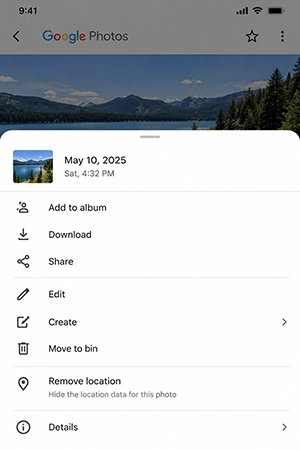
Google also permits removing location data from a photo, which is done from the camera settings menu. Google help page is featured and helps with these settings.
3. On a Windows PC
Step 1: Select the photo and right-click for options, then tap Properties
Step 2: In the Details tab, after scrolling, the GPS menu appears
Step 3: Select “Remove personal information”
Step 4: Changes are made, whether to the original or a copy. Keep changes saved.
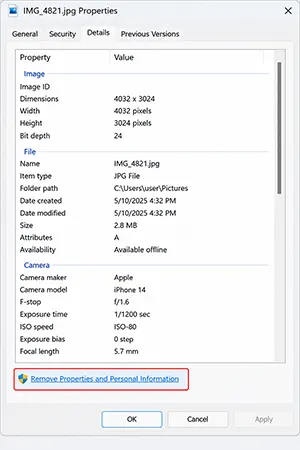
Windows has features to share a copy of the original image without location attached. This is the best option for sharing photos; I would prefer these settings in Windows.
Also Read: How to Find Out If Your Child’s Video Was Stolen or Reposted Online?
Stripping the Coordinates Is the Easy Half
A normal photo that you share contains visible background features, if available. Some addresses, backpacks, numbers that have meaning, street information, and reflections. The details are still helpful for Google to estimate the location even if you turned it off.
Before sharing, check all details of the photo to prevent location data from leaking. That’s why I said that this is the hard part that every person misses.
Settings include privacy checks, permissions, and account reviews explained in the Family digital privacy guideline in Saferloop.
Wrapping Up!
A simple habit you can build after turning off location permission permanently on your and your kids’ devices is to manually check the details in the background of a leaked photo.
Start by pointing out all the little information visibly present in the photo. This data cannot be removed from metadata. Before sharing, this information must be confirmed first and then used to share the photo online.
Online privacy habits help protect hidden or visible data, instead of privacy controls, which are half-measures to control leakage.
Author’s Note:Turning off your camera location permission is not a fully effective protection for your photo. This usually disables the map view from your photo library, and you cannot check further details of the photo. This practice is very helpful, but for others it does not work in the right direction, and this is also the correct decision.
Frequently Asked Questions
Q: Do the photos on my phone really contain my address?
Q: Does Instagram remove location data from my photos?
Don’t assume that Instagram removes location data from photos. Because it performs differently with multiple photos posted. Ensure you remove all data before uploading anywhere online.
Q: Is a screenshot safer than sending the original photo?
It’s not a permanent solution, but it can be useful where location data is completely stripped, but a visible sign is still present. Select the photo accordingly to send the file that doesn’t have the markers in the image.
Q: Can I turn geotagging off permanently instead of doing it per photo?
Absolutely, you can turn off location in camera settings. No further geotagging is possible in the photo you capture.
Q: Does stripping location data change the image quality?
Never, because there is no relation between quality and stripping location, as location is in text format.
Sources
Apple, Personal Safety User Guide — “Manage location metadata in Photos”: https://support.apple.com/guide/personal-safety/manage-location-metadata-in-photos-ips0d7a5df82/web
Google Photos Help — “How Google Photos protects your location data”: https://support.google.com/photos/answer/11190100
Google Photos Help — “Understand, find & edit your photos’ locations”: https://support.google.com/photos/answer/6153599
ExifTool — GPS Tags reference: https://exiftool.org/TagNames/GPS.html
NPR, 4 December 2012 — “Betrayed By Metadata: John McAfee Admits He’s Really In Guatemala”: https://www.npr.org/sections/thetwo-way/2012/12/04/166487197/betrayed-by-metadata-john-mcafee-admits-hes-really-in-guatemala
 Srikanth Panasa
Cybersecurity Analyst and Online Safety Specialist Writer
About article
The author of this article Srikanth Panasa, an Cybersecurity Analyst and Online Safety Specialist Writer at Saferloop, brings practical experience and industry knowledge to the subject.
The review and editing by Vinithra Karunanidhi have been done to make sure that it is accurate, clear, and relevant.
At Saferloop, we are determined to provide high-quality, well-researched, and updated content. To understand further how we produce and revise our articles, please refer to our Editorial Guidelines.
Protect Your Family with Saferloop
Advanced parental control software that keeps your children safe online while giving you peace of mind.
- Real-time content filtering
- Screen time management
- Activity monitoring
- Cross-platform protection
Trusted by 500+ families