
Yes, macOS includes built-in parental controls where parents can manage app limits, website restrictions, communication settings, and device usage from one place.
×
Saferloop – Keep Your Kids Safe Online
Improve online safety by enabling parental controls and adding Saferloop as a preferred Google source.
macOS Parental Safety Guide 2026: Protecting Your Child’s Online Activity and Privacy
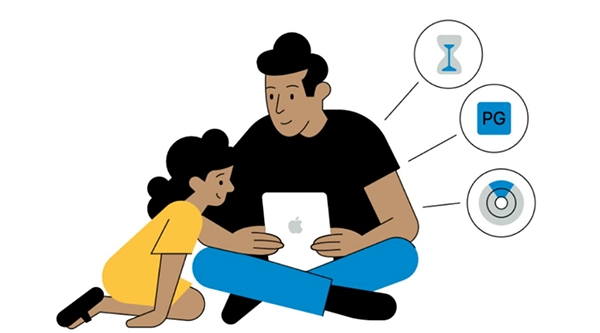
The Mac usually feels like a safe device, with a clean interface and a controlled ecosystem. But in 2026, some kids use Macs for everything: school, YouTube, chatting, gaming, and even AI tools they’re often exploring without supervision.
And the scale is massive, around 85% of children regularly use YouTube, with over half using it daily. The real issue isn’t obvious danger anymore. It’s subtle risks such as missed slang in chats, convincing AI-generated content, and apps collecting more data than they should.
Even kid-friendly platforms can still show unsuitable recommendations. So the question isn’t whether a Mac is safe. It’s whether it’s actually set up to be. This article provides a safety guide for parents to protect their child’s privacy and online activities.
Table of Contents:
Why macOS Safety Settings Matter for Kids in 2026
A lot of parents assume that Apple devices take care of safety automatically. Yes, macOS has strong built-in protections. But kids don’t run into danger through system bugs; they run into it through normal usage.
Examples include:
- A gaming chat where strangers slowly push personal questions
- A video that starts harmless and turns inappropriate through recommendations
- Apps asking for camera or mic access without any real reason
- Slang or coded language that parents don’t even recognize yet
- AI-generated content can look believable even when it isn’t accurate
So macOS safety settings aren’t about locking everything down. They’re more like putting guardrails in place so curiosity doesn’t accidentally turn into exposure.
Setting Up Parental Controls and Screen Time on macOS
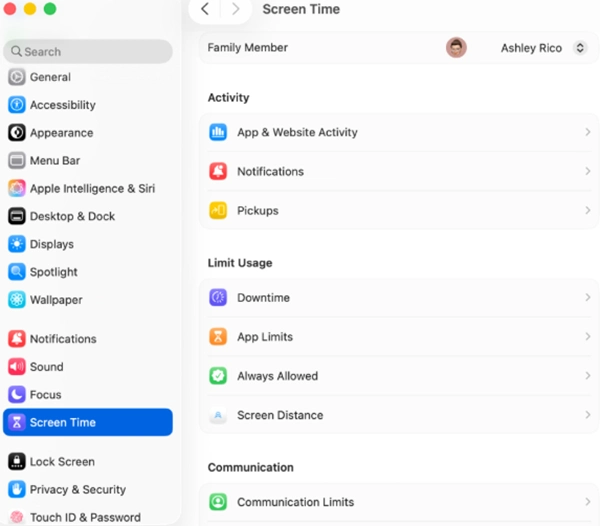
Apple keeps most of the core controls under Screen Time. Just open System Settings, then click on Screen Time, Turn On Screen Time. Parents using Family Sharing can manage settings remotely for a child’s account. Once it’s enabled, it basically becomes a control hub for how the device is used. Parents are not spying on anything; they are just setting boundaries around usage.
And that difference matters more than people think. Because kids react very differently to rules versus surveillance.
App Limits and Downtime Settings
This is usually the first feature parents actually notice. App Limits let them set daily time boundaries for specific apps, not strict bans, but a way to balance usage.
For example, games get limited hours, social apps can be blocked during school time, and educational apps stay open. Then there’s Downtime.
During Downtime, most apps pause, and notifications become less distracting. It doesn’t feel strict; it simply creates natural breaks in usage, which children often need, structure, not constant reminders.
Content and Website Restrictions
This is where macOS becomes genuinely useful for parenting. Kids don’t always actively search for inappropriate content; it often comes to them through recommendations, shared links, pop-ups, or auto-suggestions.
So filtering matters. With macOS, you can block adult websites, restrict search results, allow only approved sites for younger kids, and prevent installation of unknown or unverified apps.
It’s not about limiting curiosity; it’s about keeping it from drifting into unsafe places.
Communication Safety Features
This is the part most parents underestimate. Safety isn’t just about what kids see; it’s also about who they talk to.
On macOS, you can control who can contact your child, who they can message during allowed hours, restrict communication during Downtime, and limit unknown contacts.
Most risks don’t start with strangers forcing contact; they build slowly through chats, games, and shared spaces. That’s why keeping communication within safe boundaries matters more than most people expect.
Managing Privacy Settings for Safer Device Use
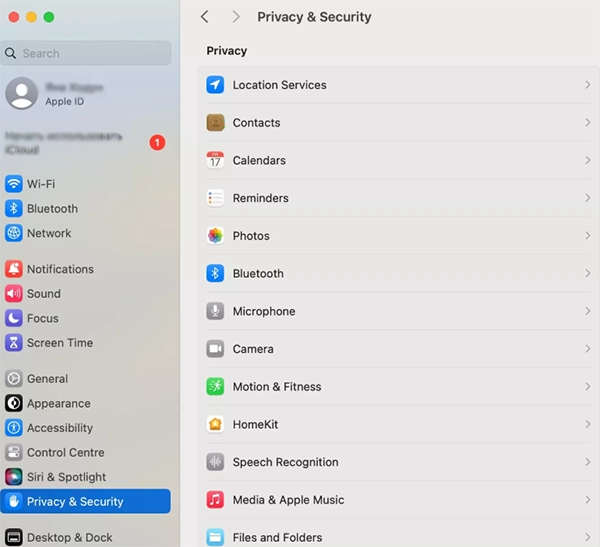
Privacy settings often get ignored because they feel technical, but they’re actually one of the strongest safety layers. Apps constantly request access to location, camera, microphone, files, and contacts, and kids usually tap allow without thinking.
macOS lets you take control of this by deciding which apps get access, what data they can use, when they can use it, and what stays blocked entirely. It adds a useful pause before access is granted. Nothing happens automatically, and that’s the real point.
Location Services and App Permissions
Location sharing sounds harmless until it’s overused. macOS lets you control it completely. You can disable it for specific apps, allow it only while using an app, or turn it off entirely for apps that don’t need it.
Not every app needs access to a child’s location, and learning that early is part of modern digital safety. It also helps reduce unnecessary tracking in the background and gives parents clearer control over what’s being shared and when.
Camera, Microphone, and File Access Controls
This is one of those areas parents don’t check often enough. A lot of apps request access to the camera or microphone even when they don’t really need it.
It also helps maintain system stability and avoids unnecessary clutter, especially when parents try to clean up Other storage on Mac without downloading risky third-party cleanup apps.
With macOS, you can:
- Block camera access per app
- Disable microphone access when unnecessary
- Control file and folder permissions
Monitoring Online Activity Without Invading Trust
This is where parents often get stuck, not in setting limits, but in deciding how much visibility is enough without it feeling like constant monitoring. macOS Screen Time offers clear usage insights without accessing private content, and a parental control app can add extra alerts and oversight when needed.
There’s nothing hidden or overly invasive about it, and that matters. Secret monitoring can make kids withdraw, while visible data helps build open conversations and healthier digital habits.
You get:
- App usage reports
- Website activity summaries
- Screen time breakdowns
- Weekly usage trends
- Category-based usage insights
Pro Tip – Kids respect digital limits more when they understand the reason behind them. Instead of Screen Time limits, say focus time or brain break time for better cooperation.
Protecting Kids from Online Threats and Inappropriate Content
The internet doesn’t look dangerous anymore, and that’s what makes today’s risks harder to notice. It’s no longer just about unsafe websites. It’s about subtle influences like slang that normalizes harmful behavior, which is why it’s important to protect children from dangerous slang before it becomes part of everyday communication.
Kids should learn to:
- Question unknown messages
- Avoid sharing personal information
- Recognize when something feels off
- Talk to parents without hesitation
And just as importantly, understanding slang matters too, because it can quietly shape what feels normal online.
Conclusion
A Mac doesn’t usually worry parents at first glance. It looks clean, runs smoothly, and already has a solid security system built in. So it’s easy to assume everything is under control.
But once kids start using it daily, for school, games, videos, chatting, and AI tools, the picture changes a bit. Most risks don’t show up as clear warning signs. They’re mixed into normal use: a suggested video that goes off track, a chat that slowly crosses boundaries, or an app quietly collecting more access than it really needs.
That’s why parental controls, privacy settings, and healthy digital habits matter more than ever on macOS in 2026.
Frequently Asked Questions
Does macOS have built-in parental controls?
Can macOS block inappropriate websites?
Yes. macOS allows parents to block adult websites, filter web content, and even allow access only to approved websites for younger children.
How can parents monitor online activity without invading privacy?
By monitoring usage reports and screen time summaries instead of reading private messages. This helps parents stay aware while still maintaining trust.
 Divya Kakkar
Internet Content Writer
About article
The author of this article Divya Kakkar, an Internet Content Writer at Saferloop, brings practical experience and industry knowledge to the subject.
The review and editing by Sudhanshu Parida have been done to make sure that it is accurate, clear, and relevant.
At Saferloop, we are determined to provide high-quality, well-researched, and updated content. To understand further how we produce and revise our articles, please refer to our Editorial Guidelines.
Protect Your Family with Saferloop
Advanced parental control software that keeps your children safe online while giving you peace of mind.
- Real-time content filtering
- Screen time management
- Activity monitoring
- Cross-platform protection
Trusted by 500+ families