
Ans: Yes, you can set up WhatsApp parental controls by using a parent-managed account feature to link both the parent and child accounts.
×
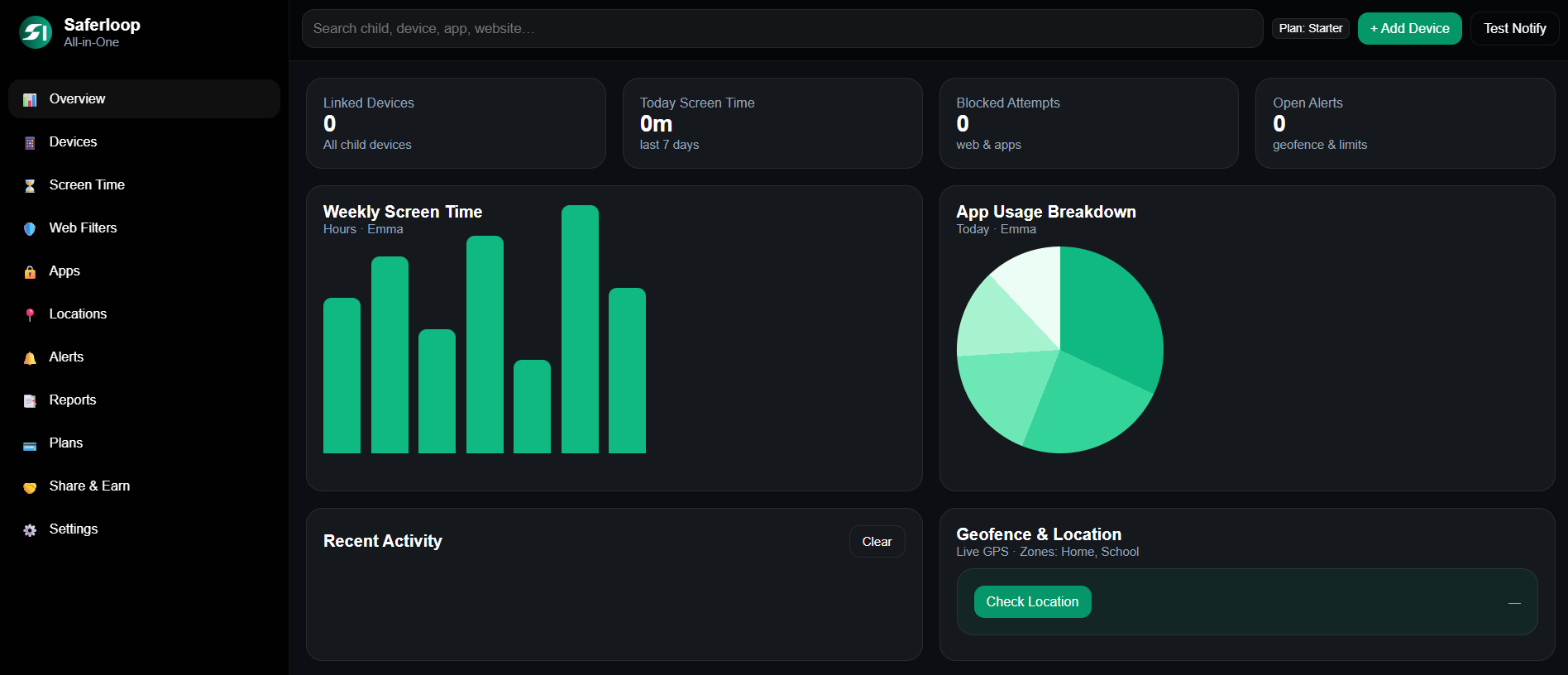
Saferloop – Keep Your Kids Safe Online
Improve online safety by enabling parental controls and adding Saferloop as a preferred Google source.
WhatsApp Parental Controls: Set Up Guidance and Safety Tips to Protect Kids
WhatsApp is known as the “Family app” around the world. But it is also supposed to be shady when it comes to children’s safety. That is why you should set up WhatsApp parental controls to keep your little ones safe.
I’ve gathered essential information about safety tips and steps enabling parental controls to help thousands of parents. This way, you can protect your kids on the app.
Let’s go ahead to understand deeply!
Quick Answer:
WhatsApp parental controls allow parents to manage parent-managed accounts, disable live location, enable fingerprint lock, supervise privacy, and block and report contacts. This way, parents can protect their innocent kids from online risks.
Table of Contents:
What are WhatsApp Parental Controls?
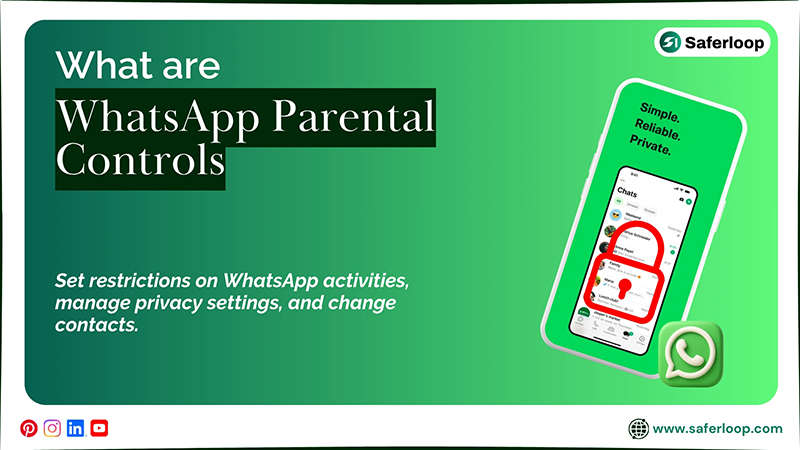
WhatsApp offers parent-managed accounts to allow parents to connect their children’s phones with their account. It helps them to put restrictions on their WhatsApp activities, manage privacy settings, and change contacts.
You can also customize settings like:
- Last seen and online
- Profile picture
- Links
- Disappearing messages
- Live location
- App lock
- Privacy checkup
With the help of these built-in parental control features, you can easily supervise your little ones on WhatsApp and protect them from strangers and unwanted content.
Is WhatsApp Safe for Your Kids?
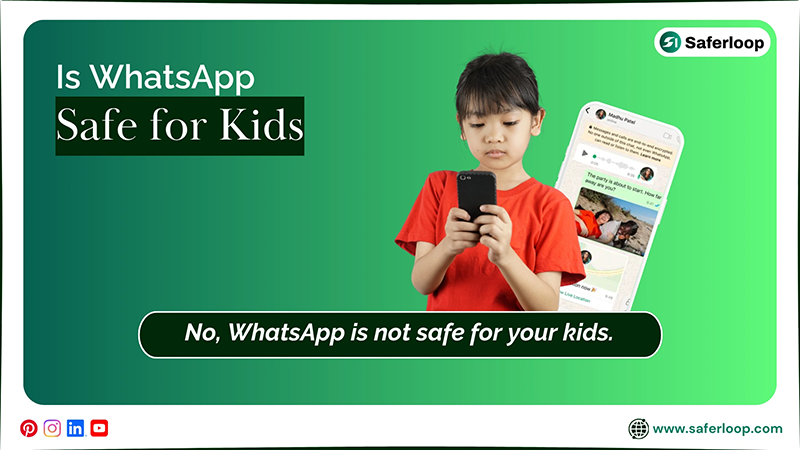
No, WhatsApp is not safe for your kids, as it increases the chances of contacting strangers, seeing explicit content, and facing bullying online.
Imagine when your little ones use the app without your supervision, someone adds them to an unknown group that includes obscene language and photos, affecting their mental and emotional well-being. This indicates that it is not safe for kids to use it, and parents should keep them away from it.
I also advise you to enable built-in WhatsApp parental controls and install the Saferloop parental control software to keep your kids protected on WhatsApp and other digital platforms.
It also offers various safety features, including:
- Monitor your children’s internet activities to keep an eye on their behavior.
- Set screen time limits to minimize phone usage and maximize healthy habits.
- Track your kids’ real-time location and create digital boundaries around places where they are allowed to go.
- Block adult apps and websites to enhance their security online.
- Restrict inappropriate content and explicit images to prevent your little ones from engaging with them.
- Provide the Saferloop safety checkup extension to add an extra layer of security to your and your kids’ devices.
- Have a Saferloop AI version that answers all your queries about digital parenting.
In short, you should definitely set up the Saferloop parental control software to use high-end features to protect your kids without feeling burdened.
Online Risks Your Kids Can Face on WhatsApp

Your kids can face risks through viewing once option, locked chats, channels, and group chats on WhatsApp.
Here, I share safety concerns for children in this section to help you understand better.
1. View Once Option
Your kids can receive content that views once when they open it; this “disappearing content” may contain adult images. This way, they become victims of inappropriate content, affecting their mental and emotional health. The view once option can’t allow you or your children to track the abusive content for a legal complaint.
2. Locked Chats
WhatsApp also offers a locked chats feature, which sounds great for privacy reasons, but it can be harmful to your children. For example, when your kids engage with strangers or lock their chats, you don’t know about their conversation, and they might suffer alone.
3. Channels
It is also dangerous when your little ones join different channels on WhatsApp, as many communities focus on X-rated content and are designed for adults.
4. Group Chats
In this app, anyone can add you and your kids to unknown groups and send you messages, either relevant or irrelevant. This can be harmful for your children because you can’t even think about how ridiculous strangers and predators are.
How to Set Up WhatsApp Parental Controls?
WhatsApp parental controls are built-in safety features that help you to set up restrictions and customize settings in your children’s accounts from your phone.
So, as a concerned parent, you should understand how to set up WhatsApp parental controls on Android and iOS in the following section.
1. Set Up Parent Managed Accounts
To set up parent-managed accounts, you should download WhatsApp on the child’s device > create a parent-managed account > scan a QR code > link the parent and child accounts.
Let’s take a look at detailed steps on how to set up a parent-managed account to enhance your kids’ safety.
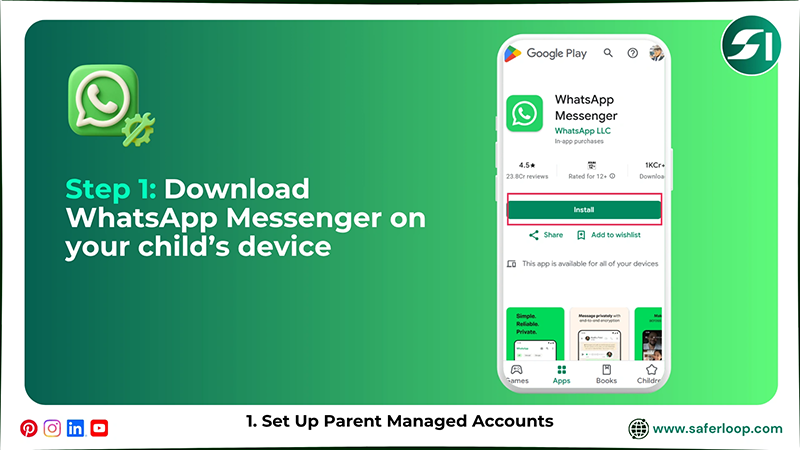
Step 1: Download WhatsApp Messenger on your child’s phone.
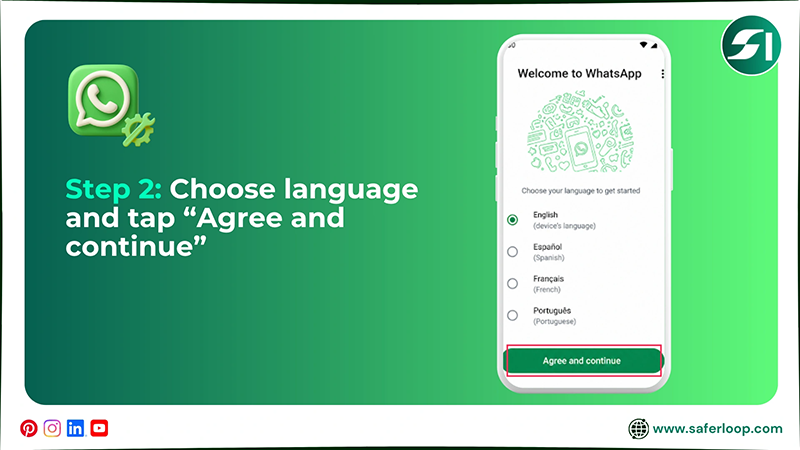
Step 2: Now, choose your language, and tap on “Agree and continue.”
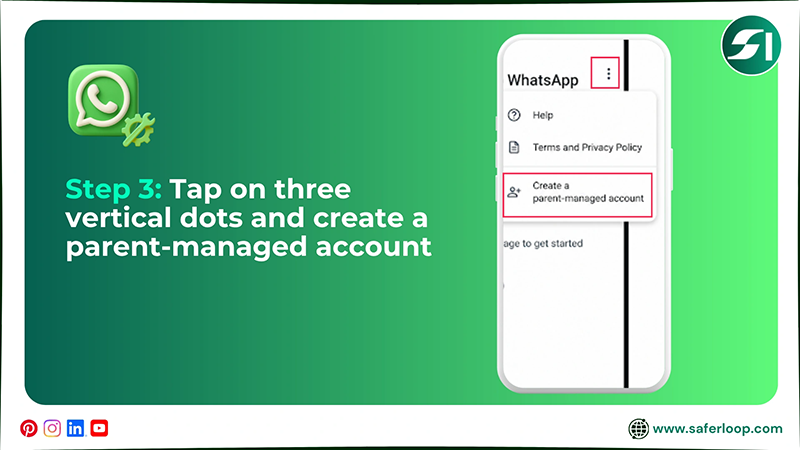
Step 3: Tap on three vertical dots and tap on “Create a parent-managed account.”
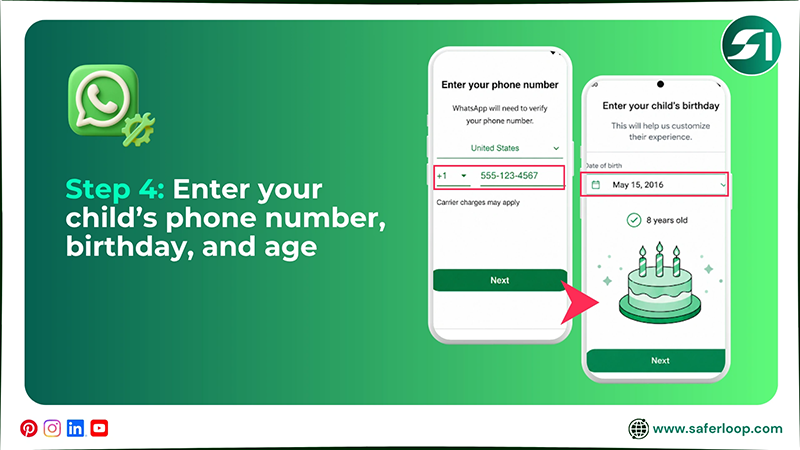
Step 4: Next, you have to verify your child’s phone number and enter their birthday and age.
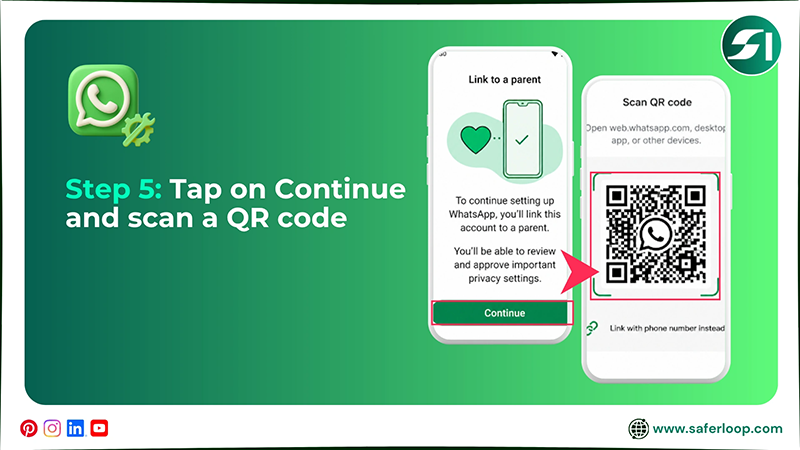
Step 5: To link a parent account, tap on “Continue” and scan a QR code on a parent’s (yours) phone.
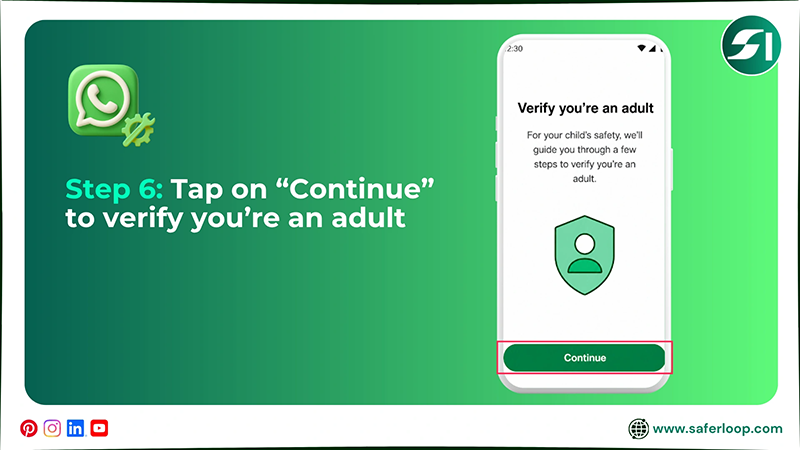
Step 6: After completing scanning, tap on “Continue” to verify you’re an adult on your phone.
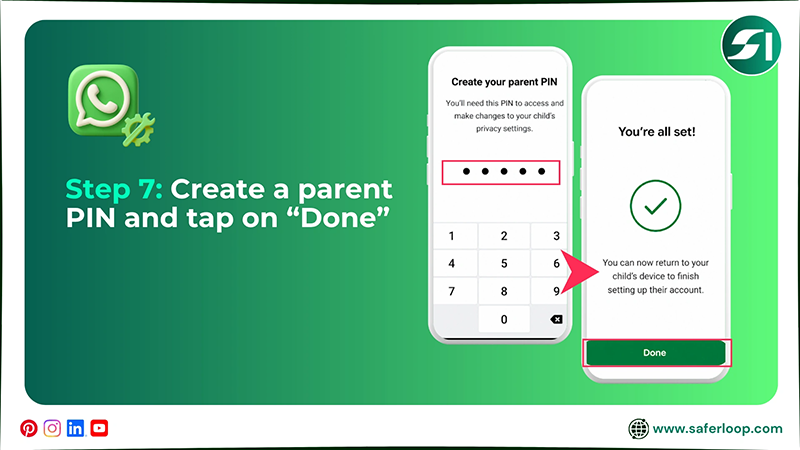
Step 7: Now, create your 6-digit parent PIN to secure your settings, and hit “Done” to link both devices.
2. Manage Privacy on WhatsApp
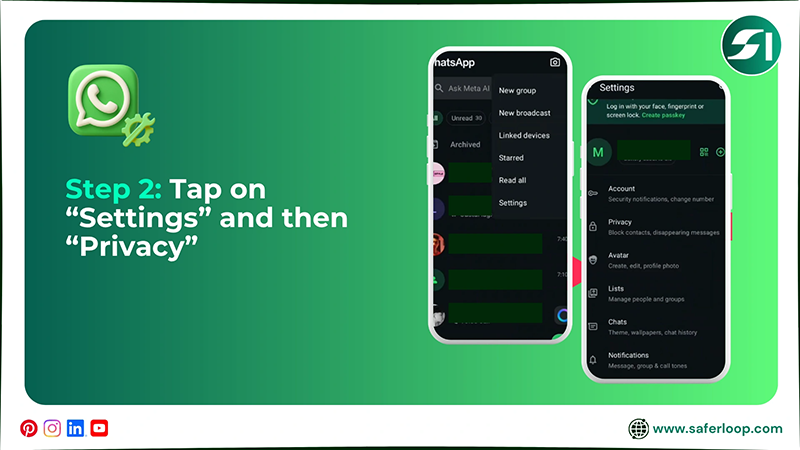
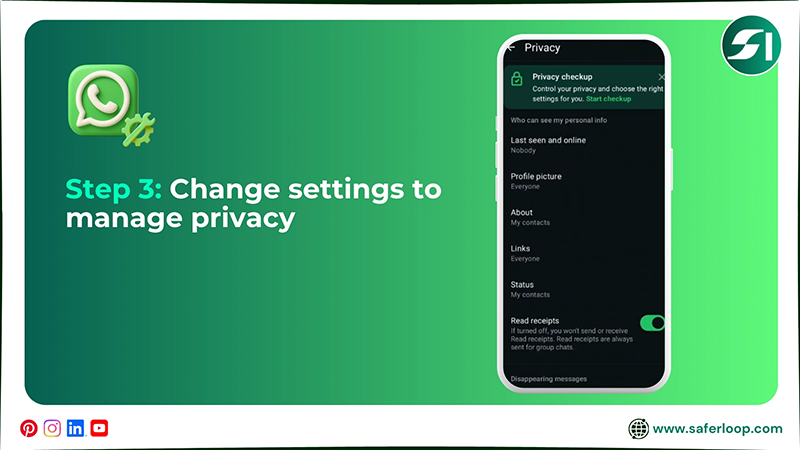
To manage privacy on WhatsApp, you should open the app > three vertical dots > Settings > Privacy > Change your settings.
Here are the steps to manage privacy on WhatsApp.
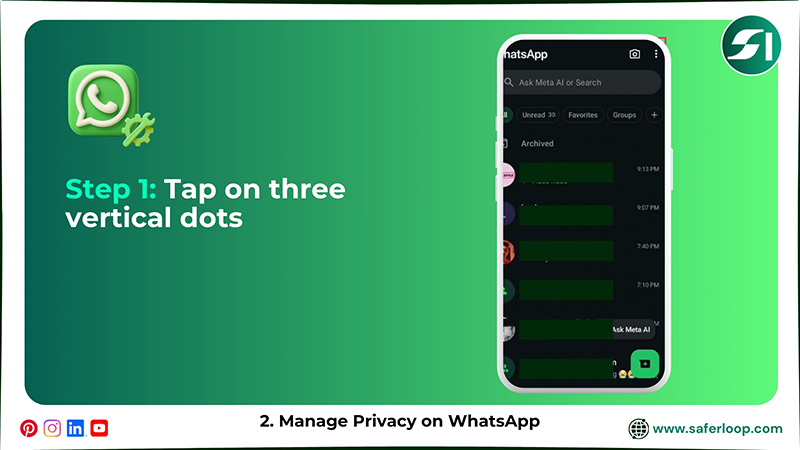
Step 1: Open your WhatsApp account and tap on the three vertical dots in the top-right corner.
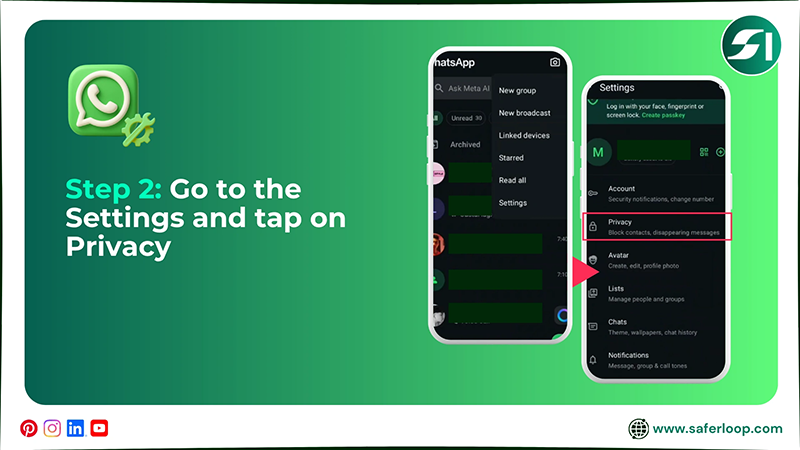
Step 2: Now, tap on “Settings” and “Privacy.”
Step 3: You can change the settings for who can see your last seen, profile picture, about, links, and status.
3. Block and Report Contacts
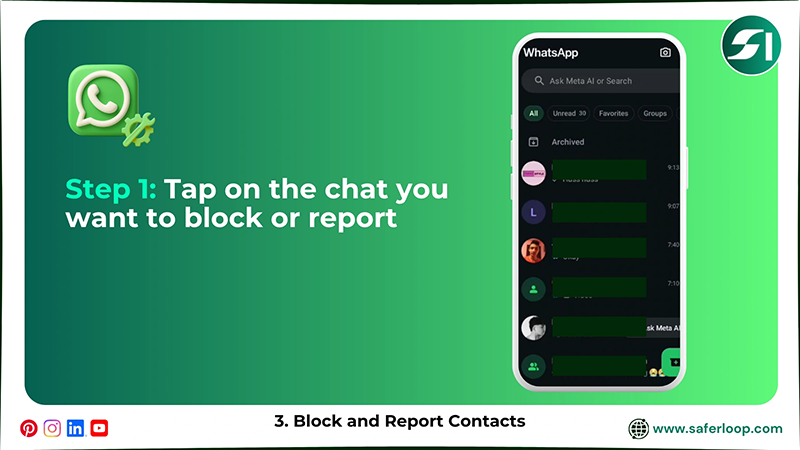
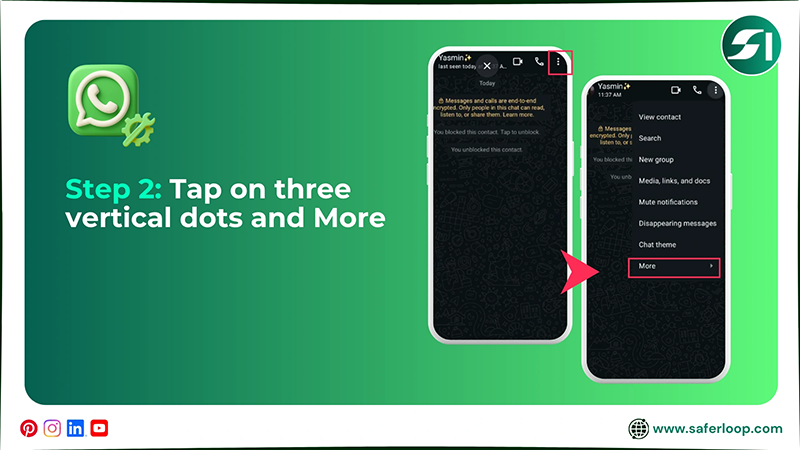
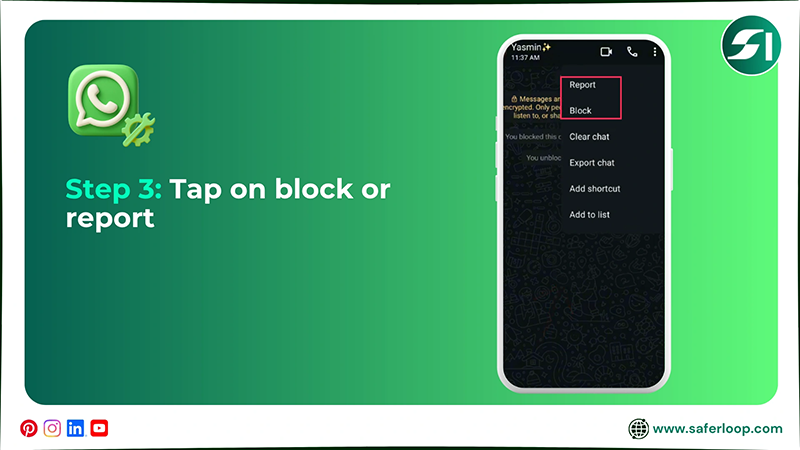
To block and report contacts on WhatsApp, open the app > tap the chat > tap the three vertical dots > More > Report and Block.
Let’s take a look at the steps on how to block and report contacts on WhatsApp.
Step 1: Open the WhatsApp app and tap on the chat you want to block or report.
Step 2: Now, tap on three vertical dots and “More.”
Step 3: You can either tap on the block or report to restrict the person you want.
4. Disable Automatic Downloads
To disable automatic downloads on WhatsApp, you should open the app > three vertical dots > Settings > Storage and data > When using mobile data > When connected on Wi-Fi > uncheck all options.
Here are simple and detailed instructions for disabling automatic downloads on WhatsApp.
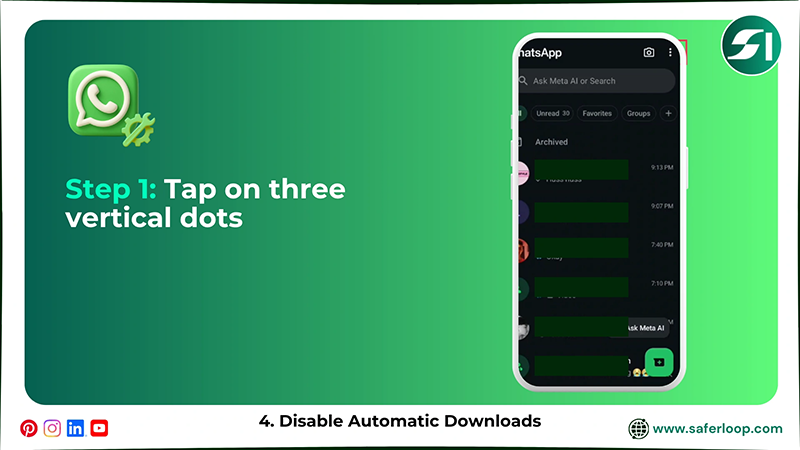
Step 1: Open WhatsApp on your phone and tap the three vertical dots.
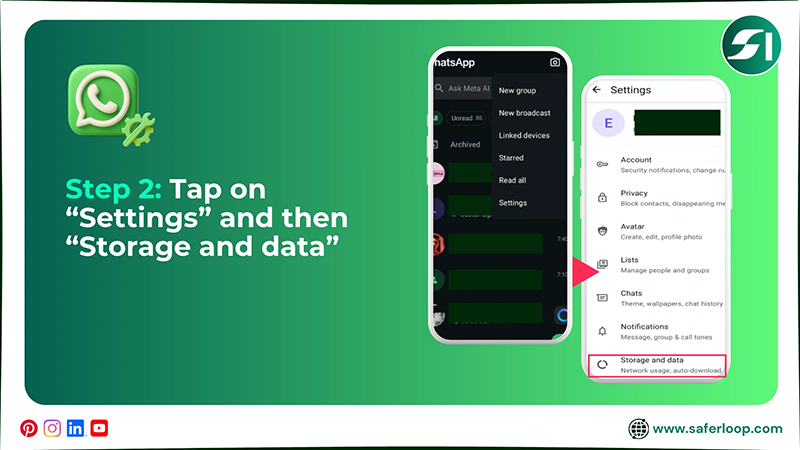
Step 2: Tap on “Settings” and “Storage and data.”
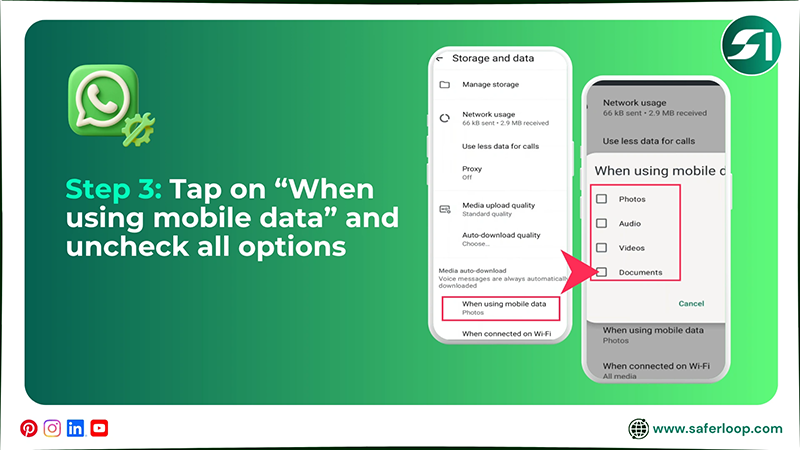
Step 3: Now, tap on “When using mobile data,” uncheck all options, and hit “Ok.”
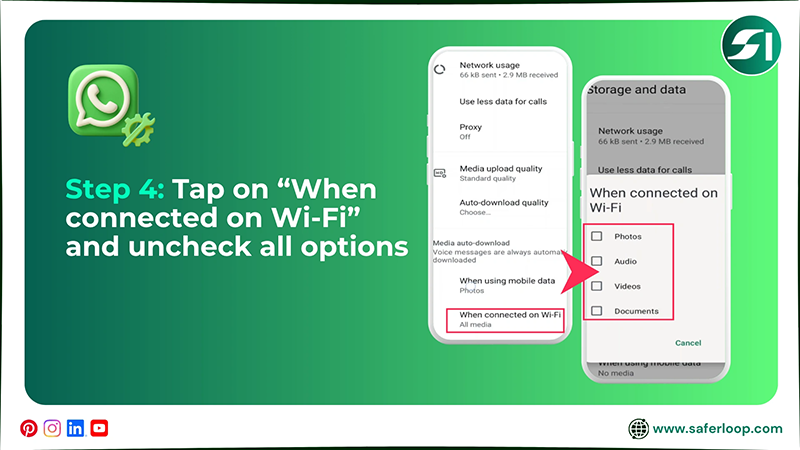
Step 4: Go to “When connected on Wi-Fi,” uncheck all options, and tap “Ok.”
5. Enable Screen or Fingerprint Lock
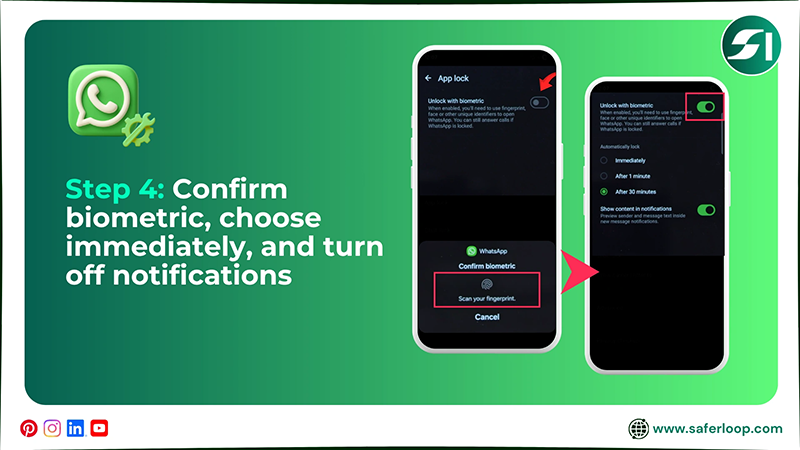
To enable screen or fingerprint lock, you should open WhatsApp > three vertical dots > Settings > Privacy > App lock > Unlock with biometric > Scan fingerprint > Immediately > Turn off notification.
Let’s take a look at the steps below for enabling a fingerprint lock on WhatsApp.
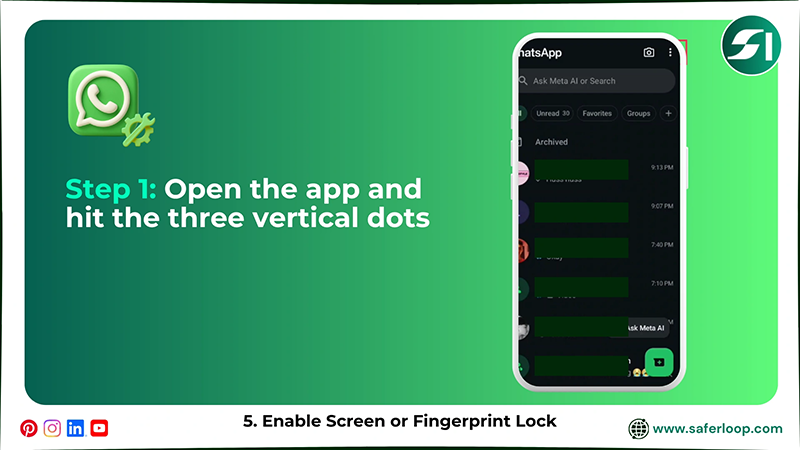
Step 1: Open your WhatsApp and tap on the three vertical dots.
Step 2: Go to the “Settings” and tap on “Privacy.”
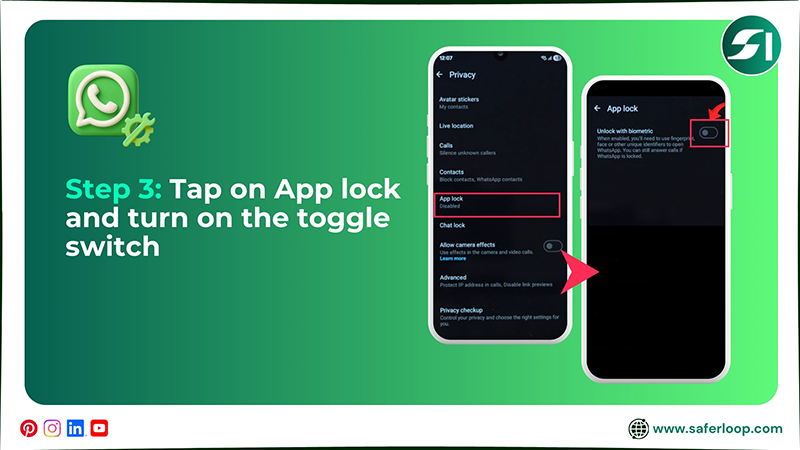
Step 3: Tap on “App lock” and turn on the toggle switch of “Unlock with biometric.”
Step 4: Now, scan your fingerprint, choose “Immediately”, and turn off notifications.
6. Disable Live Location
To disable live location on WhatsApp, you should open the app > three vertical dots > Settings > Privacy > Live location > Stop sharing.
Here are the steps for disabling live location on WhatsApp. So take a look!
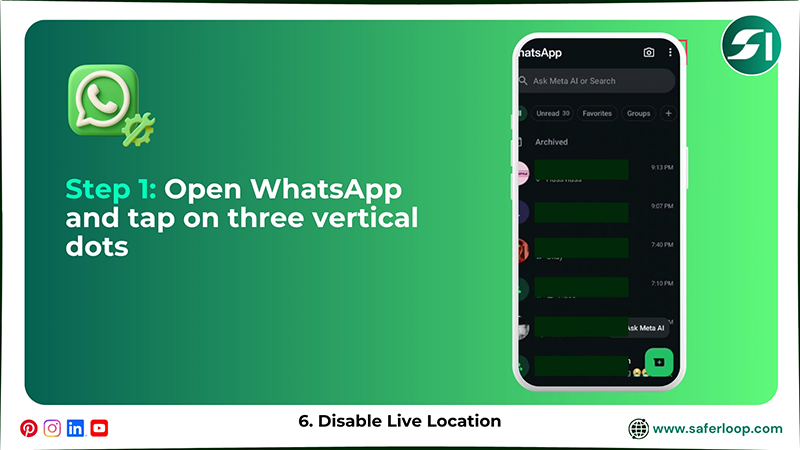
Step 1: Open WhatsApp on your phone and tap on the three vertical dots in the top-right corner.
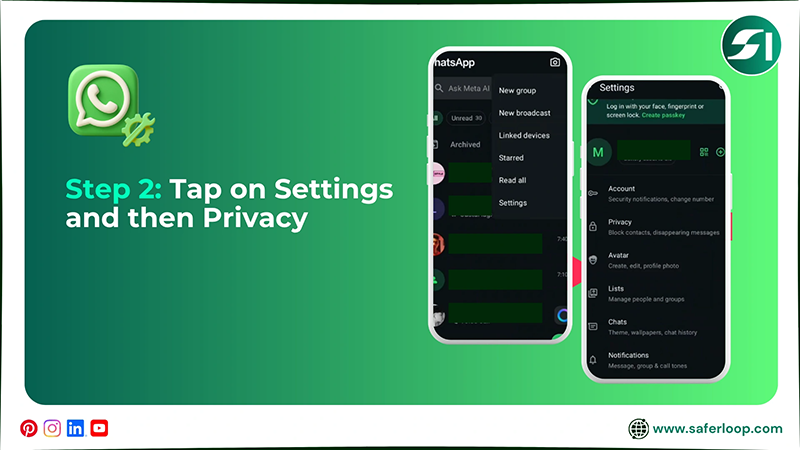
Step 2: Go to the “Settings” and tap on “Privacy.”
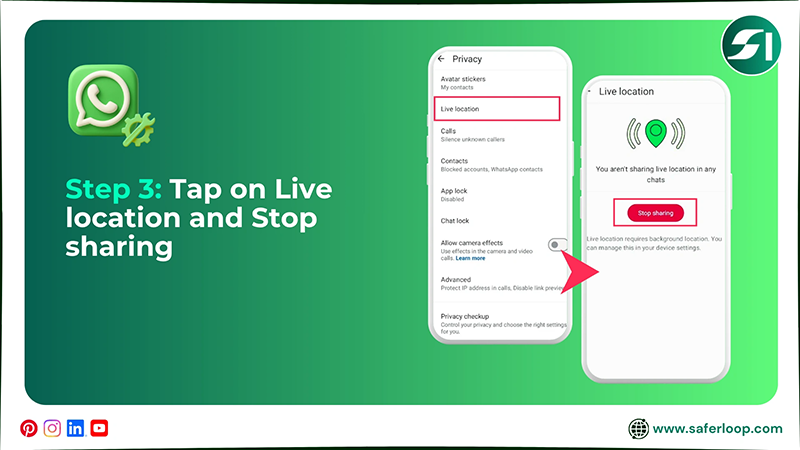
Step 3: Scroll down the screen, tap on “Live Location,” and “Stop sharing.”
Also Read: Instagram: Features, History, & Parental Control Guide
How Should You Protect Your Children on WhatsApp?
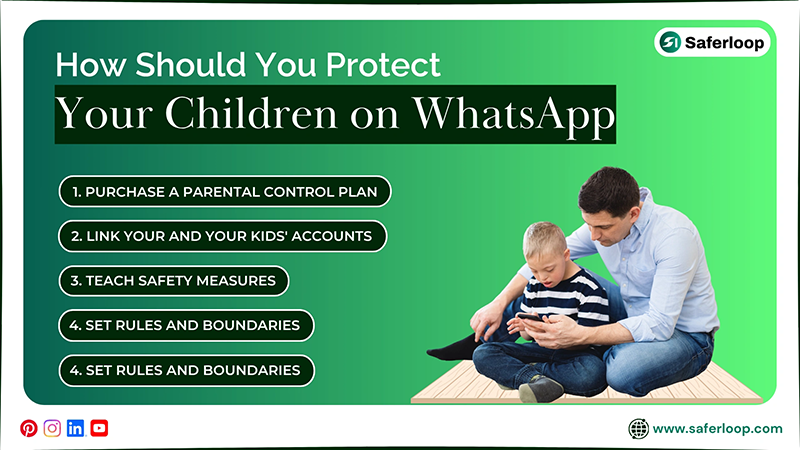
As a helicopter parent, you should install a parental control app, link your and your kids’ accounts, have an open conversation, add friends and family only, and set up multi-factor verification to protect them on WhatsApp.
Here are the following safety tips to keep your children safe on WhatsApp.
1. Purchase a Parental Control Plan
First and foremost, you should buy a premium and safe parental control app, like Saferloop, on your kids’ devices. It helps you manage their online activities, set screen time limits, restrict X-rated content, and block unsafe apps.
2. Link Your and Your Kids’ Accounts
Now, link your (parent) and your kids’ WhatsApp accounts through the new feature “parent-managed accounts.” You can easily see your children’s in-app activities and change settings from your own phone with the help of this feature.
3. Openly Discuss the Dangers
Before changing settings on your children’s WhatsApp, you should openly discuss with them about the online dangers of WhatsApp. Also, you should tell them the reason for enabling restrictions to make it comfortable and spread awareness.
4. Add Friends and Family Only
As a parent, it’s your responsibility to add known people like friends and family members to your kids’ WhatsApp. It helps you to keep them away from strangers and enhance their safety and privacy.
5. Set up a Multi-Factor Verification
When it comes to ensuring digital safety, you should set up Multi-Factor Verification (MFA) for your children’s WhatsApp. For example, if someone or your little ones tries to open the app on a new device, it requires a 6-digit pin to access. This adds an extra layer of security to their WhatsApp activities.
Also Read: Snapchat Parental Controls: The Complete Guide to Keeping Your Child Safe
Wrapping Up!
Now, you know the real reasons why WhatsApp is not safe for kids without parents’ guidance. That is why you should set up WhatsApp parental controls and third-party parental controls, like Saferloop, to ensure your children’s safety and privacy.
Moreover, you should openly engage with your kids to build a healthy relationship. It makes them feel comfortable about sharing their social life and when something odd happens to them.
Author’s Note:
After discovering that WhatsApp is not safe for children and teenagers, I suggest that you enable WhatsApp parental controls to keep track of your little ones’ activities.
I also recommend that you set up the Saferloop parental control software to change settings from your own device. It helps you to keep your children safe and have an idea about how they use the app for communication.
Frequently Asked Questions
Q: Can you set up WhatsApp parental controls?
Q: What parental control app monitors everything on your child’s phone?
Ans: Saferloop parental control software lets you see everything on your child’s phone, such as screen time, location, online activities, etc.
Q: Can my 10-year-old kid use WhatsApp?
Ans: No, WhatsApp is only accessible for users 13 years old or younger. So, it is advised to keep your kids away from the app until they turn 13+.
Q: Can I see who tries to hack my WhatsApp?
Ans: No, there is no built-in feature that is able to show hackers or stalkers. Always remember you should stay vigilant on your own.
 Gunjan Saini
Cyber Safety & Parental Control Writer
About article
The author of this article Gunjan Saini, an Cyber Safety & Parental Control Writer at Saferloop, brings practical experience and industry knowledge to the subject.
The review and editing by Evan Patterson have been done to make sure that it is accurate, clear, and relevant.
At Saferloop, we are determined to provide high-quality, well-researched, and updated content. To understand further how we produce and revise our articles, please refer to our Editorial Guidelines.
Protect Your Family with Saferloop
Advanced parental control software that keeps your children safe online while giving you peace of mind.
- Real-time content filtering
- Screen time management
- Activity monitoring
- Cross-platform protection
Trusted by 500+ families