

Ans: You should go to the Settings app > Screen Time, and set restrictions for your children on the iPad.
×
Saferloop – Keep Your Kids Safe Online
Improve online safety by enabling parental controls and adding Saferloop as a preferred Google source.
iPad Parental Control: How to Set Up and Manage Screen Time Safely?
Apple provides advanced built-in parental controls to prioritize children’s safety and privacy on digital platforms, due to the increase of financial criminal activities targeting minors in the US.
So, as a helicopter parent, you should stay updated with how to put parental control on iPad to protect your children. To help my readers, I’ve compiled step-by-step guidance on iPad parental control features in this article.
Table of Contents:
What are iPad Parental Controls? (Why They Matter)
iPad parental controls, primarily managed by Screen Time, are built-in tools that allow parents and guardians to control how children use their devices.
Moreover, it helps you set screen time limits, restrict purchases, monitor daily usage, and protect your kids’ privacy, ensuring their digital safety. These controls provide you with peace of mind without compromising your children’s freedom.
That’s why you need to skim through the next section to discover how to set up parental controls on iPad and iPhone in great detail.
How to Put Parental Controls on iPad?
Setting up iPad parental controls is a quick and simple process to safeguard your children’s digital space.
Here, I’ve jotted down easy steps on how to apply parental controls on iPad. So, take a look!
1. Create Your Child’s Account on iPad
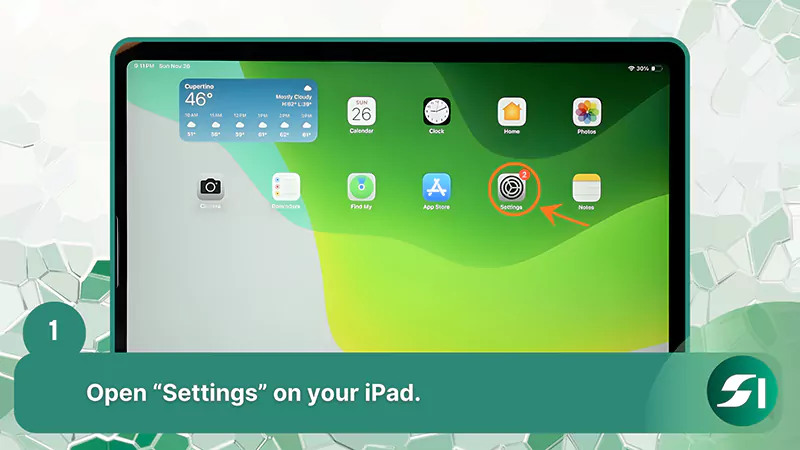
1. Open Settings on your iPad.
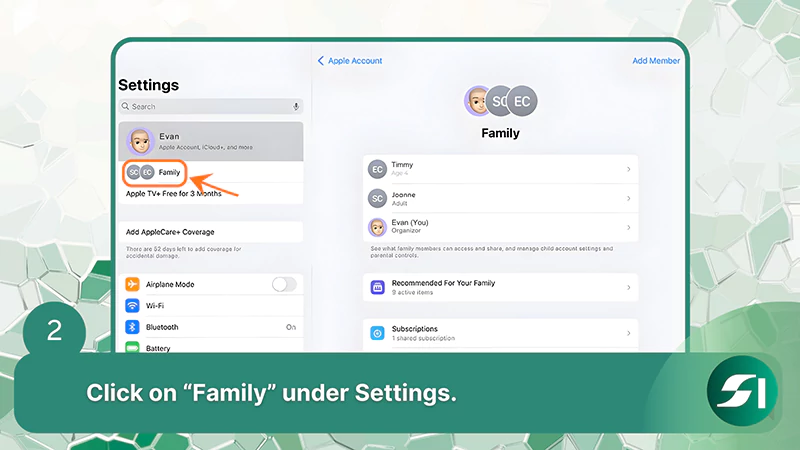
2. Click on “Family” under Settings.
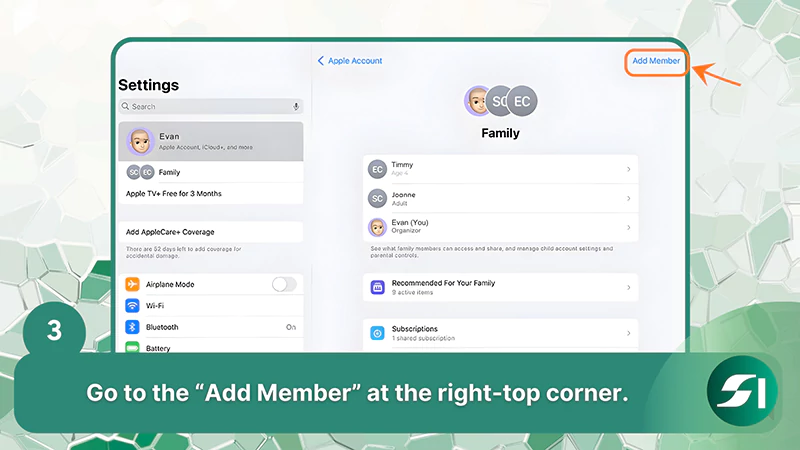
3. Now, go to the “Add Member” at the right-top corner.
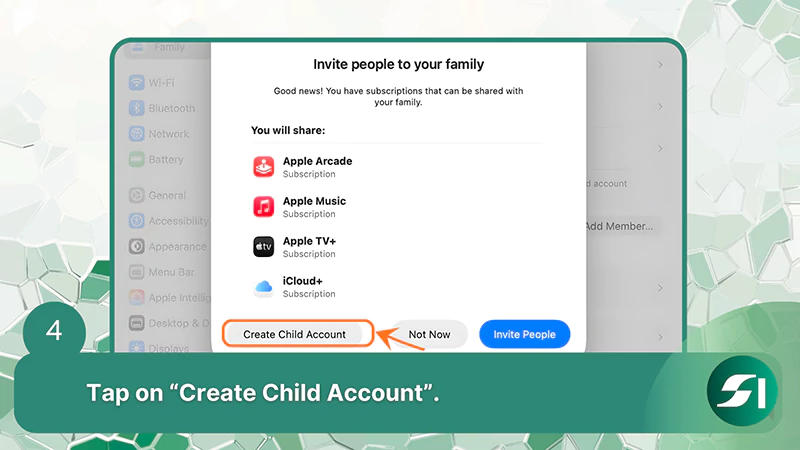
4. Tap on “Create Child Account” when a dialog box appears.
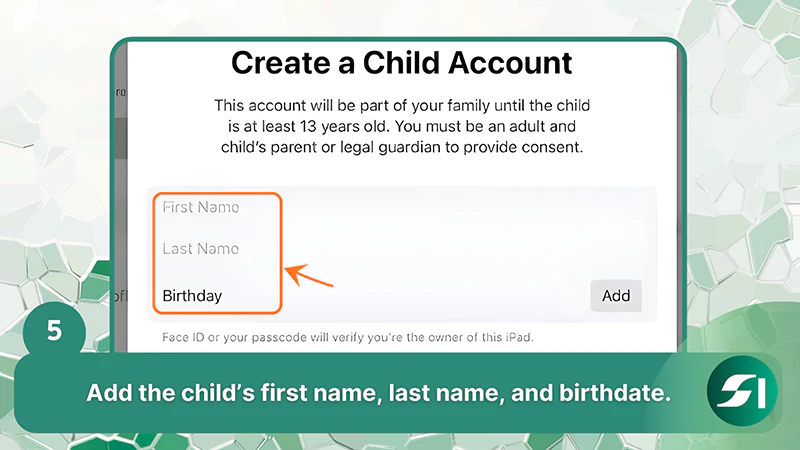
5. Continue by adding the child’s first name, last name, and birthdate.
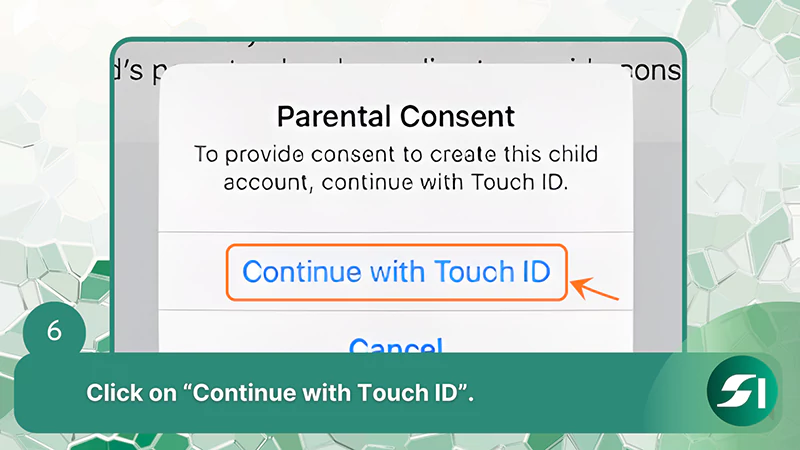
6. Then, click on “Continue with Touch ID” to provide parent consent.
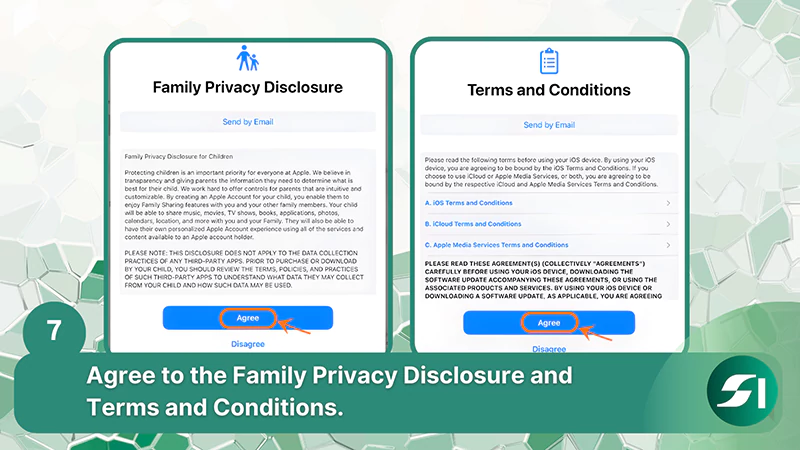
7. Now, agree to the Family Privacy Disclosure and Terms and Conditions.
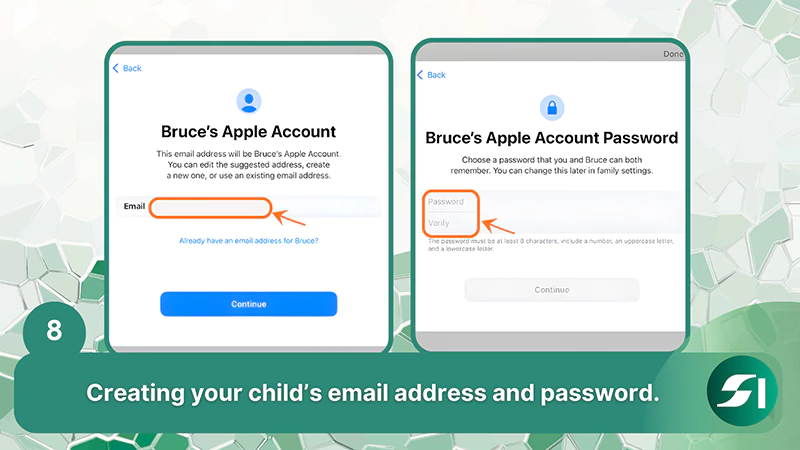
8. First Continue by creating your child’s email address. After that, choose a password.
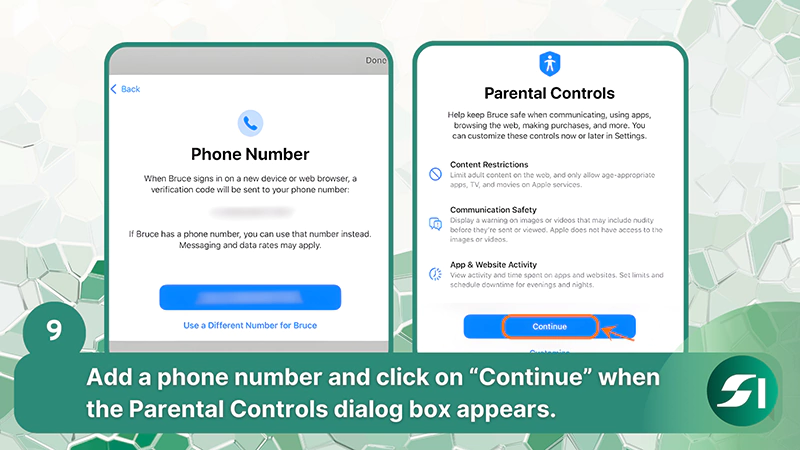
9. Now, add a phone number. Click on Continue when the Parental Controls dialog box appears.
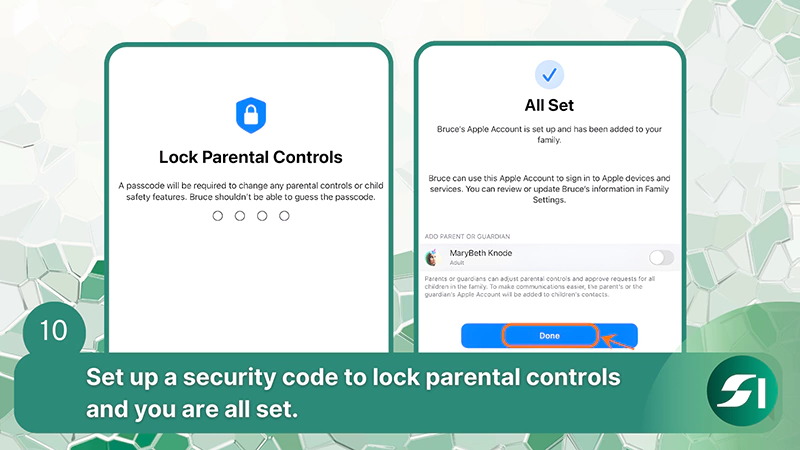
10. Set up a strong security code to lock parental controls and you are all set.
Also Read: How to Set Up YouTube Parental Controls? 4 Easy Methods
2. Set Downtime/Bedtime Control
1. Go to Settings on your iPad or iPhone.
2. Tap Family and your child’s account.
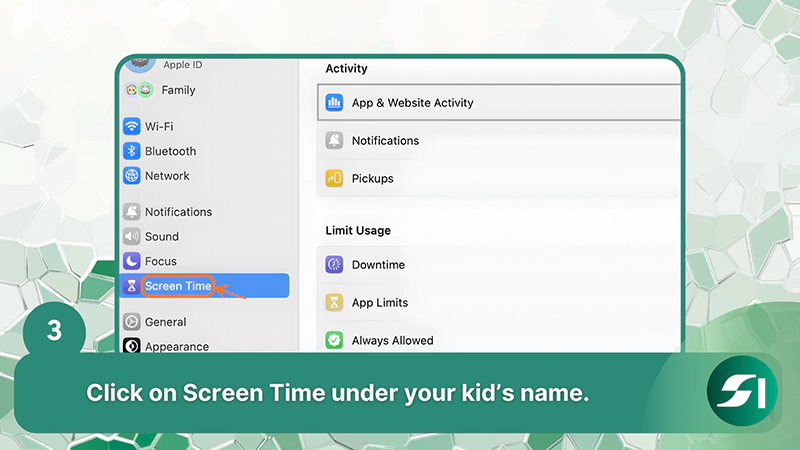
3. Click on Screen Time under your kid’s name.
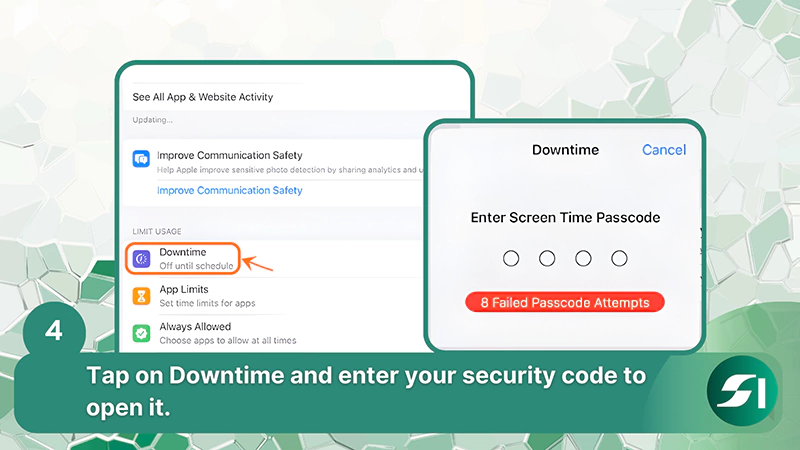
4. Tap on Downtime and enter your security code to open it.
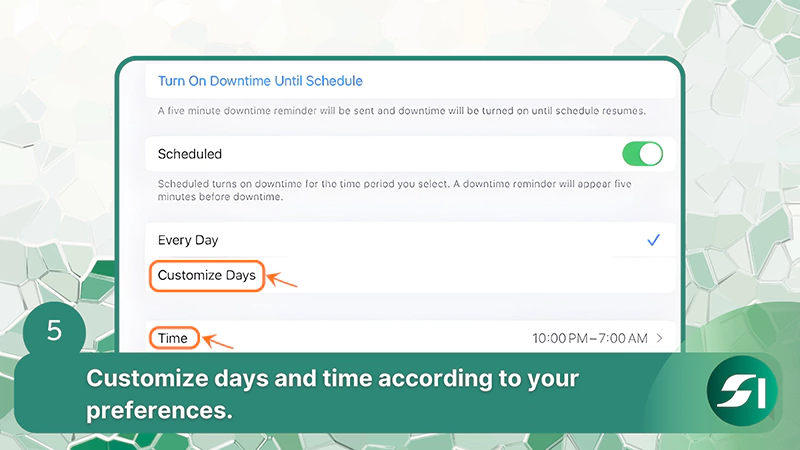
5. At last, customize days and time according to your preferences for your child.
3. Create App Limits
1. Open the Settings on your iPad.
2. Tap on Family and click on the name of your kid.
3. Go to the Screen Time option.
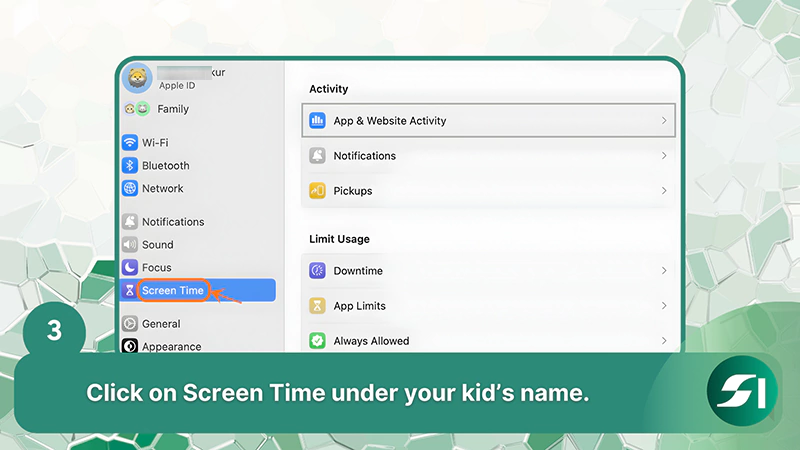
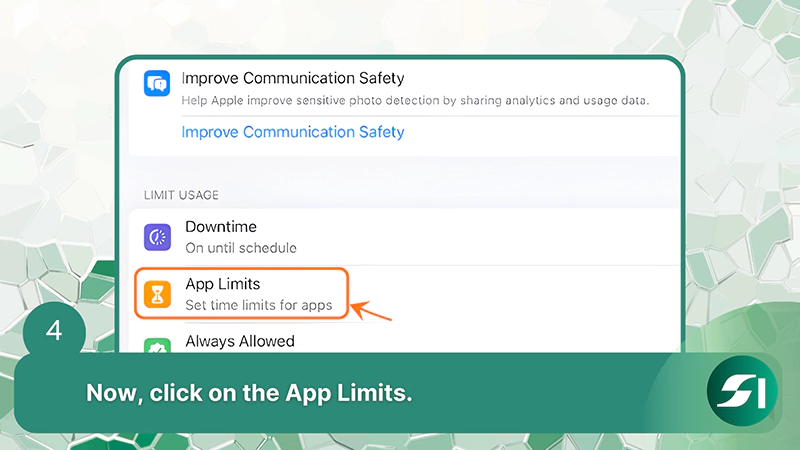
4. Now, click on the App Limits.
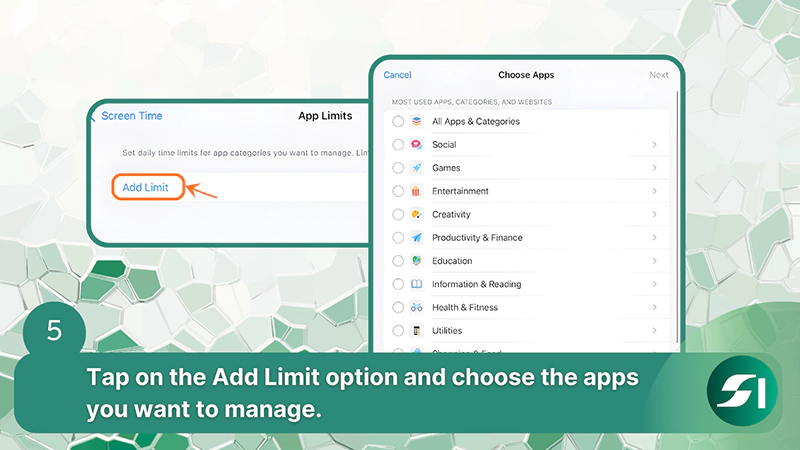
5. Tap on the Add Limit option and choose the apps you want to manage.
Also Read: TikTok Parental Controls: Step into Digital Parenting With TikTok Family Pairing
4. Communication Limits
1. Open the Settings app.
2. Click on Family and select your child’s name.
3. Tap on Screen Time under your kid’s name.
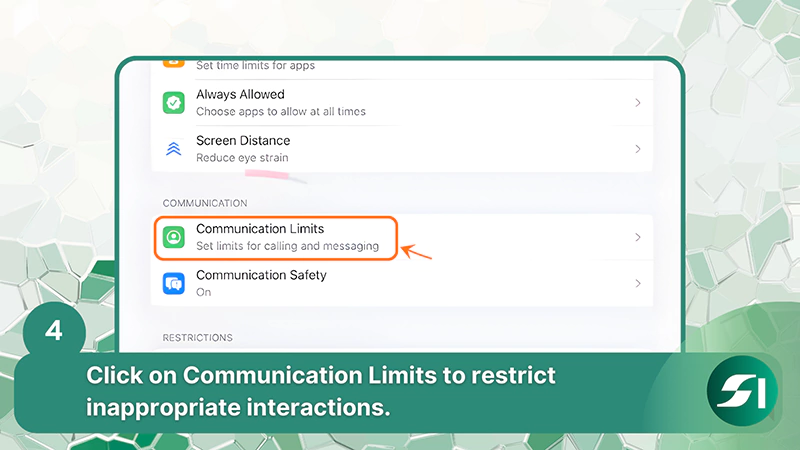
4. Click on Communication Limits to restrict inappropriate interactions.
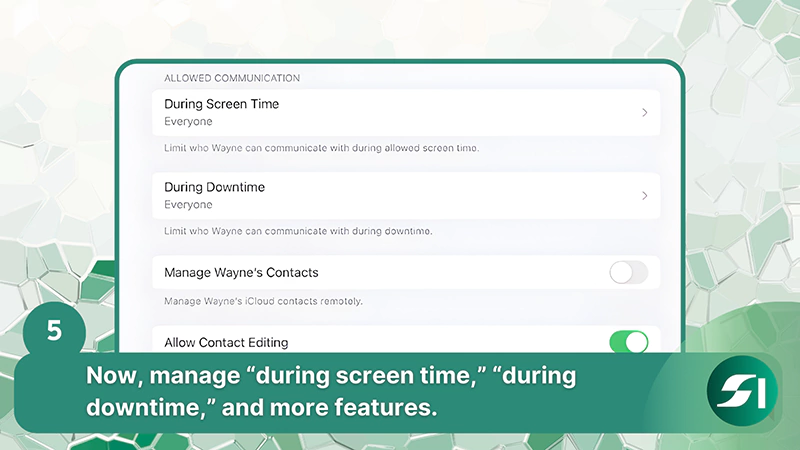
5. Now, manage “during screen time,” “during downtime,” and more features according to your preferences.
5. Block Inappropriate Content
1. Go to the Settings on your iPad or iPhone.
2. Open the Family option and select your kid’s name.
3. Click on the Screen Time option.
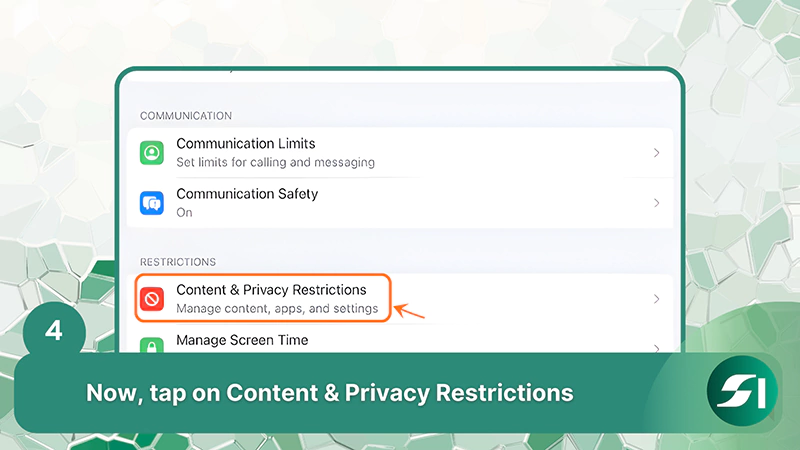
4. Now, tap on Content & Privacy Restrictions.
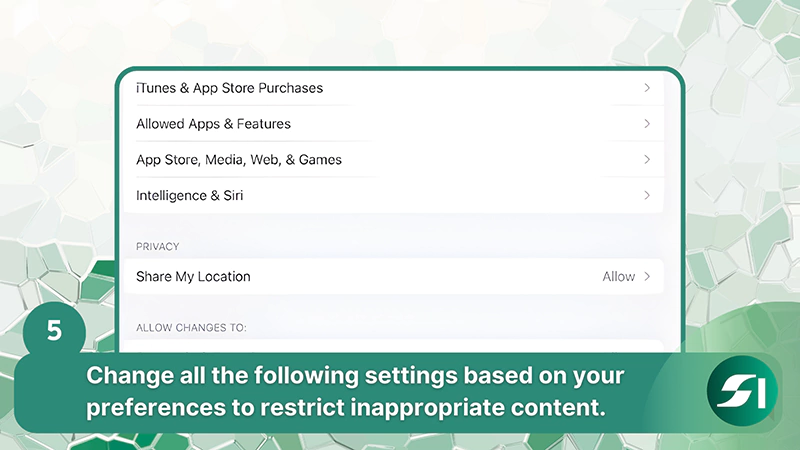
5. Change all the following settings based on your preferences to restrict inappropriate content.
- iTunes and App Store Purchases
- Allowed Apps & Features
- App Store, Media, Web & Games
- Intelligence & Siri
- Share My Location
- Passcode & Face ID
- Accounts
- Cellular Data and more options
Also Read: How to Set Up Fortnite Parental Controls?
6. Turn on Ask to Buy
1. Open Settings on your iPad or iPhone.
2. Go to the Family option and select your kid’s name.
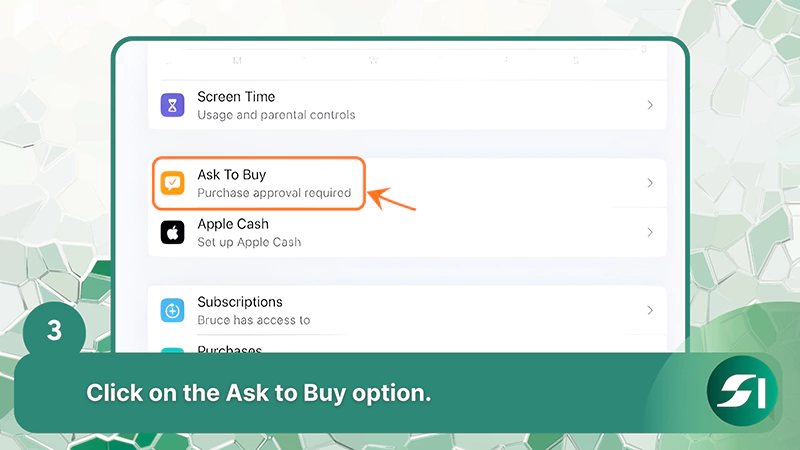
3. Click on the Ask to Buy option.
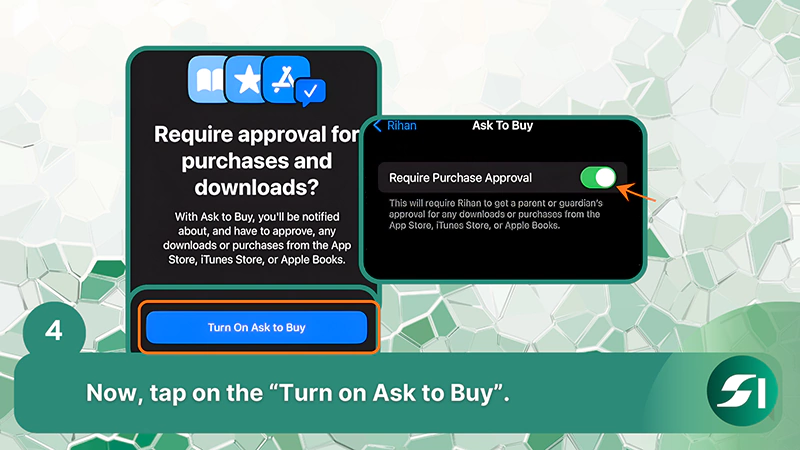
4. Now, tap on the “Turn on Ask to Buy” option to set restrictions on downloads and purchases.
How Saferloop Parental Control Helps Parents to Enhance Children’s Safety on iPad?
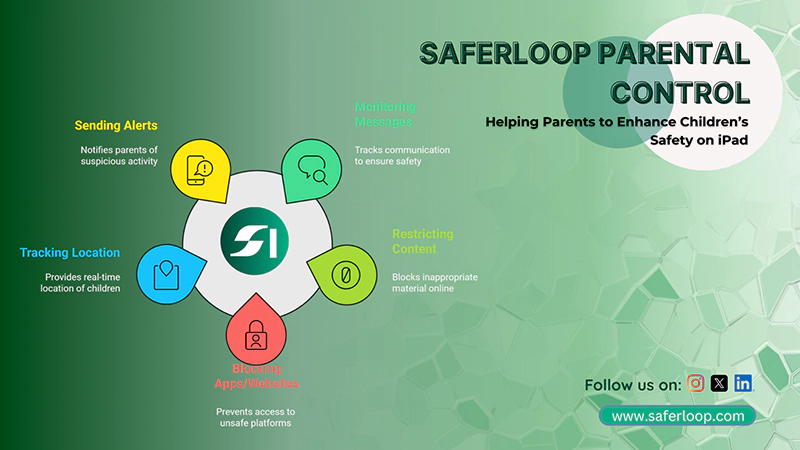
Saferloop parental control offers various top-notch features, including monitoring messages and restricting inappropriate content, to enhance children’s safety. It is compatible with all iOS and Android devices.
Let’s take a look at the following Saferloop features to understand why they are important.
1. Monitor messages and calls of your kids’ contact lists.
2. Restrict inappropriate content for safe browsing.
3. Block unsafe and adult apps and websites.
4. Track the real-time location of your children.
5. Send emergency alerts to parents if anything suspicious is detected.
Overall, when built-in iPad parental controls aren’t enough to safeguard your children, I advise you to opt for third-party apps like Saferloop. It provides top-notch solutions to your parental problems and creates a safe digital environment for children.
Wrapping Up!
The information mentioned above helps you to stay updated with iPad parental controls features. You can utilize the built-in safety tools of iOS to ensure your children’s safety on digital devices.
Despite this, I recommend installing the best parental control apps, such as Saferloop, to leverage high-tech software and tools.
Also Read: Snapchat Parental Controls: The Complete Guide to Keeping Your Child Safe
Frequently Asked Questions
Q: How do I put parental controls on my iPad?
Q: How can I monitor my child’s text messages on an iPad?
Ans: You can monitor your child’s text messages through Apple’s built-in Family Sharing and Screen Time features, or through third-party parental controls on iPad.
Q: How do parental controls actually work?
Ans: Parental controls work by using software to monitor kids’ online activities, restrict explicit content, and set screen time limits.
Q: Why aren’t parental controls working on my iPad?
Ans: If your iPad parental controls aren’t working, you must update your device, restart it, and then reset Screen Time settings.
Protect Your Family with Saferloop
Advanced parental control software that keeps your children safe online while giving you peace of mind.
- Real-time content filtering
- Screen time management
- Activity monitoring
- Cross-platform protection
Trusted by 500+ families