
Ans: You can monitor your child’s Facebook account by installing a parental control like Saferloop. It allows you to track their messages and calls directly from your own devices.
×
Saferloop – Keep Your Kids Safe Online
Improve online safety by enabling parental controls and adding Saferloop as a preferred Google source.
Facebook Parental Control: Setup Guidance and Safety Tips for Kids
Facebook is a household name, with over 3 billion monthly active users, especially among Gen Z and teenagers. However, it also involves adult content and predatory risks, raising concerns regarding kids’ safety. This enhances the importance of Facebook parental controls.
Thus, as a concerned parent, you should stay till the end of this article to discover how to set up Facebook parental control settings. Alongside, you can uncover safety risks on Facebook, tips for parents, and Messenger Kids as a safe alternative for children.
Quick Answer:
Facebook is one of the most popular social media apps that allows users 13+ to share content online. But it also contains inappropriate content and abusive language, making the app unsafe for kids. So, parents should enable Facebook parental controls on their children’s accounts to protect them from cyberattacks.
Table of Contents:
What are Facebook Parental Controls?
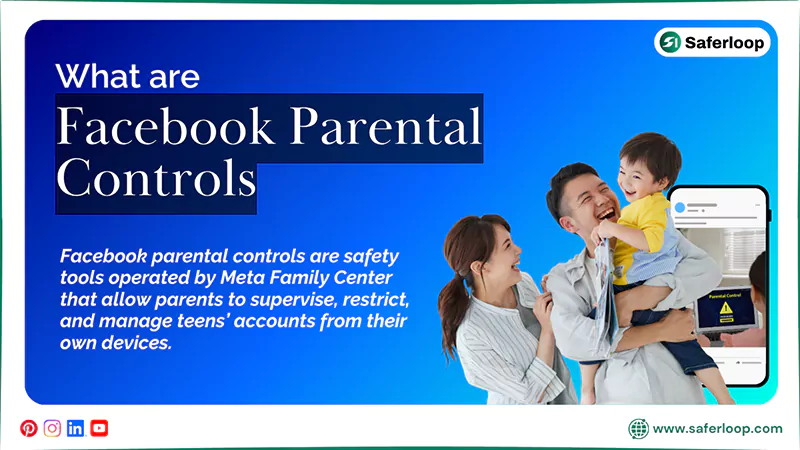
Facebook parental controls are safety tools operated by Meta Family Center that allow parents to supervise, restrict, and manage teens’ accounts from their own devices.
As Facebook offers various built-in features to ensure children’s safety and privacy, you should dig deeper into this section to understand how parental control works.
1. How to Block Someone on Facebook?
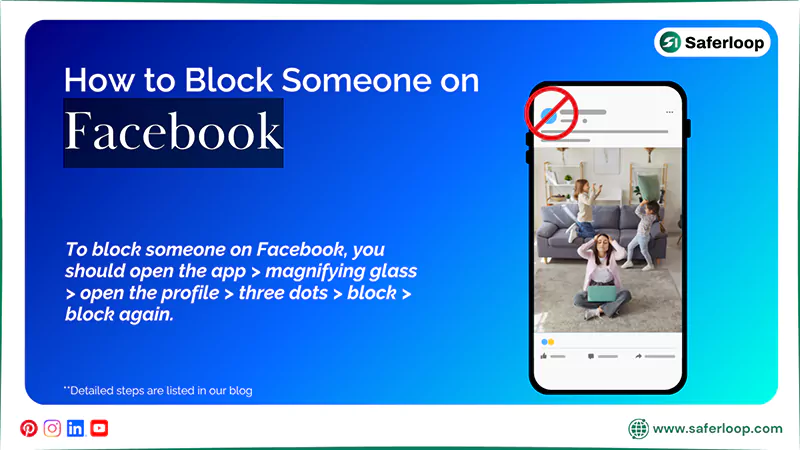
To block someone on Facebook, you should open the app > magnifying glass > open the profile > three dots > block > block again.
Here are the following steps to block someone on Facebook in great detail.
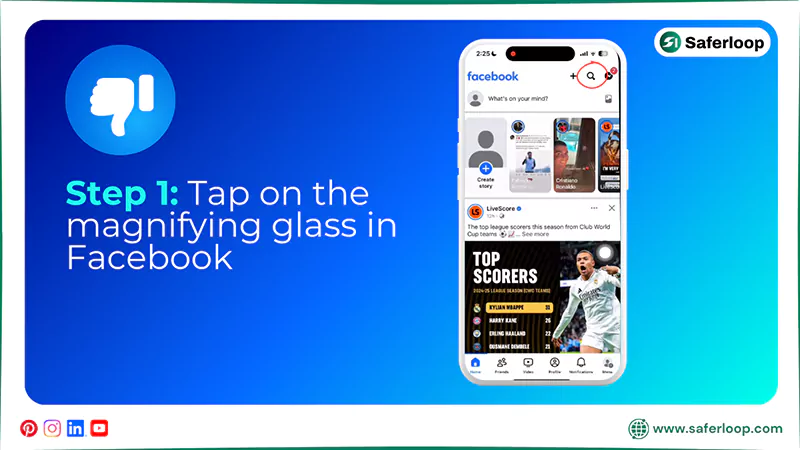
Step 1: Open the Facebook app and tap the magnifying glass in the top-right corner.
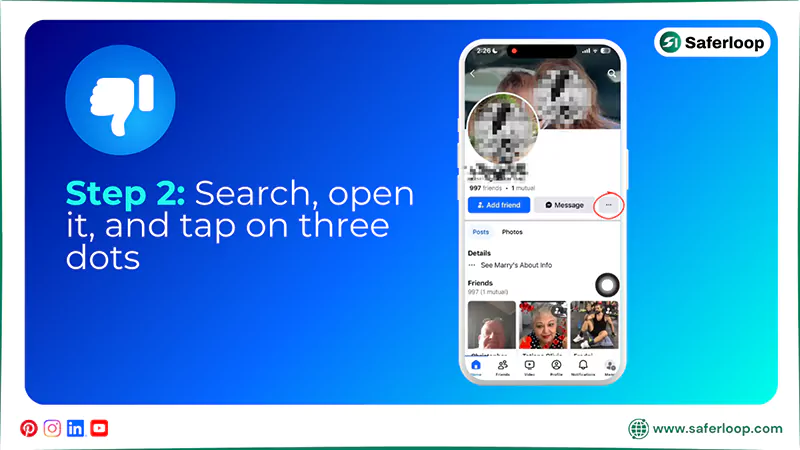
Step 2: Search, open the profile, and tap the three dots.
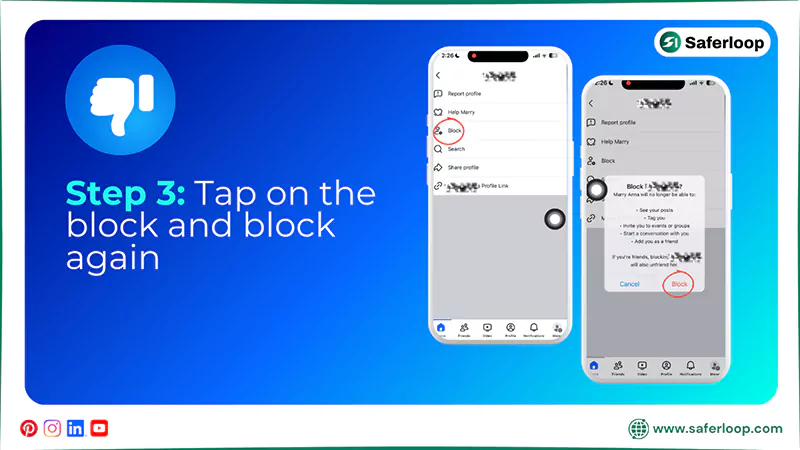
Step 3: Now, tap on the block, followed by the block again to confirm.
2. How to Report Users on Facebook?
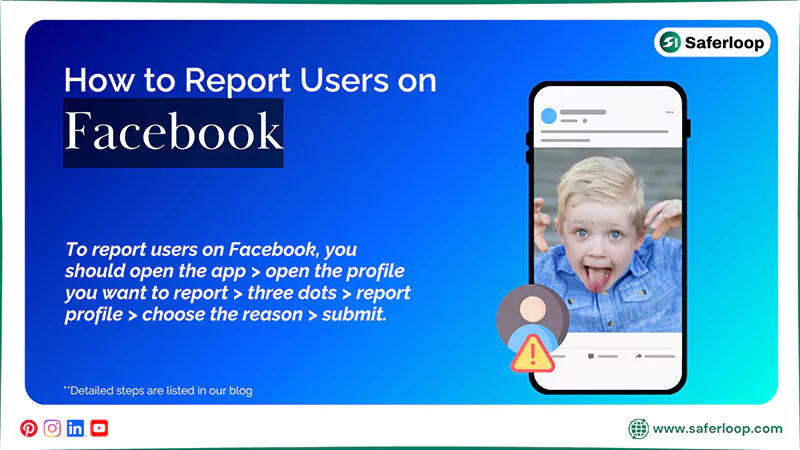
To report users on Facebook, you should open the app > open the profile you want to report > three dots > report profile > choose the reason > submit.
Let’s take a look at the following steps that help you understand how to report users on Facebook.
Step 1: Open the Facebook app and open the profile you want to report.
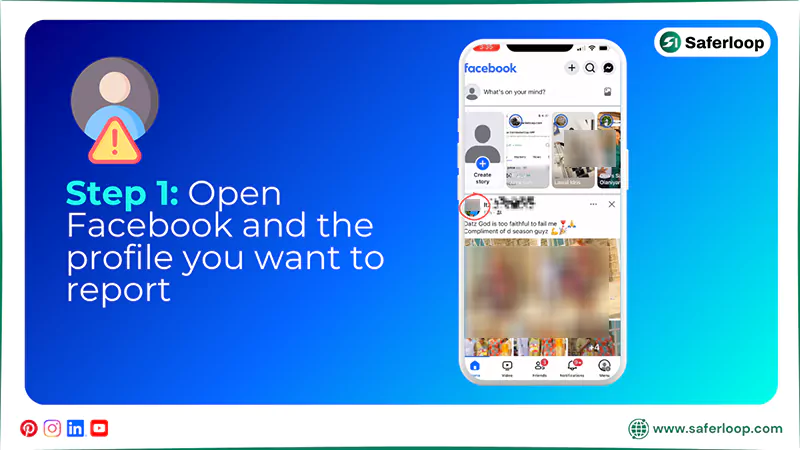
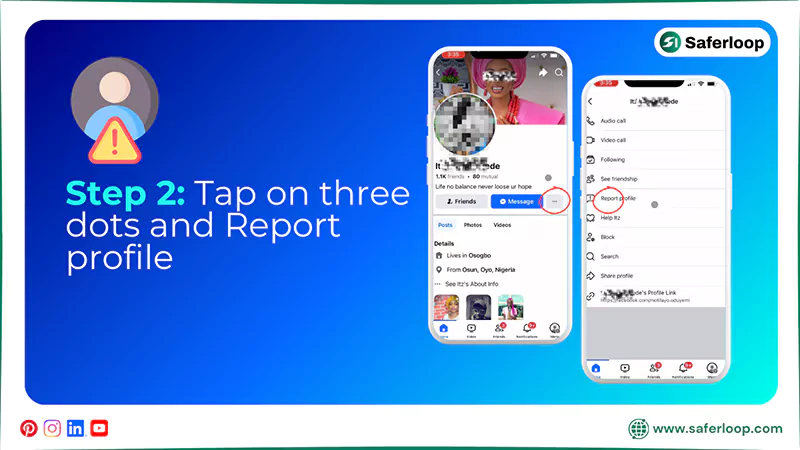
Step 2: Tap the three dots and Report profile.
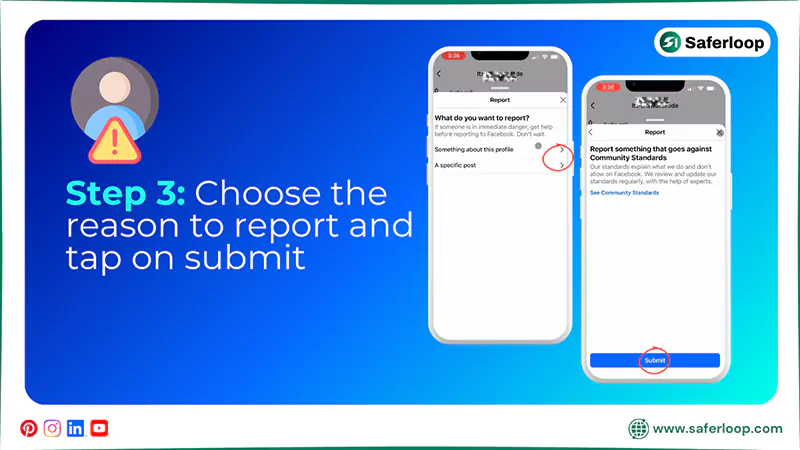
Step 3: Now, choose the option that bothers you about this profile and tap on submit.
3. How to Hide Your Profile on Facebook?
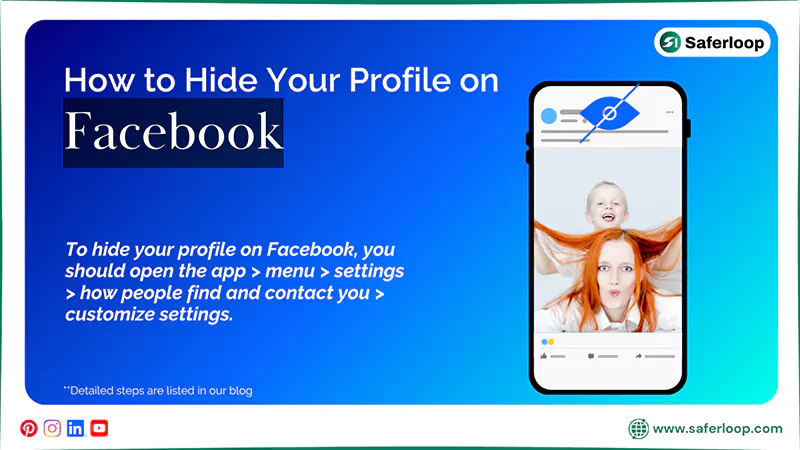
To hide your profile on Facebook, you should open the app > menu > settings > how people find and contact you > customize settings.
Here are the following steps on how to hide your Facebook profile to add an extra layer of protection.
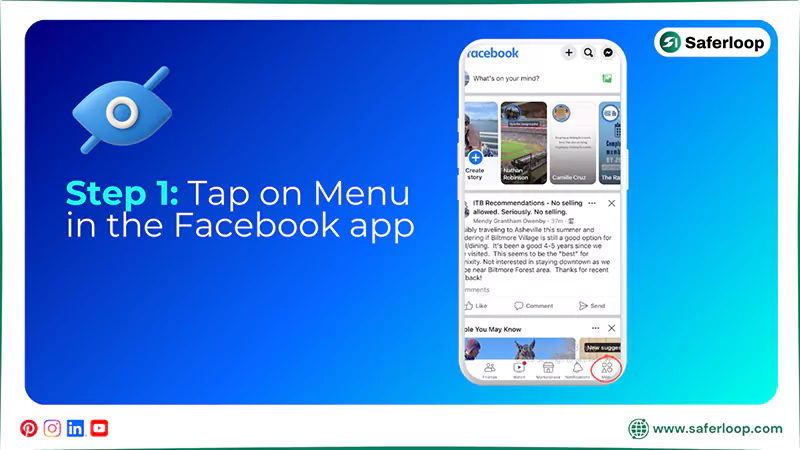
Step 1: Open Facebook on your phone and tap on “Menu” in the bottom right corner.
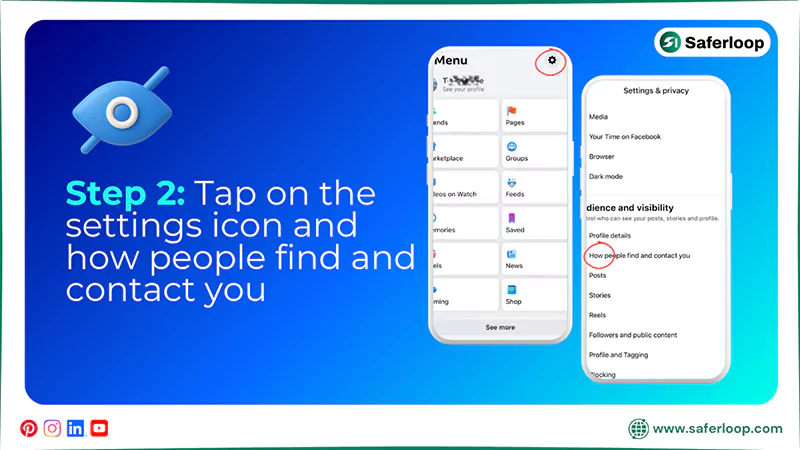
Step 2: Go to the “Settings” icon and tap on “How people find and contact you” by scrolling down the screen.
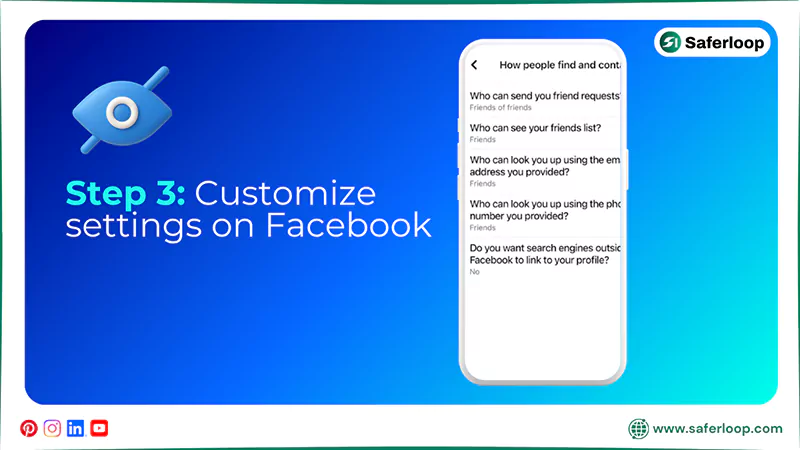
Step 3: Now, you can customize settings from the range of who can send friend lists to turn off search engines.
4. How to Manage Screen Time on Facebook?
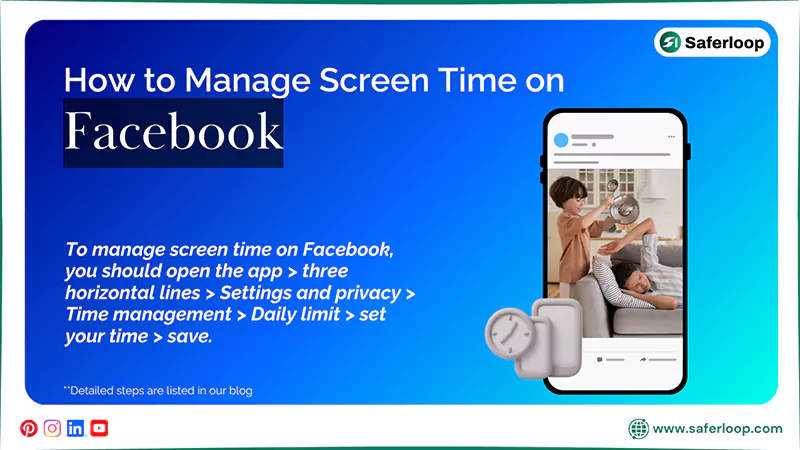
To manage screen time on Facebook, you should open the app > three horizontal lines > Settings and privacy > Time management > Daily limit > set your time > save.
Here are the simple and detailed steps on how to manage screen time on your Facebook account.
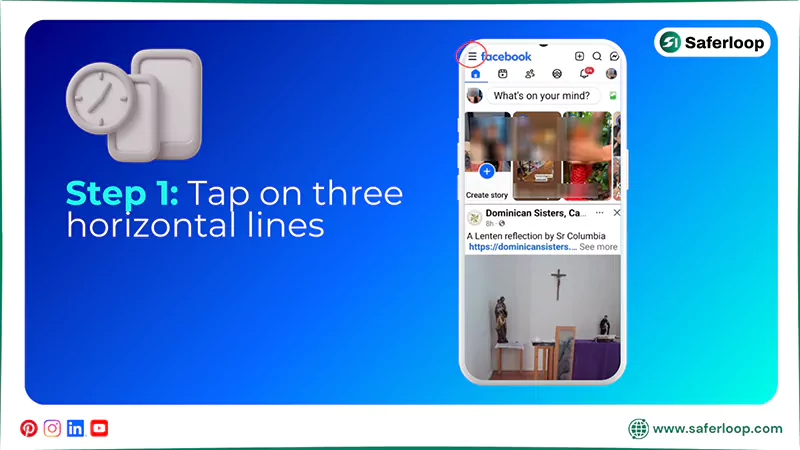
Step 1: Open the Facebook app and tap on the three horizontal lines.
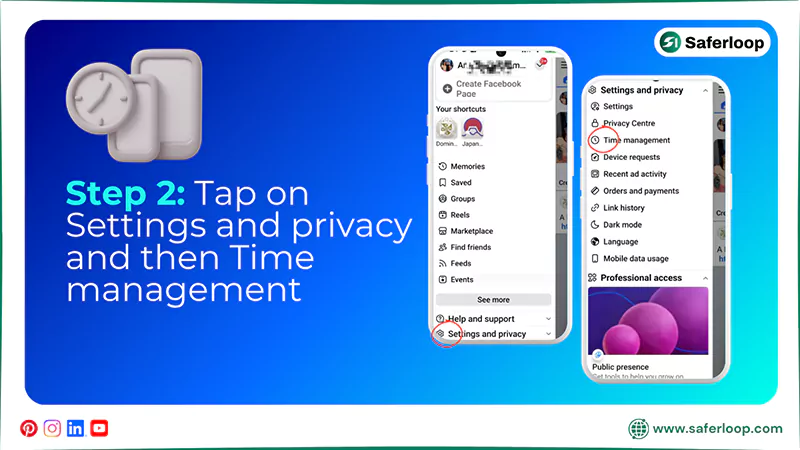
Step 2: Tap on “Settings and privacy” and “Time management.”
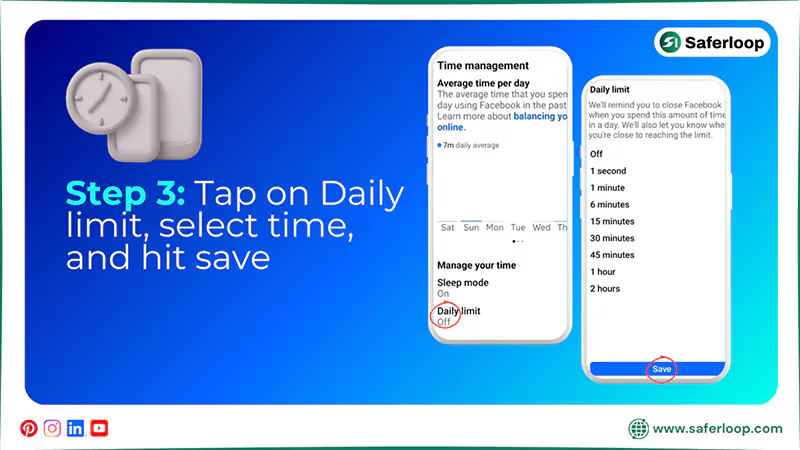
Step 3: Now, tap on Daily Limit, select the time, and hit “Save.”
5. How to Use Privacy Checkup on Facebook?
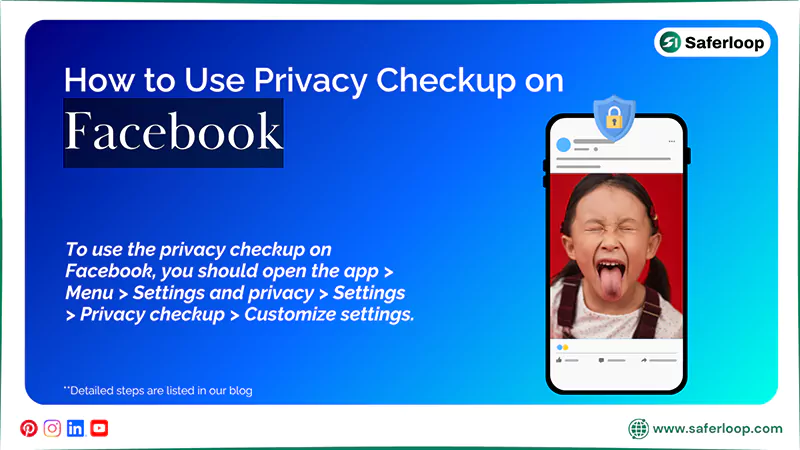
To use the privacy checkup on Facebook, you should open the app > Menu > Settings and privacy > Settings > Privacy checkup > Customize settings.
Here are the following steps on how to use Privacy Checkup on Facebook for your understanding.
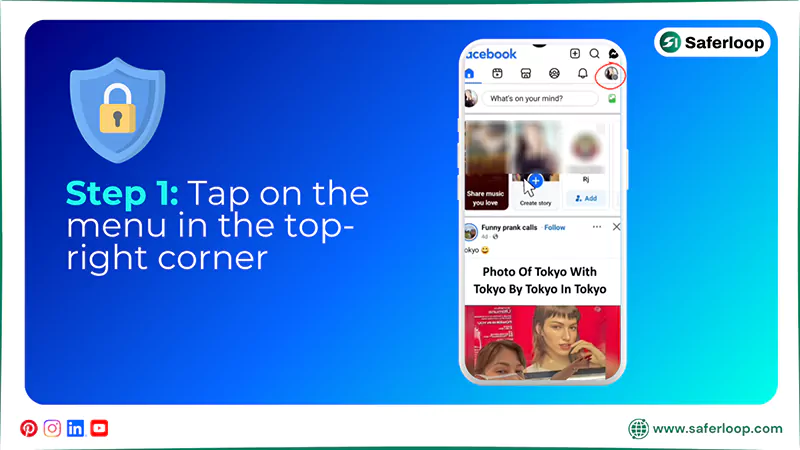
Step 1: Open your Facebook account and tap on the menu in the top right corner.
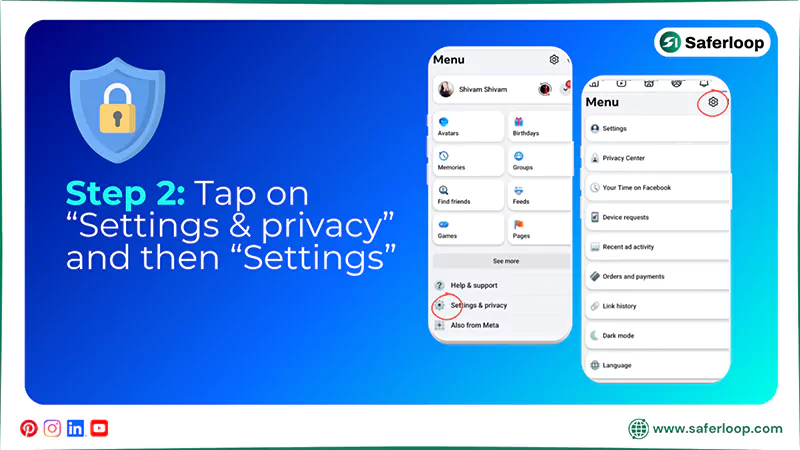
Step 2: Now, tap on “Settings & privacy” and “Settings.”
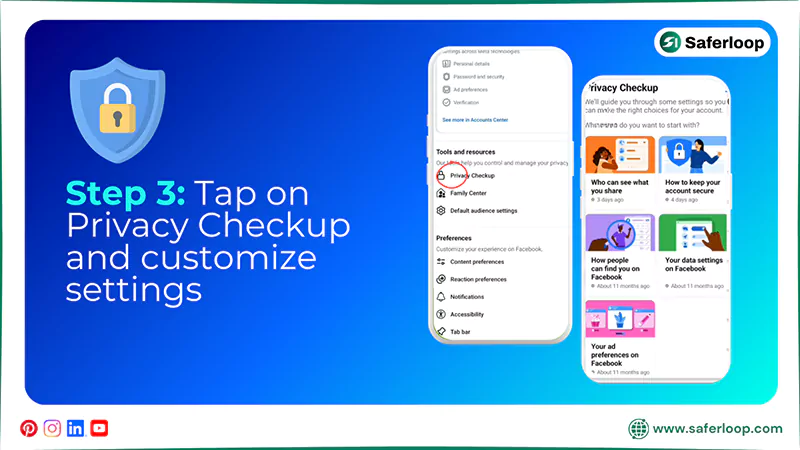
Step 3: Next, tap on “Privacy checkup” and customize settings so you can make the right choices for your account.
6. How to Use Security Check Up on Facebook?
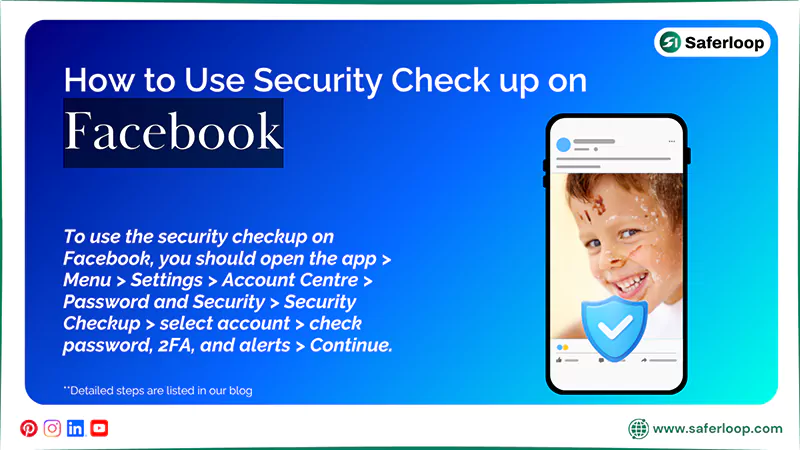
To use the security checkup on Facebook, you should open the app > Menu > Settings > Account Centre > Password and Security > Security Checkup > select account > check password, 2FA, and alerts > Continue.
Here are the following steps on how to use the security checkup as one of the Facebook parental control settings.
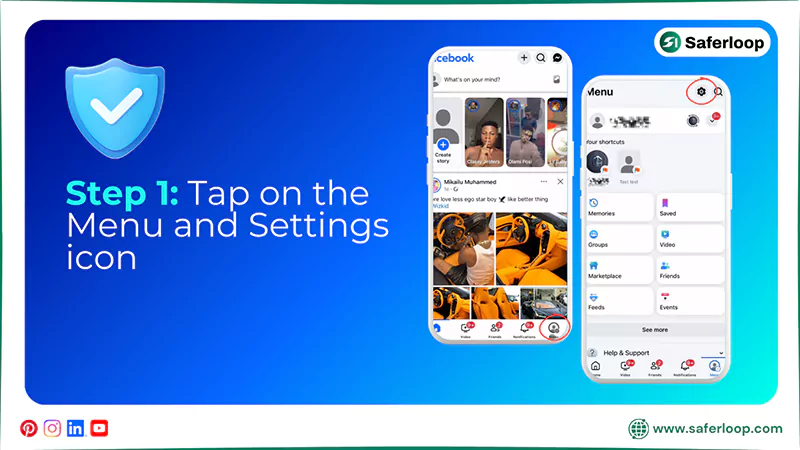
Step 1: Open Facebook on your smartphone and tap on the menu and settings icon.
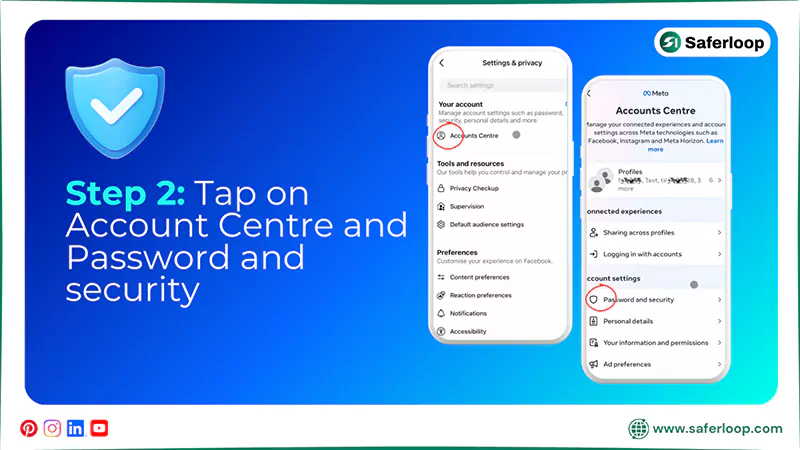
Step 2: Go to the “Account Centre” and tap on “Password and security.”
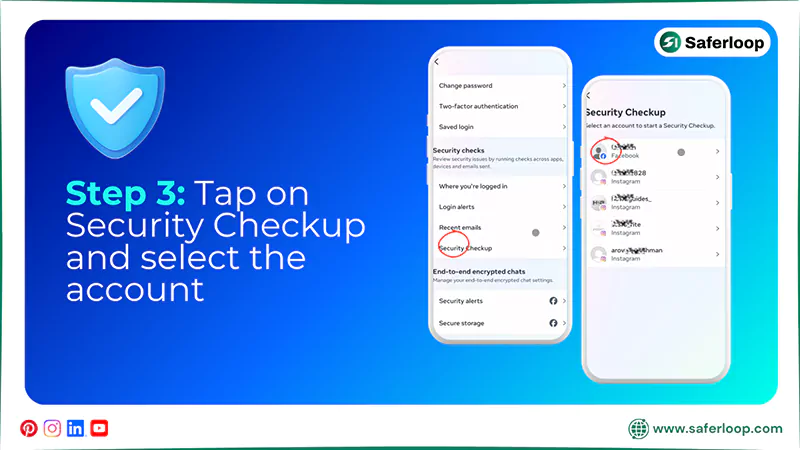
Step 3: Now, tap on “Security Checkup” and select the account you want to check.
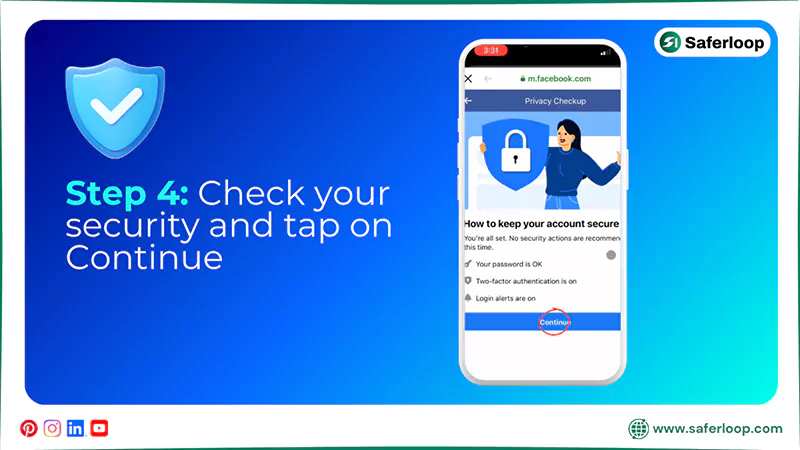
Step 4: Afterward, check your password, two-factor authentication, and login alerts, and tap on “Continue.”
7. How to Block Adult Content on Facebook?
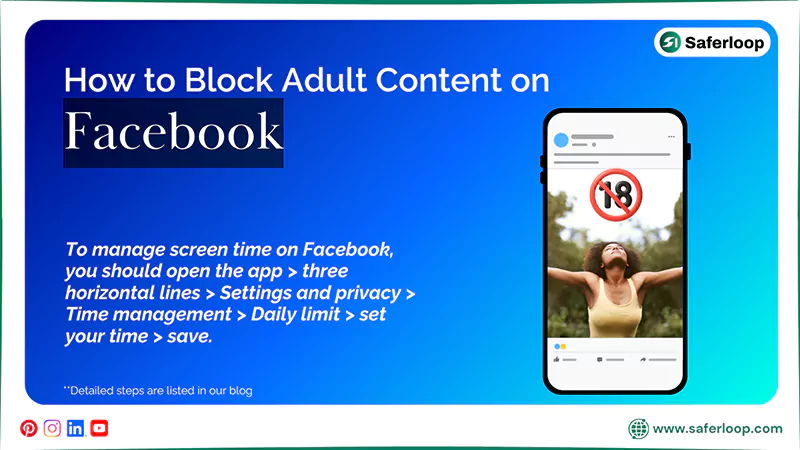
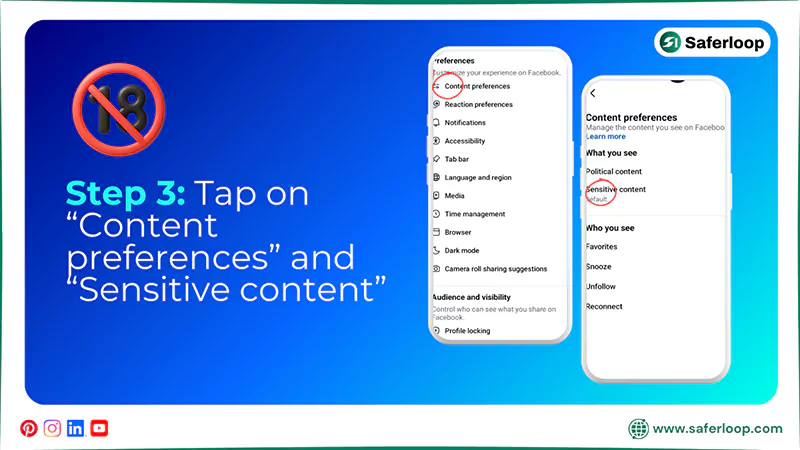
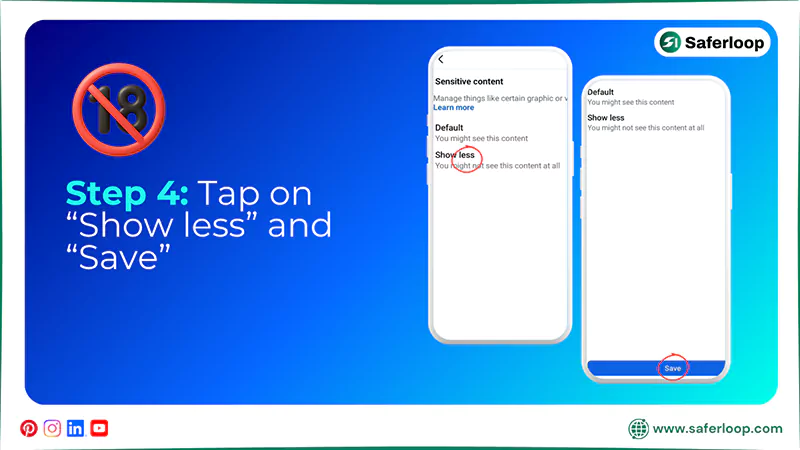
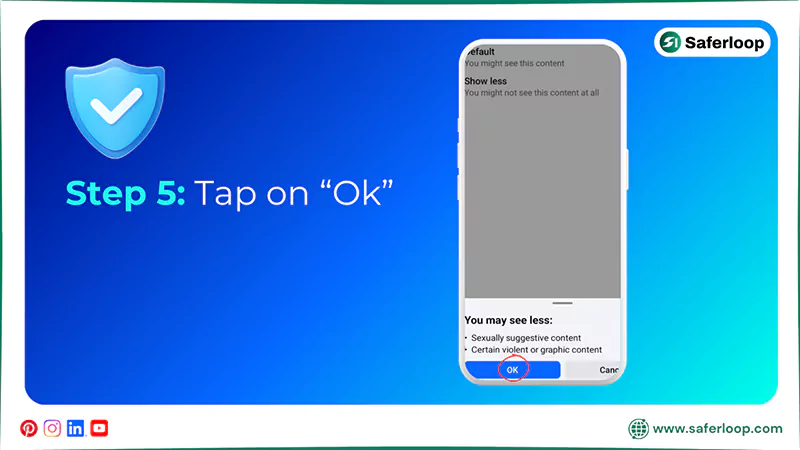
To block adult content on Facebook, you should open the app > three horizontal lines > Settings and privacy > Settings > Content preferences > Sensitive content > Show less > Save > Ok.
Here is the step-by-step guidance on how to block adult content on Facebook.
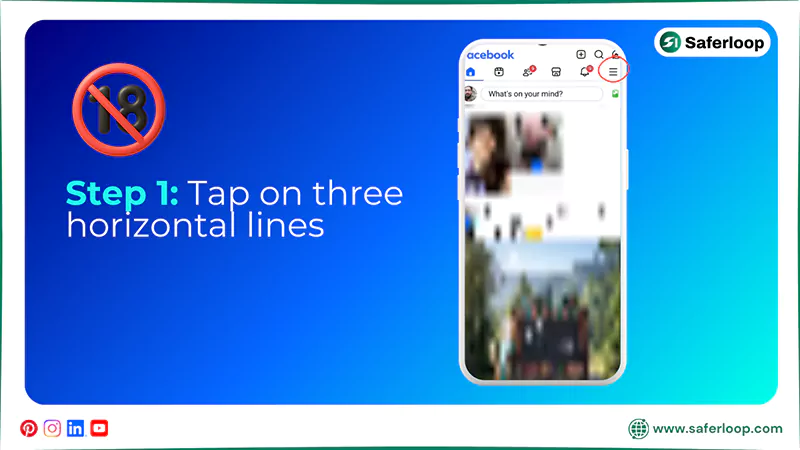
Step 1: Open your Facebook account and tap on the three horizontal lines.
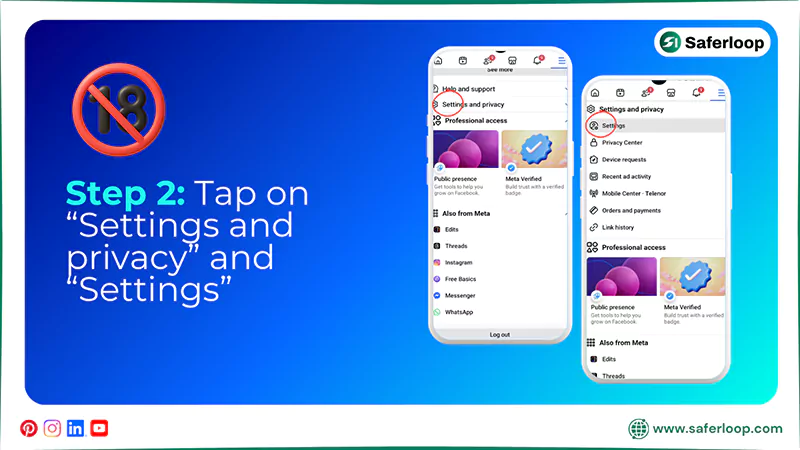
Step 2: Go to the “Settings and privacy” and “Settings.”
Step 3: Now, tap on “Content preferences” and “Sensitive content.”
Step 4: Choose “Show less” and tap on “Save” to confirm.
Step 5: Tap on “OK.”
Also Read: TikTok Parental Controls: Step into Digital Parenting With TikTok Family Pairing
Is Facebook Safe for Kids?
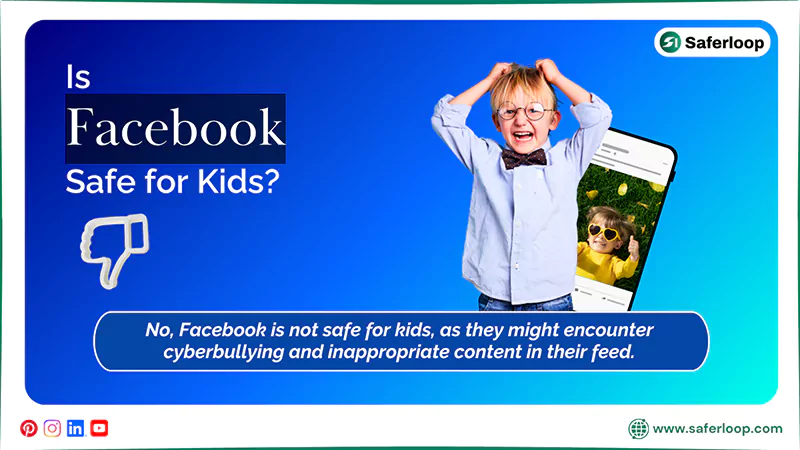
No, Facebook is not safe for kids, as they might encounter cyberbullying and inappropriate content in their feed.
According to Facebook Terms of Service, “the user must be at least 13 years old to access Facebook, and some countries have different age limits according to their legal policy.”
This indicates that children should stay away from this app because it is not designed for them. Also, teenagers who use Facebook for connection and entertainment can become victims of online scams, predatory risks, and exploitation. So, as a concerned parent, you should prevent your innocent kids from using it.
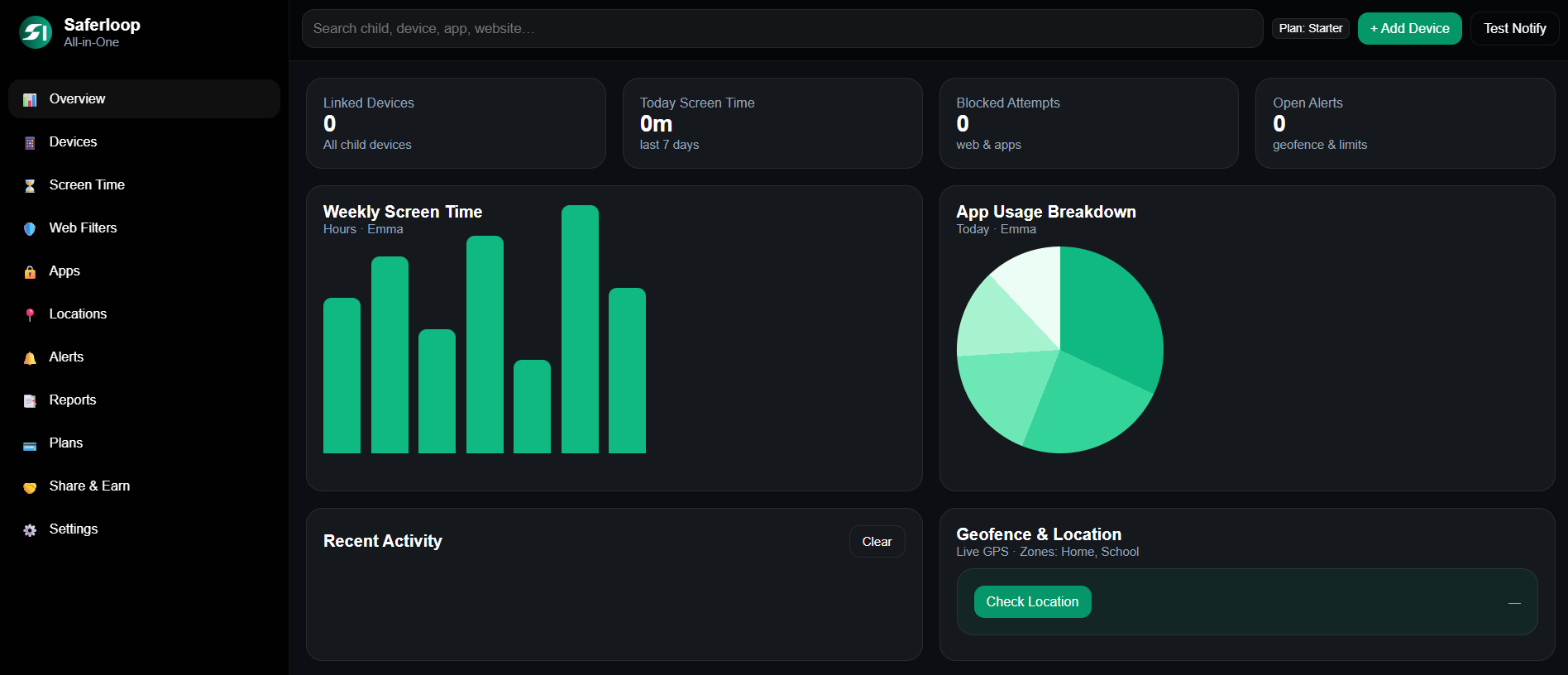
Additionally, I advise that you install the Saferloop parental control software to protect your little ones on social media and other platforms. It offers a wide range of safety features, such as the following:
- Monitor your children’s online activities to keep track of how they surf the internet.
- Set screen time limits to encourage healthy and offline habits.
- Track real-time location and create digital boundaries to receive notifications when your kids reach or leave the place.
- Block unsafe websites and apps to prevent them from accessing dangerous sites.
- Restrict inappropriate content from slipping into children’s online feed.
- Send emergency alerts, SOS updates, and reports if something suspicious is detected.
- Provides the Saferloop safety checkup extension for Chrome to add an extra layer of security to your devices.
- Offers the Saferloop GPT to guide you about digital parenting issues and answer your queries.
Safety Risks of Facebook for Children
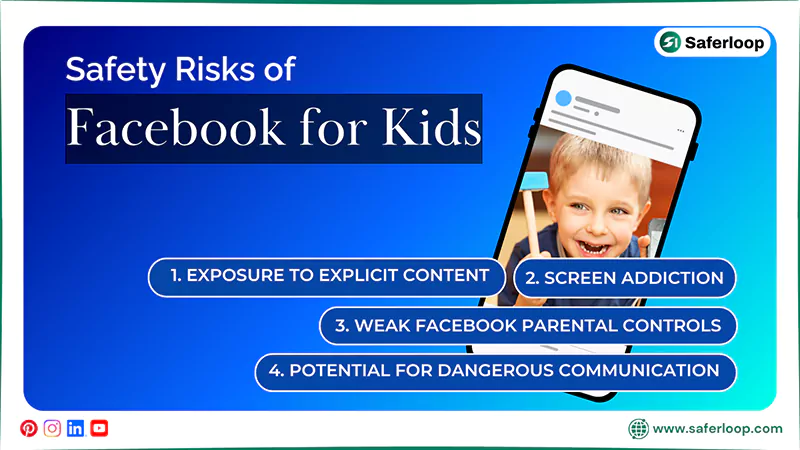
Facebook includes safety risks for children, such as exposure to explicit content, screen addiction, weak Facebook parental controls, and potential for dangerous communication.
Let’s have a look at these online concerns to protect your kids.
1. Exposure to Explicit Content
Similar to Instagram, Facebook also allows everyone to share content worldwide. However, children might encounter inappropriate and obscene images and videos in their feed, affecting their mental and emotional well-being.
2. Screen Addiction
The endless scrolling and unlimited content may encourage your kids to develop a Facebook addiction. As a result, their screen time increases, affecting their cognitive skills, sleep schedules, and eye power. It also impacts their study time and overall education.
3. Weak Facebook Parental Controls
Although Facebook claims to provide built-in parental controls, it lacks in safeguarding kids effectively. These controls provide limited protection, and children change Facebook parental control settings without prior knowledge of their parents.
4. Potential for Dangerous Communication
The free and easy setup allows scammers, hackers, and predators to target innocent children for their advantage. They might use Gen Alpha slang terms to attract them and impersonate good people, resulting in putting them in danger.
Let’s move toward the next section to uncover the safe alternative to Facebook for children.
Messenger Kids: Safe Facebook Alternative for Kids
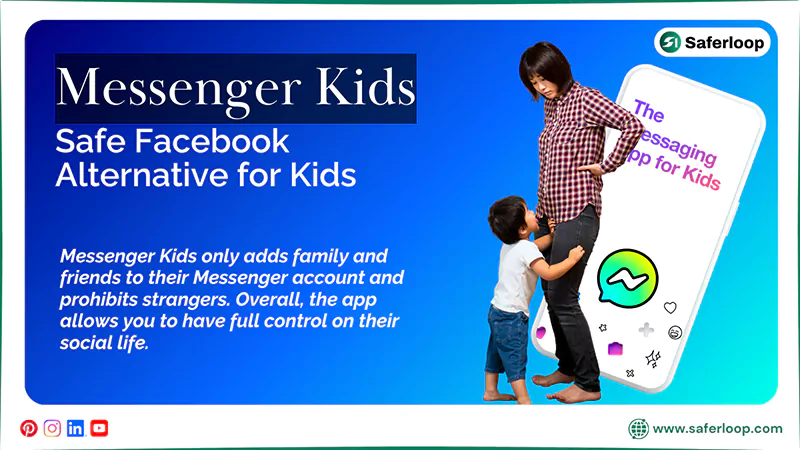
Messenger Kids is owned by Meta and designed to provide kids a safe and trustworthy platform for communication and connection. As a parent, you can utilize built-in parental controls to watch over who can connect with your kids.
In addition to security, it only adds family and friends to their Messenger account and prohibits strangers. Overall, the app allows you to have full control on their social life.
Interestingly, it also offers funny stickers, crazy filters, doodles, sketching, games, and much more to make your kids’ experience worthwhile. These amazing options help them to stick to Messenger Kids rather than Facebook.
How Do Parents Ensure Kids’ Safety Online?
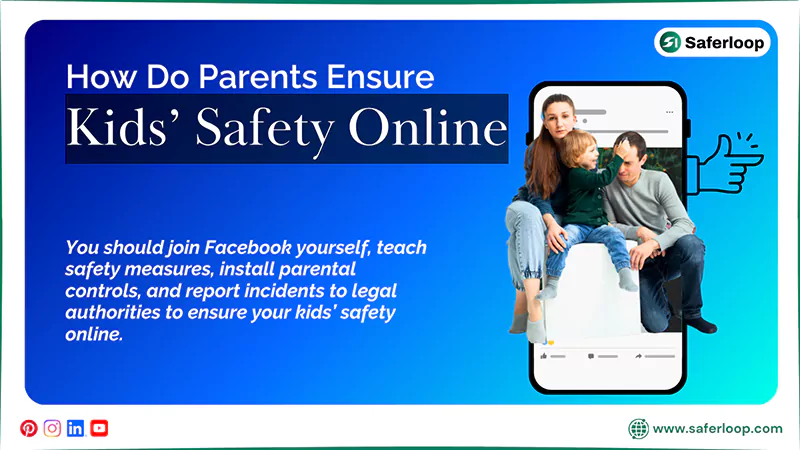
As a helicopter parent, you should join Facebook yourself, teach safety measures, install parental controls, and report incidents to legal authorities to ensure your kids’ safety online.
Here are the following safety tips for parents to keep their children safe on Facebook.
1. Join Facebook Yourself
You can join Facebook and become friends with your kids to monitor their activity from your account. It helps you keep track of how they use the app, communication, and their reels, ensuring their safety.
2. Teach Safety Measures
Additionally, you should teach safety measures to your kids, including never sharing personal information and passwords, not talking with strangers, and how to block or report someone on social media. It empowers them to make informed decisions on their own.
3. Install Parental Controls
Significantly, you should install the safest parental control app like Saferloop to monitor your children’s online activities, set screen time limits, block explicit content, and track real-time location. This helps you add an extra layer of protection to your kids’ social life.
4. Report Incidents to Legal Authorities
If your children become victims of self-harm, violence, and threats, you should report incidents to legal authorities. This includes the FBI’s Internet Crime Complaint Center (IC3) at www.ic3.gov, FTC at IdentityTheft.gov, and local law enforcement.
Also Read: Complete Guide to YouTube: Overview, History, Need for YouTube Parental Control & Setup Tips
Wrapping Up!
Though Facebook is not designed for children, they still manage to access the app and pose dangers. Hence, I advise parents to prevent their kids from using it and enable Facebook parental controls for their teenagers.
Moreover, you should build a healthy relationship with your innocent little ones to supervise them seamlessly. Also, install the Saferloop parental control software to add an extra layer of security to your kids’ devices.
Author’s Note:
As a cybersecurity expert, I discovered that many reports claim that Facebook is not safe for kids and teenagers. As they encounter cyberbullying, explicit images, and pedophiles in their accounts despite enabling Facebook parental controls.
That’s why I recommend installing the Saferloop parental control app to monitor your children’s online activities, set screen time limits, and block adult content from their feeds. Its AI-powered features truly impressed me through their skeptical performance and top-notch quality.
Frequently Asked Questions
Q: How can I monitor my child’s Facebook account?
Q: How to block inappropriate content on the Facebook app?
Ans: To block inappropriate content on the Facebook app, you should open it > three horizontal lines > Settings and privacy > Settings > Content preferences > Sensitive Content > Show less.
Q: Can I stop someone from seeing my Facebook without blocking them?
Ans: Yes, you can stop someone from seeing your Facebook without blocking them by using the “Restricted List” and changing profile details to “Only me.”
Q: Is there a safe kids’ alternative to Facebook?
Ans: Yes, you can introduce Messenger Kids to your little ones as a safe alternative to Facebook. It is designed to enhance their online safety while offering interesting and crazy features.
 Neha Sharma
Parental Control & App Safety Writer
About article
The author of this article Neha Sharma, an Parental Control & App Safety Writer at Saferloop, brings practical experience and industry knowledge to the subject.
The review and editing by Vinithra Karunanidhi have been done to make sure that it is accurate, clear, and relevant.
At Saferloop, we are determined to provide high-quality, well-researched, and updated content. To understand further how we produce and revise our articles, please refer to our Editorial Guidelines.
Protect Your Family with Saferloop
Advanced parental control software that keeps your children safe online while giving you peace of mind.
- Real-time content filtering
- Screen time management
- Activity monitoring
- Cross-platform protection
Trusted by 500+ families