

Ans: No, YouTube is not safe for kids because they can encounter inappropriate and explicit content. For a better and safer alternative, you can use YouTube Kids for your children.
×
Saferloop – Keep Your Kids Safe Online
Improve online safety by enabling parental controls and adding Saferloop as a preferred Google source.
Complete Guide to YouTube: Overview, History, Need for YouTube Parental Control & Setup Tips
I know your children are watching videos on YouTube or YouTube Kids for entertainment, education, and engagement. It seems quite normal, but your kids might encounter inappropriate and explicit content unknowingly.
That’s why I compiled detailed information on YouTube history and background, risks and concerns, the importance of parental controls, additional tips for parents, and safe video-streaming platforms for children.
So, stay adherent to this article!
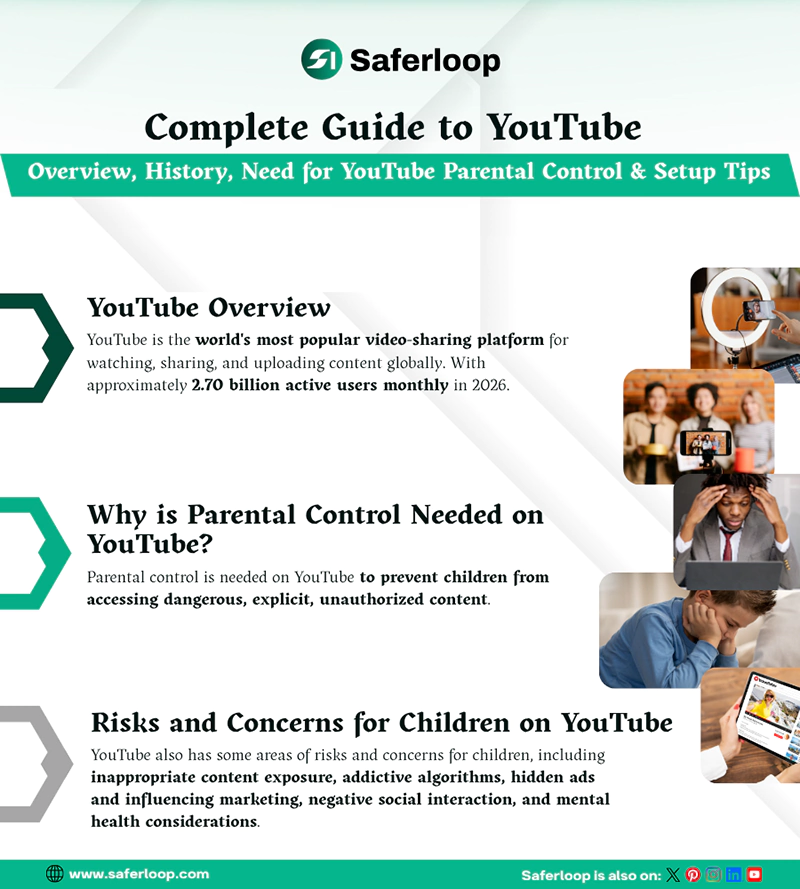
Table of Contents:
- Introduction to the YouTube Platform
- YouTube History and Background
- What are the Key Features of YouTube?
- Growth and Global Popularity of YouTube
- Types of Content Available on YouTube
- Risks and Concerns for Children on YouTube
- Why is Parental Control Needed on YouTube?
- What is YouTube Restricted Mode?
- How to Enable Restricted Mode on YouTube?
- How to Manage Search and Watch History?
- YouTube Kids Overview: A Child-Safe Version of YouTube
- How to Set Screen Time Limits on YouTube Kids?
- Privacy and Safety Settings for Kids on YouTube Kids
- Common Mistakes Parents Should Avoid to Protect Kids on YouTube
- What are Alternative Child-Safe Video Platforms?
- Final Safety Recommendations for Families
- Wrapping Up!
- Frequently Asked Questions
Key Takeaways:
- YouTube is the most renowned video-streaming platform, with over 2.77 billion active users.
- Though the app offers various built-in safety features, it is unsafe for kids, and they may encounter inappropriate and explicit content.
- You should install parental control like Saferloop to enhance security and privacy.
What is Youtube?
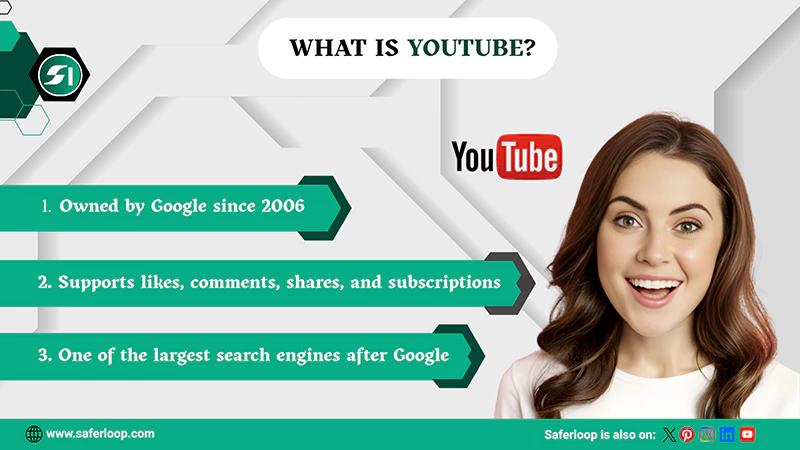
YouTube is the world’s most popular video-sharing platform for watching, sharing, and uploading content globally. You can watch videos on entertainment, education, news, tutorials, music, technology, daily vlogs, cooking, cultures, fashion, and much more.
It has now become the second-largest search engine, owned by Google. Interestingly, YouTube also pays creators (known as YouTubers) for uploading videos on the platform based on views and subscribers. As a result, it has become a mainstream platform among younger generations, including Gen Z and Gen Alpha.
Moreover, YouTube is projected to have approximately 2.70 billion active users monthly in 2026. It highlights that this platform has become the dominant global video platform.
YouTube History and Background
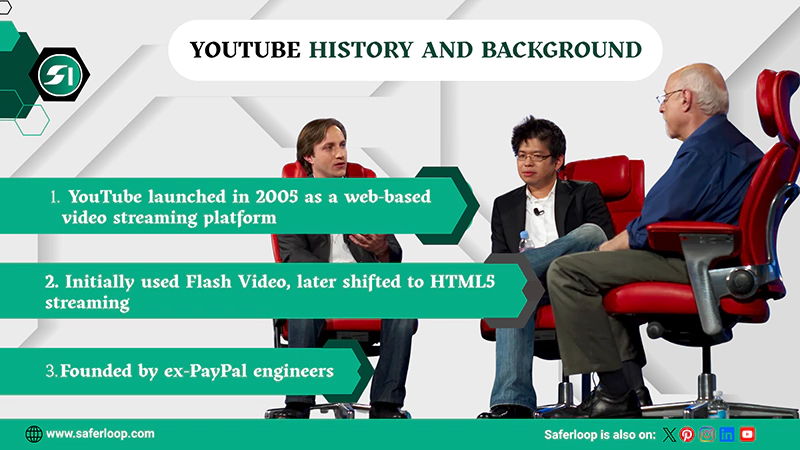
“When was YouTube created?” If this question has arisen in your mind, it’s quite a normal thing. YouTube was founded on February 14, 2005, by former PayPal employees Chad Hurley, Steve Chen, and Jawed Karim. However, it was launched in beta in May 2005.
It was originally intended as a video-based dating site, but later it became a platform for on-demand videos. During the summer of 2026, YouTube became the fastest-growing platform on the World Wide Web, with 100 million views per day.
However, the rapid growth comes along with challenges of keeping up with technology and maintaining software, which requires a high-bandwidth internet connection.
Due to this reason, Google purchased it for US $1.65 billion in stock on October 9, 2006, and officially completed it on November 13, 2006. Until now, Google has transformed YouTube into a better video-streaming platform.
What are the Key Features of YouTube?
YouTube features for users have a wide range of benefits, including advanced streaming options, AI-powered tools, monetization and Partner Program, detailed analytics, and more.
You should skim through this section to acknowledge these top features in great detail.
1. For Viewers
Here are the features for viewers:
- YouTube Shorts: After the popularity of TikTok, the platform introduced vertical short-form videos of up to 60 seconds to 3 minutes for quick engagement.
- Live Streaming: It is a free, real-time, interactive broadcasting feature that allows you to connect instantly with creators.
- Advanced Playback: It includes high resolution (4k/8k), granular speed controls (0.05x increments), PIP (Picture-in-Picture), and 4x playback speed.
- YouTube Premium: It is a paid subscription service that removes ads from all YouTube videos, offers offline downloads, and allows background play for around $13.99 per month.
- Smart Casting: It allows you to stream videos from your phone, tablet, or computer to a TV by clicking on the Cast icon, while both devices should be connected to the same Wi-Fi network.
2. For Creators (YouTubers)
Here are the features for creators:
- Monetization and Partner Program: It offers earning features through ads, channels, memberships, fan funding, and brand partnerships, making YouTube popular around the globe.
- Community Tab: It enables you to share images, texts, polls, quizzes, and GIFs to engage with subscribers and build strong connections.
- AI-Powered Tools: Dream Screen, Veo 3 integration, and auto dubbing and editing with AI help you upload effective videos and reach a broader audience.
- Analytics and Insights: The platform offers detailed insights into audience demographics, actionable data to track performance, retention, and revenue details.
- Content Management: You can also utilize tools for scheduling, tagging, adding subtitles, and the Copyright Match tool for protection. It is crucial for claiming and monetizing content on a larger scale.
Also Read: Which is the Safest Parental Control App to Protect Children Online? Features, Price, and Ratings
Growth and Global Popularity of YouTube
As I mentioned earlier in the YouTube platform overview, it has gained massive active users from 2006 to 2026. Apparently, YouTube’s creative ecosystem supported more than 490,000 full-time jobs in the United States.
In the 2026 outlook, this app is expected to grow and increase the contribution of $10 billion per year in previous $55 billion GDP years. This major contribution has built creators’ lifestyles and completed their dreams.
On the other hand, in 2025, the platform captured nearly 12% of all TV viewing after the shift to television, making it the most viewed app on the TV screens. Also, it paid over 100 billion to creators, artists, and media companies in the four years leading up to 2026.
Moreover, YouTube CEO Neal Mohan stated, “Thank you to everyone who has been a part of YouTube’s incredible story so far. We’re excited to see what our next 20 years have in store.”
This signifies that YouTube aims to grow and evolve in the near future, transforming the way of entertainment.
Types of Content Available on YouTube
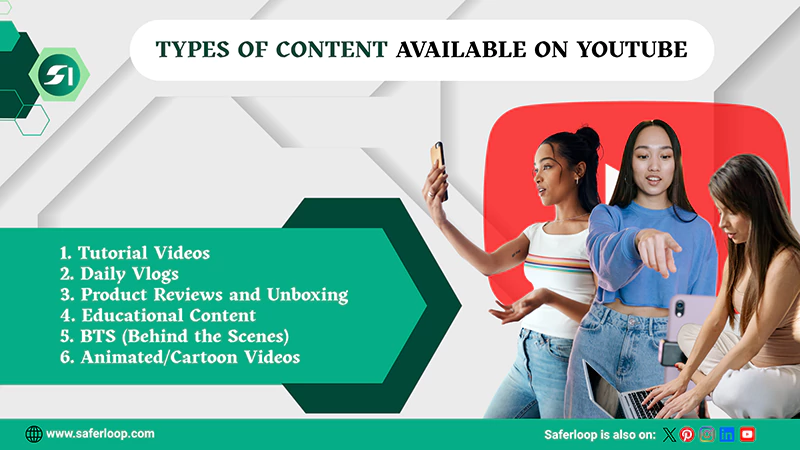
It’s impossible to state a specific type of content on YouTube, as it hosts a vast array of videos that go above and beyond.
Still, I’ve curated the list of content available on this app. So, take a look to have an idea of what you’re looking for.
1. Tutorial Videos
These are instructional and scripted videos designed to teach viewers skills, concepts, or processes. You can find step-by-step guides in this type of content and resolve your query. For example, “How to cook chocolate cookies at home?”
2. Daily Vlogs
Another widely viewed content is daily vlogs. These videos are based on personal and unscripted documentation of day-to-day life. For example, “How’s My Day Going On!” or “Let’s Spend a Day with Me.”
3. Product Reviews and Unboxing
These videos capture the moment of opening products from their original packaging. They are intended to showcase and analyze products to help viewers make purchase decisions. For example, “Unboxing and Reviewing My New iPhone 17 Pro Max.”
4. Educational Content
Educational channels are popular among students, whether they are school-going or college-going. These videos break down complex concepts into simple, entertaining, and visually appealing content. For example, “Learn 3 States of Matter in a Simple Method.”
5. BTS (Behind the Scenes)
As the name suggests, Behind the Scenes (BTS) on YouTube refers to raw and unpolished content. In simple terms, it is the recording of struggles, processes, and the person behind an original, polished video. For example, “Blooper Reels and Failure BTS.”
6. Animated/Cartoon Videos
Animated and cartoon videos are specifically targeted at kids and teenagers. They are 3D-generated stories designed for motion, with genres such as comedy, education, rhyme, and storytelling. For example, “Masha and the Bear (3D Russian Animation).”
Risks and Concerns for Children on YouTube
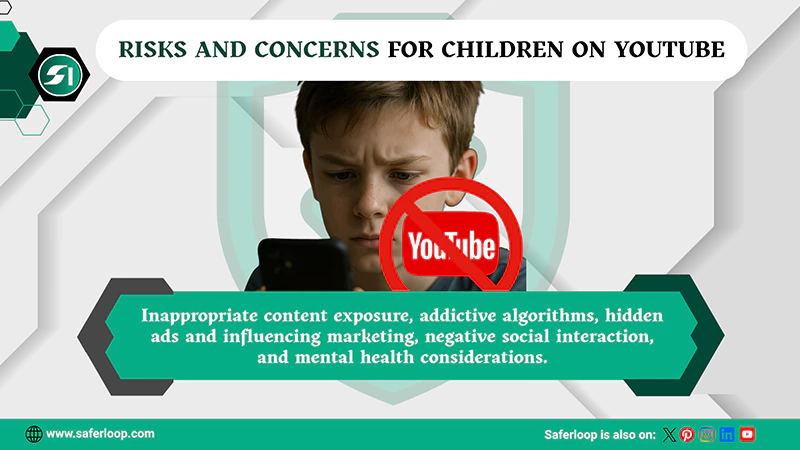
“Every coin has two sides.” Therefore, YouTube also has some areas of risks and concerns for children, including inappropriate content exposure, addictive algorithms, hidden ads and influencing marketing, negative social interaction, and mental health considerations.
Here are the following dangers of using YouTube for little ones:
1. Inappropriate Content Exposure
Even with filters and settings, inappropriate content can still slip onto your kids’ YouTube home screen. These videos may contain violence, explicit, or abusive content, which can be harmful to them.
2. Addictive Algorithm
YouTube’s autoplay and suggested videos are designed to keep viewers watching. However, it makes children addicted to YouTube and increases screen time, leading to less physical activity and overstimulation.
3. Hidden Ads and Influencing Marketing
Many kid-friendly YouTubers promote gambling apps and other products but are not transparent about collaborations and sponsorships. As a result, children might be encouraged to download inappropriate apps and unwanted toys.
4. Negative Social Interaction
There’s a chance of connecting with strangers through YouTube’s comment section, which includes spammy or unsafe links. This increases the chance of getting lured by pedophiles and scammers for their advantages.
5. Mental Health Considerations
Excessive viewing can lead to mood swings, anxiety, reduced attention spans, and lower quality of sleep. Children can create unrealistic living standards and compare their lifestyles with influencers, increasing their doubts about self-esteem.
Why is Parental Control Needed on YouTube?
Parental control is needed on YouTube to prevent children from accessing dangerous, explicit, unauthorized content. It helps parents keep an eye on their kids’ online activities and behavior from their own devices promptly and seamlessly.
In order to protect your little ones, I recommend that you install the Saferloop parental control app for budget-friendly safety features, including:
- Monitor online activity to control your kids’ online activities
- Set screen time limits to encourage a healthy lifestyle and habits.
- Track location and build digital boundaries for safety and privacy.
- Track calls and messages to prevent connecting with strangers.
- Block inappropriate and unsafe websites and apps
- Provide the Saferloop safety checkup extension for Chrome to add an extra layer of security.
- Offer the Saferloop AI version to guide parents about digital parenting issues.
What is YouTube Restricted Mode?
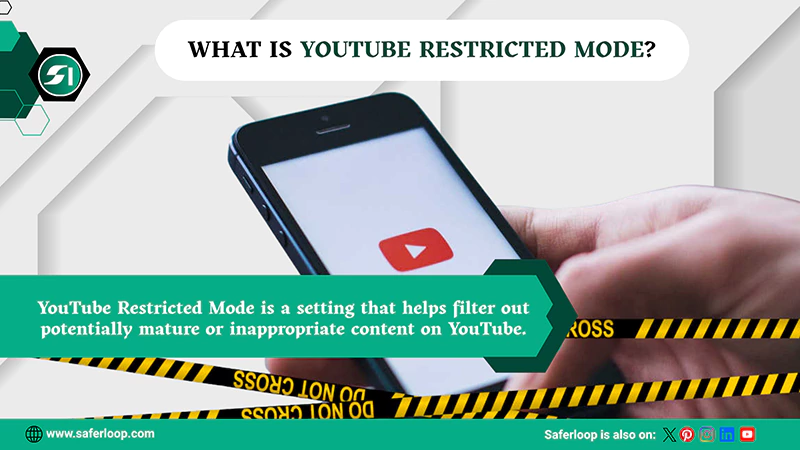
Restricted Mode is an optional YouTube setting that allows you to filter inappropriate, explicit, sexual, violent, and abusive content from your feed. It is helpful to create a safe digital environment for viewing streaming.
This is a built-in feature that hides mature, profane, and excessively violent videos, comments, and images. You can utilize this feature without installing any third-party parental control app.
It is frequently used by parents, so you can use it to prevent your children from accessing obscene content. However, it is important to consider that YouTube Restricted Mode automatically operates your feed and is different from the age-restricted feature.
How to Enable Restricted Mode on YouTube?
To enable the Restricted Mode on YouTube, first open the app > profile icon > settings > General > Restricted Mode.
Here are the following steps for in-depth guidance.
Step 1: Open your YouTube app on your smartphone or desktop.
Step 2: Click on your profile icon on the bottom right side of the screen.
Step 3: Tap on Settings in the top right corner.
Step 4: Click on General under the settings.
Step 5: Turn on the Restricted Mode.
How to Manage Search and Watch History?
To manage search and watch history, you should open the app > profile icon > settings > manage all history > customize settings.
Let’s take a look at the steps mentioned below for easier understanding.
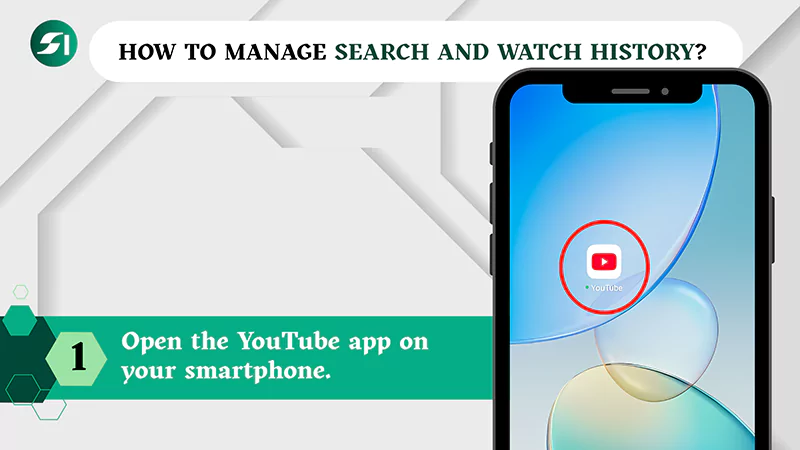
Step 1: Open the YouTube app on your smartphone.
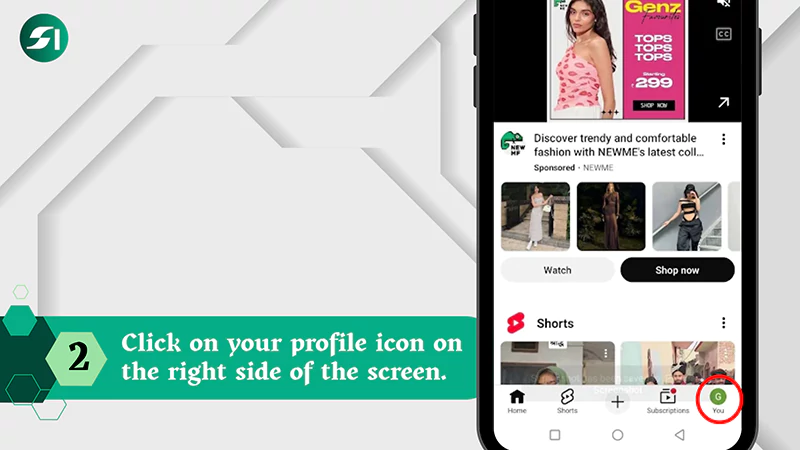
Step 2: Go to the profile icon on the bottom right side of the screen.
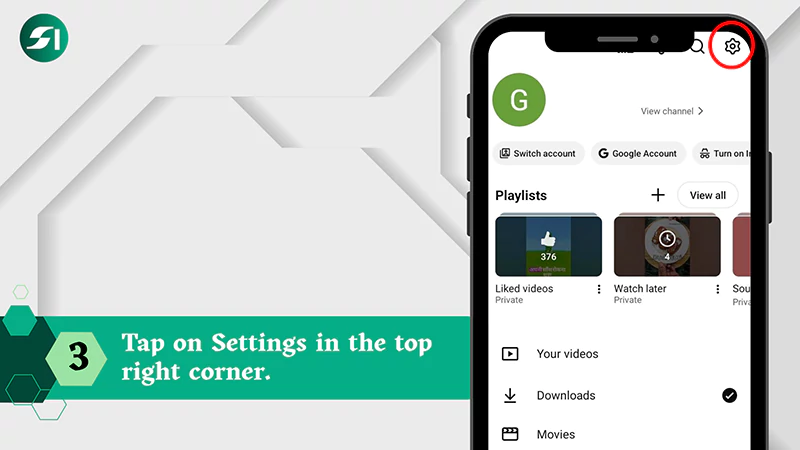
Step 3: Tap on the Settings in the top right of the screen.
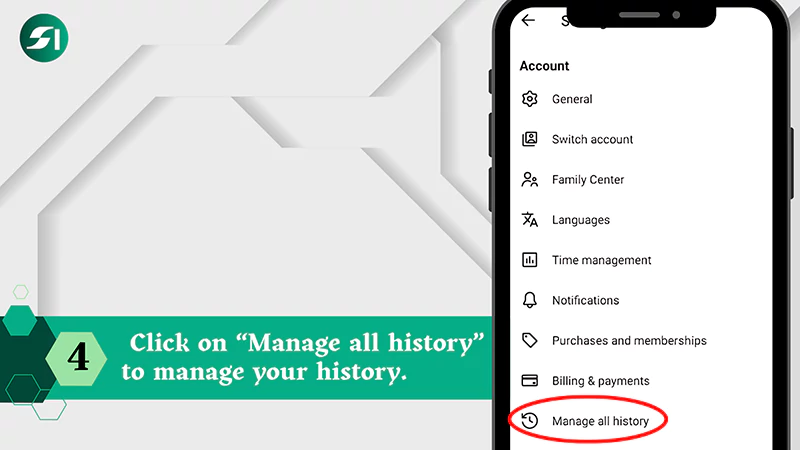
Step 4: Click on “Manage all history” to manage your watch and search history.
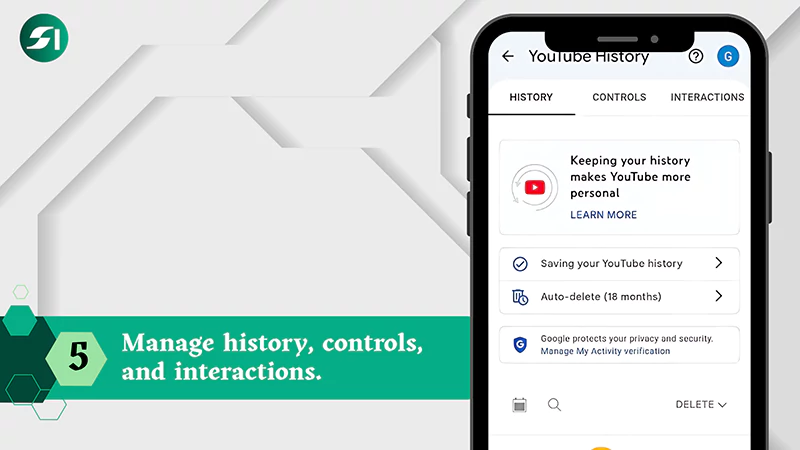
Step 5: You can find three sections, such as “History, Controls, and Interactions,” to customize settings according to your preferences.
After acquiring knowledge on how to set restrictions on YouTube and manage history, you are all set for the YouTube Kids overview. Let’s skim through the next section!
Also Read: iPad Parental Control: How to Set Up and Manage Screen Time Safely?
YouTube Kids Overview: A Child-Safe Version of YouTube
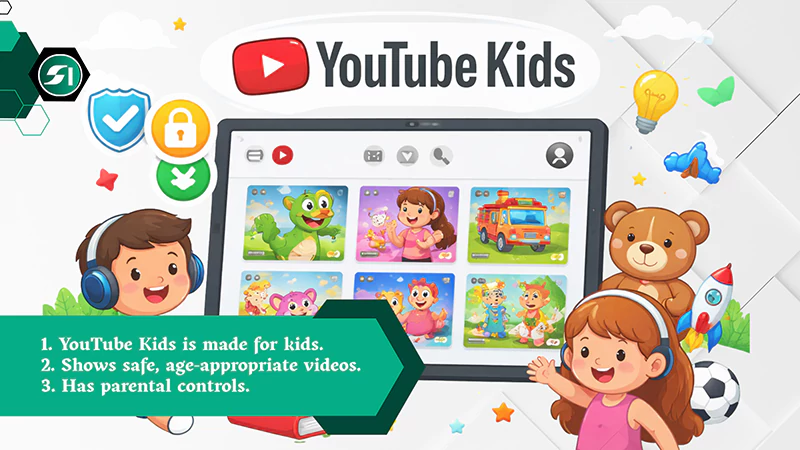
YouTube Kids is a member of the YouTube family after the official release on February 23, 2015, especially designed for children to have easier and safer streaming. The app is available for free on Google Play and the App Store worldwide.
It is intended to give parents and families peace of mind regarding what kids are watching on YouTube. The app shows narrowed and age-appropriate content to prioritize little ones’ safety.
As a helicopter parent, you can control the experience of your kids through the YouTube Kids app settings, as it provides:
- Timer: Built-in timer that lets you restrict your children’s screen time. It alerts them when the session is over and prevents excess streaming.
- Sound Settings: You have an option to turn off background music and sound effects, so your kids can enjoy videos while you take a break.
- Search Settings: If you want to limit your children to watching just the pre-selected videos available on the home screen, you are allowed to turn off the search bar.
How to Set Screen Time Limits on YouTube Kids?
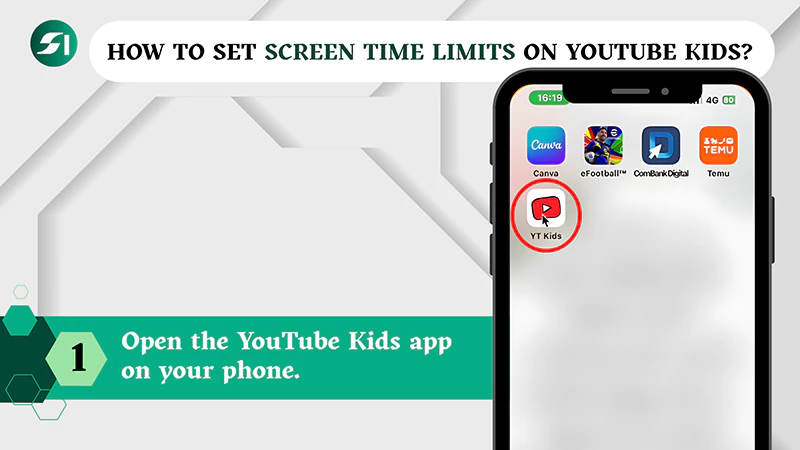
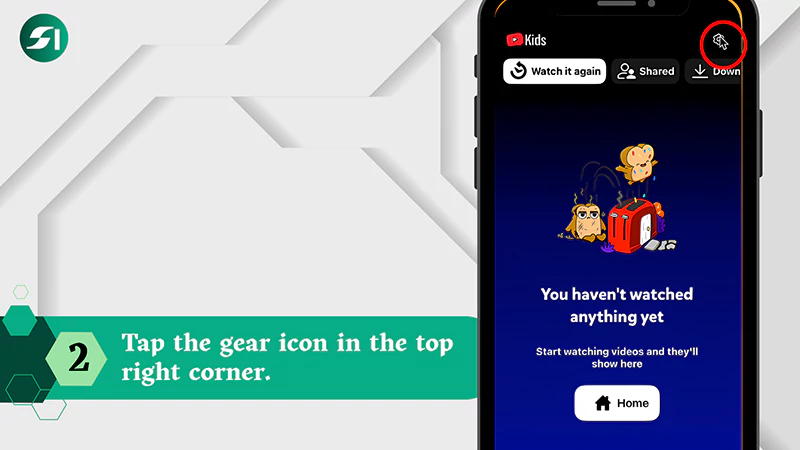
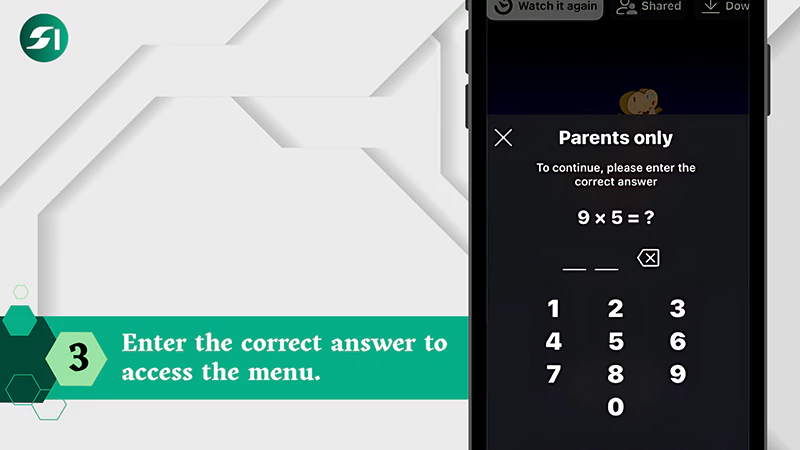
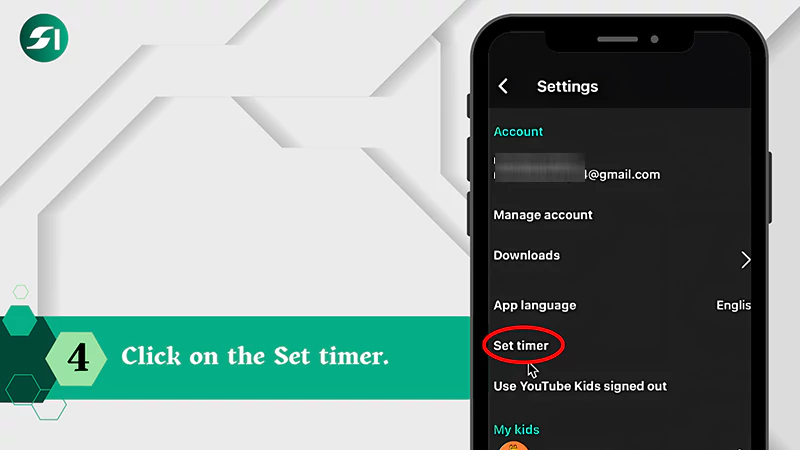
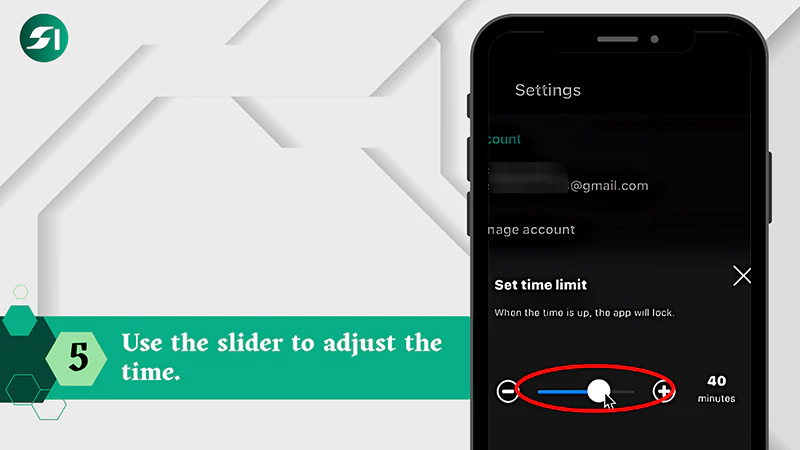
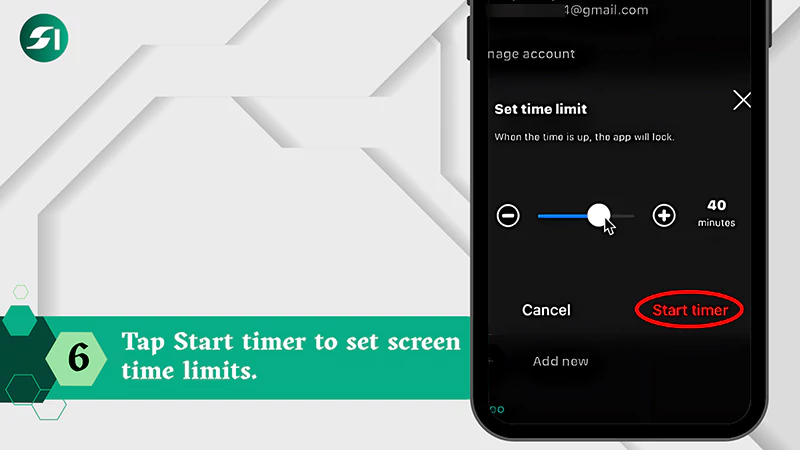
To set screen time limits on YouTube Kids, you should open the app > settings > answer the query > set timer > use the slider > start timer.
Here are the following simple and easy step-by-step instructions for you.
Step 1: Open the YouTube Kids app on your phone.
Step 2: Tap the gear icon in the top right corner to open the Settings.
Step 3: Enter the correct answer to access the menu.
Step 4: Click on the Set timer.
Step 5: Use the slider to adjust the time. You will see the time in minutes.
Step 6: Tap Start timer to set screen time limits. After this setting, the app will automatically lock once the time is completed.
On the other hand, if you want to set proper screen time limits on YouTube, you should install a third-party parental control app like Saferloop, as it doesn’t provide a built-in feature for setting streaming limits.
Privacy and Safety Settings for Kids on YouTube Kids
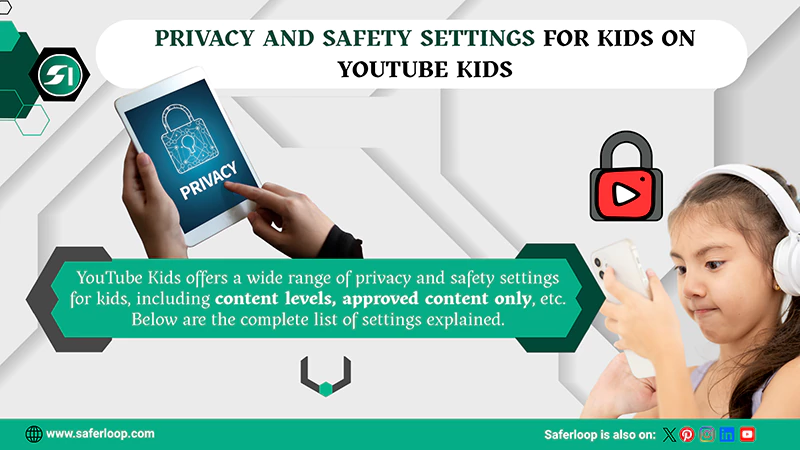
YouTube Kids offers a wide range of privacy and safety settings for kids, including content levels, approved content only, search toggle restrictions, blocking specific content, watch and search history, and a built-in timer.
Let’s skim through this section to understand the importance of these safety features.
1. Content Levels
As a concerned parent, you are allowed to choose content based on your little ones’ age, such as Preschool (4 and under), Younger (5-8), or Older (9-12). It is helpful to curate appropriate content for safer streaming.
2. Approved Content Only
This mode restricts viewing to only content, videos, channels, and collections that are approved by you. As a result, it effectively removes the search bar from your kids’ accounts.
3. Search Toggle Restrictions
You can turn off the search feature to limit children’s viewing experiences. It prevents them from searching for videos on their own and protects them from encountering explicit content.
4. Blocking Specific Content
If you don’t like a specific video or an entire channel on YouTube Kids, you can block or report the account. It keeps your children away from inappropriate content and allows them to watch age-appropriate videos.
5. Watch and Search History
Moreover, you can pause or clear the watch and search history to prevent algorithm-based recommendations and suggested videos. This feature can help you to make a better and safer YouTube feed.
6. Built-in Timer
A built-in timer allows you to limit screen time to encourage physical activities and healthy habits. The app will alert your little ones when the session is over.
Common Mistakes Parents Should Avoid to Protect Kids on YouTube
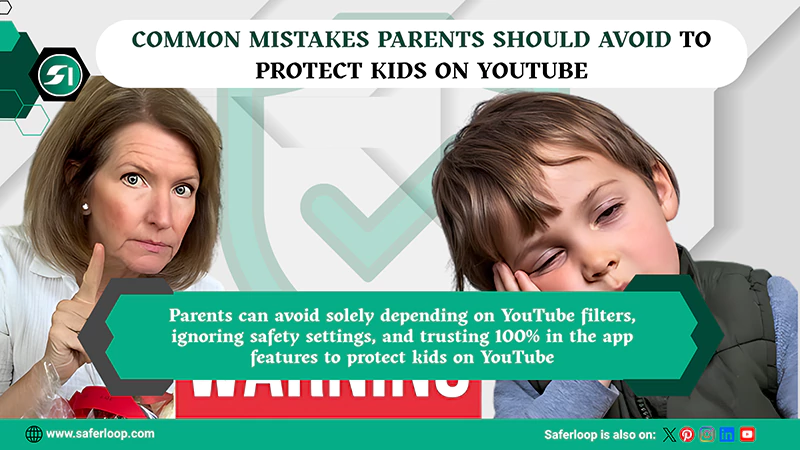
Parents can avoid solely depending on YouTube filters, ignoring safety settings, and trusting 100% in the app features to protect kids on YouTube.
Here are the following common mistakes most parents make.
1. Relying on YouTube Kids
Many guardians assume that YouTube Kids is 100% safe for their children, but that’s not true. Sometimes, harmful content can slip through filters and may affect your kids.
2. Leaving Autoplay Enabled
If you turn on the autoplay option for convenience, always remember that it can increase your little ones’ screen time and make them addicted to YouTube content.
3. Ignoring Comments and Community
If you underestimate the comment and community section, this will be your worst mistake. Predators or pedophiles use these two features to connect with minors and children for online scams and cyberbullying.
4. Neglecting Account Supervision
Allowing children to use a general account and unrestricted YouTube without filters can lead to major consequences, rather than a linked account with parental controls like Family Link and Saferloop.
What are Alternative Child-Safe Video Platforms?
There are alternative and safer video platforms to YouTube, such as Disney+, Nick Jr., KidsBeeTV, and Kidoodle.TV. Let’s take a look at their safety features in detail.
1. Disney+
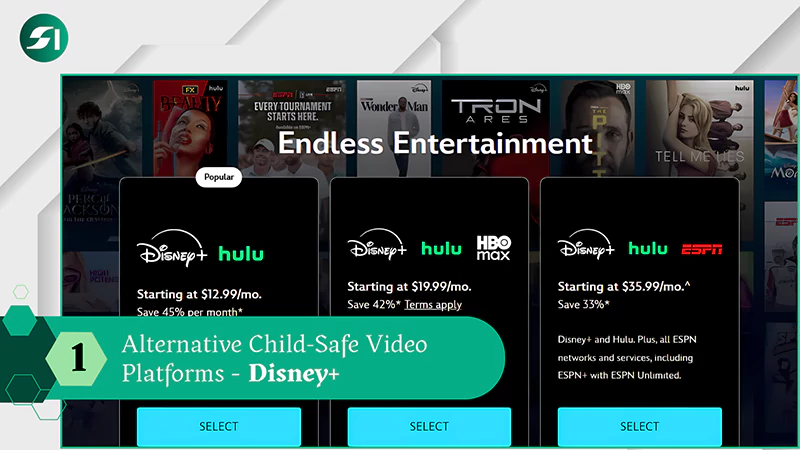
Interestingly, who doesn’t know the Disney+ platform! It is a premium app that streams content appropriate especially for young viewers, featuring simple and easy-to-use navigation.
The app is tailored to be a secure haven for kids, offering a wide collection of movies, shows, documentaries, etc., without ads to prioritize safety and privacy.
2. Nick Jr.
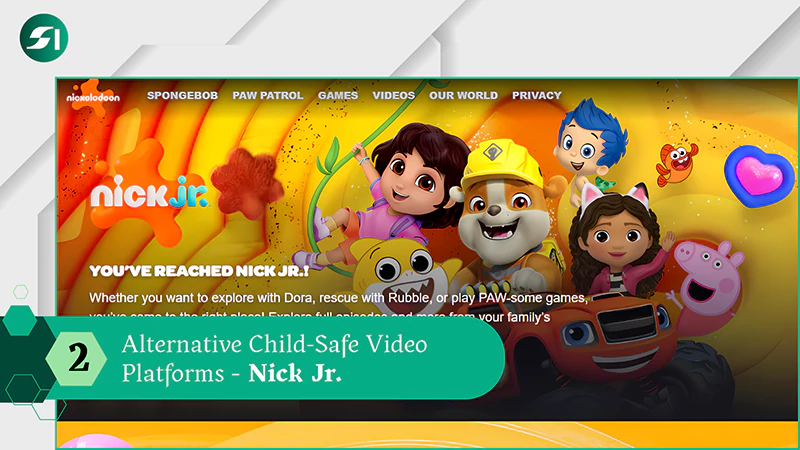
Nick Jr. is a paid subscription platform and an ad-free alternative to YouTube. It offers age-appropriate content (TV-Y rating) without the risk of harmful exploitation.
The platform is especially designed for preschoolers and young children without requiring personal information, minimizing the risk of privacy infringement and exposure to mature themes.
3. KidsBeeTV
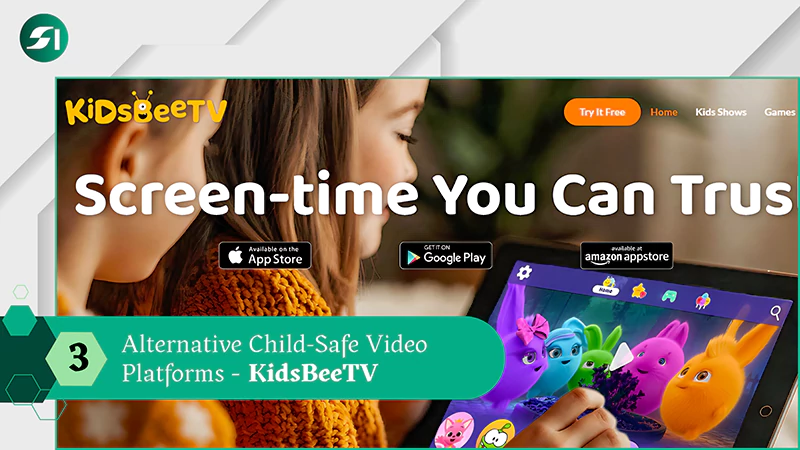
For parents who are seeking a similar platform to YouTube Kids with safety and educational precision, KidsBeeTV is a standout platform for them. It ensures safe, ad-free content with a paid subscription to prevent your kids from harmful content and influence advertisements.
Also, it offers parental controls to set time limits and is available on mobiles, tablets, and laptops for intuitive streaming.
4. Kidoodle.TV
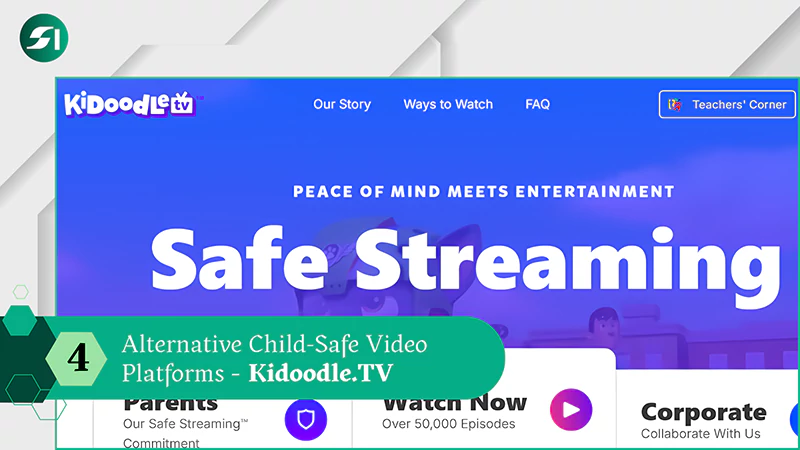
If you want to enjoy safe streaming for kids, try Kidoodle.TV is an ideal platform for you and your children. It is a safe and ad-supported, featuring over 45,000 human-vetted, age-appropriate episodes for young children aged 2-12.
It offers robust parental controls, including time limits, strict content moderation, and COPPA compliance for a safer digital environment.
Final Safety Recommendations for Families
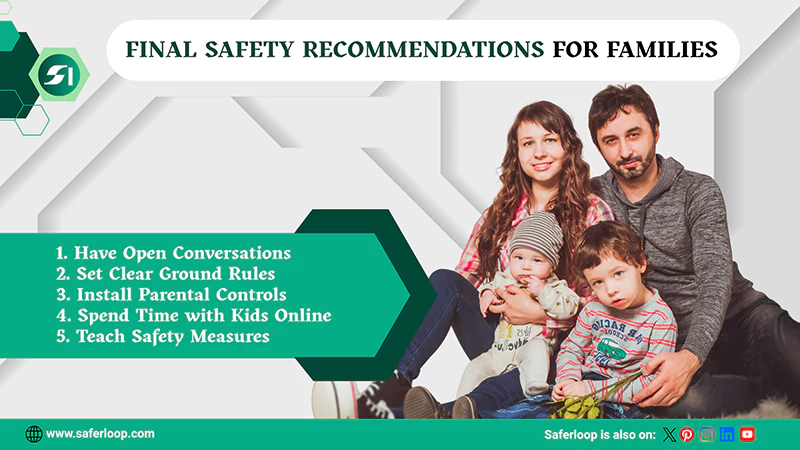
As a concerned parent or guardian, you should have open conversations, set clear ground rules, install parental controls, spend time with kids online, and teach safety measures to protect them from digital dangers.
Here are the following recommendations for you to ensure safety and privacy.
1. Have Open Conversations
Firstly, you should discuss or have conversations with your kids about cybercrimes, cyberbullying, and scams on digital platforms, including YouTube. It helps them to be aware of online threats.
2. Set Clear Ground Rules
You should establish clear rules and regulations on how they use social media, with whom they can interact, and at what time they use their devices. Make sure they understand that everything that goes online will leave a trace of information, so they can share photos or videos mindfully.
3. Install Parental Controls
Significantly, you should set up YouTube parental controls like Saferloop on your children’s devices. It helps you supervise their digital activities, set screen time limits, and track location, protecting them from predators and creepy strangers.
4. Spend Time with Kids Online
Spend time with your children to identify age-appropriate content, apps, or websites. It helps them recognize people and commercial ads to explore together what is wrong or right. Plus, they can trust you with their online handles and share everything if they encounter anything unusual on YouTube and other apps.
5. Teach Safety Measures
Additionally, you should teach your little ones online safety measures, including how to report or block inappropriate accounts, channels, and videos on YouTube/YouTube Kids. Being a parent, it’s your responsibility to balance their online and offline recreation for healthy lifestyles.
Wrapping Up!
On the whole, YouTube and YouTube Kids are renowned video-streaming platform which also offer various built-in safety features for kids. Still, inappropriate content can slip through your children’s feed; that’s why you should opt for the Saferloop parental control app to safeguard them from online dangers.
Moreover, you should avoid common mistakes and follow the safety recommendations mentioned in this article. Surely, it will help you to create a safe digital platform for your young children.
Author’s Note:
I have been using the Saferloop parental control app to make YouTube a safer platform for my children. It helps me to manage and restrict inappropriate content from my own devices easily.
Still, I prefer to build healthy connections with my little ones so that they can share everything about their social life happily with me.
Frequently Asked Questions
Q: Is YouTube safe for kids?
Q: Why is parental control important on YouTube?
Ans: Parental control is important on YouTube to restrict violent, sexual, and obscene content and create a safe digital space.
Q: Is it illegal to use YouTube under 13?
Ans: It is not actually illegal for children under 13 to watch YouTube, but YouTube’s terms and conditions illustrate that kids under 13 should stream the app with parents or guardians.
Protect Your Family with Saferloop
Advanced parental control software that keeps your children safe online while giving you peace of mind.
- Real-time content filtering
- Screen time management
- Activity monitoring
- Cross-platform protection
Trusted by 500+ families