

Ans: You can block inappropriate content on Snapchat by enabling the Family Center feature and restricting sensitive content.
×
Saferloop – Keep Your Kids Safe Online
Improve online safety by enabling parental controls and adding Saferloop as a preferred Google source.
Snapchat Guide: Features, Parental Controls & Safety Tips
Snapchat is widely famous for its distinctive library of crazy filters and free chat features. However, it is also unsafe for teenagers and kids because of sensitive content and fake profiles. Hence, setting up Snapchat parental controls is a must to protect children on this app.
Now, you may wonder “how to set up Snapchat parental controls.” Don’t fret about it! Here, I’ve compiled detailed information on safety measures, features, online risks, and tips for parents to enhance their kids’ protection.
So, as a vigilant parent, dig deeper without further ado!
Quick Answer:
Snapchat parental controls are crucial to set up on Snapchat to ensure children’s online safety and privacy. It also helps parents to restrict sensitive content, disable location, turn off “MY AI”, and block and report strangers.
Table of Contents:
What is Snapchat?
Snapchat is one of the most popular social media apps that allows you to use funny and beautiful filters to capture photos.
Moreover, you can enjoy online messaging on your iOS and Android smartphones for fast communication with friends and family. It is widely famous for sending photos (snaps) to each other that disappear by default after viewing.
Nowadays, Gen Z and teenagers use the app for maintaining streaks, which means sending snaps every day to a particular person. As a result, it becomes a part of the young generation’s lifestyle.
However, kids may encounter X-rated content through snaps and engage with strangers, making it unsuitable for them. That’s why you should focus on Snapchat parental controls to ensure their online safety.
Let’s uncover what features Snapchat offers its users in the next section!
Popular Snapchat Features and How They Work
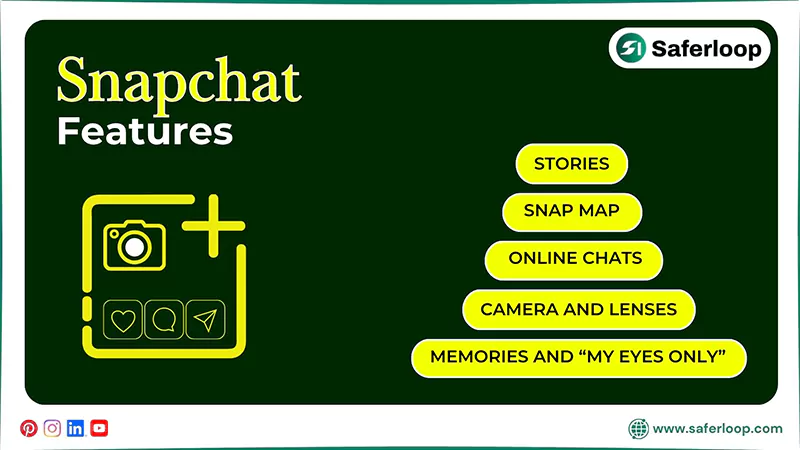
You can enjoy Snapchat features, such as the camera and lenses, online chats, stories, Snap Map, memories, and “My Eyes Only.”
Here are the following Snapchat features for users, which make it popular among Gen Z and Gen Alpha.
1. Camera and Lenses
Interestingly, you can open the app and use the camera to click a photo using AR lenses and unlimited filters. Also, you can edit, add text, and send snaps to your friends and family.
2. Online Chats
With its free chat feature, you can directly send messages, voice notes, snaps, and videos to your Snapchat friends. It helps you to have faster communication with your loved ones.
3. Stories
Similar to Instagram, Snapchat also offers a story feature that only appears for 24 hours. You can upload a photo or a short video to your story that you want to be visible online.
4. Snap Map
Not only this, but you can enable location on Snapchat, so that your friends can view your real-time location. You can also see others’ locations to explore cafes and local businesses.
5. Memories and “My Eyes Only”
You can save your photos and videos in Snapchat memories. These snaps can’t store your phone internal storage. Plus, the “My Eyes Only” option gives you a private space that requires access to view your photos and videos.
Is Snapchat Safe for Kids?
No, Snapchat is not safe for kids, as they might encounter inappropriate and pornographic content on it.
According to Snapchat Support, the user must be 13 or older to access Snapchat and its features, depending on regional law and order. Hence, it is apparent that it is not designed for innocent kids.
On the other hand, teenagers may become victims of online grooming where predators create fake profiles to target them for sextortion. That’s why I advise you to prevent your kids from using this app.
Additionally, you should install the Saferloop parental control software to block harmful apps and monitor your children’s online activities to protect them online.
It also offers a wide range of safety features, including:
- Monitor their online activities to keep track of how they surf the internet.
- Set screen time limits to foster healthy and offline habits.
- Block unsafe apps and websites to create a safe digital environment.
- Restrict inappropriate and explicit content from slipping into your kids’ feeds.
- Track real-time location and create digital boundaries to have an idea of their physical availability.
- Send emergency alerts, reports, and SOS updates if something suspicious is detected.
- Provides the Saferloop safety checkup extension for Chrome to add an extra layer of security.
- Offer the Saferloop GPT to guide you on digital parenting issues and answer all your queries.
Overall, the Saferloop parental control software provides a one-stop solution to protect your children from cyberattacks and pedophiles.
What are Snapchat Parental Controls?
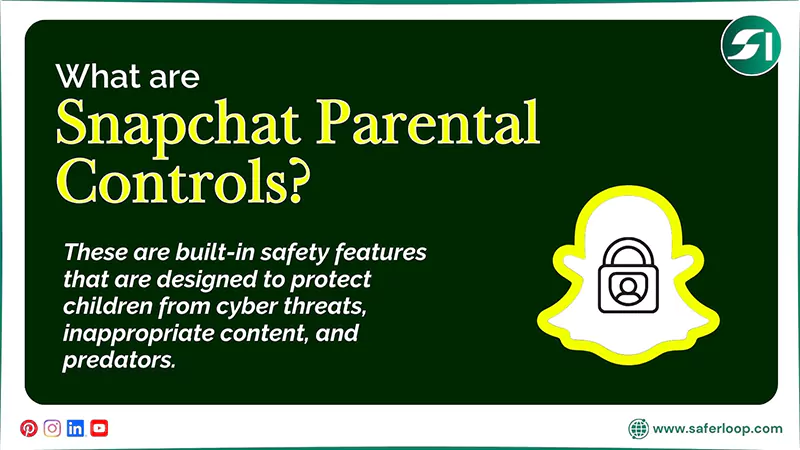
Snapchat parental controls are built-in safety features that are designed to protect children from cyber threats, inappropriate content, and predators. The app offers various safety options, including Family Center, disable “My AI,” turn off live location, etc.
Let’s skim through this section to understand how to set up Snapchat parental controls to protect kids.
1. How to Set Up Snapchat Family Center?
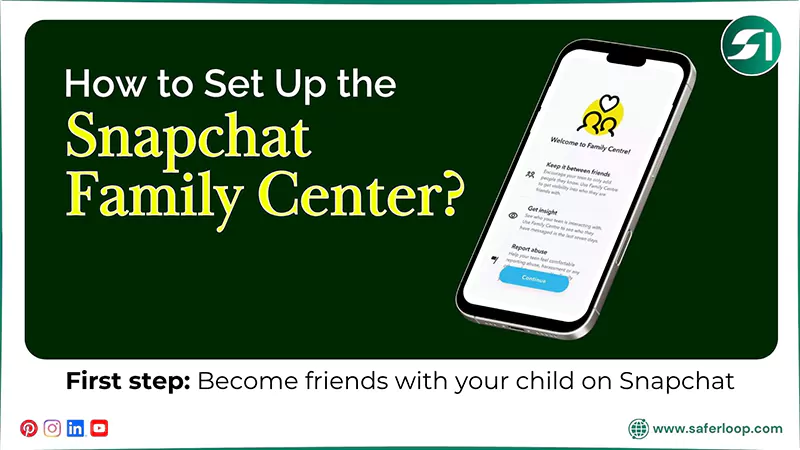
To set up Snapchat Family Center, you should open the app > Add your child to a friend list > Profile > Settings > Family Center > Send invitation.
Here are the detailed steps on how to set up Snapchat Family Center.
Step 1: Open the Snapchat app and send your child a friend request to become friends.
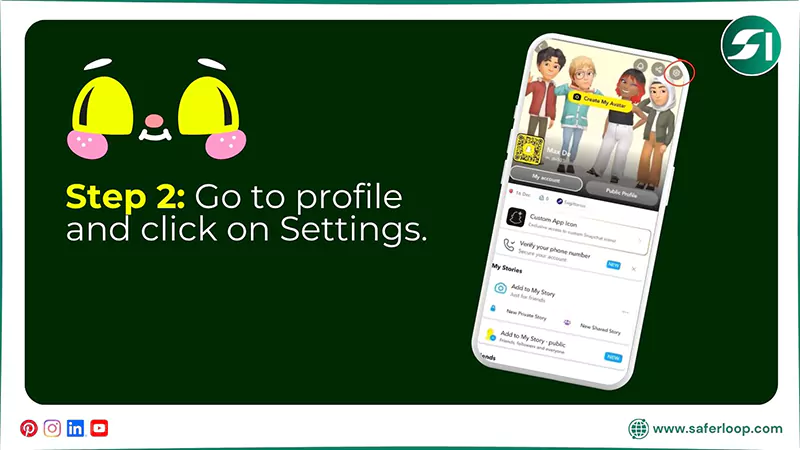
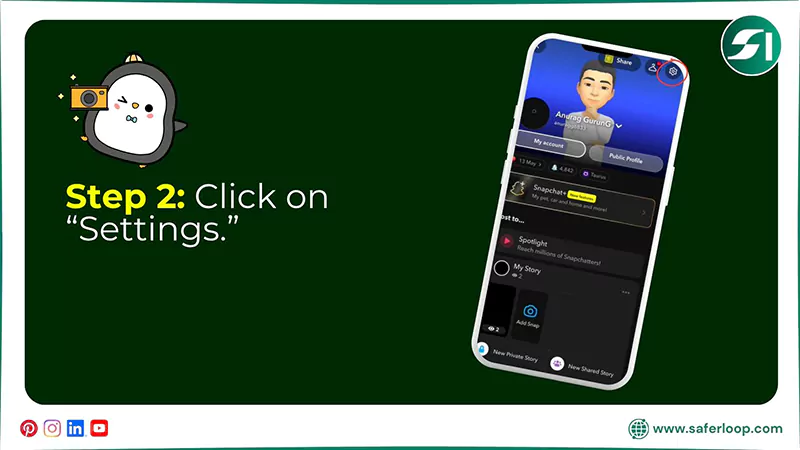
Step 2: Go to your profile and click on the “Settings” icon.
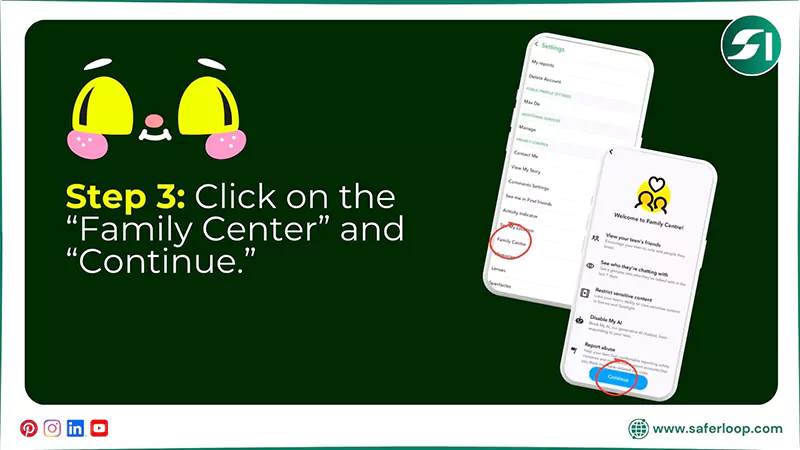
Step 3: Click on the “Family Center” by scrolling down and tap “Continue.”
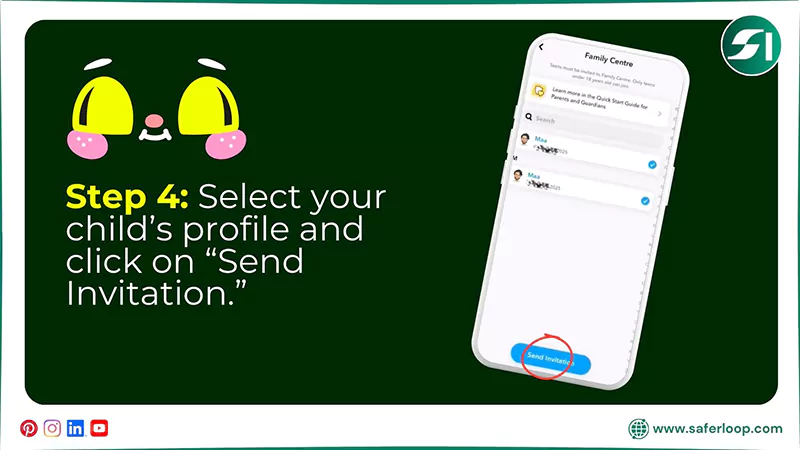
Step 4: Now, select your child’s Snapchat ID and click on “Send Invitation.”
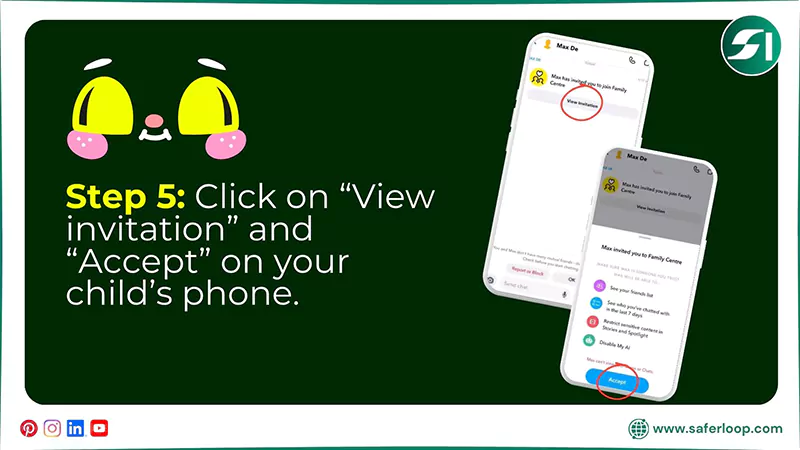
Step 5: Now, click on “View invitation” on your child’s phone and “Accept” it.
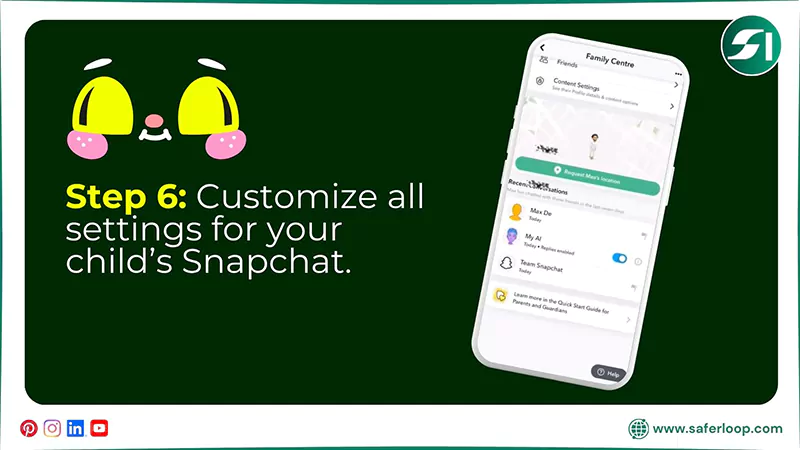
Step 6: You can now see your child’s friend list, live location, disable “My AI”, and restrict inappropriate content from your own device.
2. How to Turn Off “My AI” on Snapchat?
To turn off “My AI” on Snapchat, you should open the app > Profile icon > Settings > Delete My AI data > Confirm.
Let’s take a look at these simple steps for in-depth guidance on how to turn off “MY AI” on Snapchat.
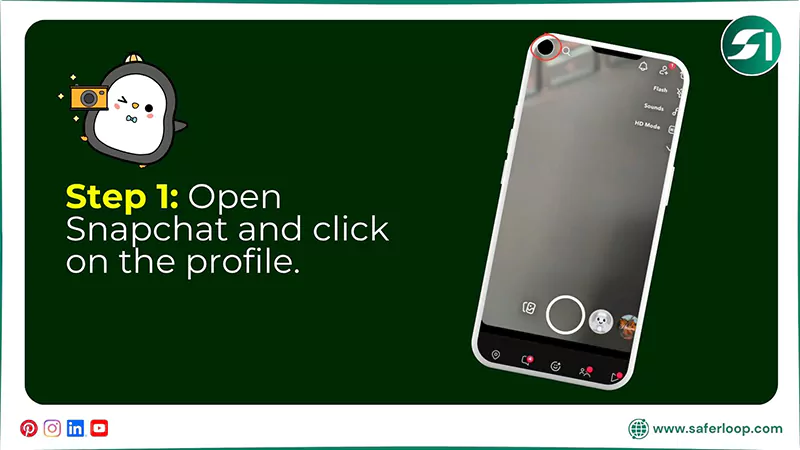
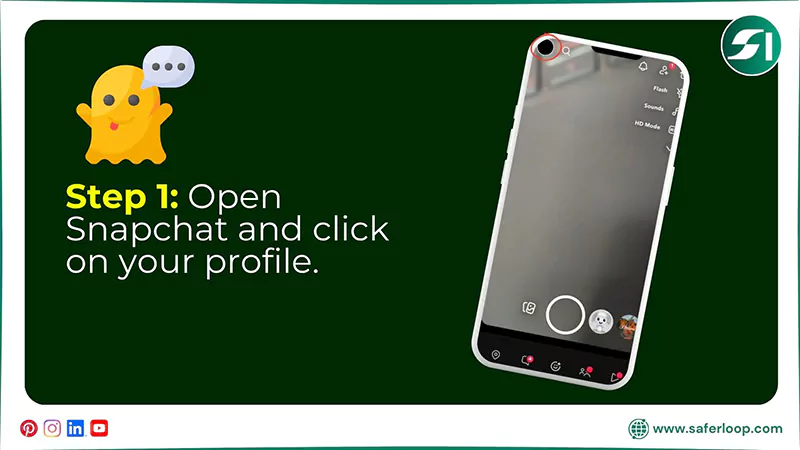
Step 1: Open the Snapchat app and click on the profile icon in the top left corner.
Step 2: Click on the “Settings” in the top right corner.
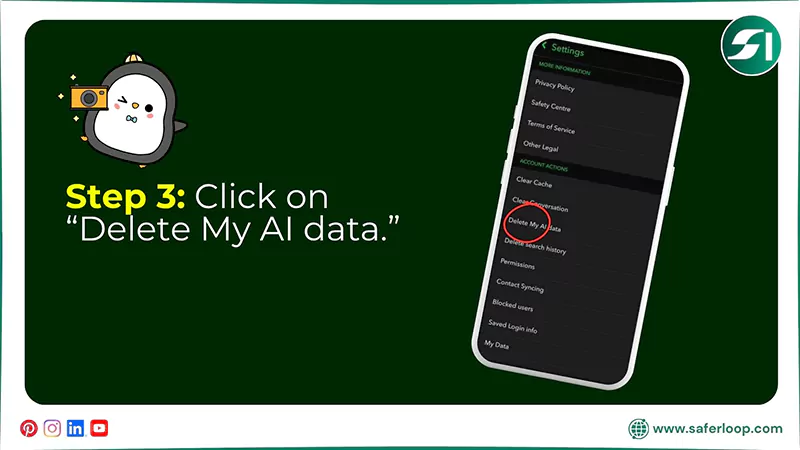
Step 3: Now, click on “Delete My AI data” by scrolling down the screen.
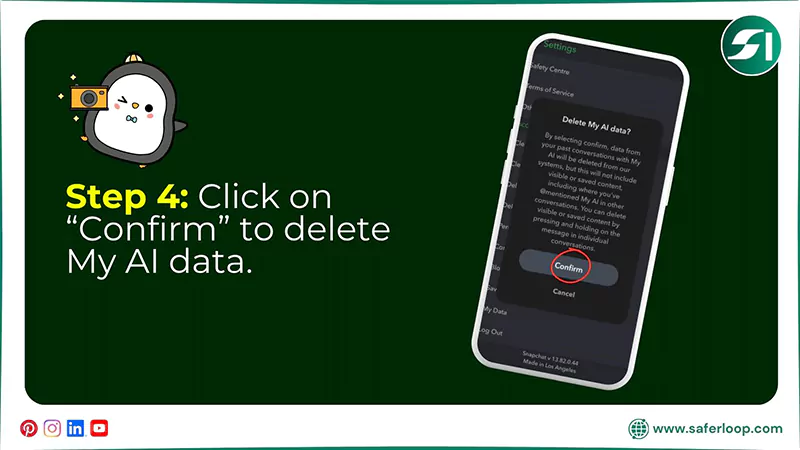
Step 4: Tap on “Confirm” to permanently clear your AI data or information.
3. How to Turn Off Notifications on Snapchat?
To turn off notifications on Snapchat, you should open the app > Profile > Settings > Notifications > Turn off the toggle button.
Here are the following steps on how to turn off notifications on Snapchat.
Step 1: Open your Snapchat and go to your profile in the top left corner.
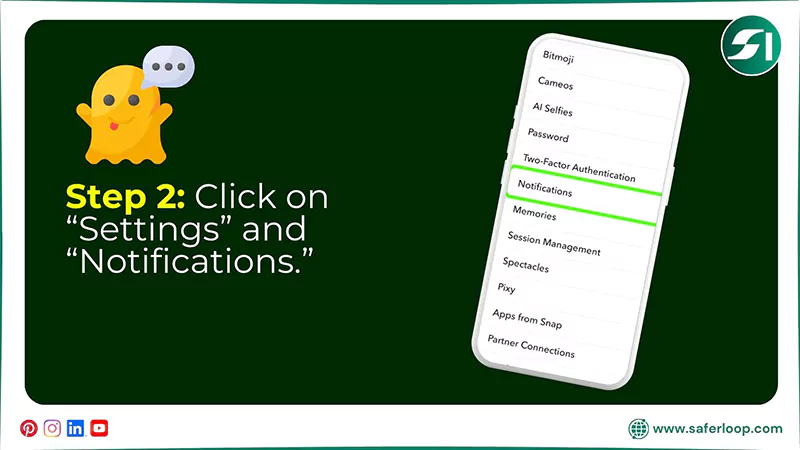
Step 2: Click on the “Settings” and go to the “Notifications” by scrolling down the screen.
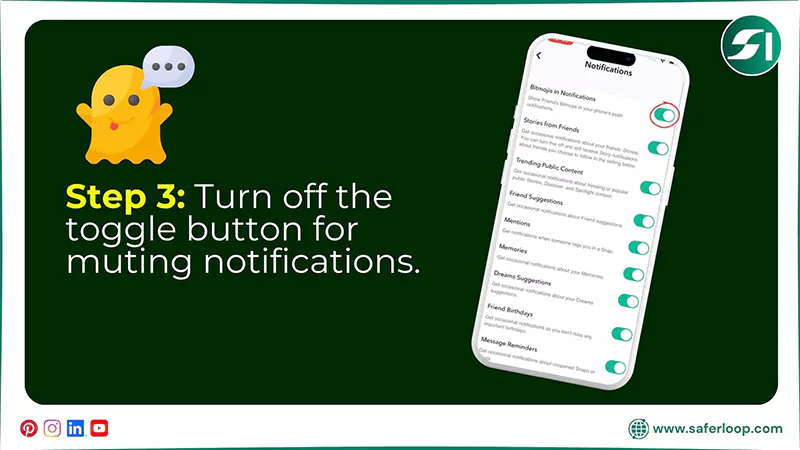
Step 3: Now, turn off the toggle button for notifications you don’t want to receive.
4. How to Turn off Live Location on Snapchat?
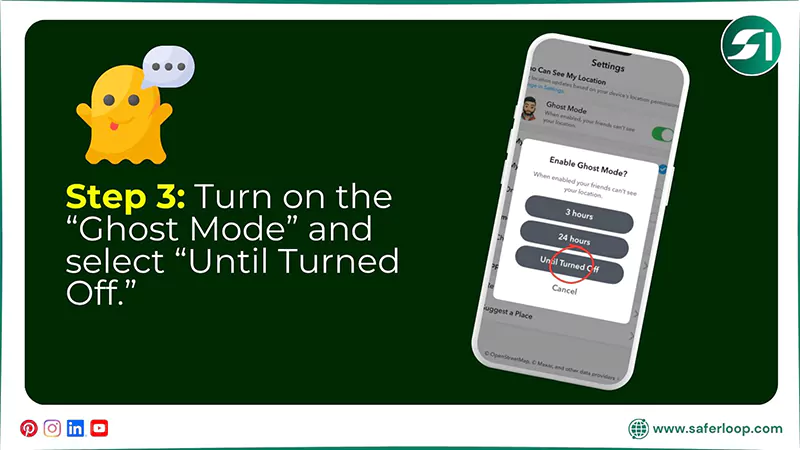
To turn off live location on Snapchat, you should open the app > Profile > Snap Map > Settings > Ghost Mode > Until Turned Off.
Let’s take a look at these steps to understand how to turn off live location on Snapchat.
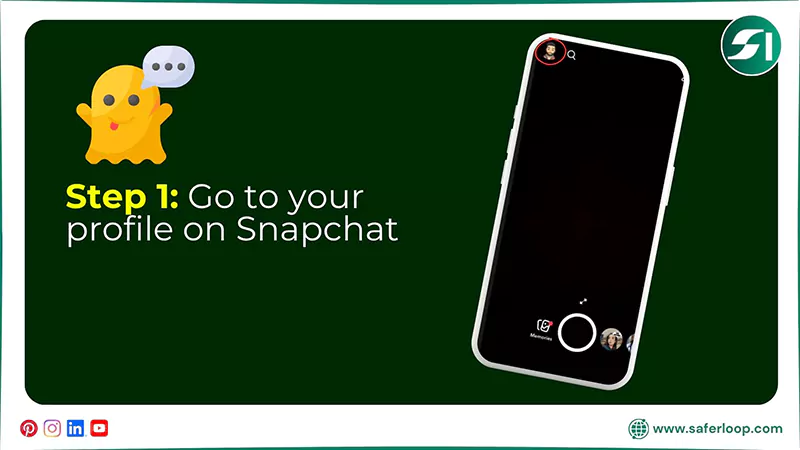
Step 1: Open the Snapchat app on your phone and go to your profile.
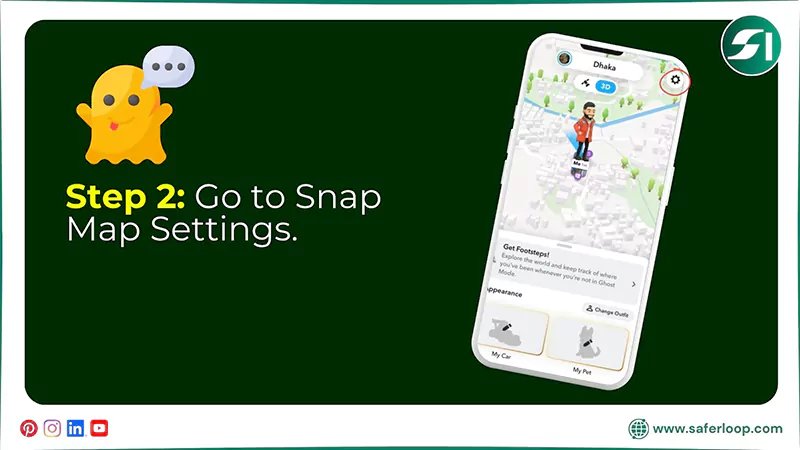
Step 2: Now, click on the “Snap Map” option and tap on “Settings.”
Step 3: Turn on the “Ghost Mode” and choose “Until Turned Off” to disable your live location.
5. How to Customize Who Can Contact Your Children?
To customize who can contact your children on Snapchat, you should open the app > Profile > Settings > Contact Me > Friends > OK.
Here is simple guidance on how to customize who can contact your children on Snapchat.
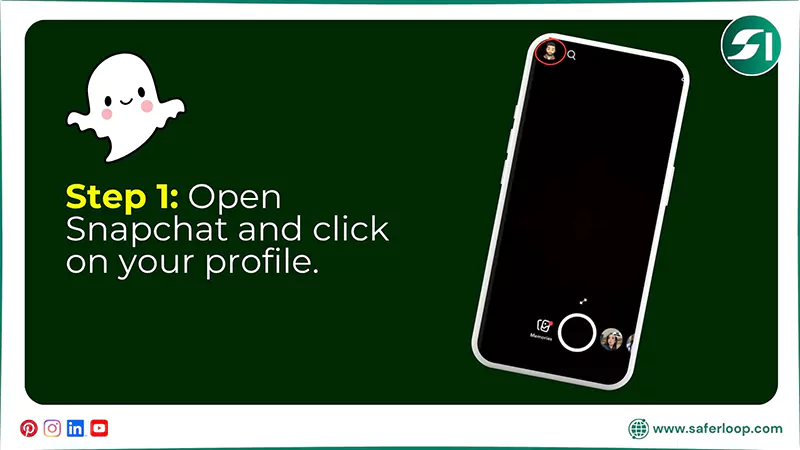
Step 1: Open your Snapchat account and click on your profile.
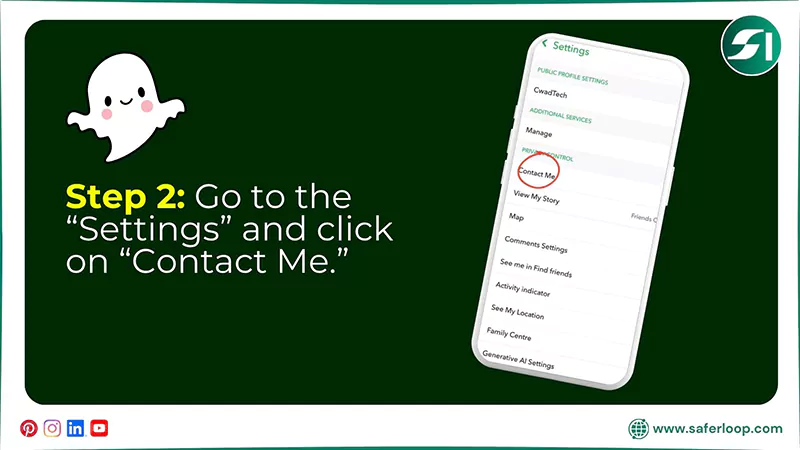
Step 2: Go to “Settings” and click on “Contact Me.”
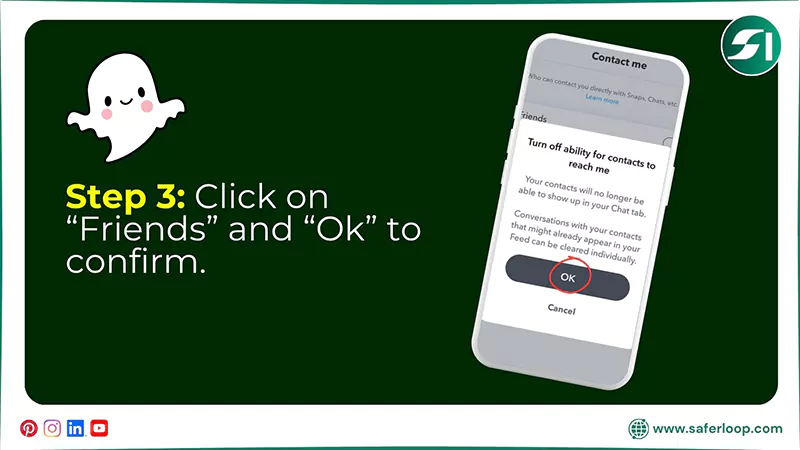
Step 3: Now, click on “Friends” and tap “OK” to customize settings.
6. How to Report and Block Someone on Snapchat?
To report and block someone on Snapchat, you should open the app > Chat > Select the person > Profile > Three dots > Block or Report.
Let’s dig deeper into these steps to discover how to report and block someone on Snapchat.
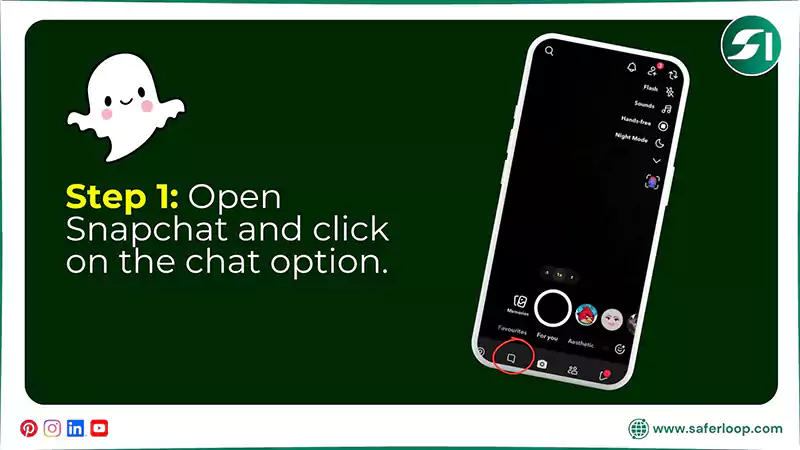
Step 1: Open Snapchat on your phone and go to the chat option.
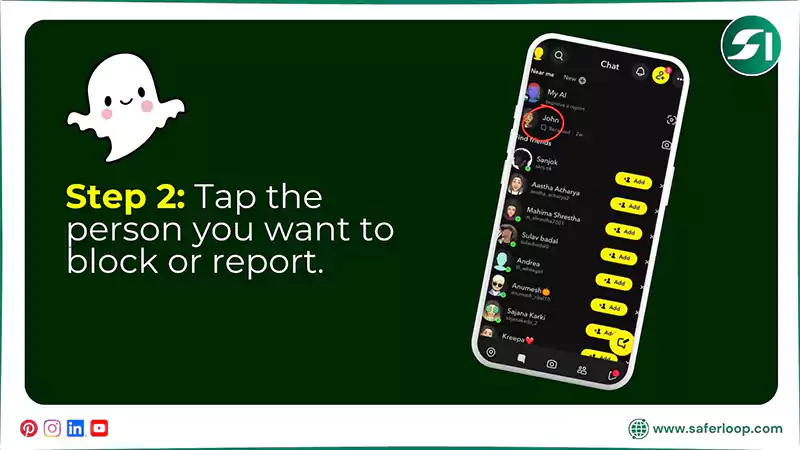
Step 2: Tap the person you want to block or report on Snapchat.
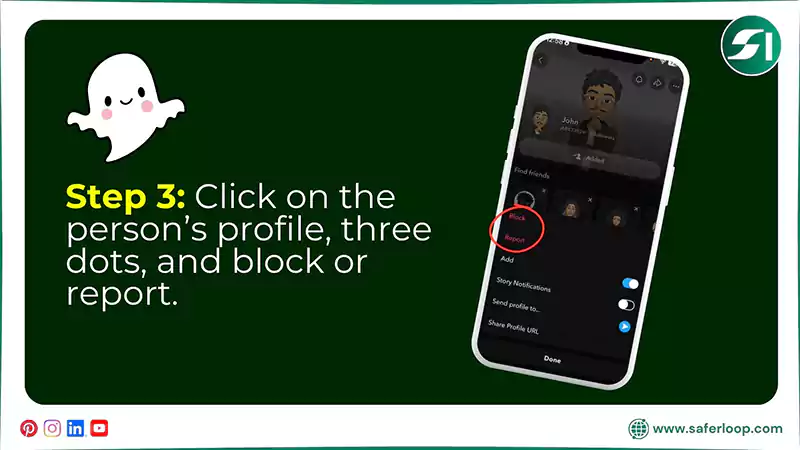
Step 3: Click on the person’s profile, then the three dots. Now, you can see the report or block options for the person you want.
7. How to Set Up Two Factor Authentication?
To set up two-factor authentication on Snapchat, you should open the app > Profile > Settings > Two-Factor Authentication > Continue > Text Verification/Authentication App.
Here are the simple and detailed steps on how to set up two-factor authentication on Snapchat.
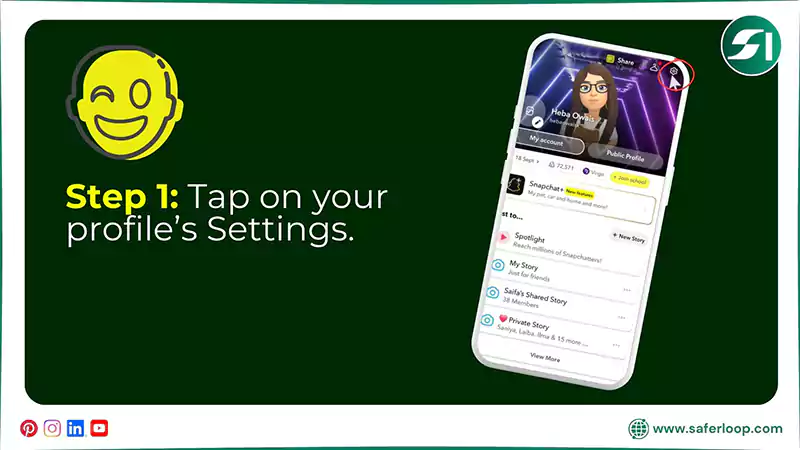
Step 1: Open the Snapchat app, go to your profile, and then “Settings.”
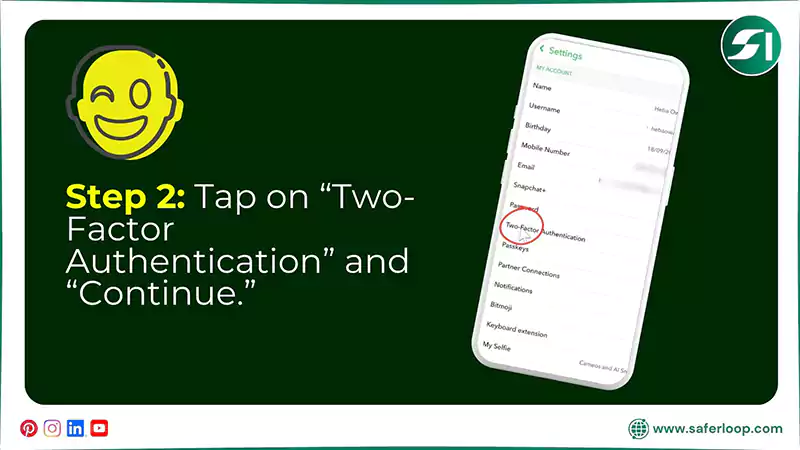
Step 2: Tap on “Two-Factor Authentication” and “Continue” to move forward.
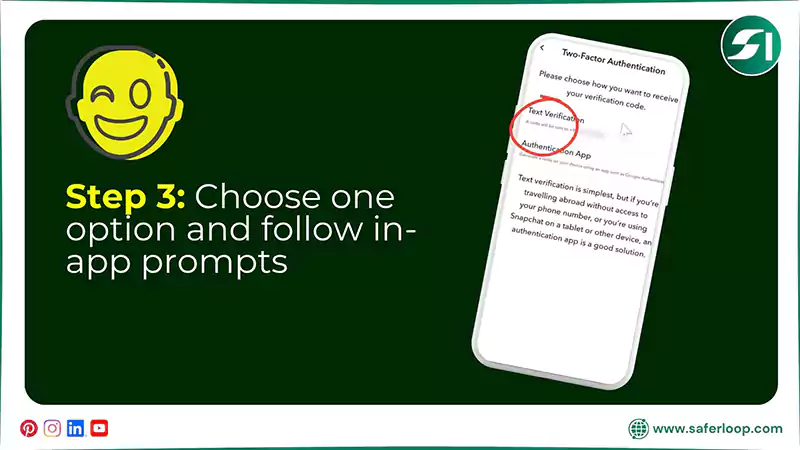
Step 3: Now, you can choose one option from “Text Verification” and “Authentication App” and follow the in-app prompts.
Also Read: 10 Best Parental Control Apps for Families: Features, Benefits, and Top Picks
Online Safety Concerns for Children on Snapchat
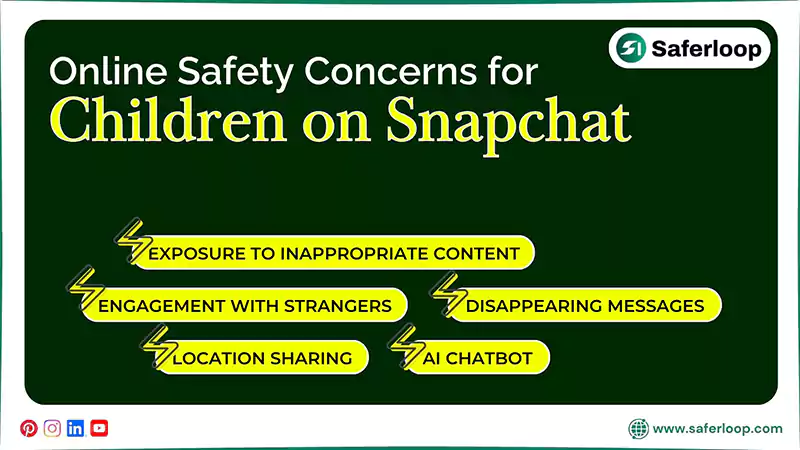
There are various safety concerns for children on Snapchat, such as exposure to inappropriate content, disappearing messages, location sharing, AI chatbots, and engagement with strangers.
Here are the following safety concerns that you should focus on as a concerned parent.
1. Exposure to Inappropriate Content
If your kids join random groups and add unknown people to their Snapchat, they might encounter inappropriate content like sexually explicit images and videos, which are harmful to them. It affects their cognitive skills, mental, and physical health.
2. Disappearing Messages
The disappearing messages option disappears texts after viewing, making it easy for predators to target children without leaving evidence. It also encourages them to send X-rated photos to your kids’ Snapchat accounts.
3. Location Sharing
If your kids share their location on Snap Map and with their friends, it can expose their real-time location. As a result, predators and stalkers can harm them physically, increasing the risk of kidnapping.
4. AI Chatbot
The Snapchat AI chatbot allows everyone to communicate based on their preferences and choices for companionship. If your children become addicted to an AI chatbot, it will affect their social life and mental health and set them apart from real life.
5. Engagement with Strangers
In 2026, a million users are active on Snapchat and sending friend requests to each other to increase their friend list. This can lead to extreme engagement with strangers, causing cyberbullying.
How Should Parents Ensure Children’s Safety On Snapchat?
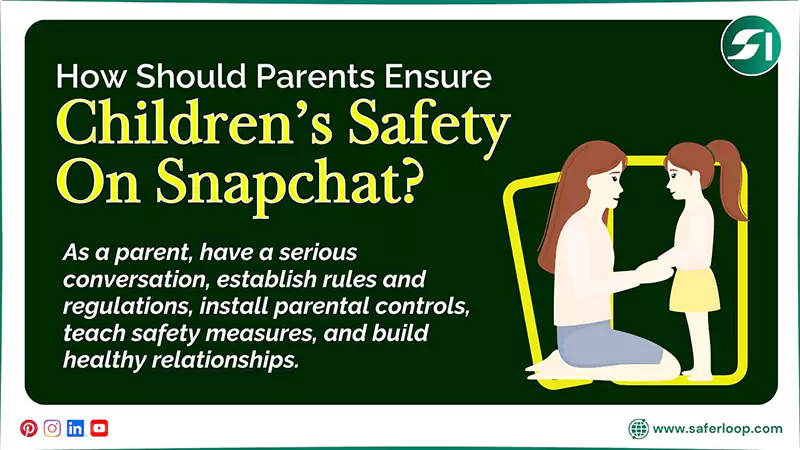
As a helicopter parent, you should have a serious conversation, establish rules and regulations, install parental controls, teach safety measures, and build healthy relationships.
Here, I’ve mentioned some tips for parents to protect kids online.
1. Have a Serious Conversation
Firstly, you should have a serious conversation with your little ones about the online risks of using Snapchat and other social media apps. It helps them to have an idea about digital vulnerabilities and safety concerns.
2. Establish Rules and Regulations
Secondly, you should establish clear rules and regulations regarding how they surf the internet, at what time they use smart devices, and with whom they can interact online. It helps you to balance their online and offline lifestyles.
3. Install Parental Control Apps
Significantly, you should install the safest parental control app, like Saferloop, to restrict Snapchat, monitor your kids’ online activities, set screen time limits, and enable location tracking, ensuring online safety.
4. Teach Safety Measures
In addition, you should teach them safety measures, such as never sharing personal information with anyone and how to block or report strangers on Snapchat and other platforms. It empowers them to make informed decisions on their own.
5. Build Healthy Relationships
You should also focus on building healthy relationships with your kids, instead of heavily relying on technology. The strong bond helps your children to trust you with their social life and follow your advice on online safety and privacy.
Wrapping Up!
It’s apparent that Snapchat is popular among the young generation, especially teenagers. However, as a concerned parent, you can’t ignore the safety risks, like inappropriate content and scams. That’s why you should enable Snapchat parental controls to enhance their online safety.
Additionally, I recommend that you install the Saferloop parental control app to utilize distinct safety features and keep your children safe online.
Author’s Note:
I have encountered that children become victims of grooming and cyberbullying on Snapchat, which is a concerning situation for parents. So, parents should enable Snapchat parental controls to restrict harmful content and monitor their kids’ online activities.
Though built-in parental controls are not enough to protect children from attentive predators. Hence, I suggest you install the Saferloop parental control app to use a comprehensive package of safety measures.
Believe me, it really solves your digital parenting issues and gives you peace of mind.
Frequently Asked Questions
Q: How do I block inappropriate content on Snapchat?
Q: Is Snapchat safe for a 12-year-old?
Ans: No, Snapchat is not safe for a 12-year-old. The app allows users 13 or older to access Snapchat or send and receive snaps.
Q: Is Snapchat safe for 13-year-olds?
Ans: No, Snapchat is not safe for 13-year-olds. Teenagers may encounter inappropriate content and become targets of pedophiles, despite enabling Snapchat parental controls.
Q: Is there a secret folder on Snapchat?
Ans: Yes, there is a secret folder on Snapchat, named “My Eyes Only.” It is password-protected and designed to keep your stories, photos, and videos private.
 Gunjan Saini
Cyber Safety & Parental Control Writer
About article
The author of this article Gunjan Saini, an Cyber Safety & Parental Control Writer at Saferloop, brings practical experience and industry knowledge to the subject.
The review and editing by Evan Patterson have been done to make sure that it is accurate, clear, and relevant.
At Saferloop, we are determined to provide high-quality, well-researched, and updated content. To understand further how we produce and revise our articles, please refer to our Editorial Guidelines.
Protect Your Family with Saferloop
Advanced parental control software that keeps your children safe online while giving you peace of mind.
- Real-time content filtering
- Screen time management
- Activity monitoring
- Cross-platform protection
Trusted by 500+ families