

Ans: To turn off parental controls on Android without a PIN, you should open the Settings on your phone > App management > App List > Google Play Store > Clear storage. It will remove parental control from Android.
×
Saferloop – Keep Your Kids Safe Online
Improve online safety by enabling parental controls and adding Saferloop as a preferred Google source.
How to Turn Off Parental Controls on Android? Step-By-Step Guidance and Checklist for Parents
Parental controls are the safest method to monitor kids’ online activities, limit their screen time, and protect them from cyberattacks. However, as your teens grow into adults, you should know how to turn off parental controls on Android to respect their freedom.
Hence, to help concerned parents, I’ve compiled a comprehensive guide on how to turn off parental controls on Android with simple steps. Additionally, you will get a checklist about ensuring children’s safety without invading their privacy.
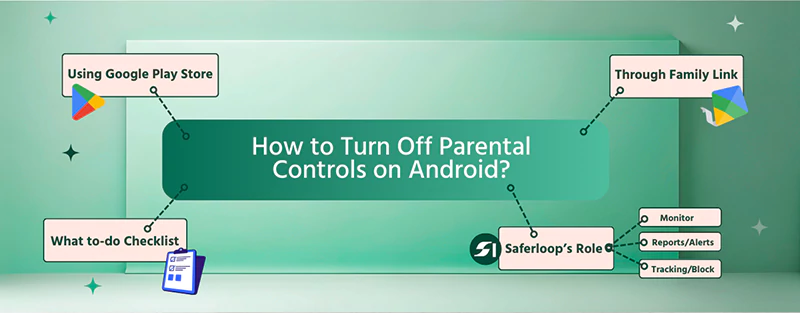
Table of Contents:
- How to Turn Off Parental Controls on Android?
- How to Turn Off Parental Controls on Android in the Google Play Store?
- How to Disable Parental Controls on Android Through Family Link?
- How to Remove Parental Controls Without Password on the Google Play Store?
- Checklist Before Deactivating Parental Controls on Android
- How Does Saferloop Resolve Your Digital Parenting Issue?
- Wrapping Up!
- Frequently Asked Questions
How to Turn Off Parental Controls on Android?
As a helicopter parent, if you use parental control apps on Android for your children’s safety and privacy, you should see the examples of how to disable parental controls on Android.
1. Saferloop Parental Control App
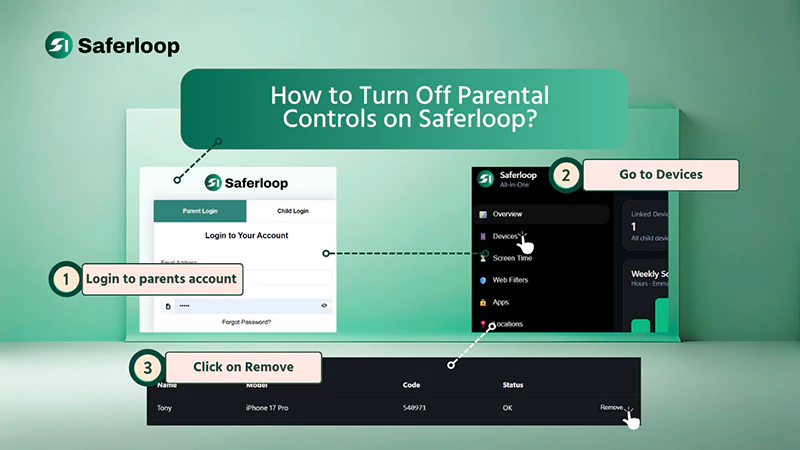
To turn off parental supervision on Saferloop, you have to log in to the parent account >> go to Devices >> click on Remove.
2. Qustodio
In order to deactivate parental control on Qustodio, open the Qustodio Kids app >> enter the password >> choose to disable protection >> uninstall the app.
3. Norton Family
To disable Norton Family on Android, you should open the Settings >> Security >> Device Administrators >> enter your password >> uninstall the app.
How to Turn Off Parental Controls on Android in the Google Play Store?
To turn off parental controls in Google Play Store, you should open the Play Store > Settings > Family > Parental Controls.
Let’s take a look at the steps of how to turn off parental controls on Android in the Google Play Store for in-depth guidance.
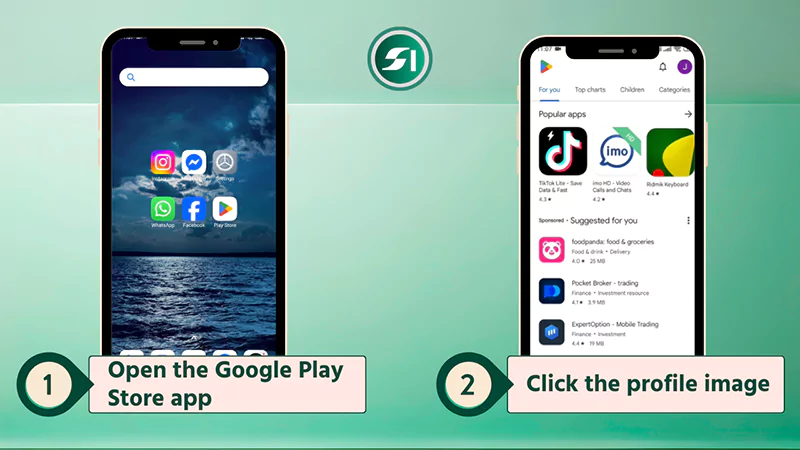
Step 1: Open the Google Play Store app on your smartphone.
Step 2: Click the profile image in the top-right corner of the screen.
Step 3: Tap on the “Settings” option.
Step 4: Now, go to the “Family” and click on “Parental controls.”
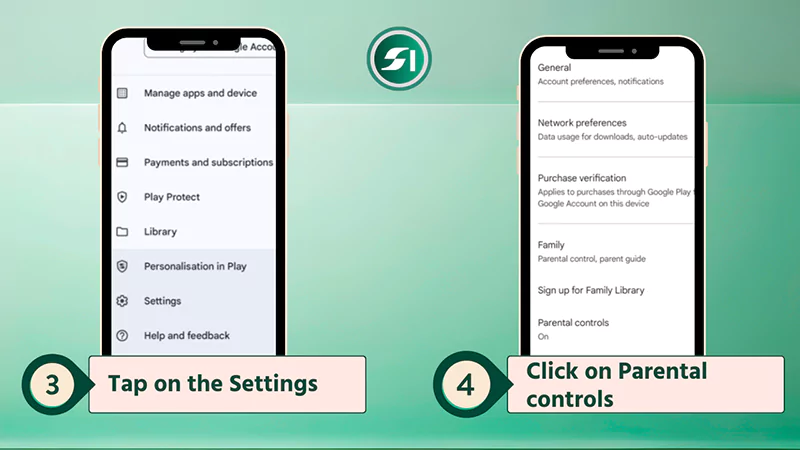
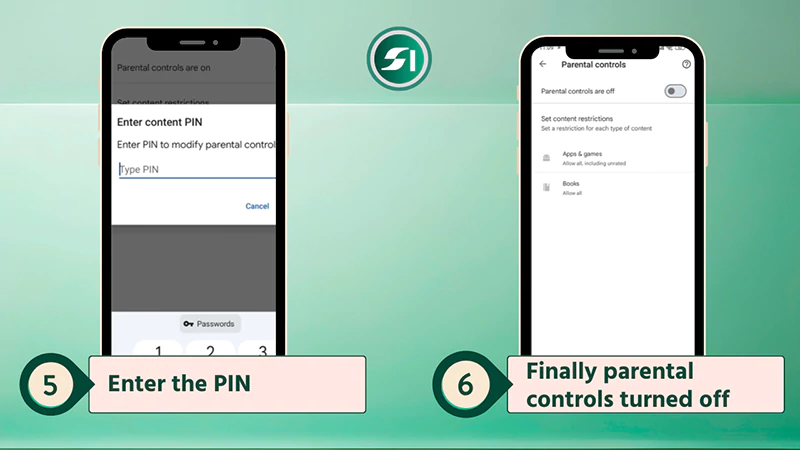
Step 5: Tap on the toggle switch and enter the PIN to change settings.
Step 6: At last, you’ll see that parental controls on the Google Play Store are turned off.
Also Read: How to Turn Off Parental Controls on Fortnite Without Hassle?
How to Disable Parental Controls on Android Through Family Link?
To turn off parental controls in Family Link, you should open the app > choose a child’s profile > Account settings > Account supervision > Stop supervision.
Here is the following step-by-step guidance on how to turn off parental controls on Android using Family Link.
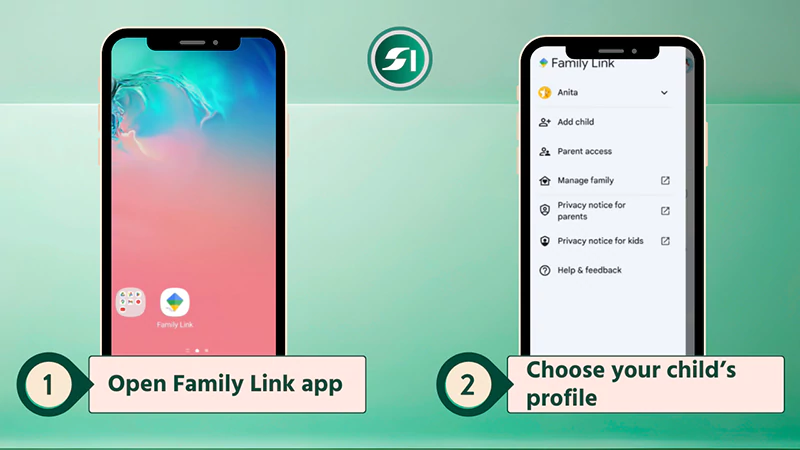
Step 1: Open the Family Link app on your device.
Step 2: Tap on “Menu” and choose your child’s profile.
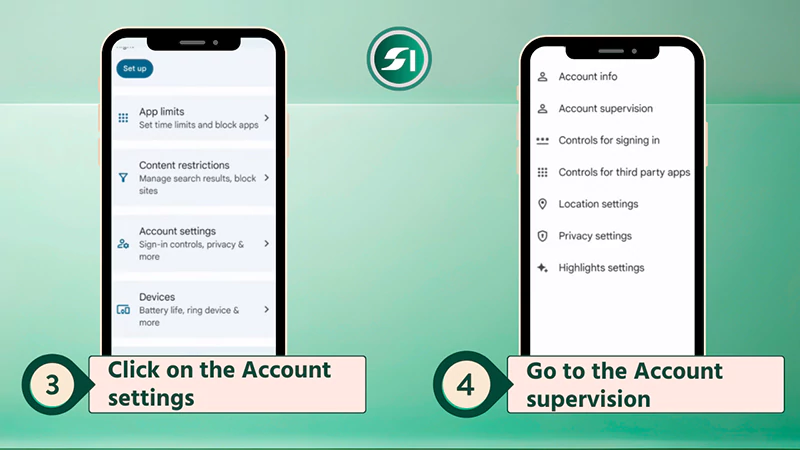
Step 3: Click on the “Account settings” option.
Step 4: Now, go to the Account supervision.
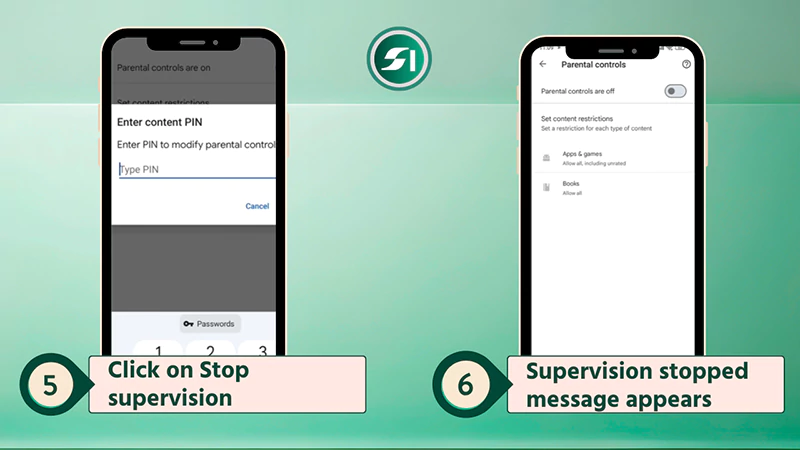
Step 5: Now, scroll down to the screen and click on “Stop supervision.”
Step 6: Finally, you will get a notification regarding supervision being stopped.
Also Read: iPad Parental Control: How to Set Up and Manage Screen Time Safely?
How to Remove Parental Controls Without Password on the Google Play Store?
This method requires clearing the storage and cache of the Google Play Store to delete saved apps and settings.
In case you forget your security password for parental controls in the Google Play Store, you should opt for this hack to create a new PIN and replace the old one.
Let’s take a look at the steps below in great detail.
Note: The name used in these steps may vary depending on your Android device, as there are different settings and options on multiple Android smartphones.
Shortcut Tip: Go to the settings >> search “Google Play Store” in the search bar >> Storage & cache >> Clear storage.
These steps are the same in almost all Android smartphones.
Step 1: Go to the “Settings” app on your Android phone.
Step 2: Choose the “Apps” option.
Step 3: Tap on the “See all apps” option.
Step 4: In the app list, tap on the “Google Play Store”.
Step 5: Now, tap on the “Storage & cache” option.
Step 6: Hit the “Clear storage” button and continue by selecting on “OK.”
That’s all about how to remove parental controls without password on the Google Play Store.
Also Read: TikTok Parental Controls: Step into Digital Parenting With TikTok Family Pairing
Checklist Before Deactivating Parental Controls on Android
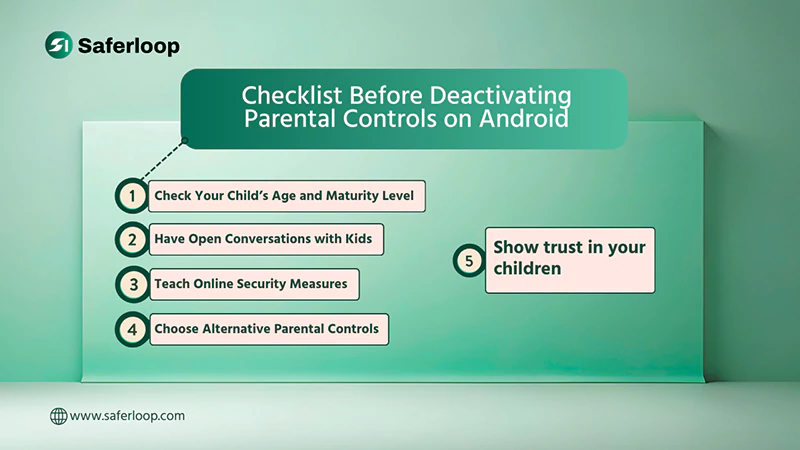
You should assess your child’s age and maturity level, have open conversations, teach security measures, choose alternative parental controls, and trust your child before deactivating parental controls.
Let’s skim through this section to understand these pointers for a smooth transition.
1. Child’s Age and Maturity Level
You should consider the child’s age to disable parental controls, as teenagers and young adults need privacy to explore the digital world and don’t want anyone to bother them.
Alongside, you should assess the maturity level of your kids, like whether they are capable of making online decisions, how they navigate inappropriate content, and how they protect themselves from scammers.
2. Have Open Conversations with Kids
First of all, focus on having an open conversation with your children about digital safety, why you initially set up parental controls, and why you decided to remove supervision.
Encourage your kids to come to you when they encounter concerns and need support while surfing the internet. It helps you to build healthy relationships with them.
3. Teach Security Measures
Moreover, you should teach or guide your children about online security measures, such as not sharing their personal information with anyone, blocking strangers if they act creepily, and recognizing suspicious online behavior.
It helps them to become empowered to make smart digital decisions on their own in your absence.
4. Choose Alternative Parental Controls
In addition to the built-in parental controls on Android and Google Family Link, you can also use alternative best parental control apps for families, like Saferloop, Qustodio, Aura, Bark, and many more.
These parental controls offer advanced safety features to prioritize children’s safety and block harmful content. So, third-party parental control apps might satisfy you with their top-notch management.
5. Trust Your Children
Last but not least, show trust in your children. It is one of the most important factors in empowering your kids to become responsible in handling their digital lifestyle.
It boosts their confidence and encourages them to believe in you as a supportive parent, making close bonds.
How Does Saferloop Resolve Your Digital Parenting Issue?
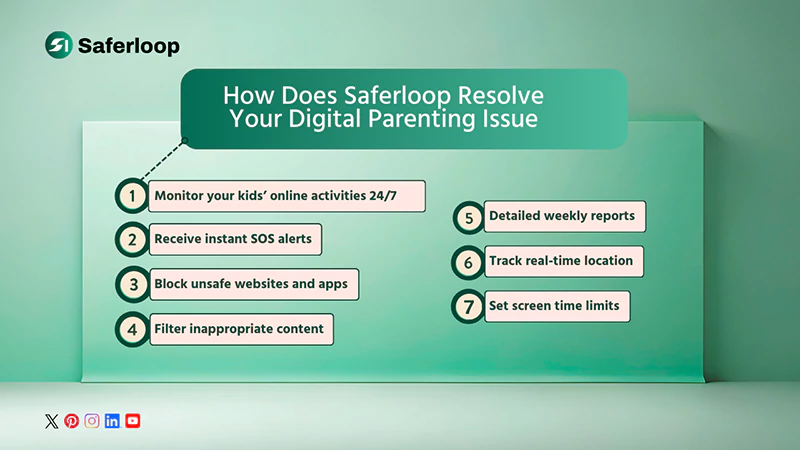
Regardless of how mature and responsible your kids are, it is important to install a parental control app like Saferloop to protect your innocent little ones from predators and cyberattackers.
That’s why Saferloop features are designed to prioritize children’s safety, such as
- Monitor your kids’ online activities 24/7
- Set screen time limits to foster healthy habits
- Track real-time location and geo-fencing activities
- Detailed weekly reports of your kids’ online behavior
- Receive instant SOS alerts in case of suspicious activities
- Block unsafe and adult websites and apps
- Filter inappropriate content to protect them from pedophiles
On the whole, the Saferloop parental control app brings transparency and safety simultaneously to safeguard younger kids through awareness.
Wrapping Up!
From built-in parental controls in the Google Play Store and Family Link to Saferloop apps, I’ve discussed everything on how to turn off parental controls on Android.
So, I advise you to decide, keeping children’s safety in mind, whether you want to install the parental control app or disable it. For an extra layer of security, I recommend installing the Saferloop parental control app and its safety checkup extension, as it offers AI-powered features.
Author note:
I disable parental control restrictions on my kids’ phones when they turn 18+. Before that, I had been using the Saferloop parental control app to protect my children from explicit content and easily monitor their online behavior through my own device anytime and anywhere.
So, I honestly advise you to turn off parental controls when your kids become mature and adults. Otherwise, you should opt for the Saferloop app if you want to create a safe digital environment for your kids with budget-friendly premium plans.
Frequently Asked Questions
Q: How to turn off parental controls on Android without PIN?
Q: Where do I find parental controls on my Android phone?
Ans: You can find parental control on the Google Play Store for content and downloads, and the Family Link for screen time limits and website filtering.
Q: Are parental controls easy to disable?
Ans: Yes, parental controls are easy to disable, just like installing them. You can open the parental control menu and switch off the toggle to deactivate supervision.
Q: What happens when a child’s Google Account turns 13?
Ans: When a child’s Google account turns 13, they get a notification allowing them to choose between continuing with parental supervision or removing controls.
 Gunjan Saini
Cyber Safety & Parental Control Writer
About article
The author of this article Gunjan Saini, an Cyber Safety & Parental Control Writer at Saferloop, brings practical experience and industry knowledge to the subject.
The review and editing by Vinithra Karunanidhi have been done to make sure that it is accurate, clear, and relevant.
At Saferloop, we are determined to provide high-quality, well-researched, and updated content. To understand further how we produce and revise our articles, please refer to our Editorial Guidelines.
Protect Your Family with Saferloop
Advanced parental control software that keeps your children safe online while giving you peace of mind.
- Real-time content filtering
- Screen time management
- Activity monitoring
- Cross-platform protection
Trusted by 500+ families