

Ans: Saferloop parental control has an AI-powered mechanism to detect cyberattacks and restrict inappropriate apps, making it the best app for monitoring kids.
×
Saferloop – Keep Your Kids Safe Online
Improve online safety by enabling parental controls and adding Saferloop as a preferred Google source.
Saferloop Vs Kids360: Choose the Right Parental Control App for Your Child
Due to the widespread availability of parental controls, choosing the right one feels like another tech puzzle. With options like Saferloop and Kids360, most parents end up wondering which one truly keeps their children safe online.
That’s why I’ve broken down Saferloop Vs Kids360, including an overview, setup guidance, features comparison, pros and cons, and which parental control is better.
So, as a helicopter parent, dive into this article!
Table of Contents:
- Saferloop Vs Kids360: An Introduction to Parental Control Apps
- How to Set Up Saferloop Parental Controls App?
- How to Set Up Kids360 Parental Controls App?
- Comparison Through Features: Saferloop Vs Kids360
- Pros and Cons of Saferloop and Kids360
- Saferloop Vs Kids360: Which is Better?
- Conclusion and Recommendations
- Frequently Asked Questions
Saferloop Vs Kids360: An Introduction to Parental Control Apps
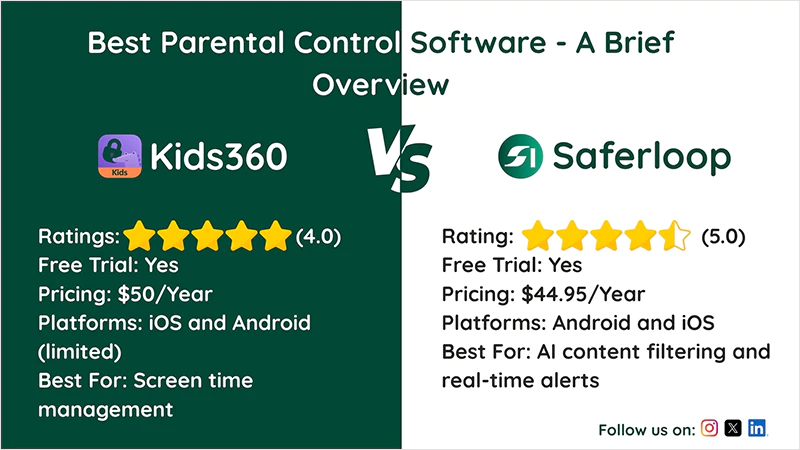
Saferloop and Kids360 parental controls offer high-end tools and features to create a safe digital environment for children and minors. Let’s review these parental controls in the following section!
1. SaferloopParental Control
| Rating: ★★★★★ (5.0) Free Trial: Yes Pricing: $44.95/Year Platforms: Android and iOS Best For: AI content filtering and real-time alerts |
Saferloop parental control app provides comprehensive and AI-powered advanced tools, including daily monitoring, screen time limits, geofencing, location tracking, content filtering, and more.
It is designed to enhance kids’ digital safety from cyberbullying across iOS and Android with a free basic plan. Besides this, you can upgrade to premium packages to unlock specialized tools.
2. Kids360 Parental Control
| Ratings: ★★★★☆(4.0) Free Trial: Yes Pricing: $50/Year Platforms: iOS and Android (limited) Best For: Screen time management |
Kids360 parental control app is primarily recognized for its robust screen time management features. It allows parents to manage their children’s devices by blocking apps, tracking location, and filtering content.
Moreover, it features a unique system where kids earn extra screen time by completing parents’ assigned educational and physical tasks.
Also Read: Saferloop vs. Qustodio: Which is the Best Parental Control App for Your Children’s Safety?
How to Set Up Saferloop Parental Controls App?
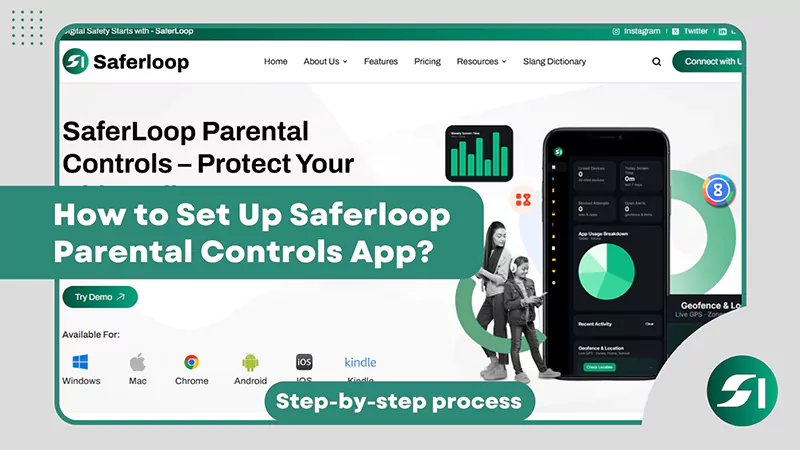
To set up Saferloop Parental Control software, you should download the app > Create an account > link the devices, and customize all settings. Let’s dig deeper for more specific steps.
#Step 1. Download the Saferloop parental control app on a parent’s device and the child’s device.
#Step 2. Log in to your Parent and Child accounts on both devices with your email address and password.
#Step 3. After that, go to the parent account and then click on the Devices Tab. Finally, enter your child’s name and device model.
#Step 4. In step 4, tap on Generate Link Code, and a link code appears in the drop-down list.
#Step 5. Now go to your child’s account and click on the Pair Tab.
#Step 6. In the last Enter your generated code and your name, then tap on Pair Now to link both devices.
#Step 7. Now, you can set screen time, filter web content, or manage apps, and get detailed insights into your kid’s activities.
How to Set Up Kids360 Parental Controls App?

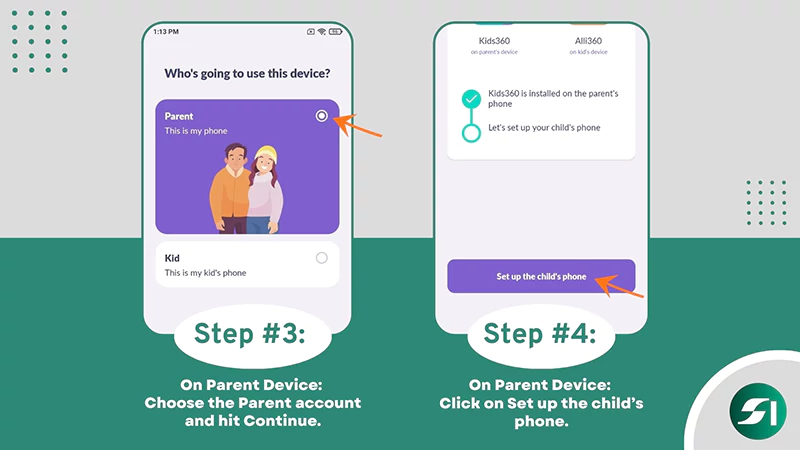
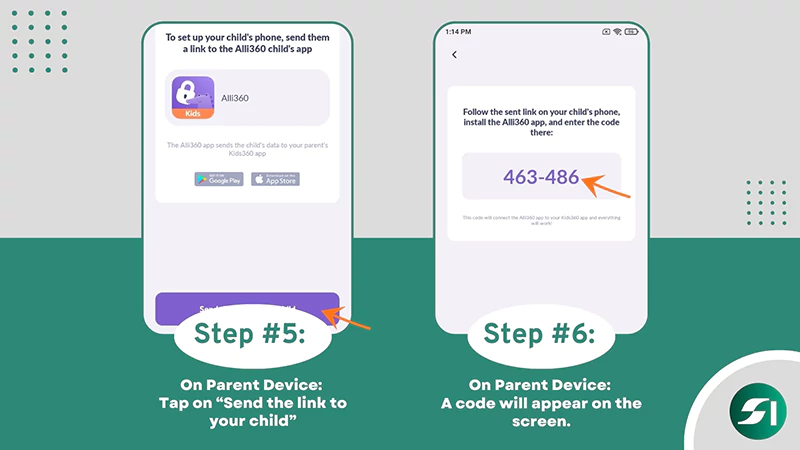
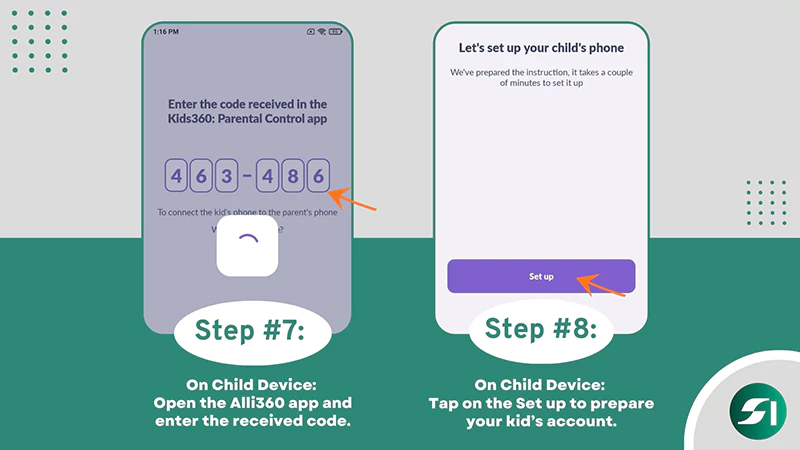
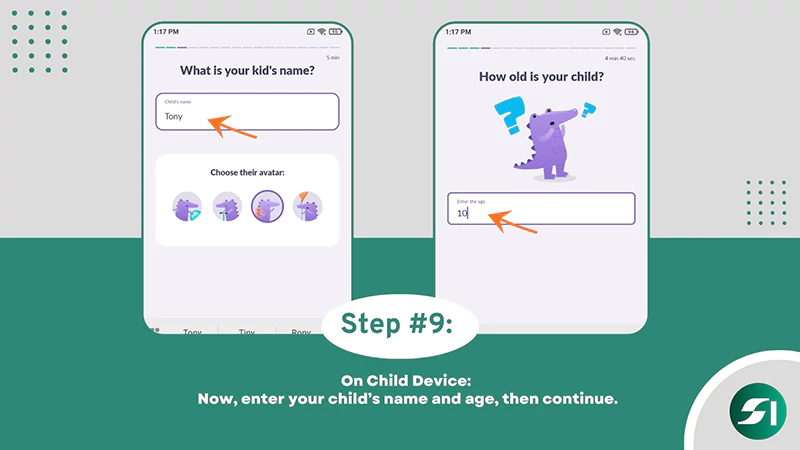
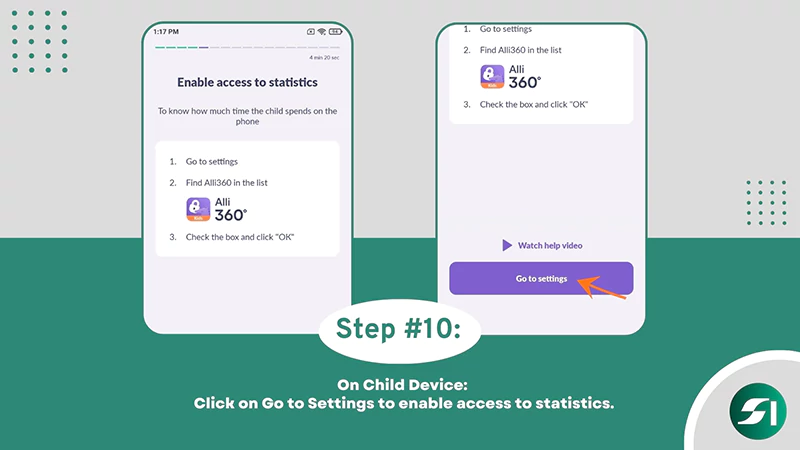
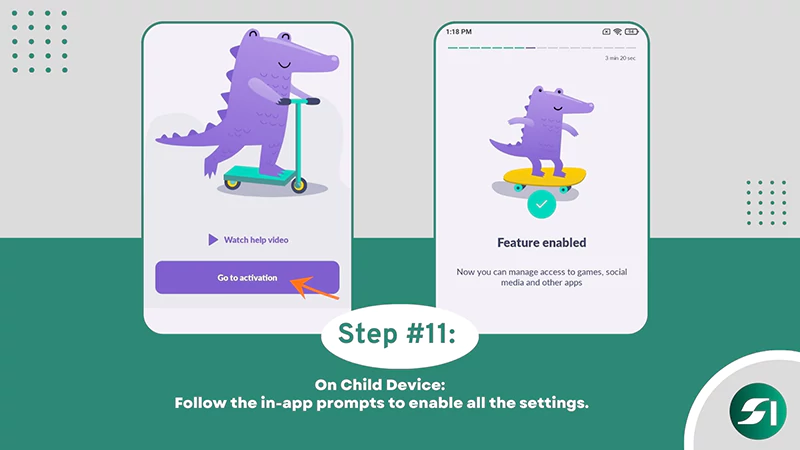
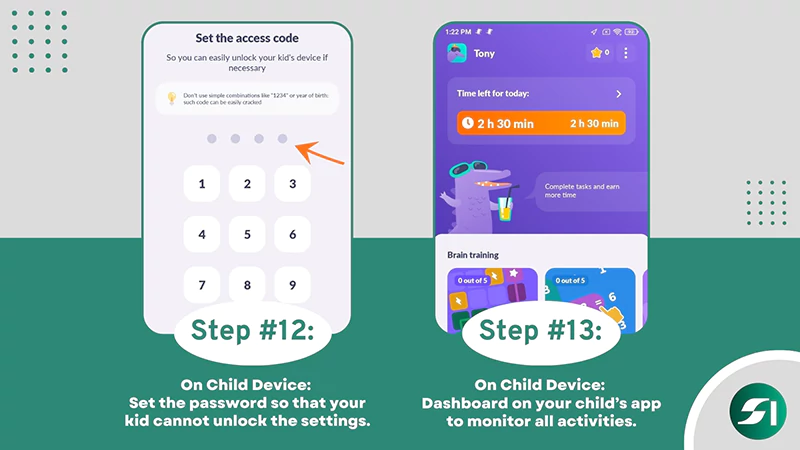
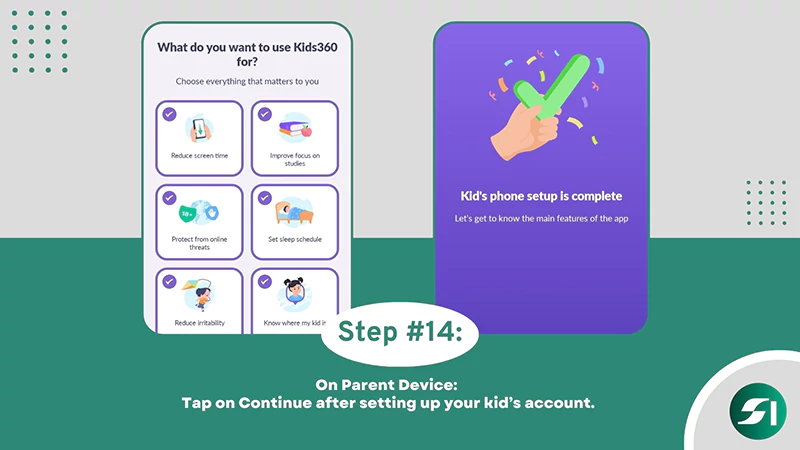
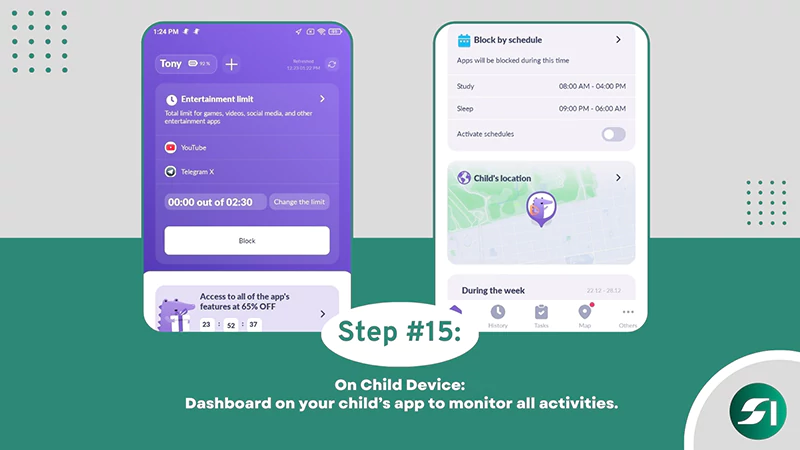
To set up Kids360 Parental Control software, you should download the app > Create an account > link the devices, and customize all settings. Checkout the steps below for a brief description:
#Step 1: On Parent Device: Download the Kids360 app from the App Store on your smartphone.
#Step 2: On Child Device: Install the Alli360 app (child’s version) on the mobile.
#Step 3: On Parent Device: Choose the Parent account and hit Continue.
#Step 4: On Parent Device: Click on Set up the child’s phone.
#Step 5: On Parent Device: Tap on “Send the link to your child” to share the link with your kid.
#Step 6: On Parent Device: After sharing the link, a code will appear on the screen.
#Step 7: On Child Device: Now, open the Alli360 app and enter the received code.
#Step 8: On Child Device: Tap on the Set up to prepare your kid’s account.
#Step 9: On Child Device: Now, enter your child’s name and age, followed by clicking on Continue.
#Step 10: On Child Device: Click on Go to Settings to enable access to statistics.
#Step 11: On Child Device: Follow the in-app prompts to enable all the settings.
#Step 12: On Child Device: Set the password so that your kid cannot unlock the settings.
#Step 13: On Child Device: You will see a dashboard on your child’s app to monitor all activities.
#Step 14: On Parent Device: Tap on Continue after setting up your kid’s account.
#Step 15: On Parent Device: At last, you’ll be allowed to set up screen time, sleep schedule, location tracking, etc., for your kid.
Also Read: How Parental Control Helps to Protect Children on Social Media?
Comparison Through Features: Saferloop Vs Kids360
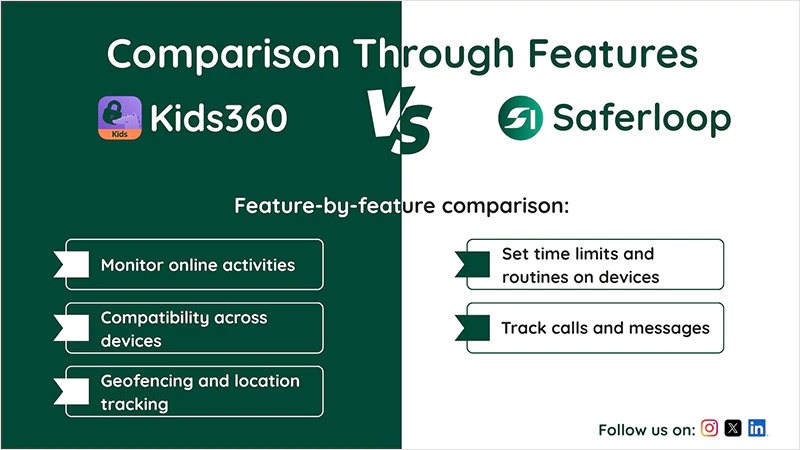
Undoubtedly, both Saferloop and Kids360 feature advanced tools for security and monitoring. Still, you may be intrigued about which parental control is better for ensuring minors’ safety.
That’s why I’ve jotted down features-by-features comparisons for in-depth guidance.
| Features | Saferloop Parental Control | Kids360 Parental Control |
| Monitor online activities | AI-powered monitoring across social media apps. | Do not monitor how kids interact online. |
| Compatibility across devices | Android, iOS, laptops, MacBooks, tablets, and smartphones. | Heavily focuses on mobile phones. |
| Set time limits and routines on devices | Intuitive, fast, and robust screen time management. | Occasional glitches on iOS devices. |
| Geofencing and location tracking | Available to track the child’s location. | Not available |
| Track calls and messages | Directly track calls and messages. | Doesn’t track calls and messages. |
1. Monitor Online Activities
Saferloop utilizes an AI-powered parental monitoring software to conduct deep research into your child’s online activities, including apps like Instagram, Snapchat, and TikTok across iOS and Android. Meanwhile, Kids360 can block or allow social media apps, but it can’t monitor how your kid interacts online.
2. Compatibility Across Devices
You can set up Saferloop parental control on a wide range of devices (laptops, Macs, iOS, Android, and smartphones). However, Kids360 heavily focuses on phones and tablets and doesn’t effectively support laptops, PCs, and Macs.
3. Set Time Limits and Routine on Devices
Saferloop provides a screen time feature that is faster, intuitive, and has real-time controls to manage children’s accounts. Many users report that Kids360 has robust screen time management, but sometimes they encounter occasional glitches with iOS devices.
4. Geofencing and Location Tracking
Additionally, you can create digital boundaries around school and home by utilizing the Saferloop geofencing feature. It gives you real-time alerts when your children enter or leave the specific area. Sadly, Kids360 doesn’t offer the geofencing feature for real-time updates, making it unsuitable for kids’ safety.
5. Track Calls and Messages
Saferloop parental control also tracks calls and messages on your kids’ digital accounts to block spammers and predators. While Kids360 parental control doesn’t directly monitor calls and messages, it only focuses on limiting usage.
Pros and Cons of Saferloop and Kids360
Now, you should skim through this section to determine the benefits and drawbacks of both Saferloop and Kids360.
1. Saferloop Parental Control Software
Let’s uncover the pros and cons of the Saferloop parental control app.
| Pros | Cons |
| Uses AI-powered software to restrict inappropriate content and social media monitoring. | The free version is limited to basic features, such as monitoring and content filtering. |
| It is compatible with iOS, Android, MacBooks, smartphones, tablets, and laptops. | |
| The platform is easy to use for parents, requiring no technical background to manage and monitor. | |
| It is difficult for kids to bypass the app, as it watches over the activities of apps that are quickly deleted after installation. |
2. Kids360 Parental Control
Here, you’ll discover the advantages and disadvantages of Kids360.
| Pros | Cons |
| It has a robust screen time management feature that sets daily limits, schedules, and blocks apps during certain times. | Some users report that features don’t work as advertised or are inconsistent across devices. |
| Kids can earn extra screen time by completing parent-assigned educational or physical tasks, promoting healthy habits. | Moreover, it doesn’t have strong customer support and has only a useless chatbot. |
| Installed quickly and simply on your devices, compared to competitors like Qustodio. | It only focuses on mobile-friendly apps, meaning Kids360 is not available as a desktop version. |
| The basic free plan is unlimited to help parents monitor their kids’ online activities. |
Also Read: 10 Best Parental Control Apps for Families: Features, Benefits, and Top Picks
Saferloop Vs Kids360: Which is Better?
Choosing the best parental control entirely depends on your personal preferences and needs. Still, I’ve mentioned some real-time cases to help mitigate your confusion between Saferloop and Kids360.
- You should select Saferloop for the best security and location check-ins with budget-friendly yearly packages.
- Saferloop also offers AI-powered advanced tools, 24/7 customer support, and a digital footprint of your children’s online activities, which helps you track their interactions.
- Kids360 is ideal for managing screen time to foster healthy habits. However, it is important to consider that this app lacks various safety measures to protect kids.
Conclusion and Recommendations
Overall, selecting the best parental control app depends entirely on your personal needs and preferences. As a concerned parent, you should acknowledge the above-mentioned features and comparisons to make informed decisions on ensuring children’s safety and privacy.
Acquiring knowledge about parental controls and premium packages will empower you to monitor your kids’ digital space without invading their freedom and save your hard-earned money.
Author’s note:
As per my experience, I suggest you select the Saferloop parental control app to ensure your kids’ safety and to monitor their online activities. Because I have been using both devices for the last 2 months, I found the major difference between the two is that Saferloop offers AI-powered automation and comprehensive coverage in a less expensive package than Kids360.
Also Read: Best Parental Control App for iPhone: Every Parent Must Know About
Frequently Asked Questions
Q: Which is the best app for monitoring kids?
Q: Which social media app is safest for kids?
Ans: Messenger Kids, Kinzoo, and JusTalk Kids offer a kid-friendly environment and strong parental controls, making these social media apps the safest for children.
Q: Is there an app to monitor my child’s text messages?
Ans: Yes, you can install Saferloop or Kids360 to monitor your child’s text messages.
Q: What do kids use instead of WhatsApp?
Ans: Kids can use Messenger Kids or Zigazoo as a safe alternative to WhatsApp. These social media apps offer built-in parental controls and advanced features to enhance children’s safety.
Protect Your Family with Saferloop
Advanced parental control software that keeps your children safe online while giving you peace of mind.
- Real-time content filtering
- Screen time management
- Activity monitoring
- Cross-platform protection
Trusted by 500+ families