
Ans: Yes, Saferloop parental control is a better app than Family Link. It provides high-end features like screen time limits, content filtering, geofencing, and more to monitor a child’s account.
×
Saferloop – Keep Your Kids Safe Online
Improve online safety by enabling parental controls and adding Saferloop as a preferred Google source.
Saferloop vs Family Link: Which Parental Control App Keeps Your Child Safer?
Choosing the right parental control app is surely a baffling topic for many non-tech parents. That’s why I’ve broken down essential details on two popular parental controls, Saferloop and Google Family Link.
Here, you’ll discover information on Saferloop Vs Family Link, setup guidance, features-by-features comparison, pros and cons, and true recommendations.
Table of Contents:
- Saferloop Vs Family Link: What is Saferloop and Google Family Parental Controls?
- How to Set Up Saferloop and Family Link Parental Controls?
- Features-By-Features Comparison: Saferloop Vs Family Link
- Pros and Cons of Saferloop and Google Family Link
- Saferloop Vs Family Link: Which is Better?
- Conclusion and Recommendations
- Frequently Asked Questions
Saferloop vs Family Link: Choosing the Best App for Child Safety
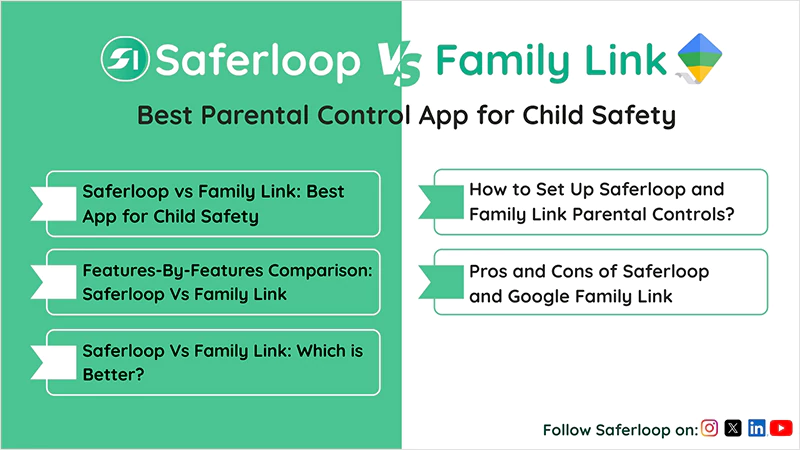
Both Saferloop and Google Family Link parental controls offer advanced tools to protect children from cyberattacks and inappropriate content.
Let’s review these parental controls to get deep insights into Saferloop Vs Family Link.
1. Saferloop Parental Control App
| Ratings: ★★★★★ (5.0) Free Trial: Yes Price: $44.95/Year Platforms: Compatible with iOS and Android Best for: AI-powered web filters and real-time alerts |
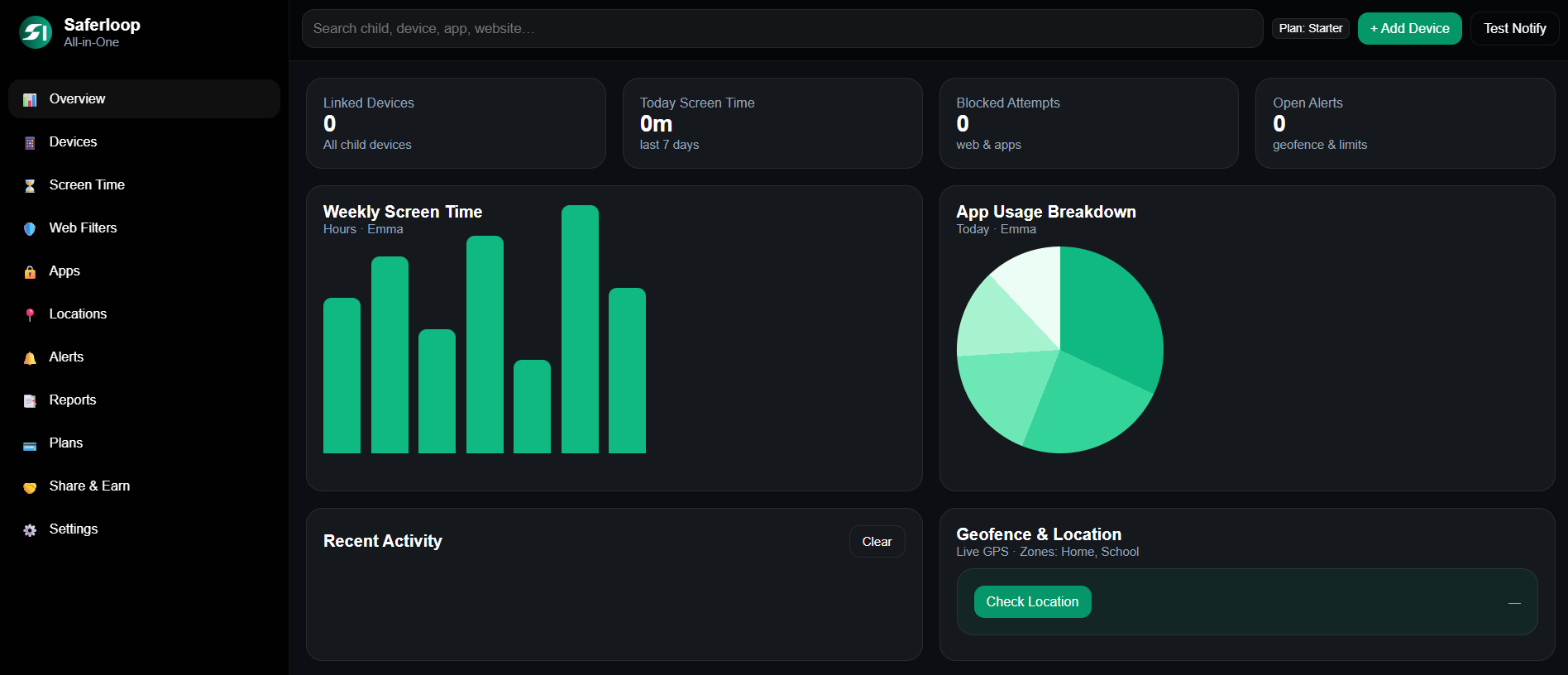
Saferloop parental control app offers top-notch solutions and tools to monitor and manage children’s online activities. These tools include content filtering, screen time limits, location tracking, and geofencing, which are compatible with both iOS and Android devices.
Moreover, it uses AI-powered automation to provide instant alerts for threats and create detailed reports of your kids’ digital footprints.
2. Google Family Link
| Ratings: ★★★★ (4.0) Free Trial: N/A Price: Free Platforms: Android and ChromeOS Best For: Effective screen time management |
Google Family Link is a free parental control tool that helps parents manage their kids’ digital space on Android and ChromeOS devices (iOS support is not available). You can utilize location tracking, content filter on YouTube and the Play Store, and screen time limits.
Additionally, it can approve or block app downloads and manage permissions to create a safe digital environment for your children.
How to Set Up Saferloop and Family Link Parental Controls?
Setting up Saferloop and Family Link parental control is a simple and quick process. Here, I’ve jotted down step-by-step guidance in great detail. So, take a look!
1. Saferloop Parental Control App
To set up Saferloop parental Control software, you should download the app > create accounts > link the devices, and customize all settings. Let’s dig deeper into the following section.
- Download the Saferloop parental control app on both the parents’ and the child’s devices.
- Create an account (Parent Login and Child Login) by entering your email address and password.
- On the parent device, go to the Devices in the menu bar and enter your child’s name and device model.
- Now, click on Generate Link Code, and a 6-digit code appears in the drop-down list.
- On a child’s device, go to the Pair option and enter the 6-digit code and your name.
- Click on Pair Now to connect the child account and a parent.
- Now, you can set screen time limits, block apps, filter web content, and much more from the parent account.
2. Google Family Link
To set up Google Family Link, you should download the app > create accounts > link the devices > customize all settings. You can check out the steps below in great detail.
- Download the Family Link app from the Google Play Store on your (parent) device.
- Click on Continue to confirm your email address.
- Now, tap on Yes to ensure your child has a Google account.
- The in-app step guidance appears on the screen. Follow those.
- On your child’s device, open the Settings app and click on Google.
- Then, scroll down and tap on Parental Controls.
- Now, click on “Let’s do this” and “Supervise account” to set up parental control.
- Tap on “Next” to finish the remaining few steps.
- Enter your email or phone and password to supervise your child.
- Now, set a password to finish setting up supervision.
- After that, hit the Next button and allow supervision.
- Review the settings and click on the “Next” and “Done” buttons.
- Back to your (parent) device, click on Done after completing the in-app guidance process.
- Finally, you can set up a daily limit, downtime, restrict content, and much more.
Also Read: 10 Best Parental Control Apps for Families: Features, Benefits, and Top Picks
Features-By-Features Comparison: Saferloop Vs Family Link
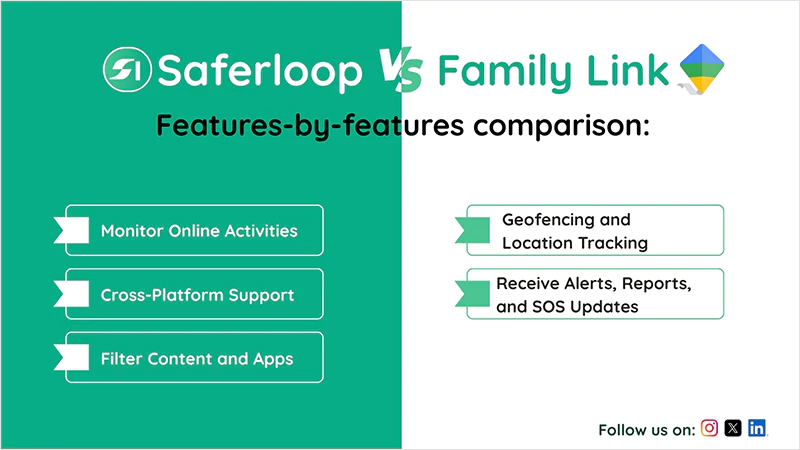
You should deep dive into the features-by-features comparison to understand which app serves better facilities to your little ones.
That’s why I’ve mentioned some common features of Saferloop and Family Link in detail.
| Features | Saferloop | Google Family Link |
| Monitor Online Activities | Directly monitor texts and calls, and flag inappropriate content. | It doesn’t monitor text, calls, and posts individually. |
| Cross-Platform Support | Compatible with both iOS and Android devices. | Only supports ChromeOS and Android devices. |
| Geofencing and Location Tracking | It offers robust real-time location tracking and geofence alerts. | Sometimes, the app lacks in depicting the real-time location of a kid. |
| Filter Content and Apps | Provide AI-powered content filtering to block age-inappropriate images and videos. | The free basic version doesn’t offer top-notch content filters. |
| Receive Alerts, Reports, and SOS Updates | Offers weekly report, sends alerts, and SOS updates if suspicious activity is detected. | The emergency alerts and SOS updates may be delayed due to the basic processor. |
1. Monitor Online Activities
Saferloop offers in-depth monitoring, including app usage, flagging cyberbullying, managing texts and calls, restricting inappropriate content, and sending alerts if something suspicious is detected.
In addition, Google Family Link sets screen time and blocks apps for protection. But it can’t monitor messages, DMs, and posts on Instagram or WhatsApp.
2. Cross-Platform Support
It is important to have cross-platform support to supervise multiple devices together, and Saferloop allows you to control iPhones, iPads, Laptops, MacBooks, and Android devices, all at once.
However, Google Family Link is limited to Android and Chrome OS and doesn’t support iOS devices. Moreover, it does not even work on non-Chromebook computers.
3. Geofencing and Location Tracking
On Saferloop, you can easily track the real-time location and create digital boundaries to receive alerts when your kids enter or leave the area. It helps you to keep track of the locations where your kids roam.
Additionally, Family Link parental control provides geofencing alerts to the parents. But it lacks in depicting the real-time location of a kid.
4. Filter Content & Apps
Saferloop features advanced and deeper web content filtering on devices to restrict age-inappropriate images and videos. Meanwhile, Google Family Link’s free basic version lacks robust content filtering and relies heavily on setting filters on Chrome and YouTube.
5. Receive Alerts, Reports, and SOS Updates
Saferloop helps parents not to put effort into keeping an eye on their children’s devices. It sends emergency alerts, weekly reports, and SOS updates on your devices if unusual activity is suspected.
However, the Google Family Link free app doesn’t support robust features and sometimes fails in giving real-time updates, alerts, and reports on your children’s activities.
Also Read: How Parental Control Helps to Protect Children on Social Media?
Pros and Cons of Saferloop and Google Family Link
“Every coin has two sides.” Therefore, Saferloop and Google Family Link have some benefits and drawbacks in their own field.
So, take a look at the pros and cons of each app to decide which one is suitable for you.
1. Saferloop Parental Control Software
Here, you’ll discover the advantages and drawbacks of the Saferloop parental control software.
| Pros | Cons |
| The platform has an AI-powered mechanism to automatically detect and restrict explicit content on social media apps. | The free version has a limited suite of tools, and advanced features require premium packages. |
| It is compatible with both iOS and Android devices and supports MacBooks, laptops, tablets, and iPads on account. | It totally feels like spying or controlling children’s digital space if parents don’t encourage open communication. |
| Have real-time GPS tracking and send emergency alerts when kids enter or leave the goefencing area. | |
| Saferloop also monitors website usage, phone calls, and text messages on Android and iOS devices. |
2. Google Family Link
Let’s review the pros and cons of the Google Family Link via the breakdown table.
| Pros | Cons |
| It is a completely free parental control that helps parents to safeguard their kids without spending a single penny. | The platform is limited to Android and ChromeOS; it doesn’t support iOS devices. |
| This app approves or blocks apps, sets daily limits, schedules downtime, and enables SafeSearch in Chrome. | It doesn’t store past location data, so you can only see live location or geofencing. |
| Furthermore, it limits personalized ads for children’s accounts to protect them from unsuitable advertisements. | Children who are 13+ can disable all settings or supervision on themselves without parents’ concerns. |
| You can see your children’s real-time location and set “Family Places” for alerts from your smartphone. |
Saferloop Vs Family Link: Which is Better?
Selecting the right parental control app entirely depends on your personal preferences and needs. Still, I’ve shared some recommendations to help you decide between Saferloop and Family Link.
- If you want to opt for free parental control, Google Family Link is the right option for you. However, it is important to note that the free version lacks advanced safety tools.
- Saferloop offers AI-powered automation to detect and manage online activities and provides 24/7 customer support to its users.
- Moreover, Saferloop provides location history, robust content filtering, and compatibility with iOS and Android devices, which Google Family Link doesn’t support.
Also Read: Best Parental Control App for iPhone: Every Parent Must Know About
Conclusion and Recommendations
On the whole, choosing the smartest parental control app is essential for protecting kids from cyberattacks and online fraud. That’s why I recommend acknowledging the information mentioned in this write-up to make the right decisions for your children’s safety and privacy.
Author’s note:
I have been using Saferloop parental control for the last 3 months, and it provides comprehensive coverage with ease. What I love the most is customizing all settings from my iPhone for my children’s Android mobile.
On the other hand, if you are a fan of free parental control features, Google Family Link helps you with basic safety measures.
Frequently Asked Questions
Q: Is there a better app than Family Link?
Q: How to set up Saferloop parental control?
Ans: You should download the app on both parents’ and children’s devices > create accounts > link the devices > customize all settings to set up parental control software.
Q: At what age does Google Family Link stop working?
Ans: Google Family Link will stop working when your kid is 13+. After 13, your child is allowed to disable all supervision activities.
Q: What is the safest parental control app?
Ans: Saferloop is the safest parental control app, as it provides AI-powered security features to restrict cyberattacks, spammers, and predators.
Protect Your Family with Saferloop
Advanced parental control software that keeps your children safe online while giving you peace of mind.
- Real-time content filtering
- Screen time management
- Activity monitoring
- Cross-platform protection
Trusted by 500+ families