
Ans: Yes, you can put parental controls on Pinterest to protect your kids from online dangers. But you can also install the Saferloop parental control software for additional security.
×
Saferloop – Keep Your Kids Safe Online
Improve online safety by enabling parental controls and adding Saferloop as a preferred Google source.
Pinterest Parental Controls: How to Protect Kids with Safety Settings & Privacy Features
Pinterest is full of aesthetically beautiful pictures to make your profile perfect. But do you know the dark side of this website? It includes X-rated content, making it harmful for children. That’s why you need to activate Pinterest parental controls to ensure safety and privacy.
To help millennial parents, I’ve compiled essential information on what Pinterest is, why it is popular, safety features, setup guidance, online risks, alternatives, and safety tips for parents.
Let’s go ahead!
Quick Answer:
Pinterest parental controls include privacy settings, parental passcode, message controls, secret boards, content recommendations, and blocking features that help make the platform safer for teenagers. Since Pinterest isn’t designed for children under 13 and built-in controls have limitations, parents should also consider using parental control software for stronger protection against inappropriate content and online threats.
Table of Contents:
What is Pinterest?
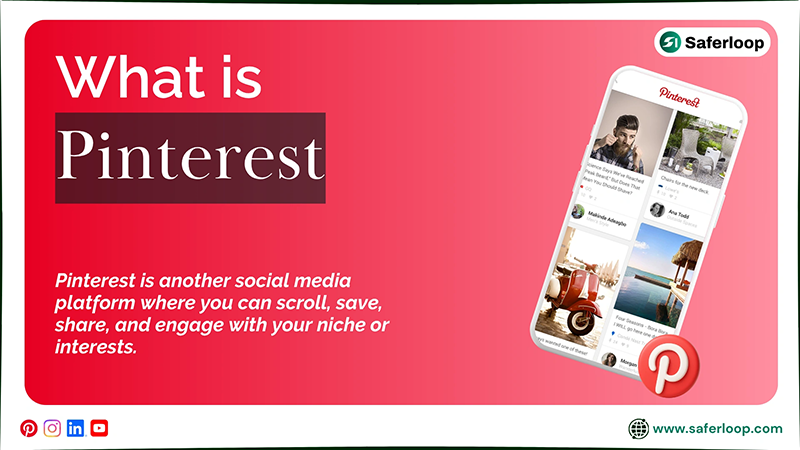
Pinterest is another social media platform where you can scroll, save, share, and engage with your niche or interests. You can think of it as your digital vision board.
Home decor, DIY (do it yourself), fashion, cooking recipes, food, quotes, tattoos, and other aesthetic images casually roam in your feed. You can simply get inspiration from these photos or upload your own content to inspire other users.
It was launched in March 2010 with the aim of providing a digital pinboard for people around the world. In 2026, the app had nearly 631 million active users, highlighting its popularity among youths and Gen Z.
But online predators or pedophiles also make Pinterest their home to take advantage of innocent children, like other platforms. That’s why you need to focus on Pinterest parental controls to protect your kids.
How to Set Up Pinterest Parental Controls?
Pinterest parental controls offer a parental passcode feature to lock settings and other activities on teenagers’ accounts. It works for teens under 18 years old. This helps you monitor your children’s Pinterest accounts deeply.
Here, I’ve mentioned how to set up Pinterest parental controls to protect your little ones.
1. Set Up a Parental Passcode
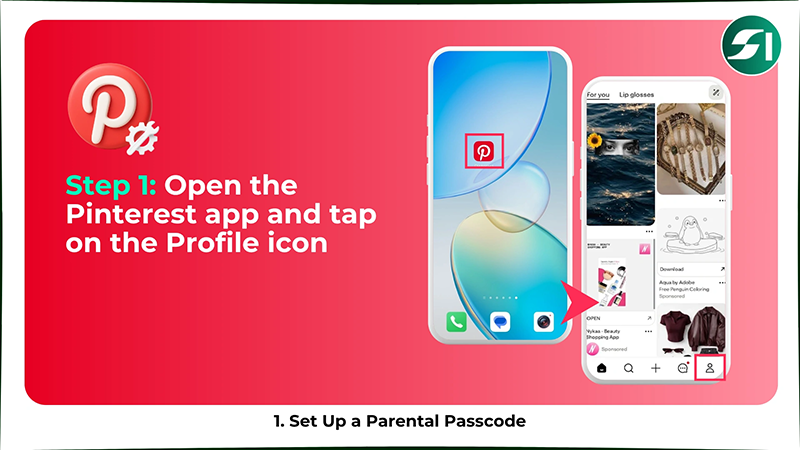
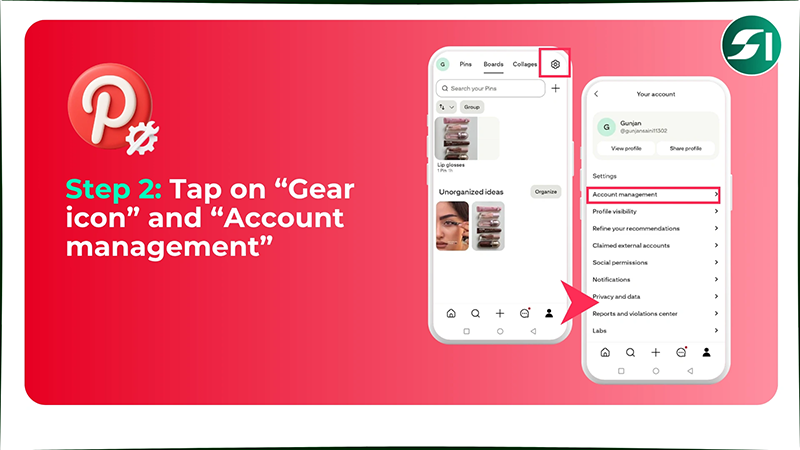
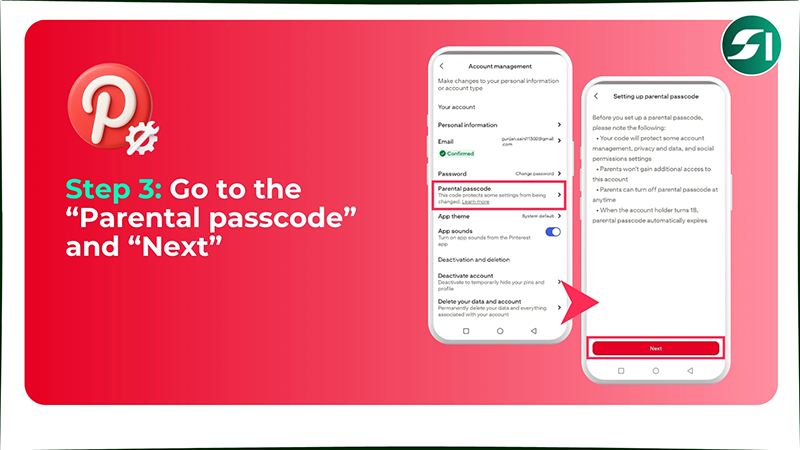
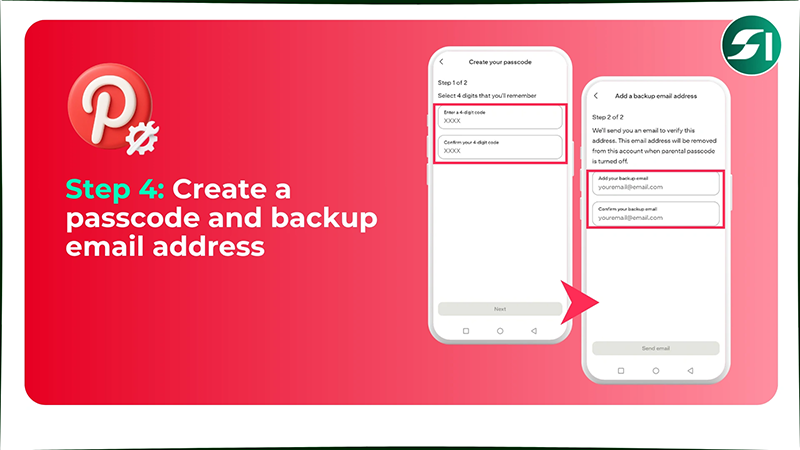
To set up a parental passcode on Pinterest, you should open the app > Profile icon > Gear icon > Account management > Parental passcode > create a password, and add a backup email address.
Here are the steps on how to set up a parental passcode on this app.
Step 1: Open the Pinterest app on your phone and tap on the “Profile icon.”
Step 2: Tap on “Gear icon” and “Account management.”
Step 3: Go to the “Parental passcode” and “Next.”
Step 4: Now, create your passcode and add a backup email address.
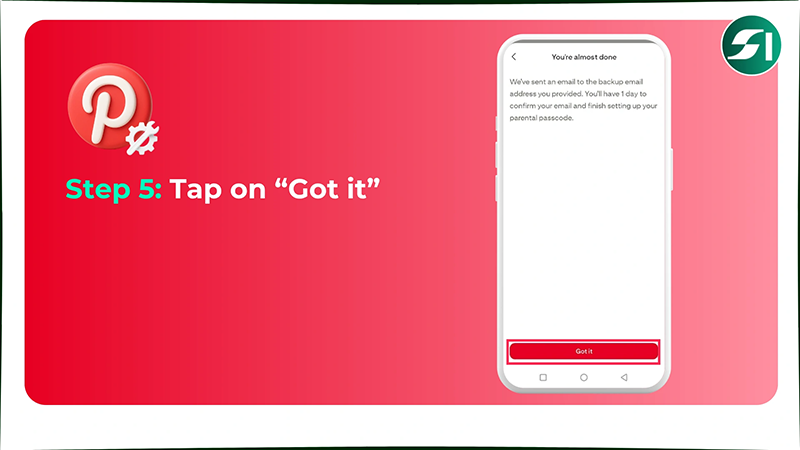
Step 5: At last, you’re almost done setting up a parental passcode. Tap “Got it.”
2. Set the Account to Private
To set the account private, you should open Pinterest > Profile icon > Gear icon > Profile visibility > turn on Private profile and search privacy.
Here are the steps on how to set the account private using Pinterest parental controls.
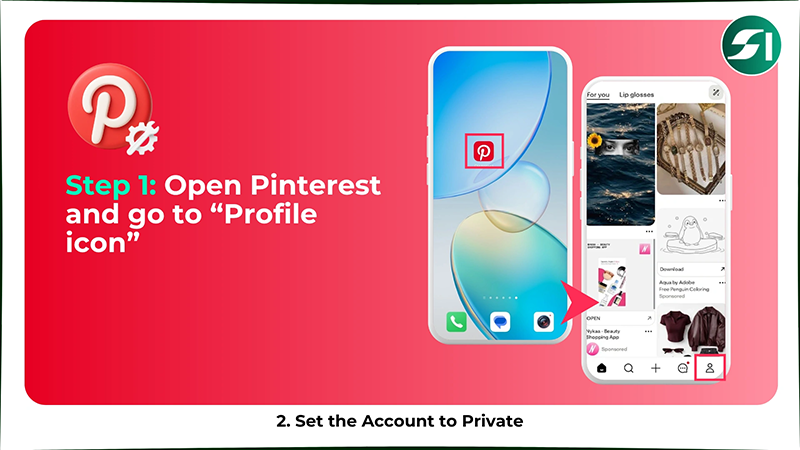
Step 1: Open the Pinterest app on your phone and go to the “Profile icon” in the bottom right corner.
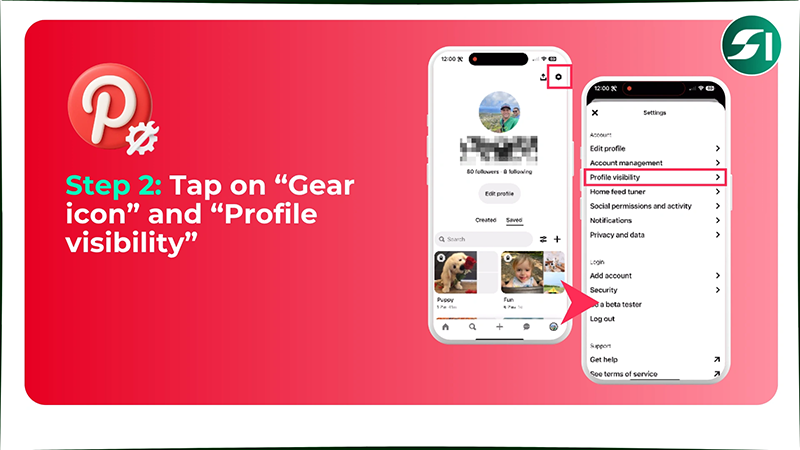
Step 2: Tap on “Gear icon” and “Profile visibility” to proceed further.
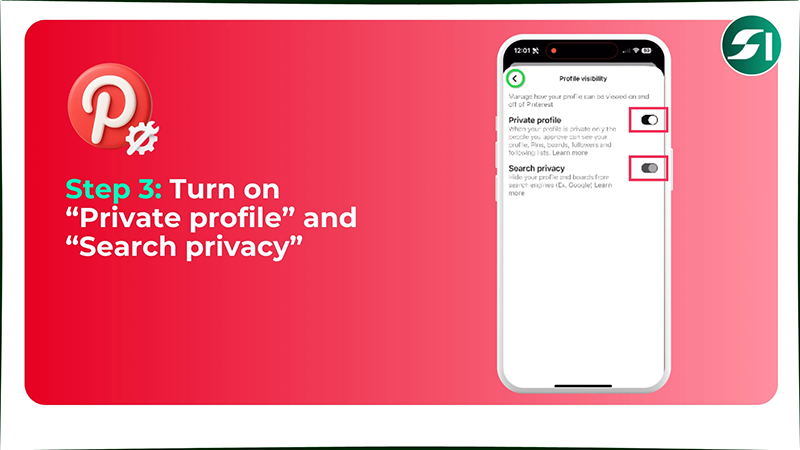
Step 3: Now, turn on the toggle switches of both “Private profile” and “Search privacy.”
Note: A Pinterest business account can’t be private. First, turn it into a personal account to make it private.
3. Turn Off/On Messages
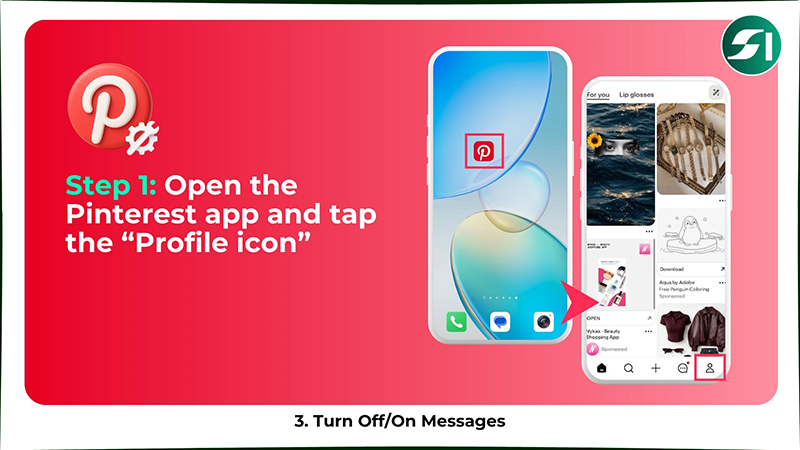
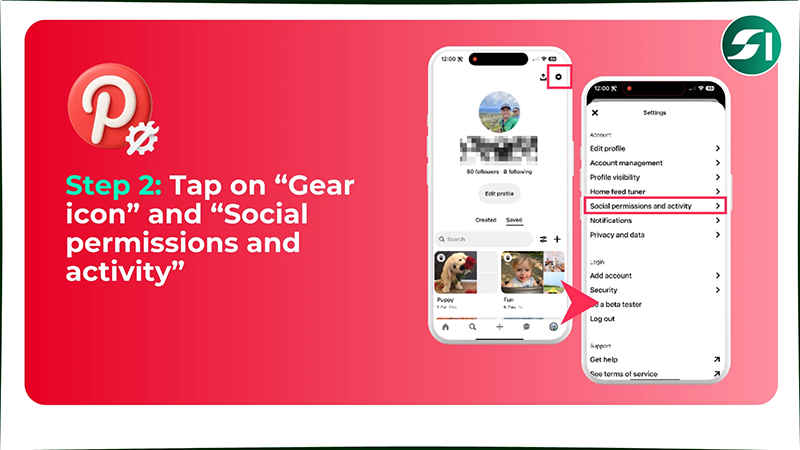
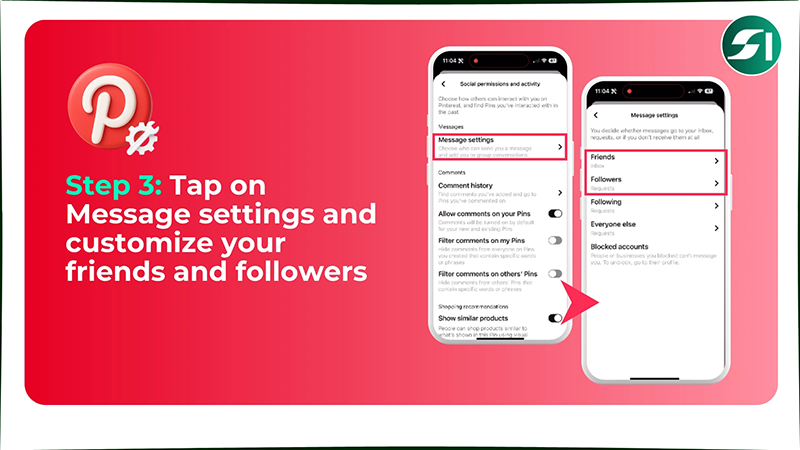
To turn off/on messages on Pinterest, you should open the app > Profile icon > Gear icon > Social permissions and activity > Message settings > change settings in “Friends, Followers, Following, and Everyone else.”
Here are the steps to turn messages on or off on Pinterest in great detail.
Step 1: Open your Pinterest account and tap on your “Profile icon.”
Step 2: Tap on the “Gear icon,” followed by “Social permissions and activity.”
Step 3: Tap on “Message settings” and go to “Friends, Followers, Following, and Everyone else” options to customize your turn-on/off messages.
4. Manage Your Kids’ Home Feeds
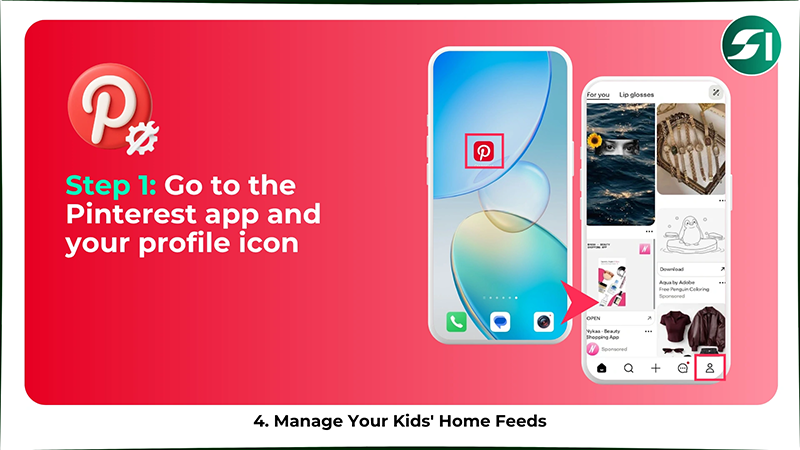
To manage your kids’ home feed, you should open Pinterest > Profile icon > Gear icon > Refine your recommendations > Uncheck all pins.
Here are the steps on how to manage your kids’ home feeds.
Step 1: Go to the Pinterest app and your “profile icon.”
Step 2: Tap on “Gear icon” and “Refine your recommendations.”
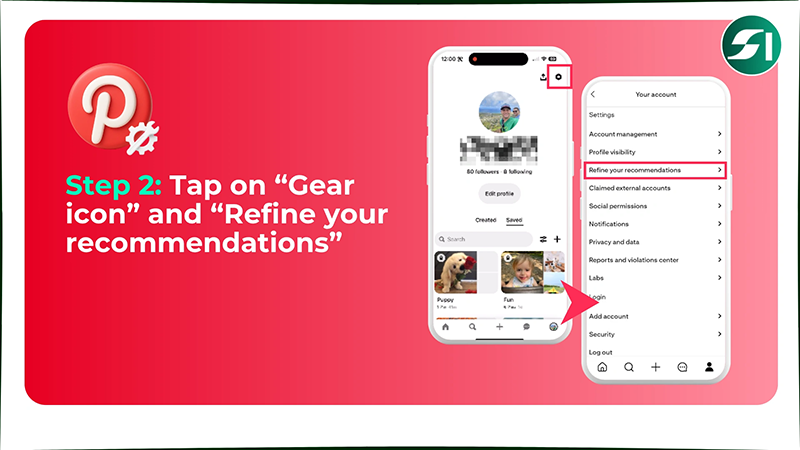
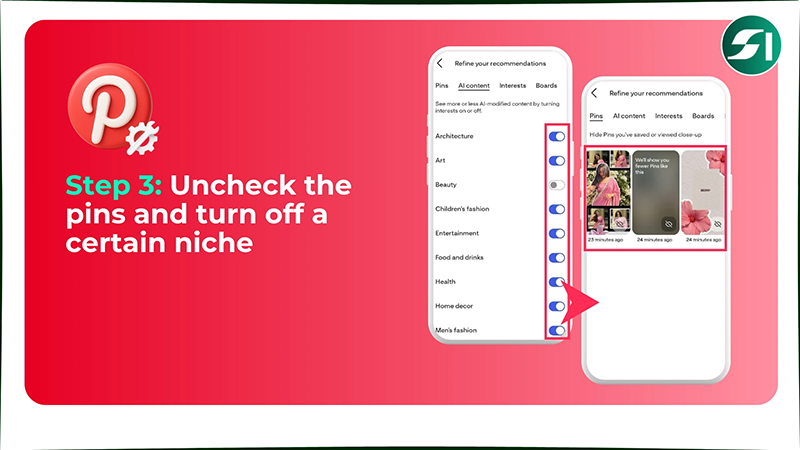
Step 3: In the “Pins” option, you can uncheck the content you don’t want to see. Also, in the “AI content” option, you can turn off the toggle switch to hide a particular niche.
5. Block and Report Someone
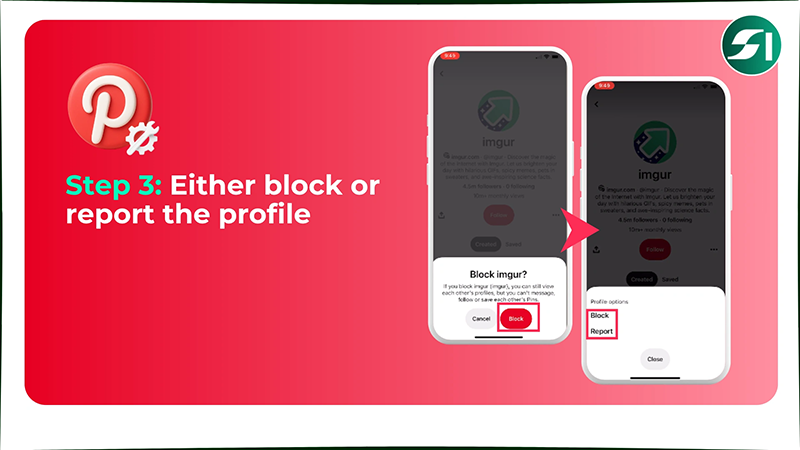
To block and report someone on Pinterest, you should open the app > select the pin > main profile > three horizontal lines > block and report.
Here are the detailed steps on how to block or report a profile on Pinterest.
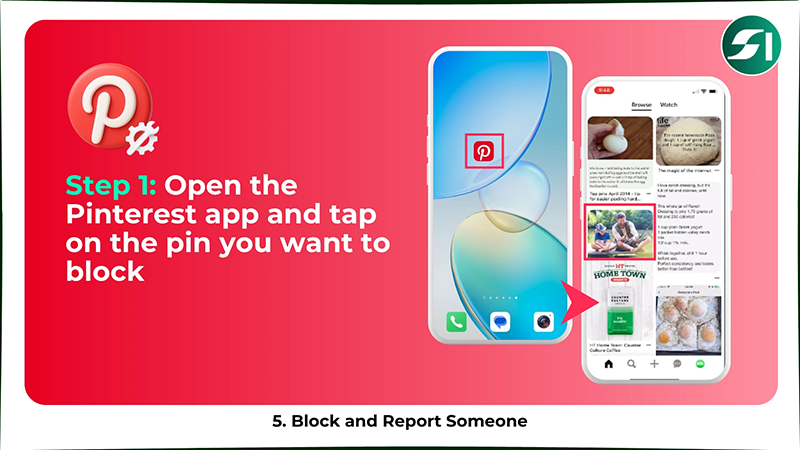
Step 1: Open the Pinterest app and select the pin you want to block or report.
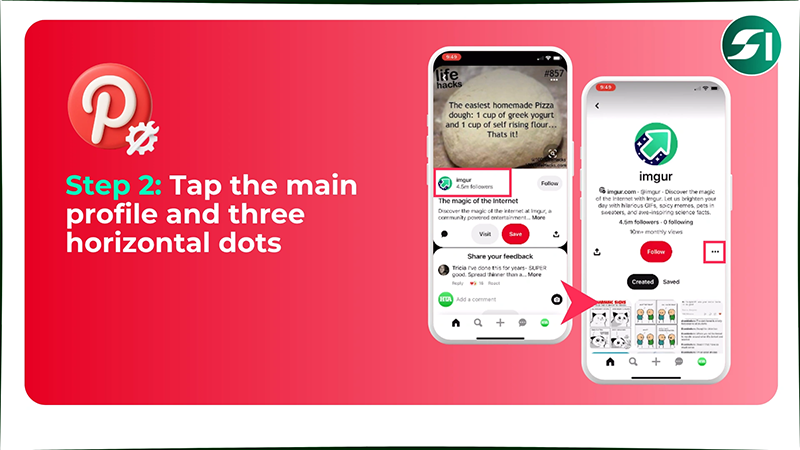
Step 2: Tap on the main profile to open it and then hit the three horizontal dots.
Step 3: Now, you have two options available: Block and Report. Tap on either block or report based on your preferences.
6. Enable Secret Boards
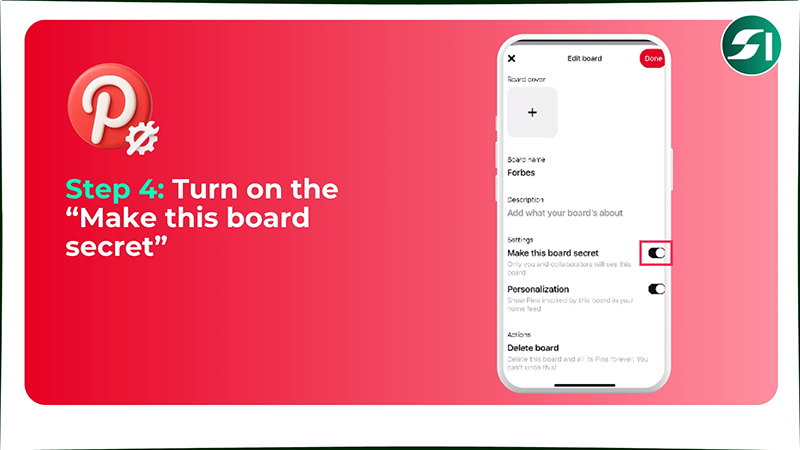
To enable secret boards on Pinterest, you should open the app > Profile icon > select the board > three horizontal lines > Edit board > turn on “Make this board secret.”
Here are the simple steps on how to make secret boards using Pinterest parental controls.
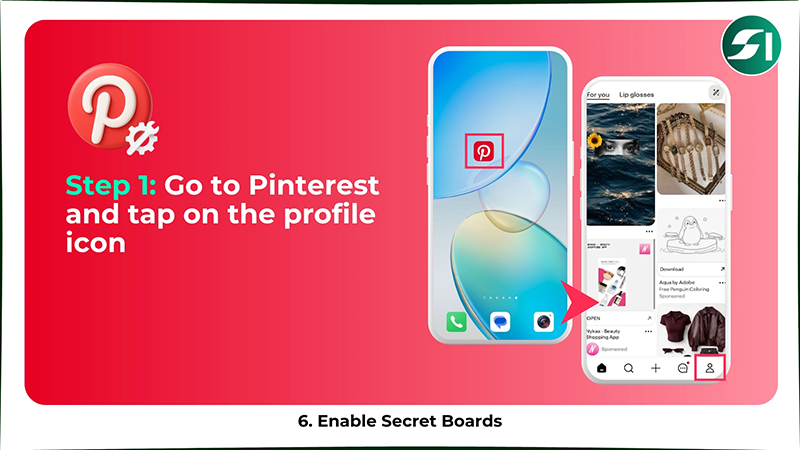
Step 1: Go to the Pinterest app and tap on your “Profile icon.”
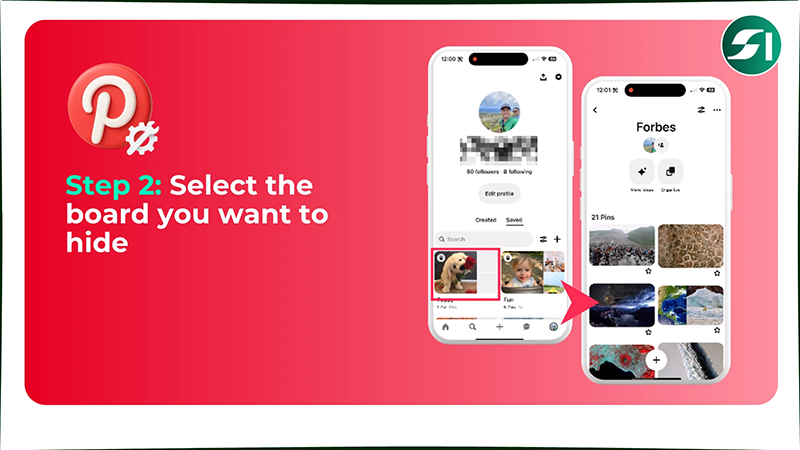
Step 2: When your profile opens, select the board you want to hide.
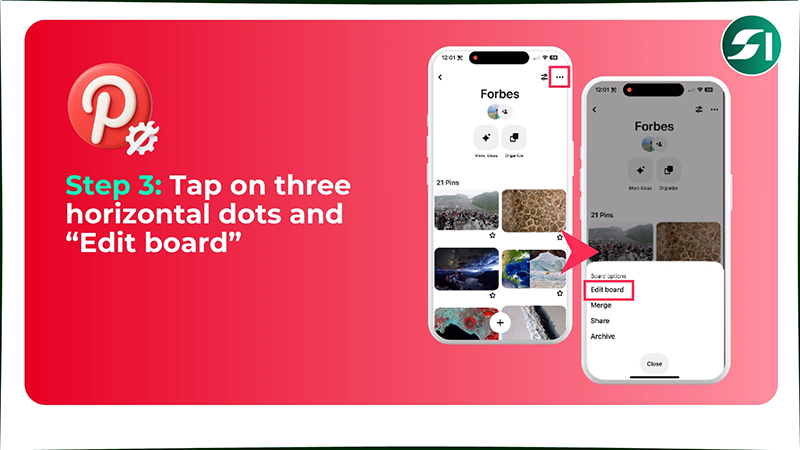
Step 3: Tap three horizontal dots in the top-left corner, then go to the “Edit board.”
Step 4: Now, turn on the toggle switch of “Make this board secret.”
Is Pinterest Safe for Kids?
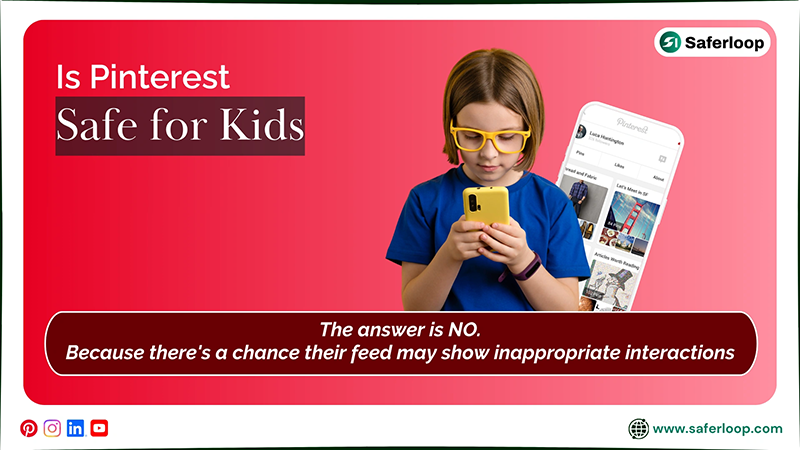
No, Pinterest is not safe for your kids because there’s a chance their feed may show adult content and inappropriate interactions.
Let’s understand, with an example, how Pinterest can be harmful to your innocent little ones!
According to NBC News, many people use pornographic and sexualized content on their boards, especially young girls, with descriptions like “sexy little girls” or “delicious.”
This can attract predators to harm your kids and damage their self-esteem, confidence, and public image. They have no idea how they’re being used on Pinterest.
That’s why I advise you to keep your children away from this website, otherwise use Pinterest parental controls. Also, you can use the Saferloop parental control software to protect your kids from online threats and explicit content.
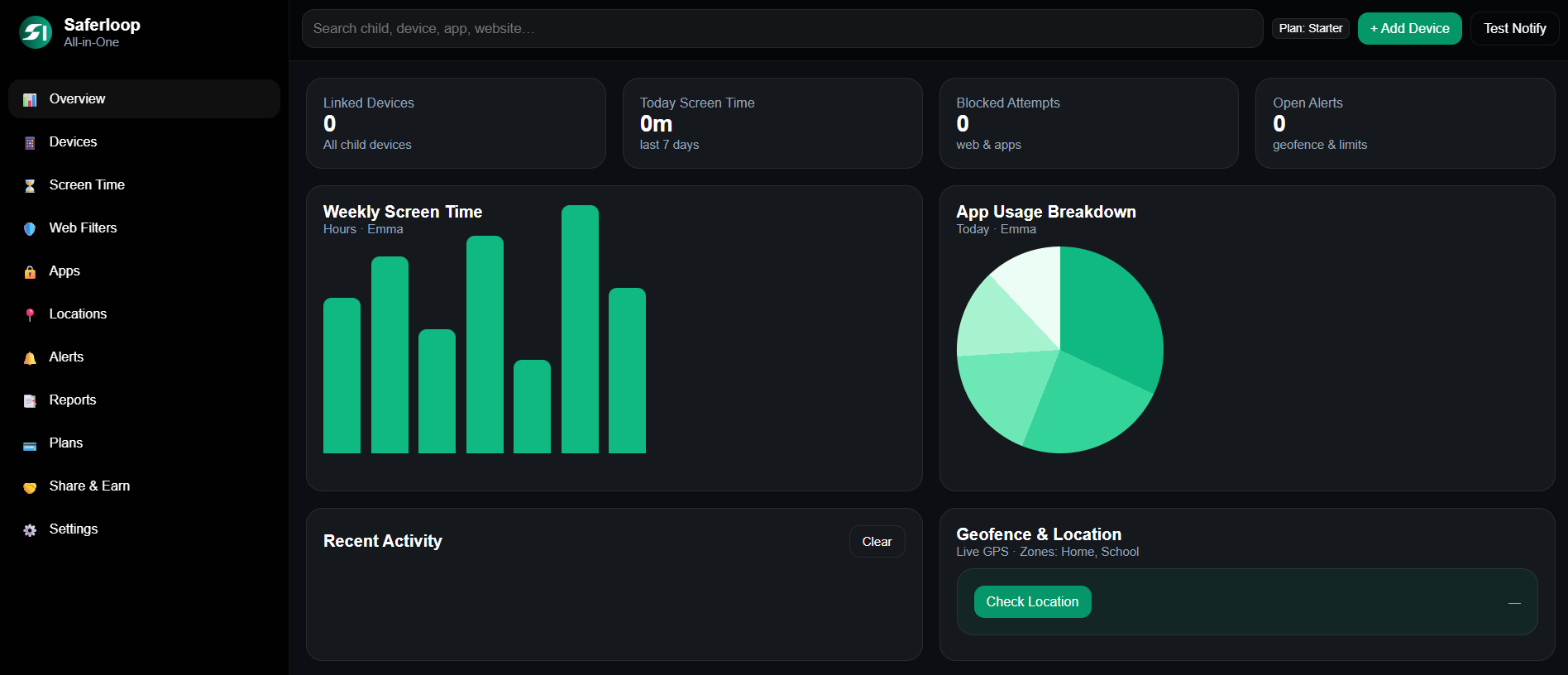
It offers many safety features, such as the following:
- Monitor your kids’ online activities to have an idea of what they’re doing on digital platforms.
- Set screen time limits to decrease your children’s device usage and encourage healthy habits.
- Track real-time location and receive geofencing alerts when they reach or leave the place.
- Block unsafe apps and websites to prevent harmful content from reaching children’s feeds.
- Provide the Saferloop safety checkup extension for Chrome to create a safe digital environment.
- Offer the Saferloop GPT version that answers all your queries related to digital parenting issues.
- Send reports, SOS updates, and emergency alerts if something suspicious is detected in your kids’ devices.
On the whole, you can use the Saferloop parental control software to protect your children from cyberattacks.
Also Read: TikTok Guide: Features, Parental Controls & Safety Tips
Online Risks of Using Pinterest for Kids
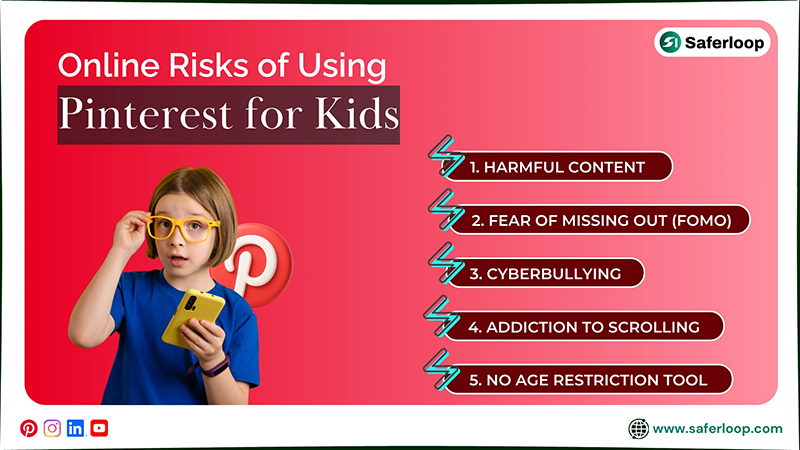
Online risks of using Pinterest for kids are harmful content, a sense of fear of missing out (FOMO), cyberbullying, addiction to scrolling, and no age restriction tool.
Let’s take a close look at how these risks can be dangerous for your children.
1. Harmful Content
As I already mentioned, Pinterest also contains adult and explicit content or images, which can be harmful for young users. The interaction with X-rated content at an early age can disturb their minds and lower their confidence.
2. Fear of Missing Out (FOMO)
The creative photos and fashion looks make your children feel FOMO and compare their lifestyle with social media trends. This can create pressure and force them to be in someone’s shoes, affecting their mental peace.
3. Cyberbullying
If your little ones share their art and craft or ideas on their profile, they might be mocked by some useless fellows. It means that they become victims of cyberbullying, which downgrades their self-esteem and causes them to suffer from depression.
4. Addiction to Scrolling
Obviously, the algorithm works on what you liked most and shows you content related to it. This increases the chances that your kids spend time scrolling through photos on Pinterest and neglect other real-time activities.
5. No Age Restriction Tool
Pinterest allows users 13+ to access and use the app for security reasons. But the irony is that it doesn’t have built-in tools to check the real age of its users. So, children can lie about their ages and enter the website easily.
Also Read: What is Lemon8? A Parent’s Guide to Safety, Privacy Settings & Protecting Kids
How Do Parents Ensure Children’s Safety on Pinterest?
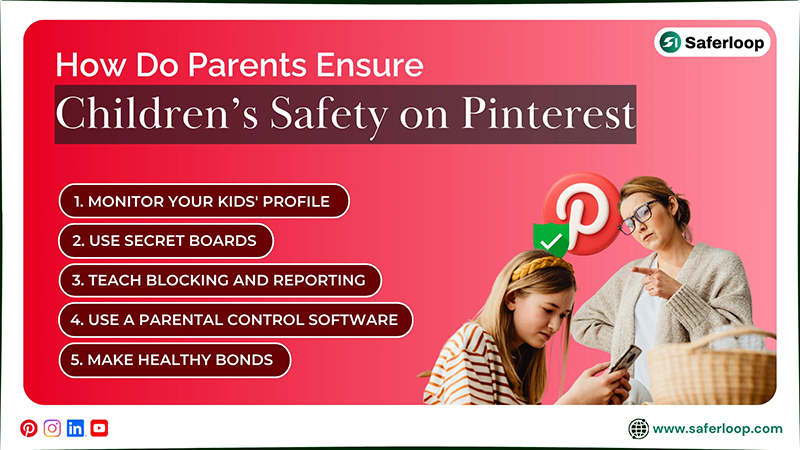
As a helicopter parent, you should monitor your kids’ profiles, use secret boards, teach blocking and reporting, use parental control software, and make healthy bonds.
Here, I’ve mentioned some pro tips to ensure your children’s safety on Pinterest.
1. Monitor Your Kids’ Profile
Don’t allow kids below 13 years old to use Pinterest. If they are above 13, you should always monitor their profile, what they share online, and with whom they can interact. It helps you to have an idea about how they use this website.
2. Use Secret Boards
You should encourage your kids to use secret vision boards. It means that their favorite people, friends, and family can view their content instead of strangers. It protects them from becoming victims of cyberbullying and predatory risks.
3. Teach Blocking and Reporting
It’s always the best idea to empower your little ones so that they make informed decisions when you’re not around them. So, you can teach them how to block or report someone from Pinterest to protect themselves.
4. Use a Parental Control Software
Most importantly, it’s not enough to sit and depend on the built-in Pinterest parental controls. That’s why you should install the best parental control app, like Saferloop, to protect your children on social media and other platforms.
5. Make Healthy Bonds
Don’t heavily rely on technology to keep your children safe. As a parent, you should try to build healthy relationships with your kids, gain their trust, and discuss their social circle. It really helps you supervise them about digital dangers closely.
Alternatives to Pinterest for Young Kids
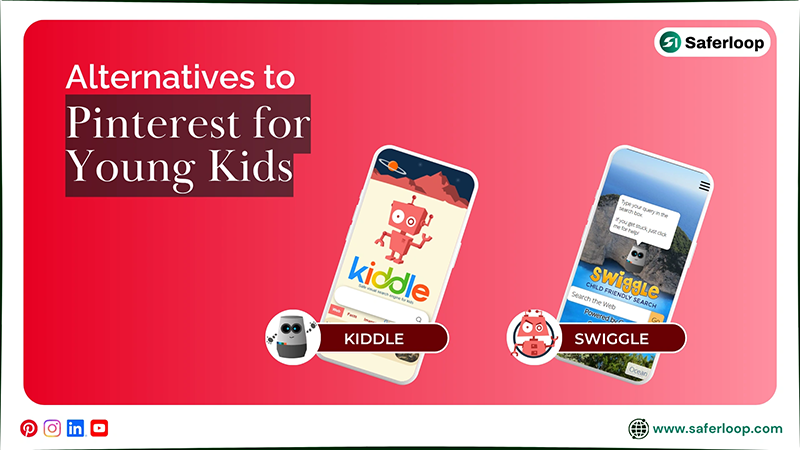
Alternatives to Pinterest for younger kids are Kiddle and Swiggle. These websites are especially designed for their safety and privacy.
So, take a look at these Pinterest alternatives!
1. Kiddle
Kiddle is a child-friendly search engine powered by Google SafeSearch. Editors double-check the results to ensure that your children will get safe and ad-free content.
2. Swiggle
Swiggle is another search engine that is designed for children aged 7- 11 for safe browsing. It also filters inappropriate content and shows relevant images for educational purposes only.
Wrapping Up!
Overall, you understand that Pinterest is really not a kid-friendly app, so you should keep them away from it. Alongside that, you can enable Pinterest parental controls and third-party Saferloop parental control software to enhance their protection online.
You can also focus on building healthy connections with your teenagers to gain their trust and monitor their activities carefully and closely. This way, you can make Pinterest safe for your little ones.
Author’s Note:
After discovering that Pinterest is not safe for kids, I suggest that you keep them away from this website. They can encounter cyberbullying, online threats, inappropriate content, and scammers.
That’s why I advise you to install the Saferloop parental control software to monitor their activities from your own phone. It offers screen time limits, app blocking, web filtering, location tracking, and much more to ensure your kids’ safety and privacy.
Believe me, it really impresses you and gives you peace of mind about digital parenting.
Frequently Asked Questions
Q: Can I put parental controls on Pinterest?
Q: Is there a way to block inappropriate content on Pinterest?
Ans: To block inappropriate content on Pinterest, tap and hold any pin > tap the Hide icon > select a reason > click See less like this.
Q: Should I let my 12-year-old kid have Pinterest?
Ans: No, you should keep your 12-year-old kid away from Pinterest because the app puts age restrictions on those below 13 years old.
Q: Does Pinterest have a dark side?
Ans: Yes, Pinterest has a dark side. You can encounter inappropriate content, pedophiles, and phishy links on this website.
Q: Can Pinterest be child-friendly?
Ans: No, Pinterest is not designed for children. Users who are 13 or 13+ can only access the site.
 Gunjan Saini
Cyber Safety & Parental Control Writer
About article
The author of this article Gunjan Saini, an Cyber Safety & Parental Control Writer at Saferloop, brings practical experience and industry knowledge to the subject.
The review and editing by Vinithra Karunanidhi have been done to make sure that it is accurate, clear, and relevant.
At Saferloop, we are determined to provide high-quality, well-researched, and updated content. To understand further how we produce and revise our articles, please refer to our Editorial Guidelines.
Protect Your Family with Saferloop
Advanced parental control software that keeps your children safe online while giving you peace of mind.
- Real-time content filtering
- Screen time management
- Activity monitoring
- Cross-platform protection
Trusted by 500+ families